If Windows Terminal is not working in Windows 11, you may not be able to open the app or it may close immediately after you launch it. It can happen due to various reasons such as corrupted settings, problems with the app files, a faulty startup profile, or an outdated version.
Follow the fixes mentioned below to troubleshoot the issue and get Windows Terminal working again.
Page Contents
Fix Windows Terminal Not Working in Windows 11
Fix 1: Open Windows Terminal Using a Different Method
First, check whether Windows Terminal or its shortcut is causing the problem. To do so,
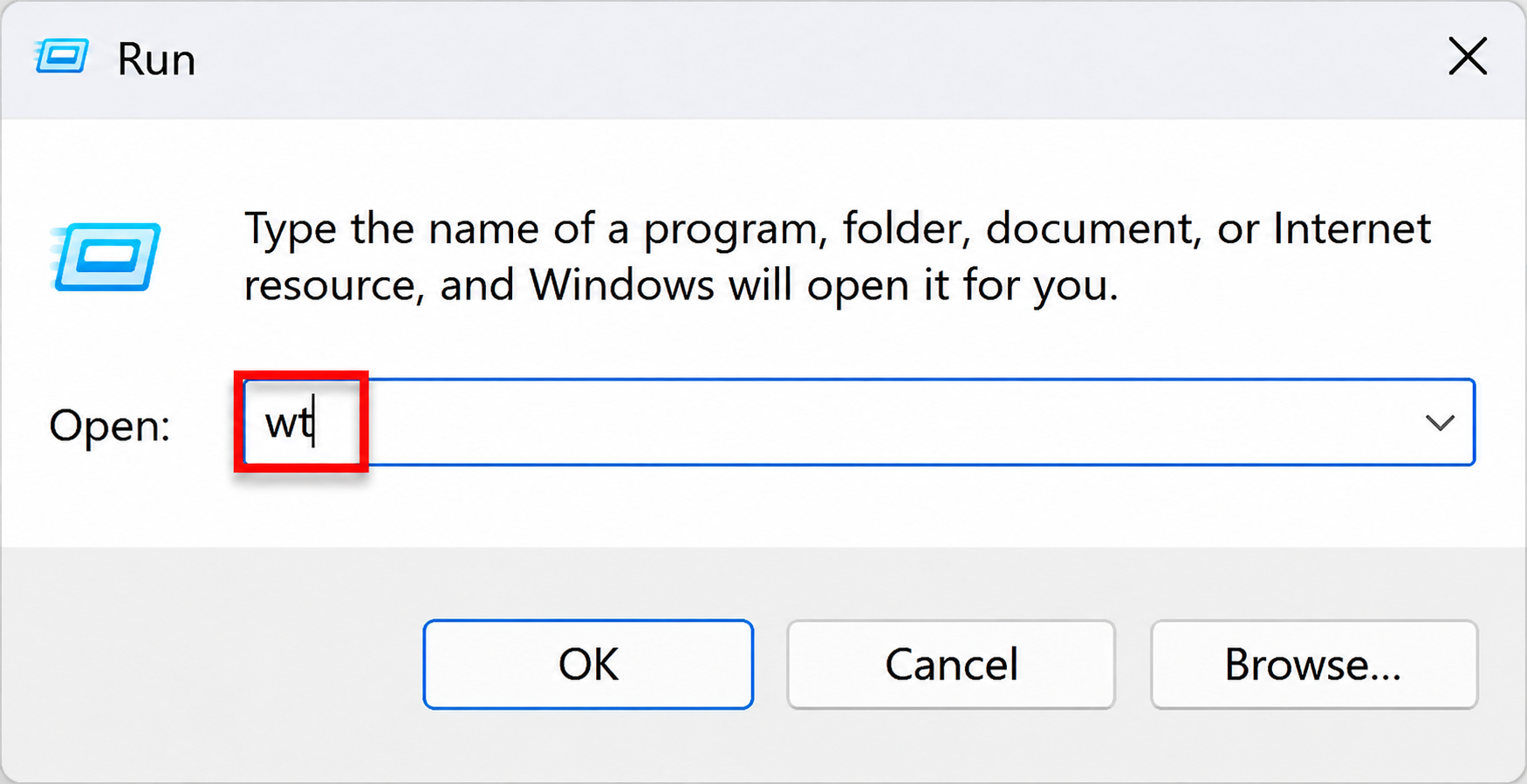
1. Press Win + R to open the Run dialog box.
2. Type wt and press Enter.
3. If Terminal does not open, right-click Start and select Terminal.
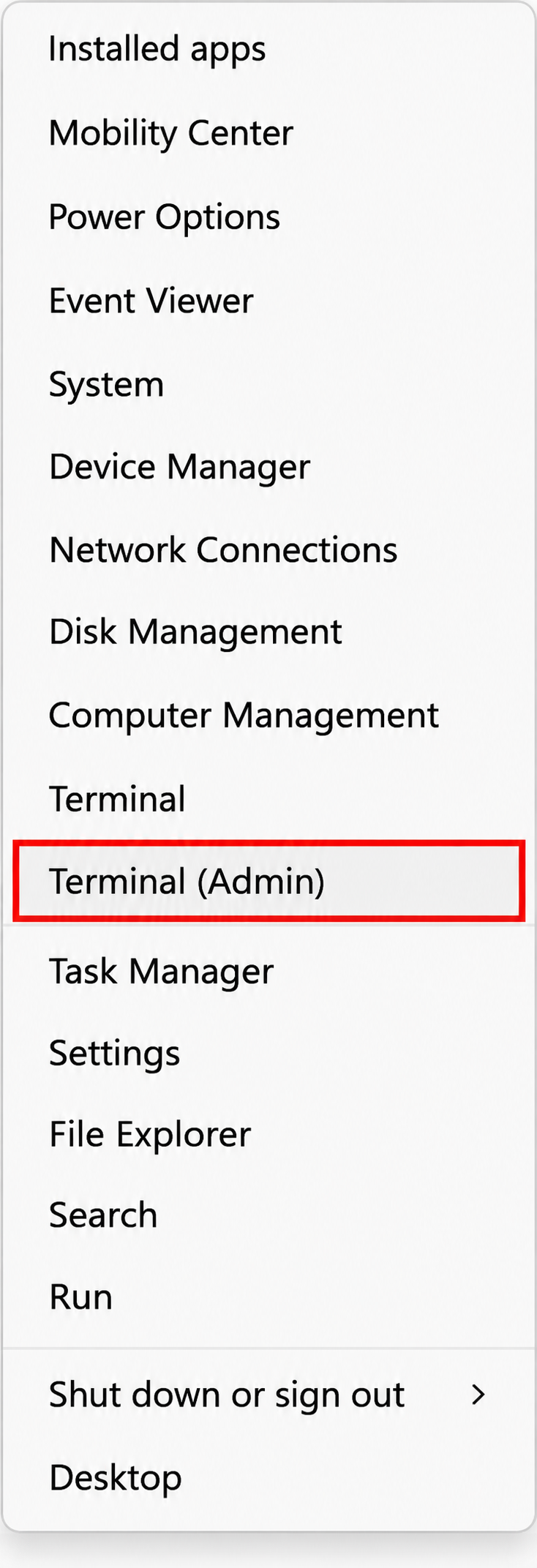
4. You can also try selecting Terminal (Admin) from the same menu.
5. Open Command Prompt and enter wt to check whether Terminal launches from there.
If Terminal opens, it means the app is working. The problem may be with the shortcut you are using. In that case, remove the old Terminal shortcut and create a new one from the Start menu.
Fix 2: Open Terminal Using Another Profile
Windows Terminal uses a default profile which command-line app will use when you launch it. If that app has a problem or is unavailable, Terminal may close immediately. To recitfy, try opening it with another profile.
1. Press Win + R to open the Run dialog box.
2. Enter the following command and press Enter: wt -p "Command Prompt"
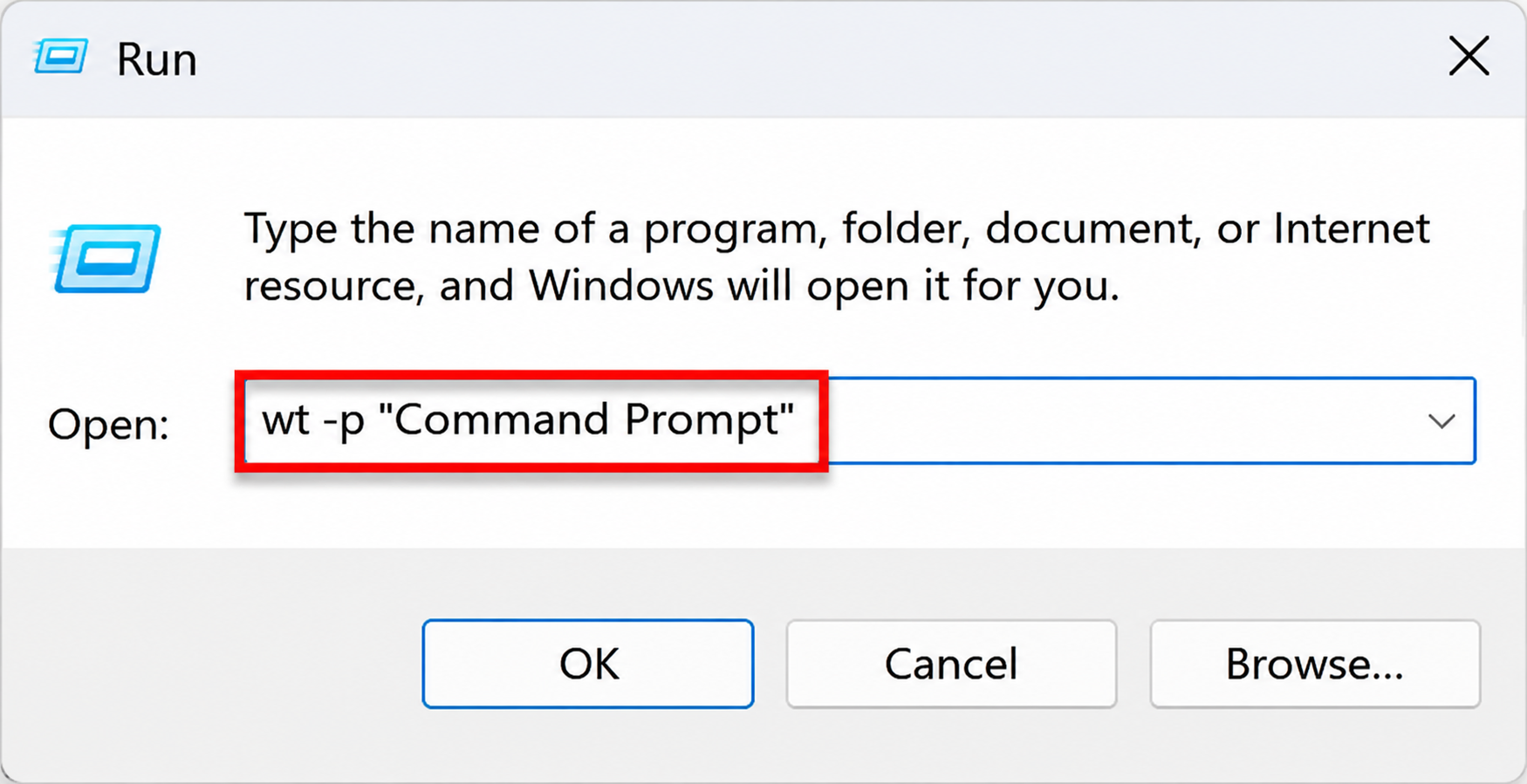
3. Check if Windows Terminal opens and if it stays on the screen.
4. In case if it works, you can open the dropdown menu next to the tab and select Settings.
5. Then select Startup.
6. Now under Default profile, select Command Prompt or Windows PowerShell.
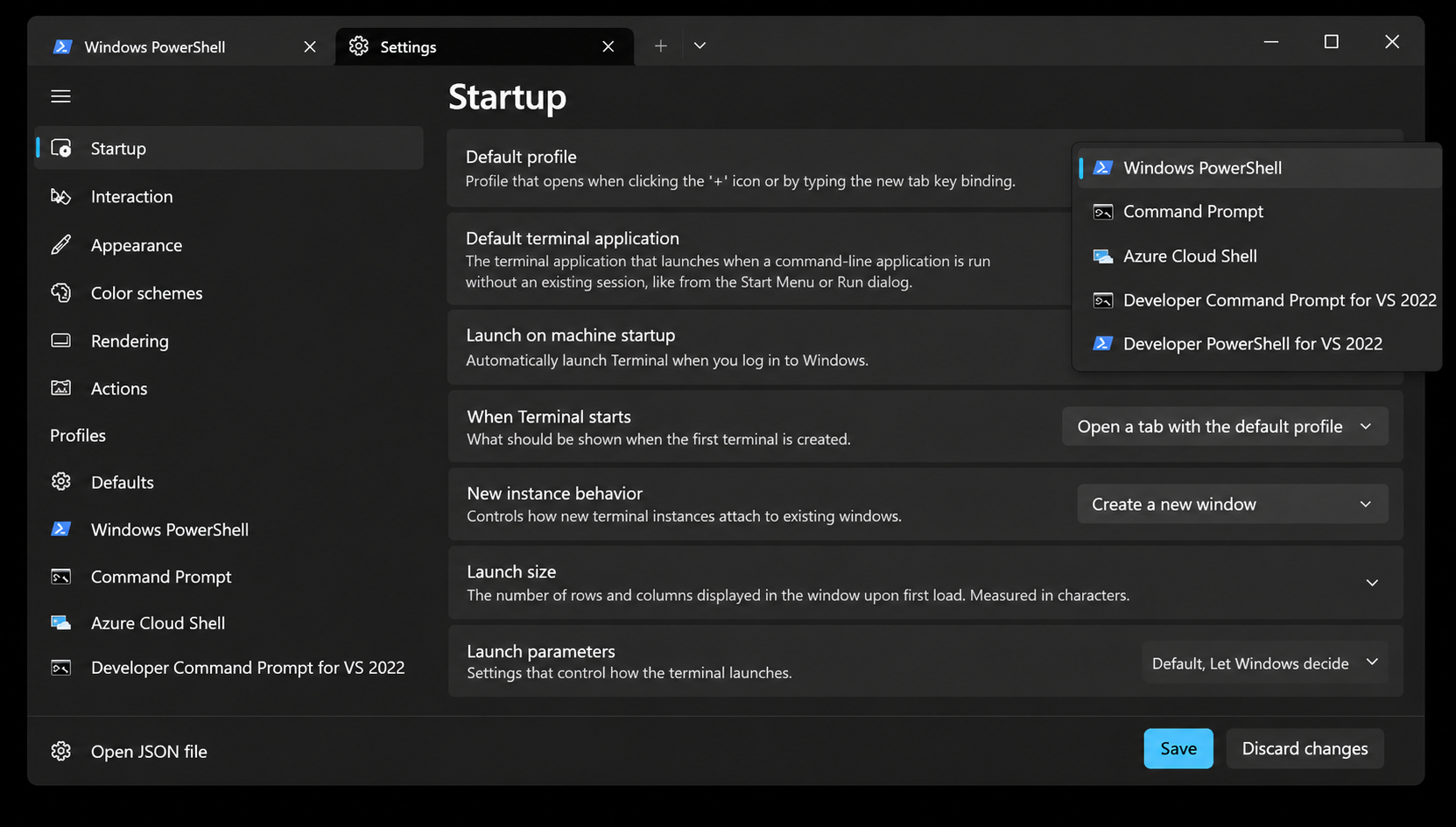
7. Click Save and close Terminal.
8. Open Windows Terminal again from the Start menu.
If Terminal stays open with the new default profile, the previous profile may have been causing the issue.
Fix 3: Reset Windows Terminal Settings Files
If there are any corrupted files, it will prevent Windows Terminal from opening correctly. If you move these files to another folder, Terminal creates fresh ones when it starts.
1. Press Win + R to open the Run dialog box.
2. Enter the following path and press Enter: %LOCALAPPDATA%\Packages\Microsoft.WindowsTerminal_8wekyb3d8bbwe\LocalState
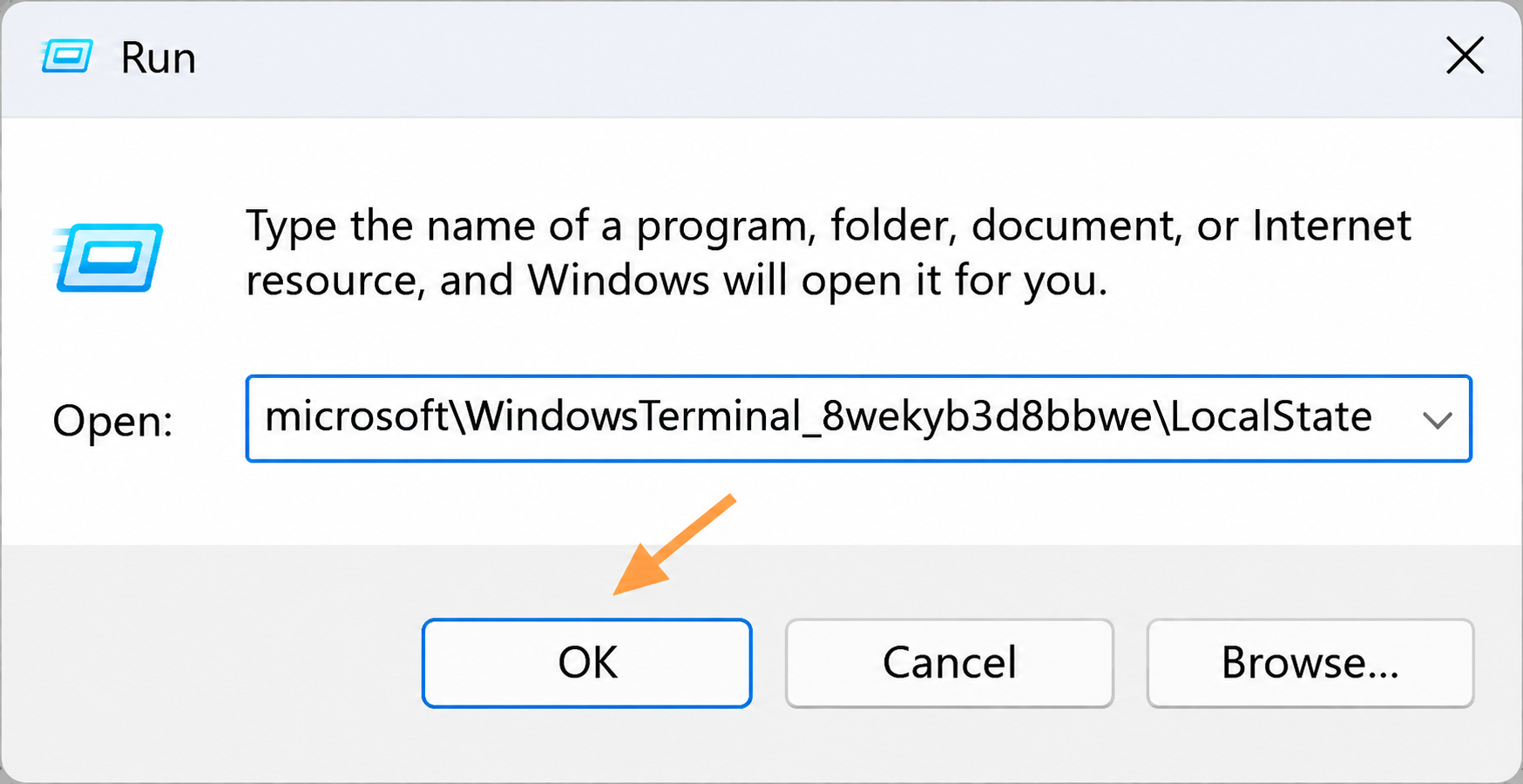
3. Create a new folder on your desktop and name it terminal-backup.
4. Find settings.json and state.json in the LocalState folder.
5. Move both files into the terminal-backup folder.
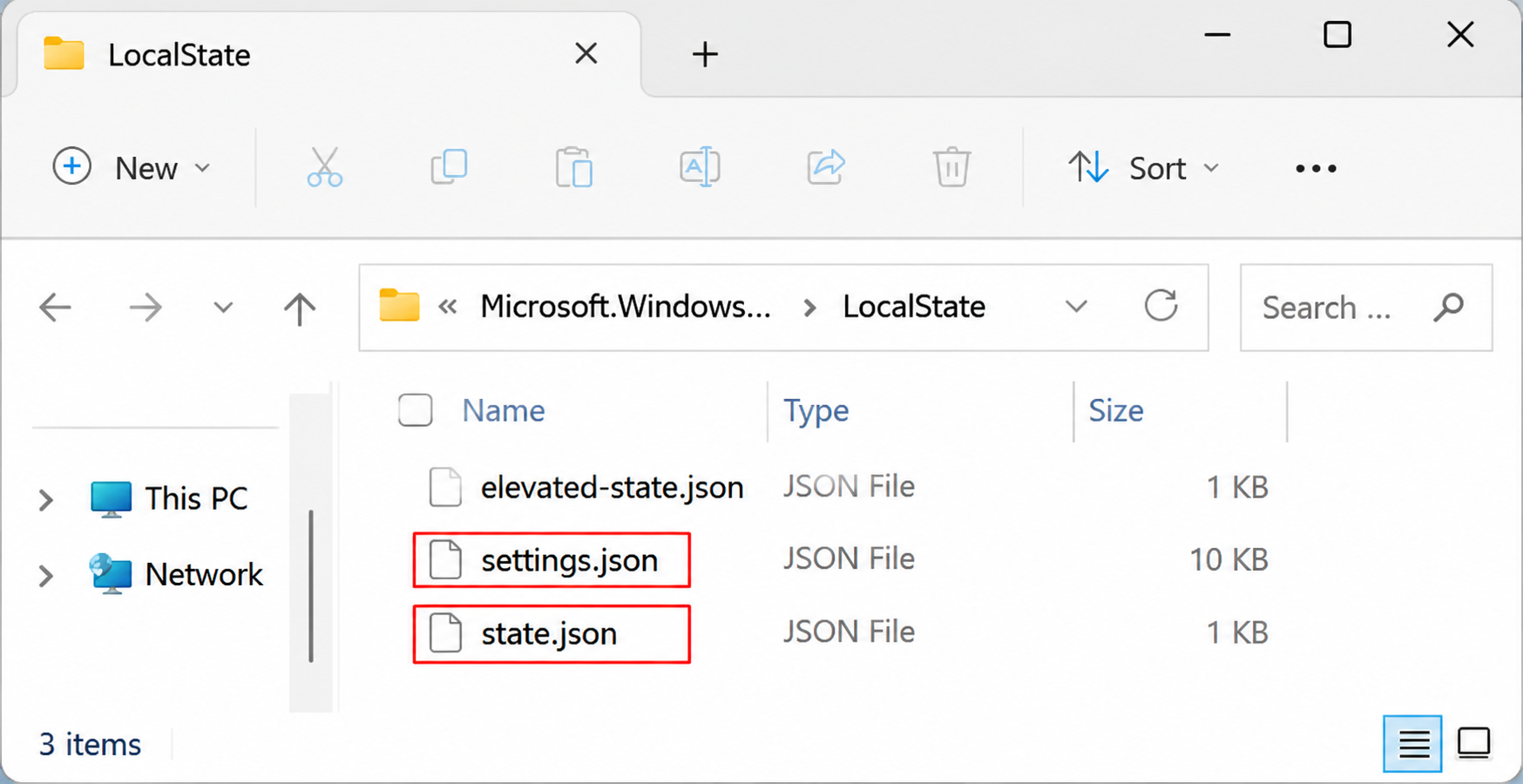
6. Then, press Win + R, enter wt, and press Enter.
When doing so, Windows Terminal should generate fresh settings files when it opens. Your application should work now.
Fix 4: Update Windows Terminal and Windows
If your have an outdated version of Windows Terminal, updating it helps resolve the issue.
1. Open Microsoft Store and select Library from the left sidebar.
2. Click Get updates.
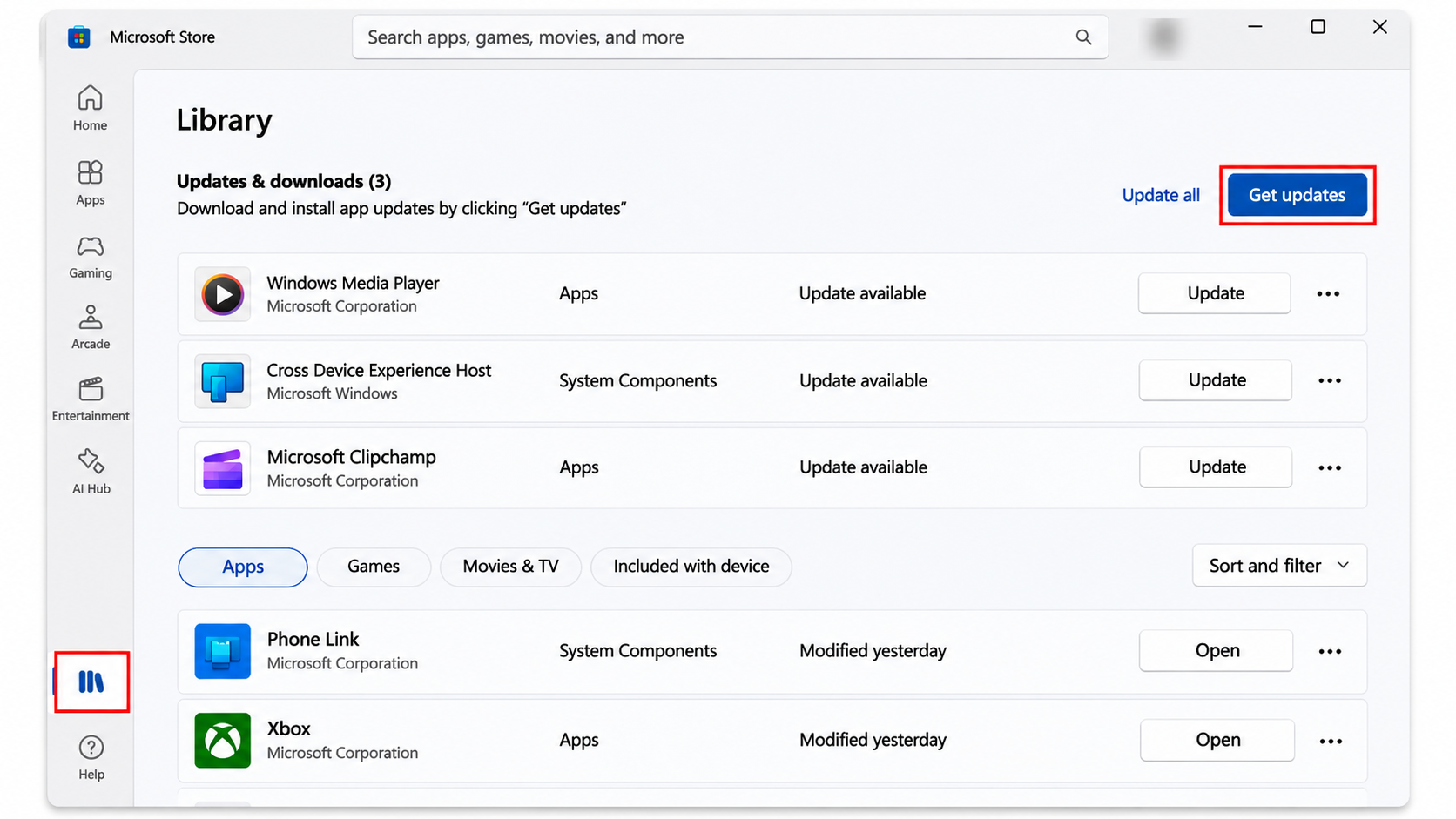
3. If Windows Terminal appears in the list, select Update.
4. Then, open Settings and select Windows Update. Click Check for updates.
Install the available updates and restart your computer.
Fix 5: Repair or Reset Windows Terminal
If the above step didnt help, try repairing through the Windows Settings.
1. Open Settings. Select Apps > Installed apps.
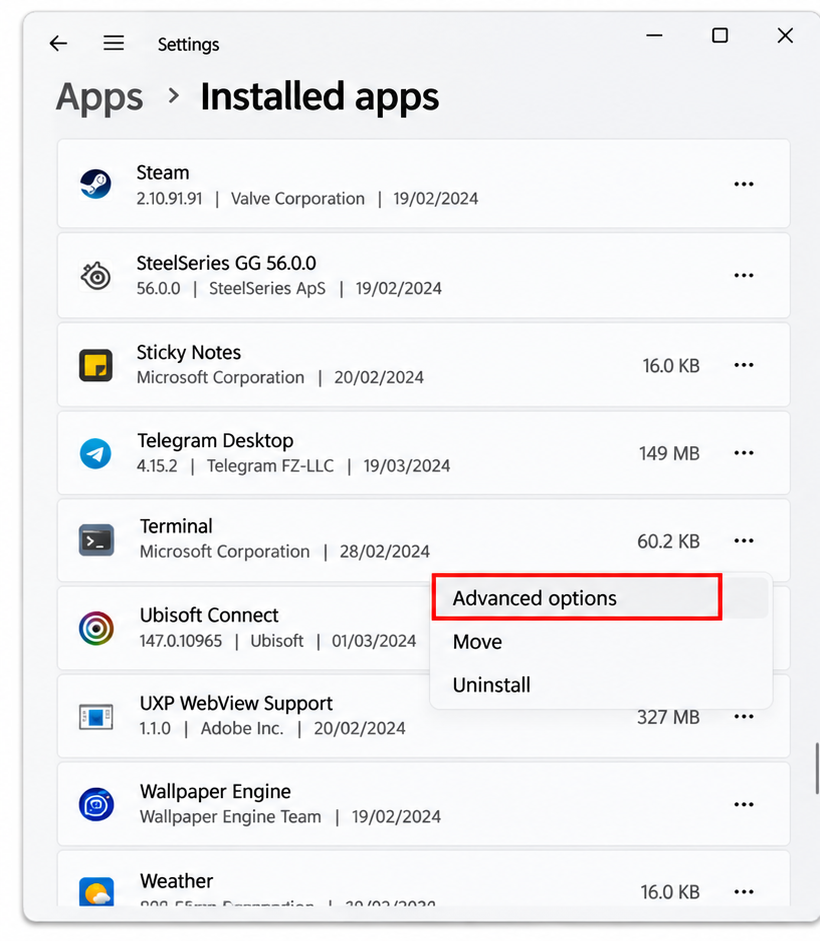
2. Find Windows Terminal from the application list.
3. Click the three-dot menu next to it and select Advanced options.
4. Scroll down to the Reset section. Click Repair. Then, wait for Windows to complete the process.
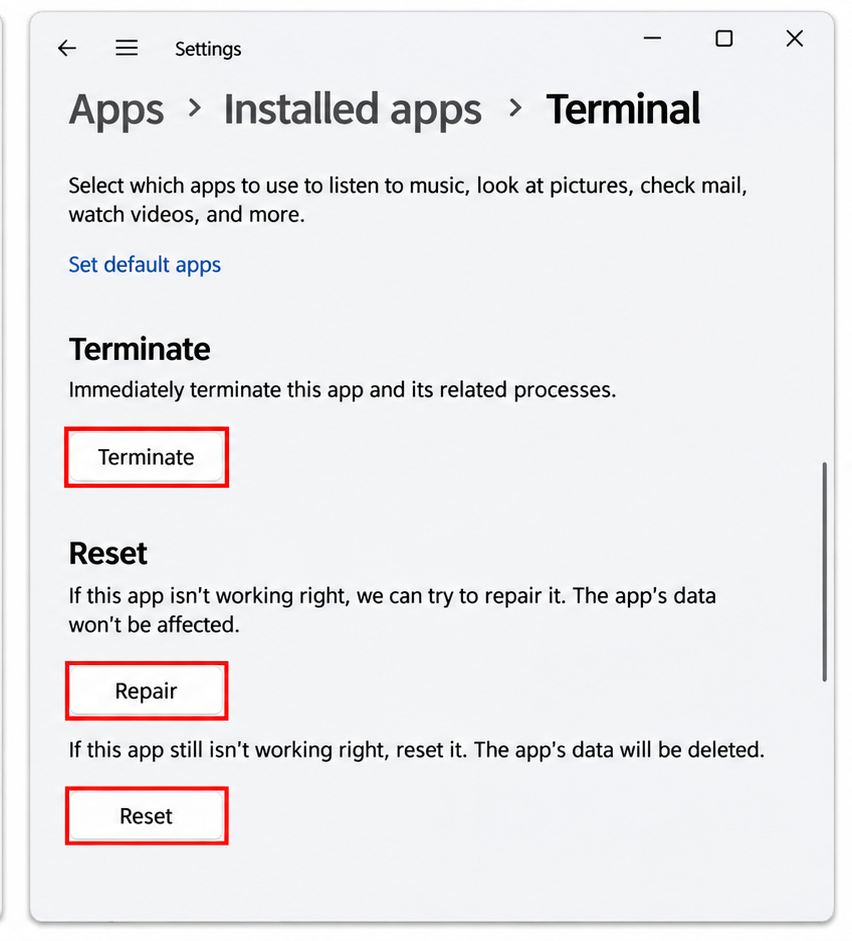
Open Windows Terminal and check whether it works.
Fix 6: Reset Microsoft Store Cache
Sometimes, reseting the cache can resolve the problems.
1. Press Win + R to open the Run dialog box. 2. Type wsreset.exe and press Enter.
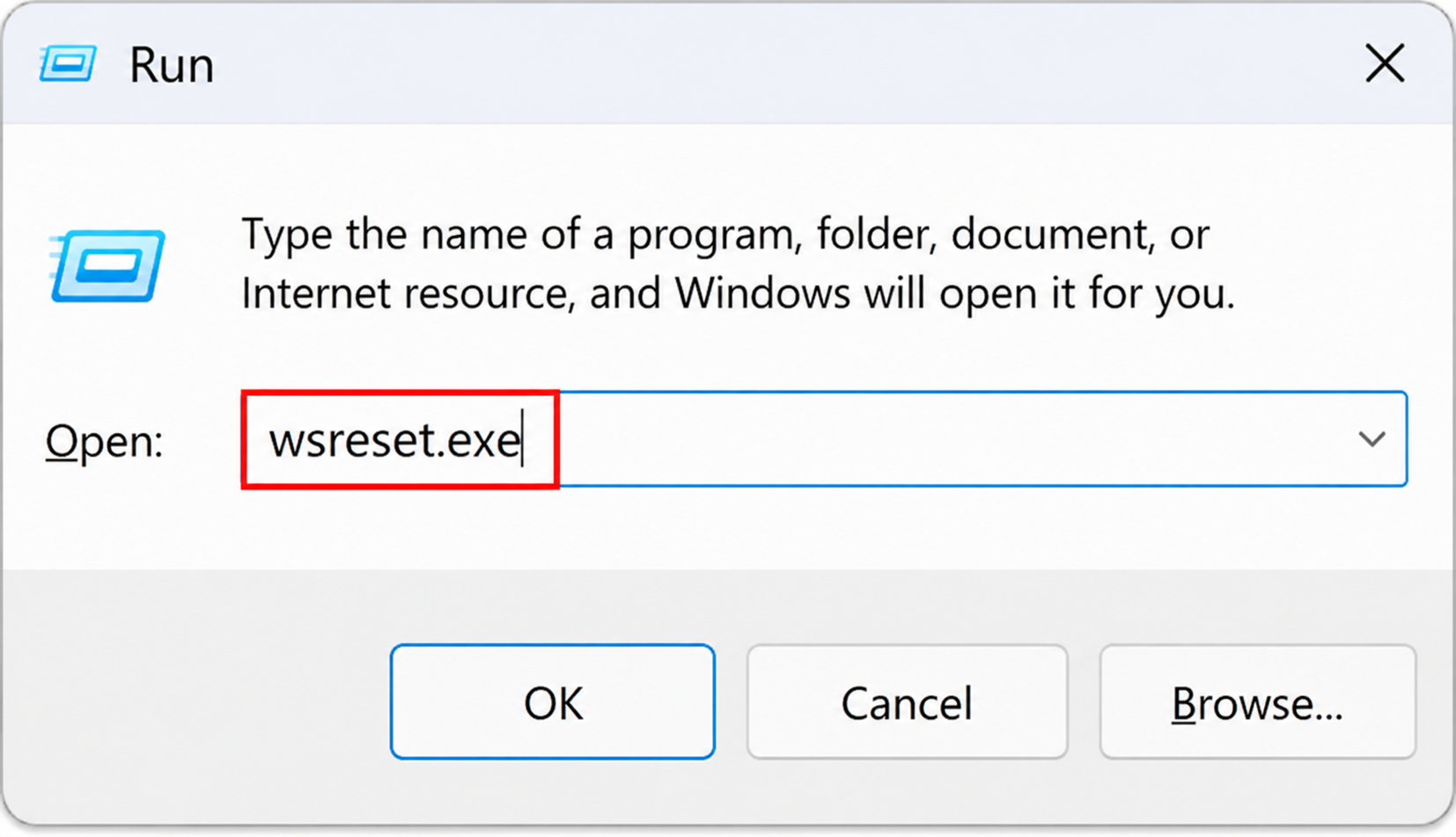
2. Wait for the blank Command Prompt window to close. Then, Microsoft Store should open automatically.
Check whether the Store is working correctly and try updating Windows Terminal again (from fix 5).
Fix 7: Uninstall and Reinstall Windows Terminal
Uninstalling and reinstalling Windows Terminal can replace damaged application files with a fresh copy.
1. Open Settings. Select Apps > Installed apps.
2. Find Windows Terminal in the application list.
3. Click the three-dot menu next to it and select Uninstall.
4. Confirm your selection and restart your computer.
5. Then, Open Microsoft Store and search for Windows Terminal. From there, Select Get or Install to reinstall the application.
Once the installation is complete, you can open Terminal and check whether it stays open.
Fix 8: Create a New User Account
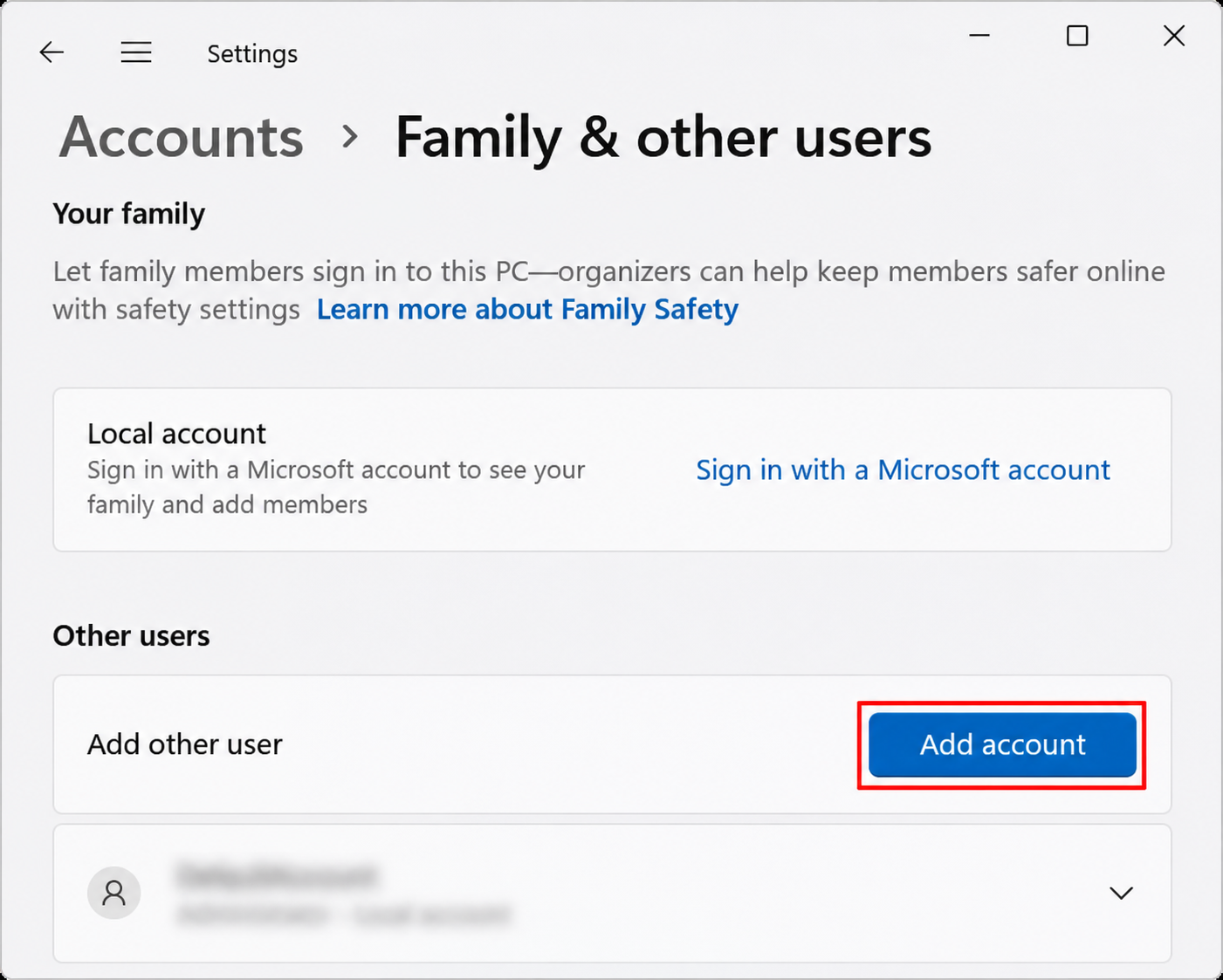
Sometimes, this problem may be due to corrupted Windows user profile. You can try creating a new local account and verify, whether the issue is confined to your existing profile only.cmd1. Open Settings. Select Accounts > Family and Other users > Add account.
2. Select I don’t have this person’s sign-in information. Then, on the next screen, select Add a user without a Microsoft account.
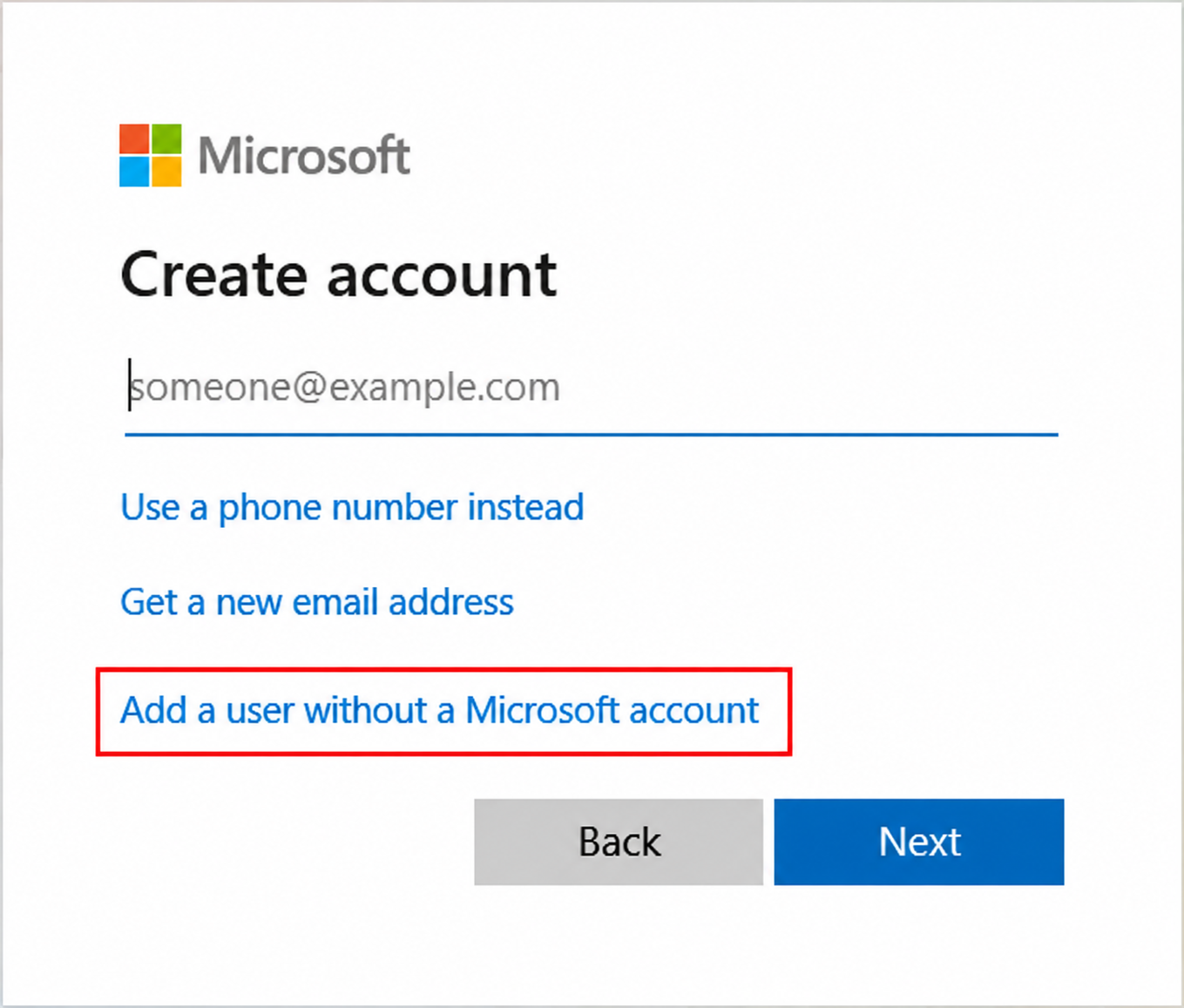
3. Enter a username and password, then click Next.
4. Then, sign out of your current account and sign in to the newly created account.
Once this is done, wait for Windows to finish setting up the new profile.
Thats it!