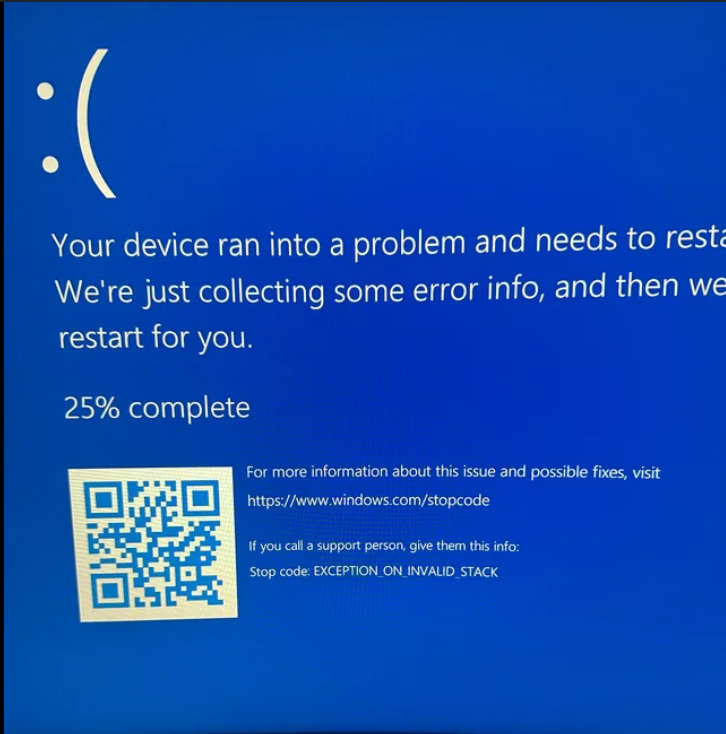
EXCEPTION_ON_INVALID_STACK BSOD error on Windows 11 can cause your system to freeze, reboot your computer, and even force a boot loop. Windows stops the system as it isn’t safe to continue running. In this tutorial, we will be discussing what causes the EXCEPTION_ON_INVALID_STACK BSOD on Windows 11 and proceed to 4 different solutions with detailed steps.
Page Contents
Why Does Windows Display the EXCEPTION_ON_INVALID_STACK Error?
The stack is a type of memory that is used in the Windows operating system for managing function calls and other significant system operations. If Windows finds any invalid or corrupted data in the stack, the operating system is stopped to prevent any further damage.
This protection mechanism sends the EXCEPTION_ON_INVALID_STACK BSOD error in Windows 11. The error might seem frightening, but it, in fact, avoids more serious problems like file corruption, loss of data or system instability.
How Does the EXCEPTION_ON_INVALID_STACK BSOD Affect Your Windows 11 PC?
The EXCEPTION_ON_INVALID_STACK BSOD on Windows 11 is more than just an unexpected blue screen. It means that there is some serious issue with Windows that is causing it to not run properly. If this error occurs, it may cause the system to crash again, work to be interrupted, or even cause data to be corrupted if the error is not corrected.
A few users encounter the error just one time, and for others, the computer may keep restarting. Promptly solving a problem will not only make the system more stable, but also avoid further hardware or software problems.
Fix: EXCEPTION_ON_INVALID_STACK BSOD on Windows 11
Fix 1: Scan and Repair Disk Errors
The EXCEPTION_ON_INVALID_STACK BSOD in Windows 11 is a prevalent bug that can stem from a variety of different causes. One of the most common causes of the EXCEPTION_ON_INVALID_STACK BSOD on Windows 11 is storage drive problems. Bad sectors or file system corruption may cause Windows to crash unexpectedly. These problems may be corrected by running the Check Disk utility. Here’s how to scan your drive for errors:
1. Hold down the Windows key, type Command Prompt, and then select Run as administrator.

2. Type the following command:-
chkdsk C: /f /r
If Windows is installed on a different drive, change C: to that drive. Press Enter. To schedule the scan, press Y and enter if prompted.
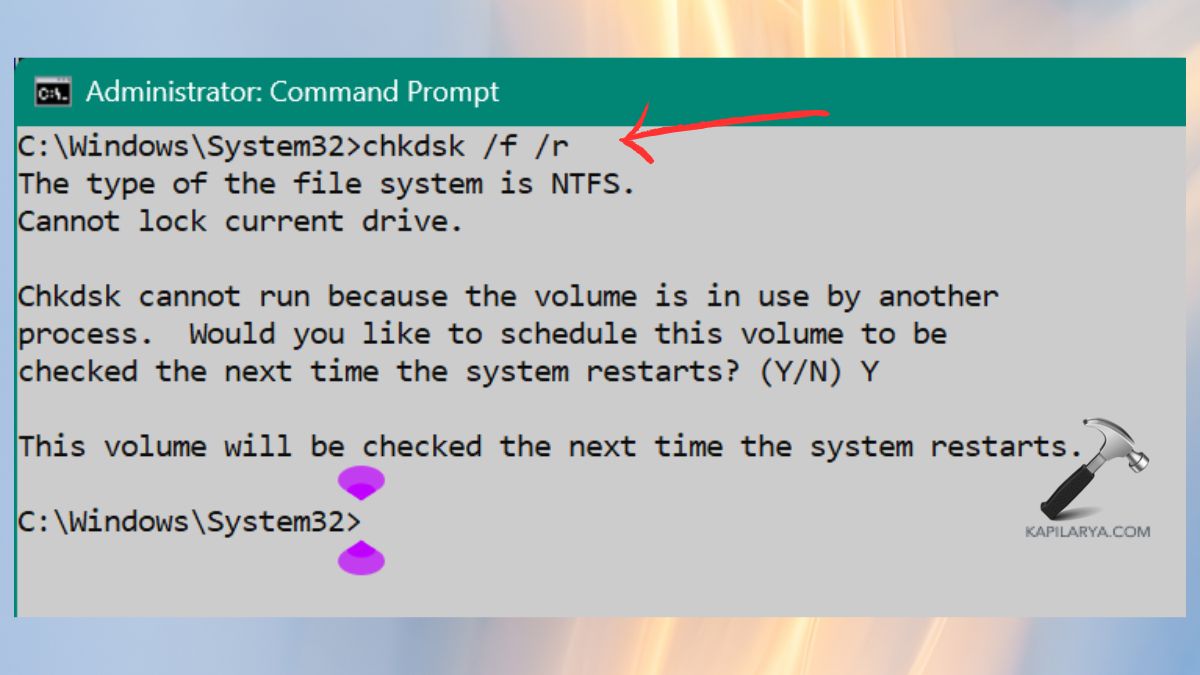
3. Restart your PC. Windows will check the drive, repair logical errors and see if it can read data from bad sectors. It may take a while, depending on how much storage you have.
Fix 2: Rebuild Windows Boot Configuration
When the boot information is corrupted in your system, Windows fails to start critical processes properly, and causes the EXCEPTION_ON_INVALID_STACK blue screen. If you are having startup-related BSODs, then most of the time the problem can be solved by rebuilding Boot Configuration Data (BCD). Follow these steps:
1. Start your system and boot into Advanced Recovery options and select Command Prompt.
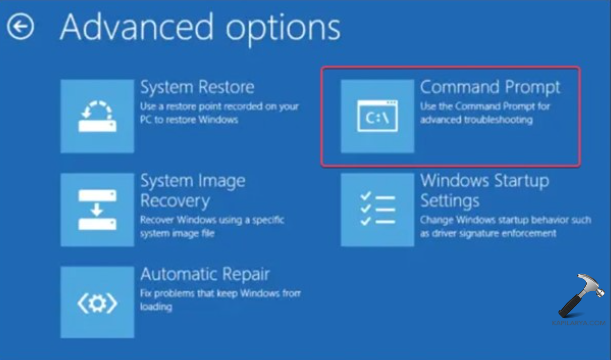
2. Execute one of the below commands at a time:-
bootrec /fixmbr
bootrec /fixboot
bootrec /scanos
bootrec /rebuildbcd
Wait for each command to be successfully completed.
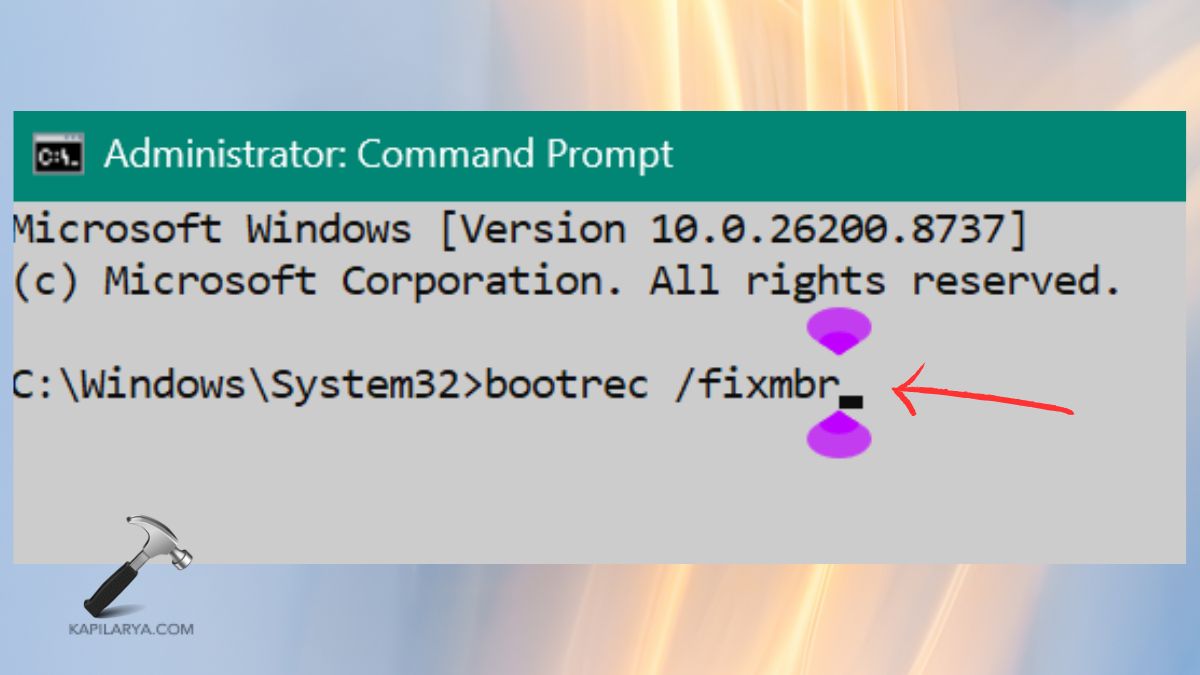
Close the Command Prompt and restart your computer. The BCD Update will update Windows startup data and remove corrupted boot entries that could cause a BSOD.
Fix 3: Repair Corrupted Windows System Files
If any of the system files are missing or damaged, Windows will not run properly, which can eventually lead to a BSOD with the EXCEPTION_ON_INVALID_STACK error on Windows 11. Fortunately, Windows has built-in tools to repair corrupted files. Run SFC / DISM to fix Windows:
1. Open the Command Prompt as Administrator.
2. Run the System File Checker with this command:-
sfc /scannow
Wait until the scan is 100% to complete.

3. If still problems persist, run the following DISM commands one after the other:-
DISM /Online /Cleanup-Image /CheckHealth
DISM /Online /Cleanup-Image /ScanHealth
DISM /Online /Cleanup-Image /RestoreHealth

When the repair is complete, restart the computer. These are the tools that can repair damaged Windows elements and enhance the stability of the system.
Fix 4: Test Your Computer’s Memory (RAM)
Another common EXCEPTION_ON_INVALID_STACK BSOD Windows 11 problem is related to faulty RAM. If memory modules are faulty, they may corrupt data as Windows is running, which could cause unexpected system crashes. To check RAM in Windows Memory Diagnostic:
1. Hold down Windows and press R. Type this command. Press Enter or “OK”.
mdsched.exe

2. Select Restart now and check for problems. Allow Windows to perform the memory test.

After your PC is back up and running, check your test results. If memory errors are being detected, try reseating the RAM modules or replace the bad one.