The BitLocker Encryption at 99.9% Stuck problem within Windows 11 is an annoying problem that may leave your drive in an incomplete state of encryption. This makes you wonder whether it’s safe to restart your PC or continue using it. Most of the time, the issue is due to file system errors, pending disk operations, out-of-date disk drivers, interrupted disk encryption, or hardware issues. Luckily, you don’t need to turn off BitLocker right away.
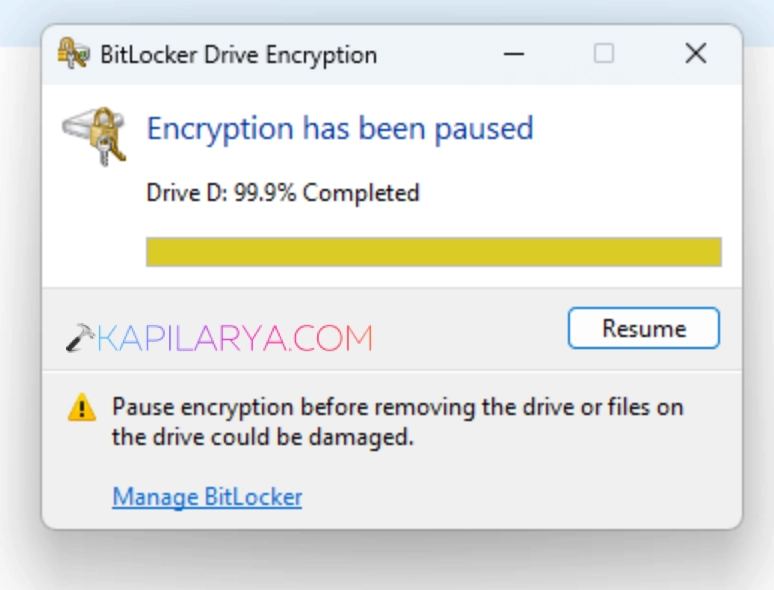
This tutorial will cover the reasons why BitLocker encryption may be stuck at 99.9% and six effective and safe ways to fix it. Apply each solution sequentially until the process is completely successful.
Page Contents
Why is BitLocker Encryption Stuck at 99.9%?
When near completion, BitLocker might not continue because of the following:
- Bad disk sectors or corrupted file system.
- Waiting for Windows Update or restart.
- Outdated Storage Controller Drivers.
- Firmware problems (SSD or HDD).
- Background disk-intensive applications.
- Interrupted or paused BitLocker encryption.
- Disk partition inconsistencies.
Make sure your laptop is plugged in to AC power and don’t turn off your laptop during the encryption process before you attempt more complicated repairs.
Fix: BitLocker Encryption Stuck at 99.9% in Windows 11
When BitLocker Encryption Stuck at 99.9% in Windows 11 prevents your drive from completing encryption, this article is for you. Following the solutions in this guide will help you restore BitLocker functionality while keeping your data secure.
If you’re enabling BitLocker for the first time, follow this complete guide:

Solution 1: Resume the BitLocker Encryption Process
Sometimes the reason BitLocker isn’t frozen is that it has simply been paused due to a system event or system restart.
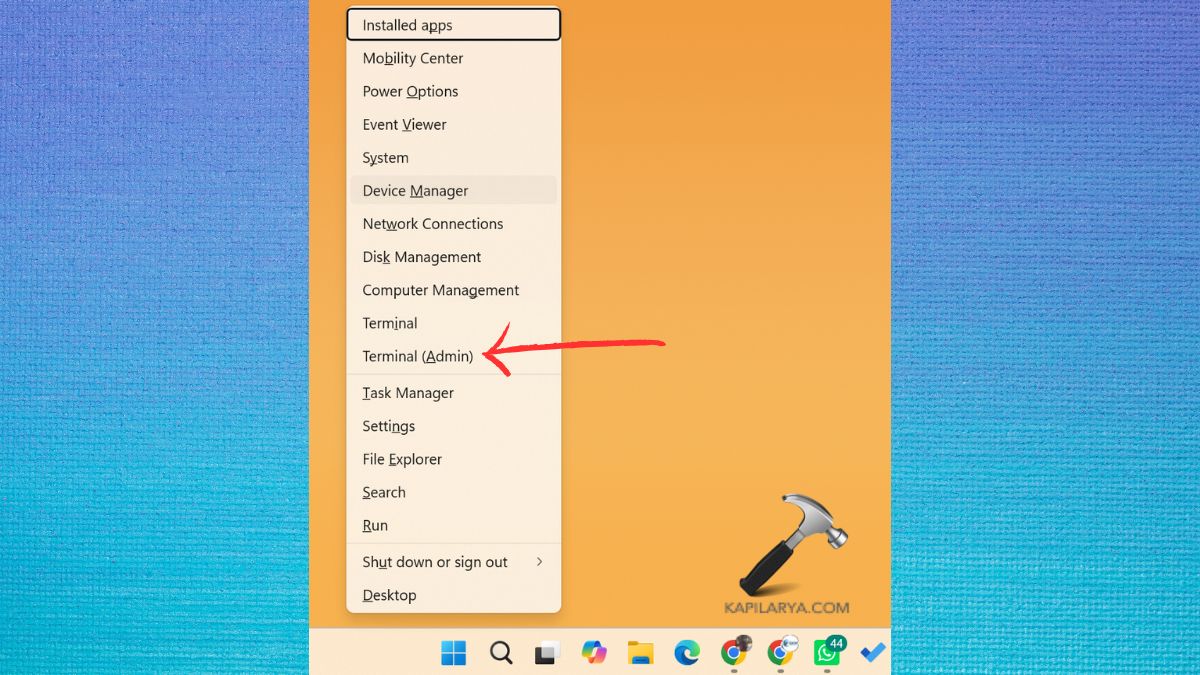
1. If you want to see if encryption is currently enabled, press Windows + X and then click Terminal (Admin).
2. Run the following command.
manage-bde -status
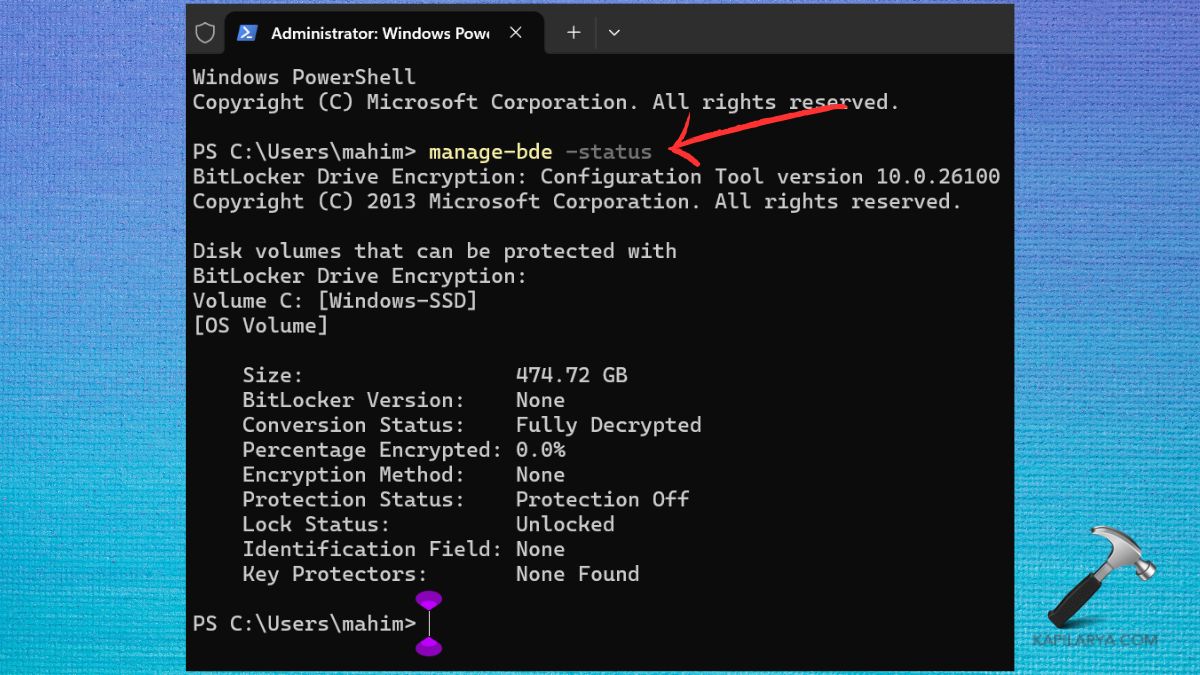
3. Look for:
- Conversion Status
- Percentage Encrypted
- Protection Status
4. To restart the drive when it is suspended or paused, use this command. If necessary, change the C: to the name of your encrypted drive.
manage-bde -resume C:
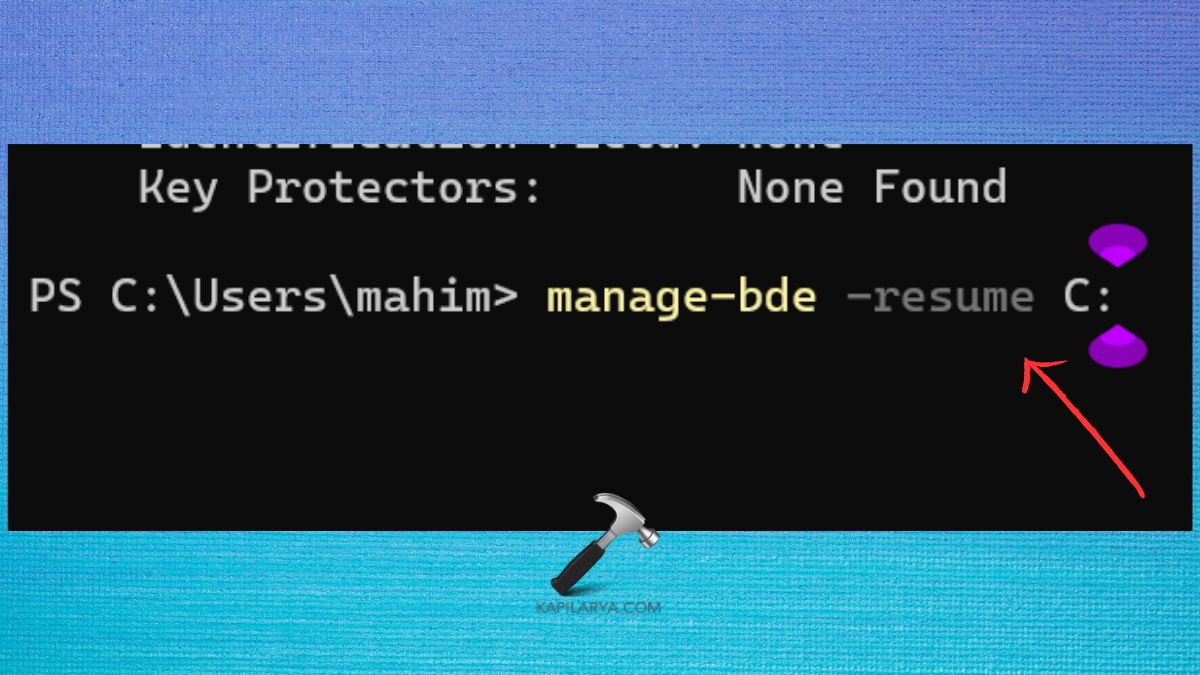
5. Wait for some minutes, and again execute the command “manage-bde -status” from step-2. This is to see if the percentage starts to go up.
Solution 2: Repair Disk Errors Before Encryption Finishes
A frequent reason for BitLocker to get stuck at 99.9% is a corrupted hidden file system.
1. Run the Command Prompt as Administrator.
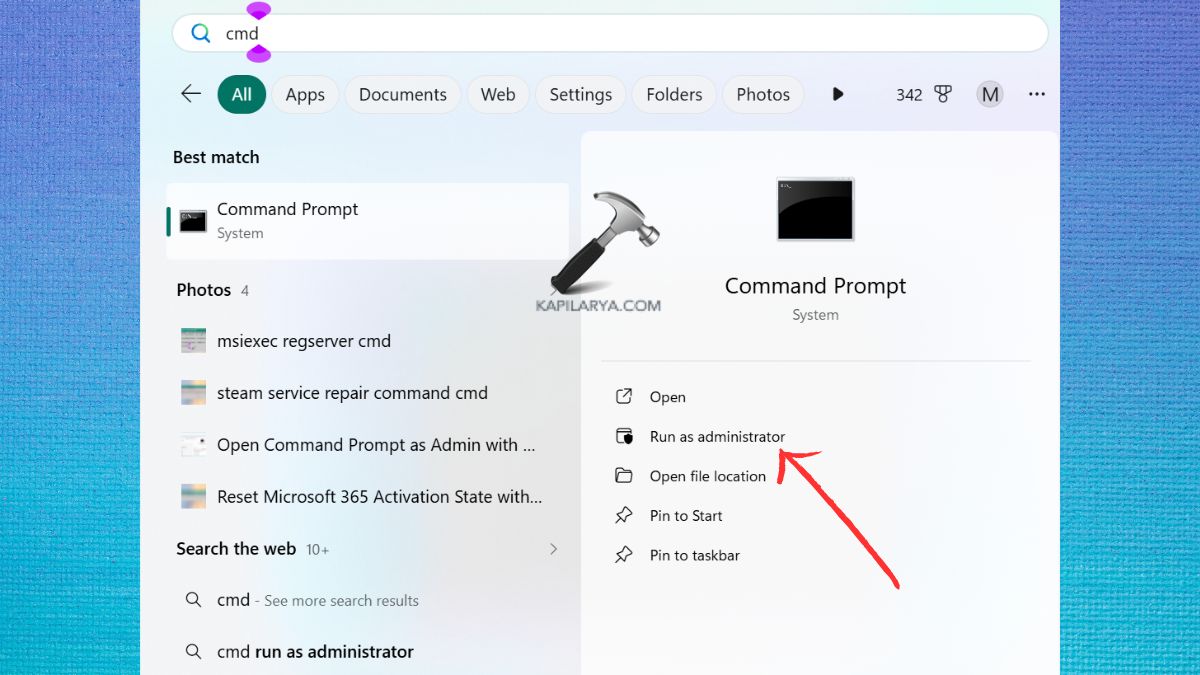
2. Run this command.
chkdsk C: /f /r
Press “Y” if Windows prompts to schedule the scan the next time you restart your computer.
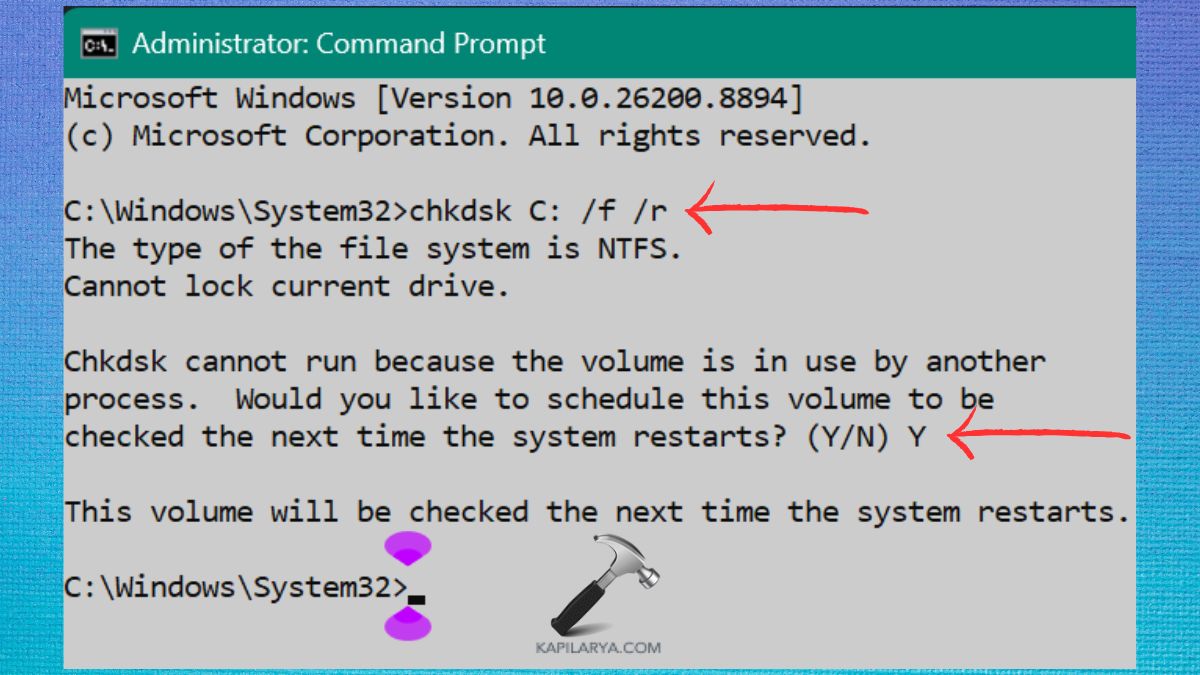
3. Restart the PC. Wait until Windows has finished the disk scan.
4. When Windows restarts, go to the BitLocker status. Frequently, if the file system contains errors, the encryption can be completed without problems.
Solution 3: Refresh BitLocker Protection
Refreshing BitLocker protection causes Windows to re-initialize the encryption engine, without decrypting the drive.
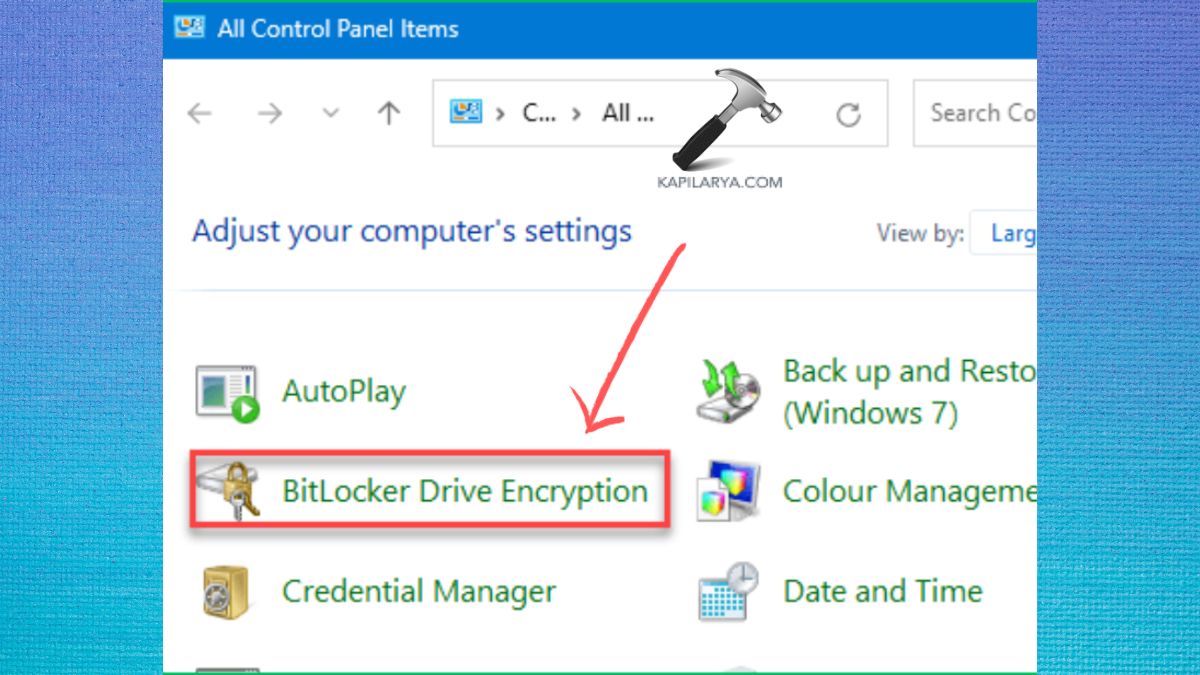
1. Open Control Panel.
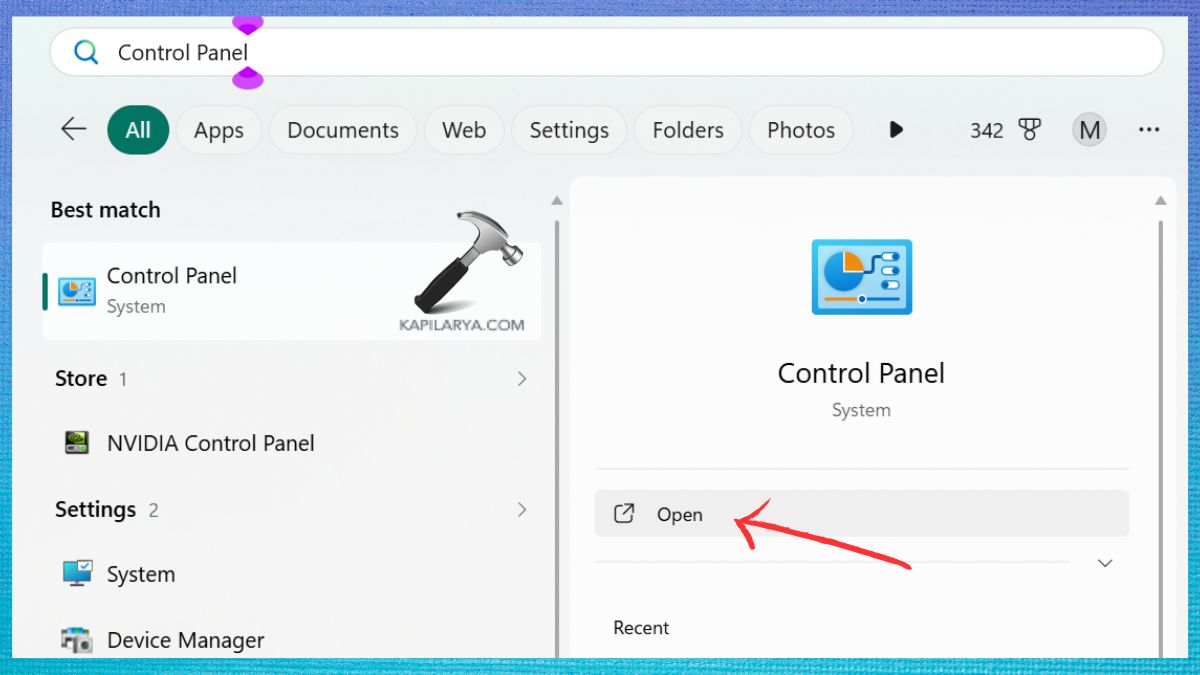
2. Click the option BitLocker Drive Encryption.
3. Click Suspend Protection. Confirm the action.
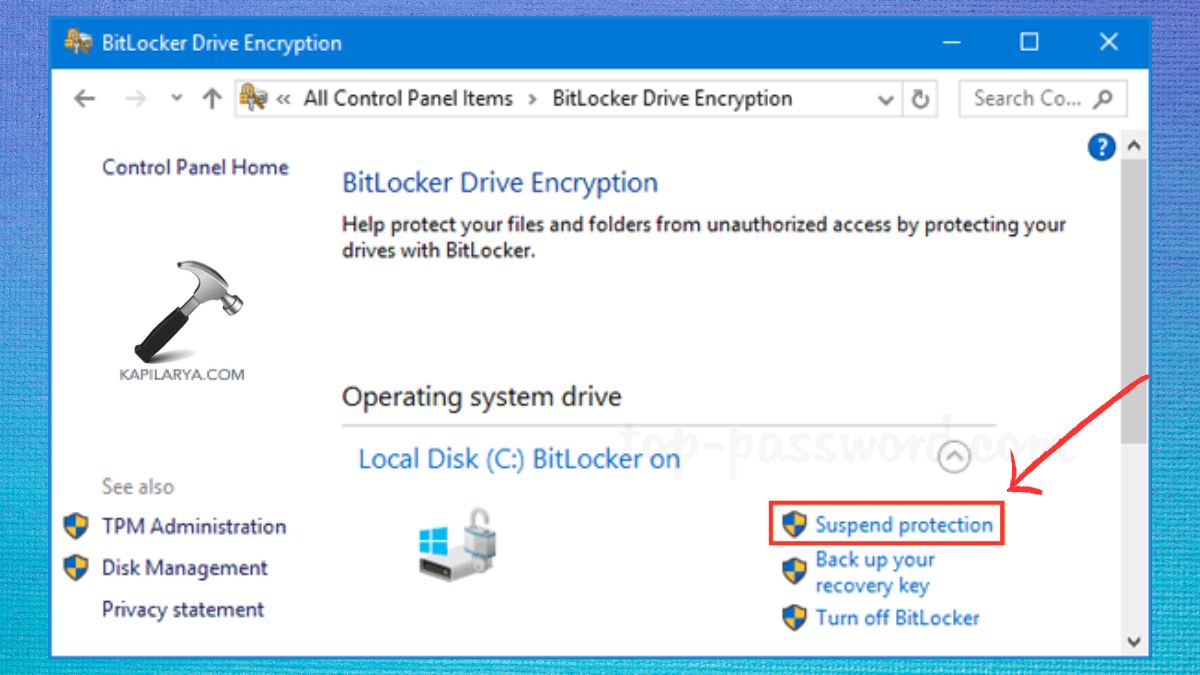
Restart your computer.
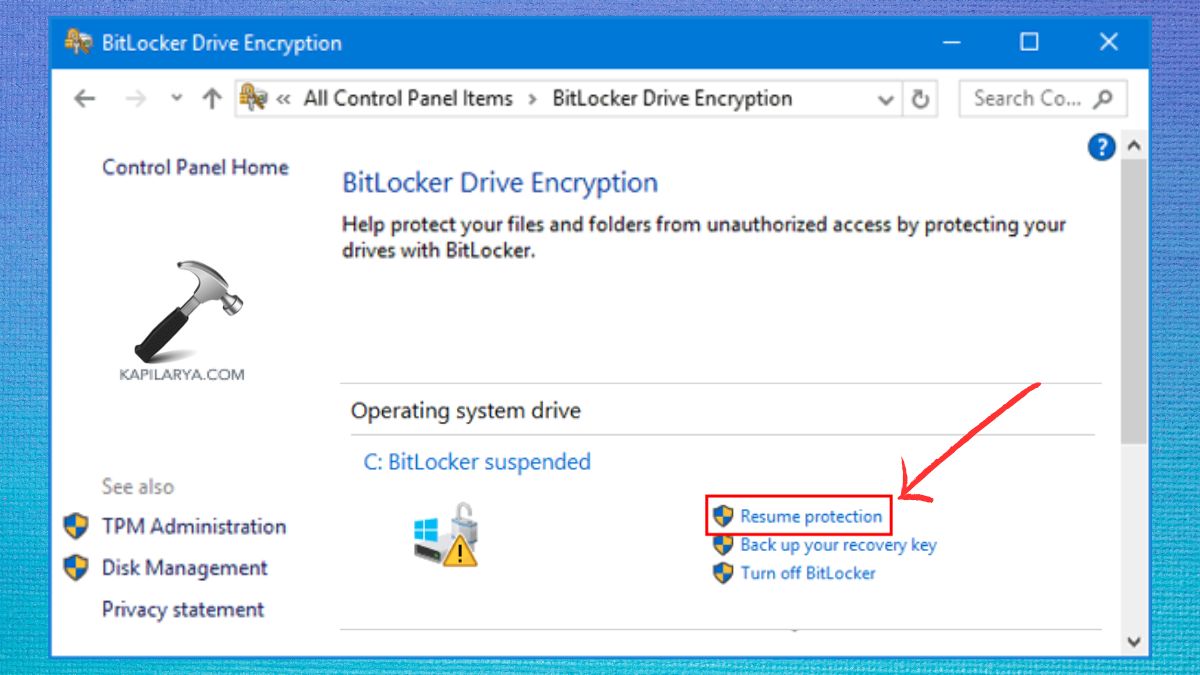
4. Go back to BitLocker Drive Encryption. Select Resume Protection.
5. This also can be done using the Command Prompt command.
manage-bde -protectors -disable C:
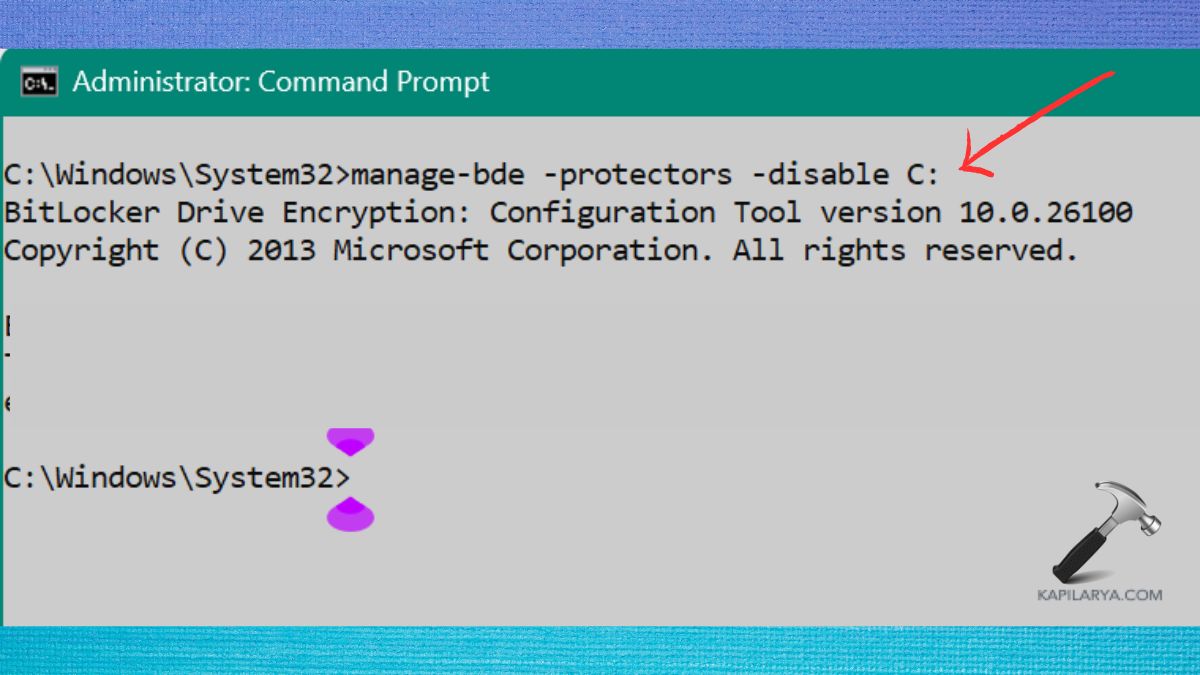
Restart Windows.
6. Then run this command.
manage-bde -protectors -enable C:
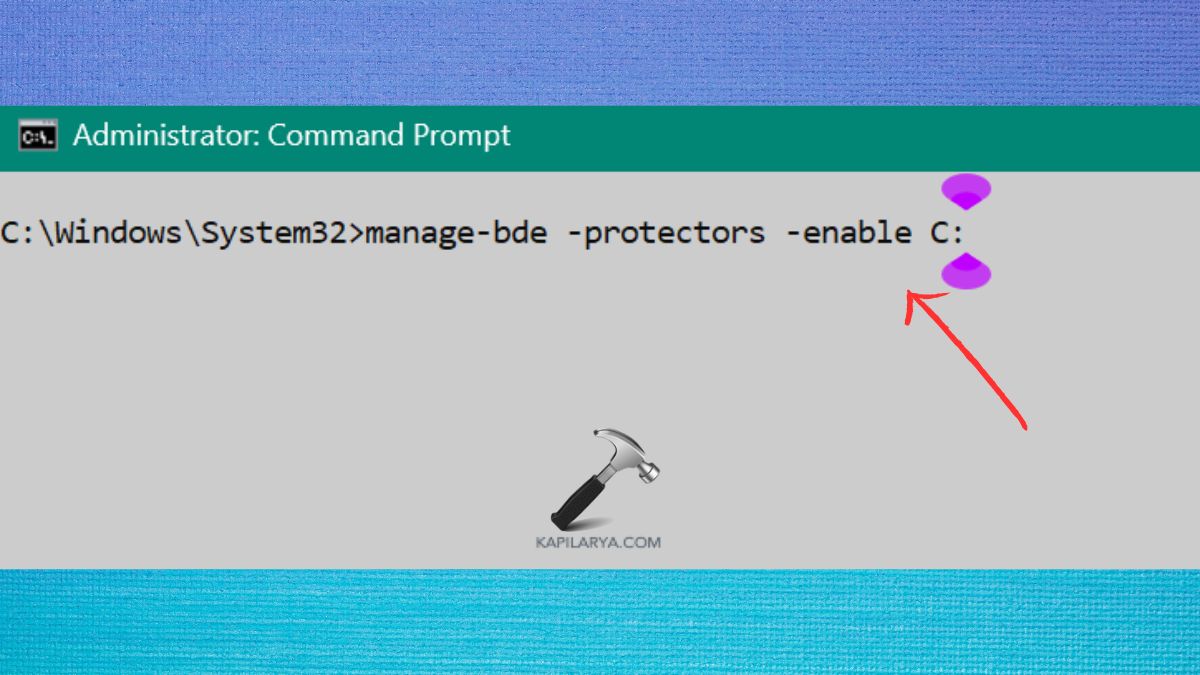
Lastly, determine if there is still encryption.
Solution 4: Update Storage Drivers and SSD Firmware
The storage controller plays a key role in the operation of BitLocker. It is possible that older NVMe, SATA or RAID drivers may interrupt the encryption process.
1. Update the storage drivers by pressing Windows + X, then Device Manager.
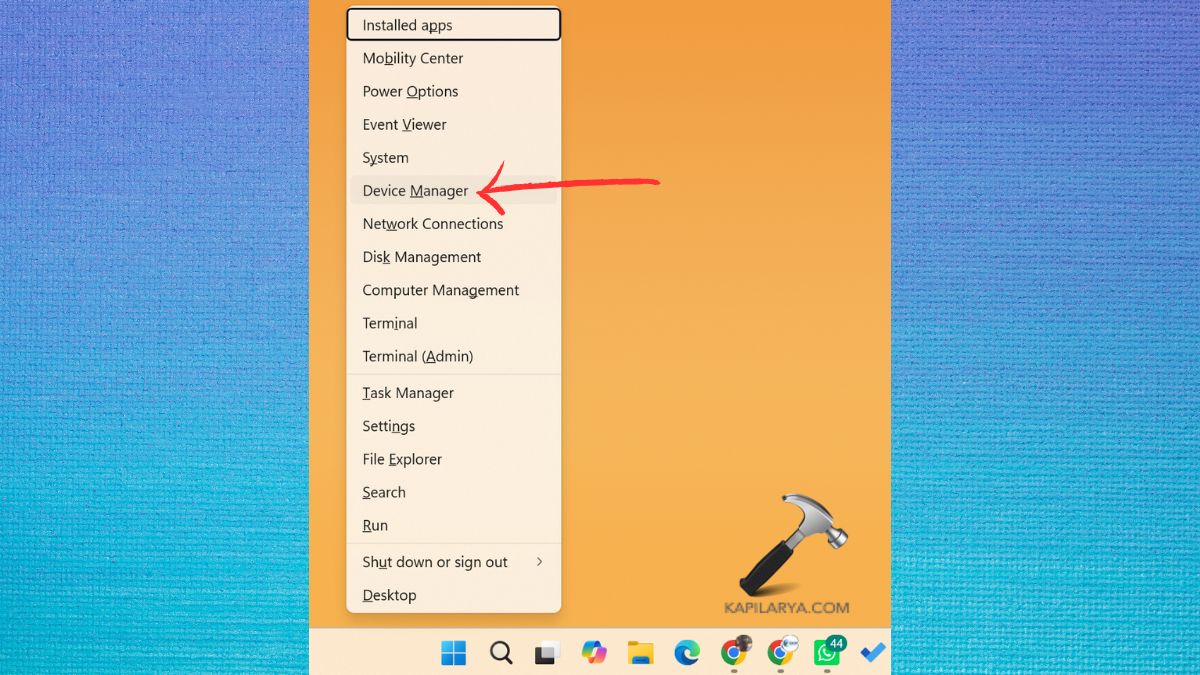
2. Expand Storage controllers. Right-click your controller. Choose Update driver.
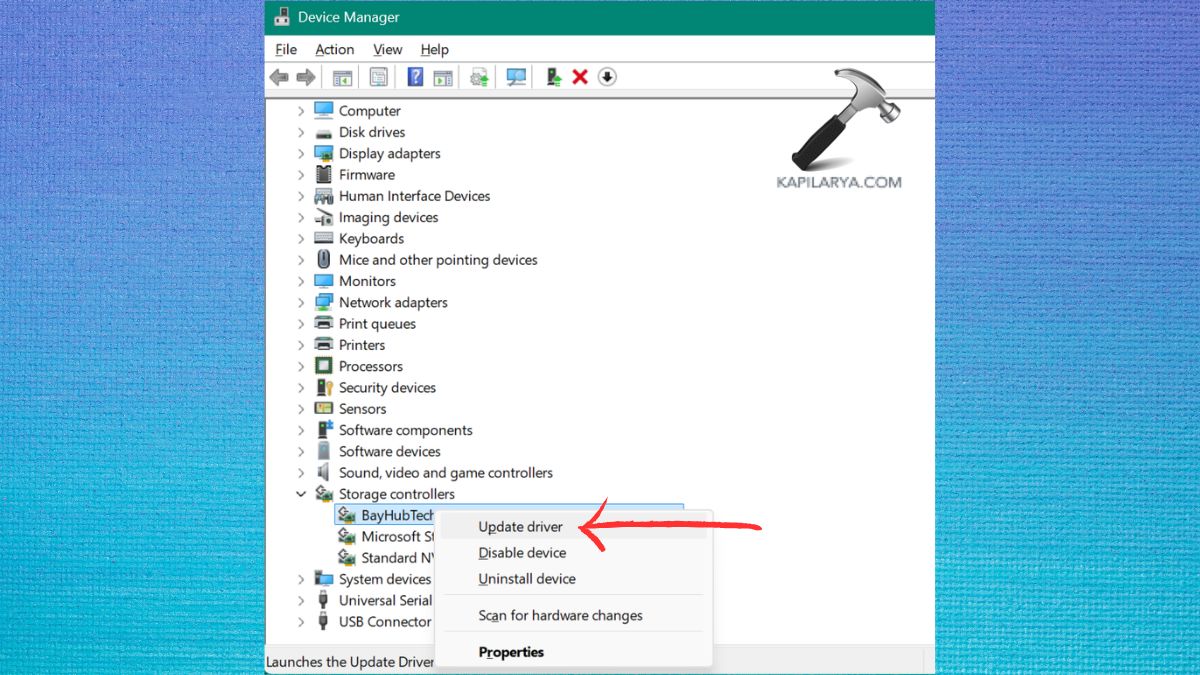
3. Update to the most up-to-date version. Check the SSD manufacturer’s website for any new firmware updates to install.
4. Restart Windows when it is updated. Repeat checking the BitLocker status. This is a great solution after installing big Windows 11 updates.
Solution 5: Rebuild Free Disk Space by Resizing the Partition
If encryption keeps freezing at 100%, it may be due to partition metadata.
One way to work around this is to resize the partition a little smaller and then restore the partition.
1. Press Windows + X, and choose Disk Management.
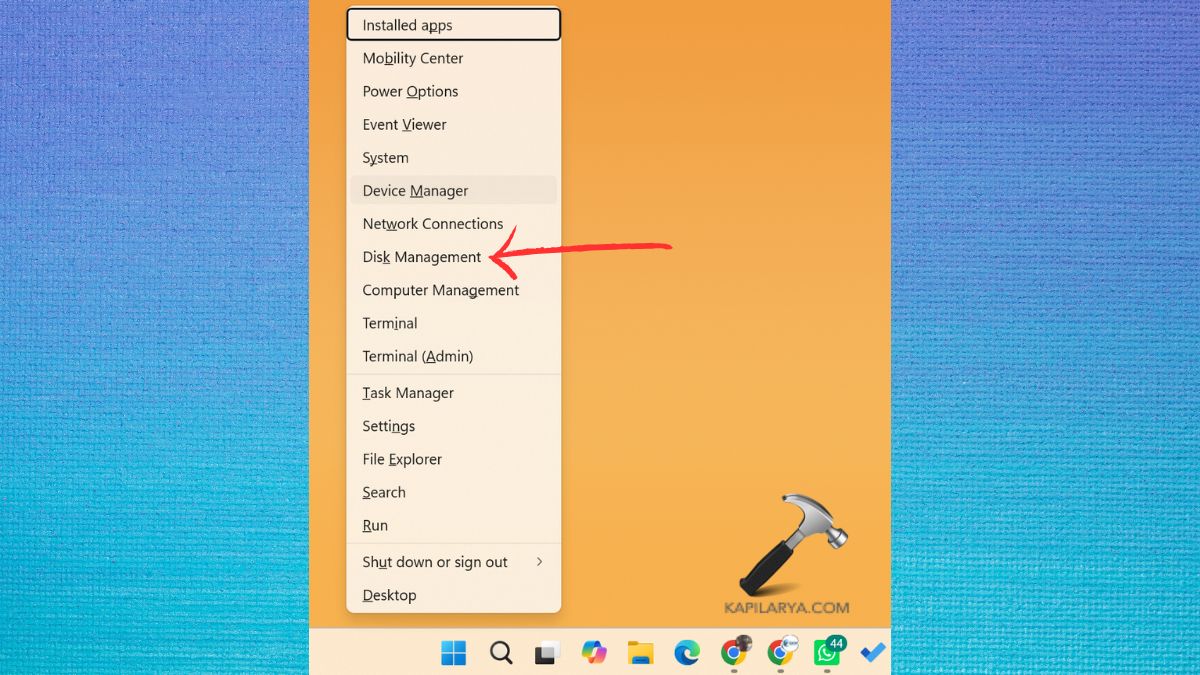
2. Right click on the encrypted partition. Select Shrink Volume.
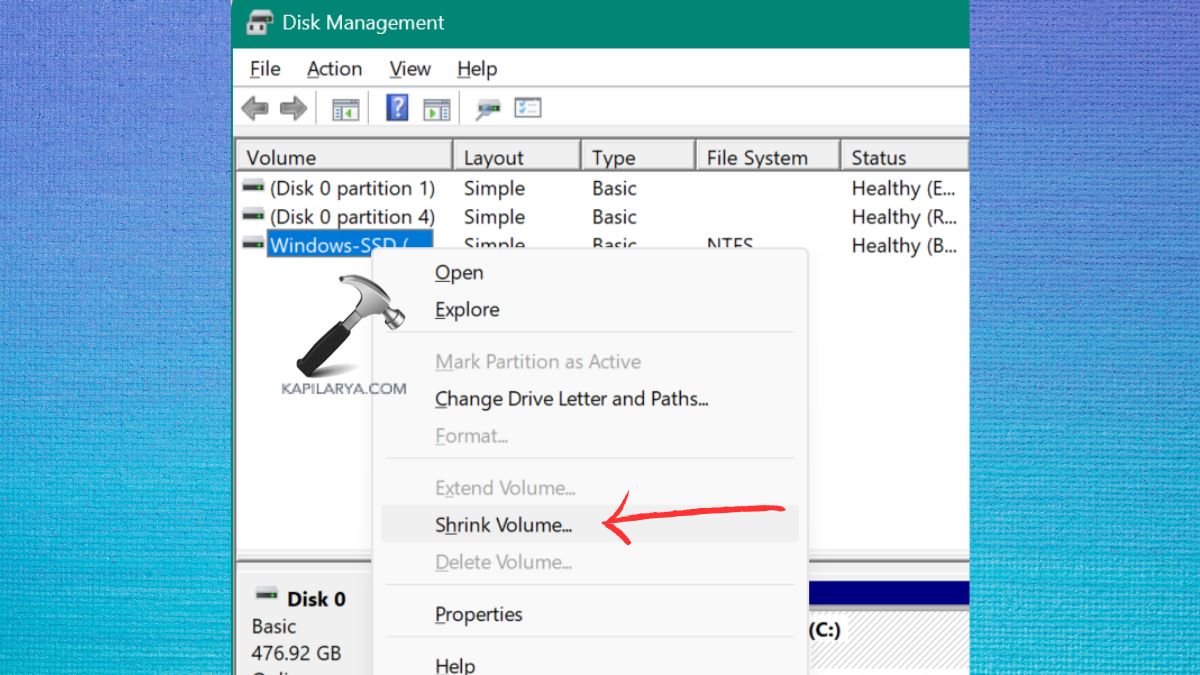
Reduce in size by about 500 MB–1 GB.
3. Once completed, right click the partition once again. Select .
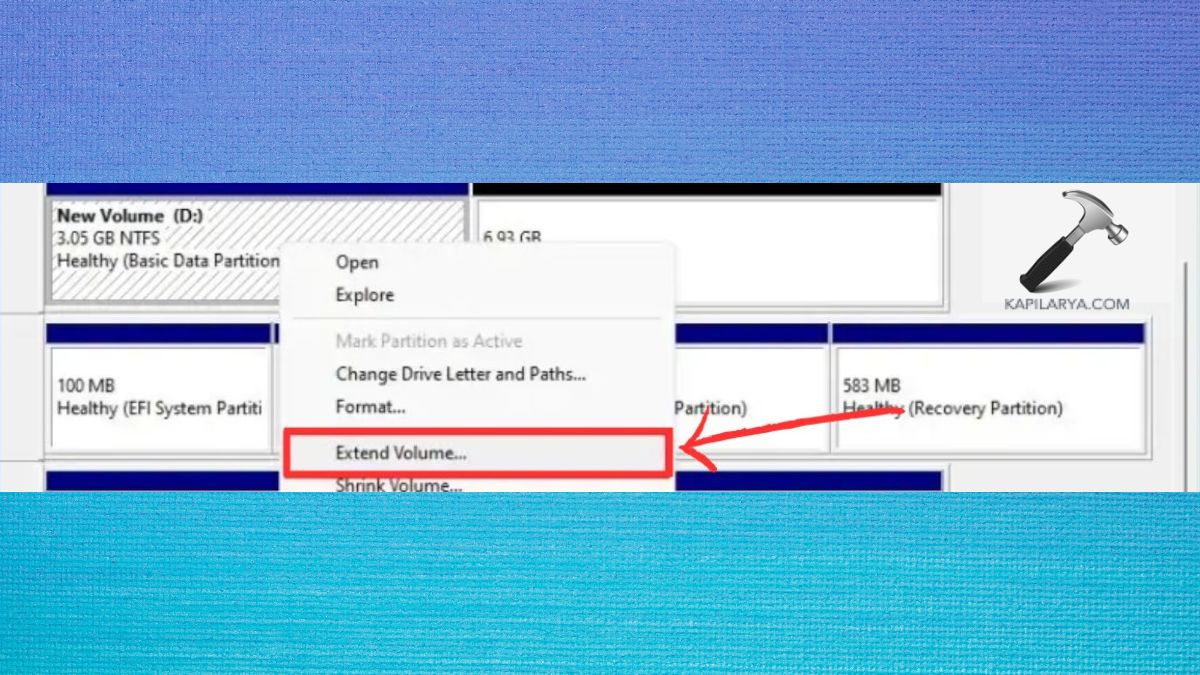
Restore to original sizes. Restart Windows. This updates partition metadata, and has assisted numerous users with finishing the last step of encryption.
Solution 6: Decrypt the Drive and Start Encryption Again
In cases where the problem is not solved using the above methods, it is generally best to re-encrypt.
1. Open Control Panel again.
2. Go to BitLocker Drive Encryption.
3. Tap Turn off BitLocker. Wait until complete decryption.
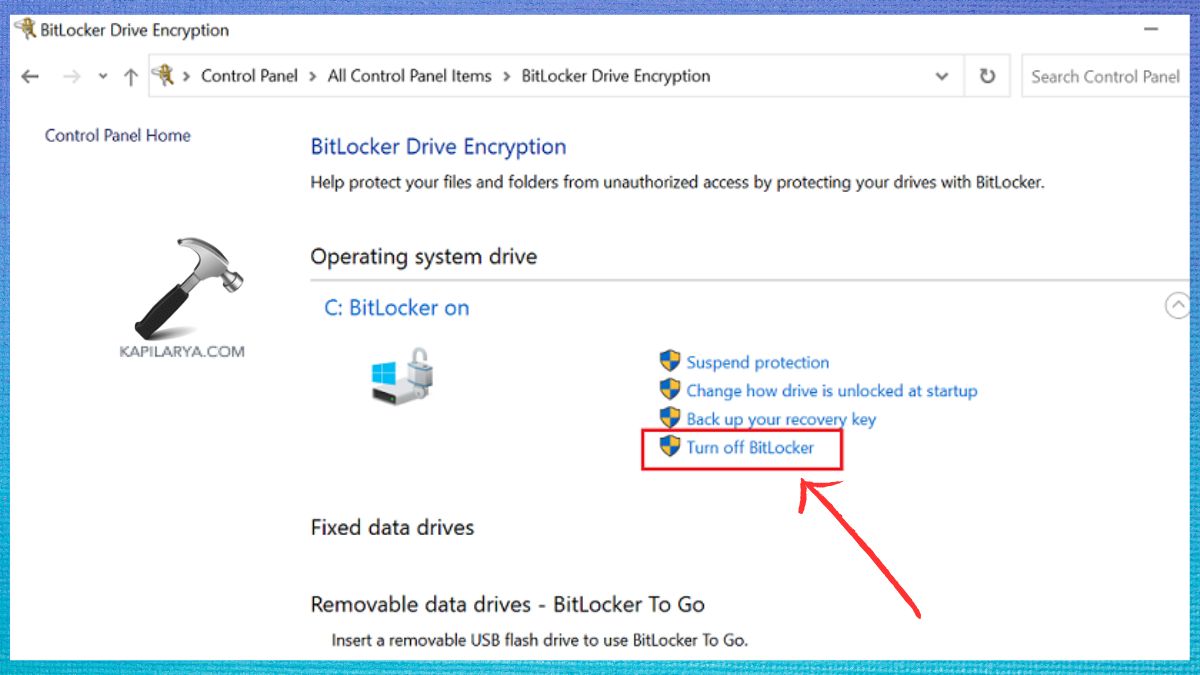
4. After decryption finishes, do these:
- Restart Windows.
- Re-Encrypt BitLocker.
- Ensure that the PC is plugged in.
- Don’t interrupt the process.