If you are seeing the BitLocker recovery screen after installing the Windows 11 KB5083769 update, believe me, you are definitely not alone. Actually, this has become apparent to thousands of users all over the world immediately after the release of the cumulative update of the April 2026 KB5083769. Some have reported that their system has suddenly required the BitLocker recovery key, whilst others have gotten trapped in an endless loop with no indication.
The KB5083769 update of Windows 11 Version 25H2 has increased the security of your system, and BitLocker reacted to it by checking whether your device is still trusted. It blocks access and requests confirmation, i.e. the recovery key, when it notices even the slightest change.
In this guide, we break down why this happens, how to fix it step-by-step, and how you can prevent such recovery key loops in future Windows 11 updates.
Page Contents
Why the KB5083769 Update Triggered BitLocker Issues
The Windows 11 cumulative update of April 14, 2026 (KB5083769) brought with it a number of profound security modifications intended to enhance system security. Nevertheless, these updates touched upon the important aspects that BitLocker is constantly checking to make sure that your device is not interfered with.
The following is what went on behind the scenes:-
- BitLocker identified the changes in the system boot environment after the update and suspected a security threat. This issued an automatic recovery key request, despite nothing malicious happening.
- Others have been caught in a loop, again and again going to the recovery screen, as BitLocker is unable to authenticate the new system files during the first few bootups.
- KB5083769 adjusted Secure Boot–related files, which led to conflicts with existing boot signatures. BitLocker intervenes in case of mismatches reported by Secure Boot. You can fix Secure Boot–related errors using this article.
- The update changed some security measurements used by the TPM (Trusted Platform Module), leading BitLocker to believe that the security state of the device had changed. In case you have problems with TPM, you can use the following step-by-step guide.
- BitLocker checks the integrity of firmware, bootloaders and core systems. Any unforeseen alteration, such as the ones included in this update, can be seen as an attempt to make unauthorized alterations, and it will result in encryption protection.
Ways to Fix BitLocker issues after Windows 11 KB5083769
Simply put, KB5083769 updated critical security elements, and BitLocker falsely identified these legitimate updates as possible threats. This forced most systems into recovery mode in order to protect data. The positive is that the problem can be resolved with the appropriate measures, and your information is not lost.
Fix 1: Enter Your BitLocker Recovery Key to Unlock the System
The initial and most crucial action will be to unlock your device with the right BitLocker recovery key.
1. You can open your Microsoft account on a different device using the official site:- https://account.microsoft.com/account.

2. Go to Devices > Bitlocker Recover keys. Find your PC name and compare the Key ID displayed in your locked PC with those in your Microsoft account.
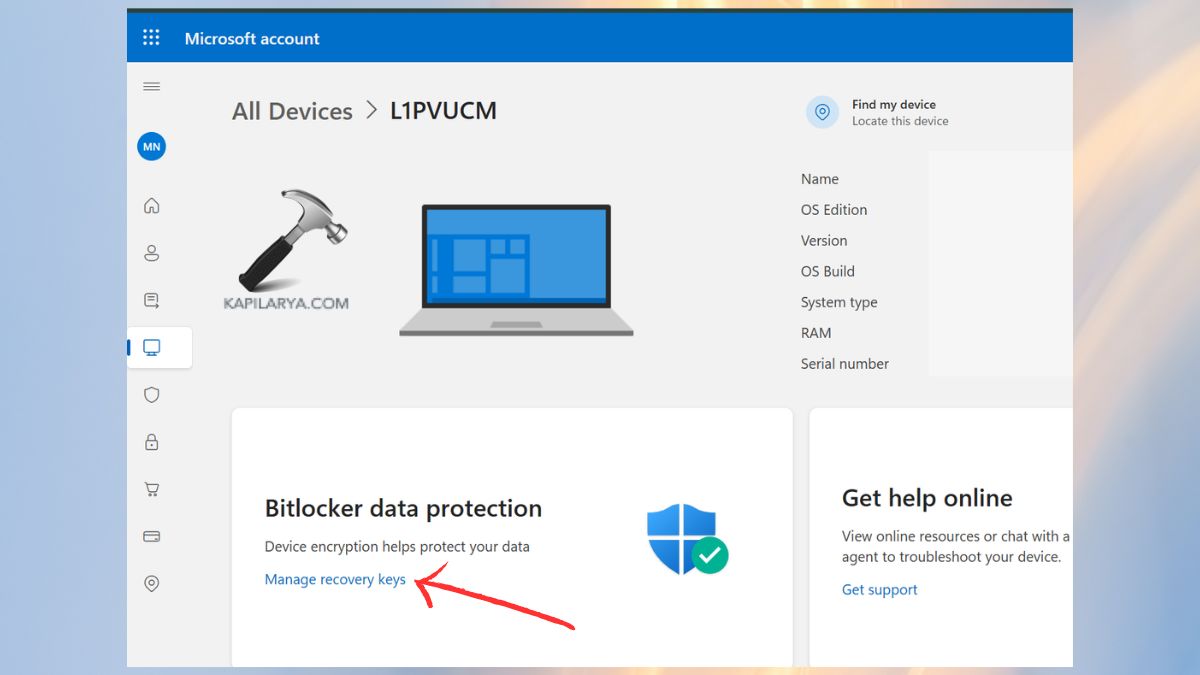
3. Note down the BitLocker recovery key. In the recovery screen, type in the key as it is. Press the Enter key to continue and boot the system normally.
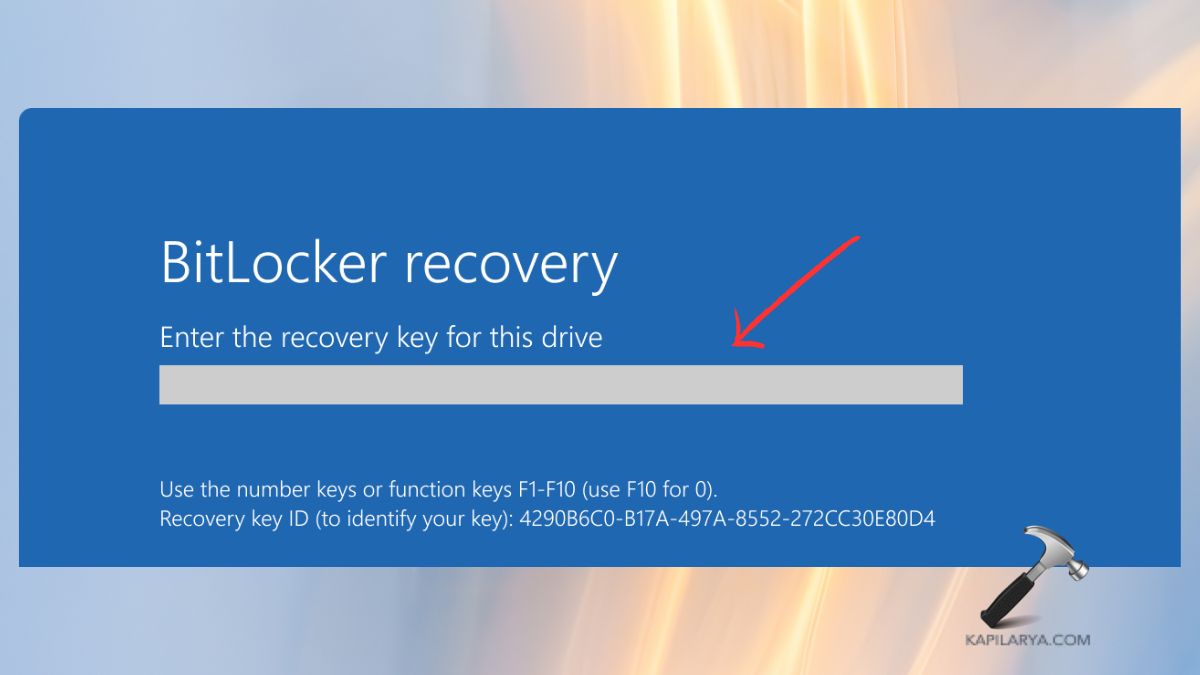
After this has been done, Windows will boot up to your desktop, and you should not be prompted to enter the recovery key again when performing a normal restart of the machine- unless some other major system or firmware update is needed.
Fix 2: Reset the TPM Validation Policy to Not Configured (Group Policy)
When the BitLocker recovery screen shows up after each restart, it is usually due to a conflicting TPM platform validation policy enabled prior to or following the KB5083769 update.
The repetition of recovery key requests can be prevented by resetting that policy.
1. Click Win + R keys to open the Run bar, type and press Enter.
gpedit.msc

2. Navigate to this path in Group Policy Editor:-
Computer Configuration > Administrative Templates > Windows Components > BitLocker Drive Encryption > Operating System Drives
3. Find the setting, configure the TPM platform validation profile. Click twice on it and configure it as “Not Configured”. Click Apply, and OK.
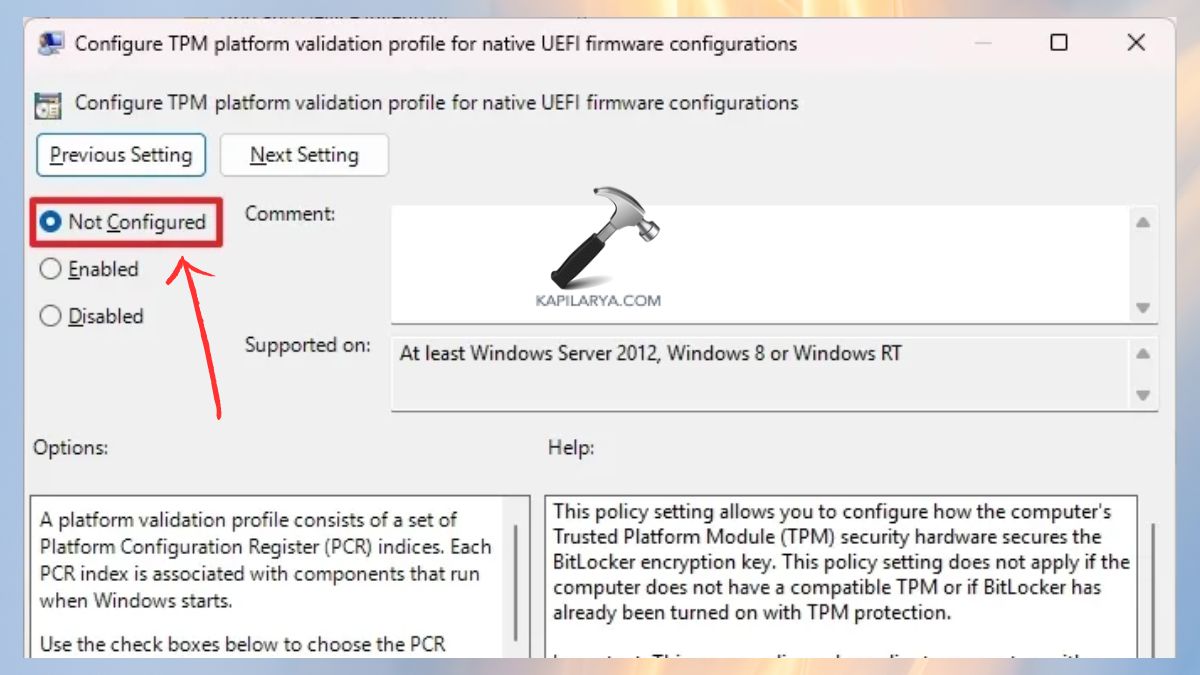
Restart the PC. This recalibrates the conflicting validation rules and assists BitLocker in accurately identifying trusted system changes post update.
Fix 3: Disable and Re-enable BitLocker Using CMD
Provided that you have not updated yet, or wish to avoid the problem in future, one of the surest preventive measures is to temporarily turn off BitLocker prior to installing Windows updates.
1. Open Command Prompt with Administrator Privileges.

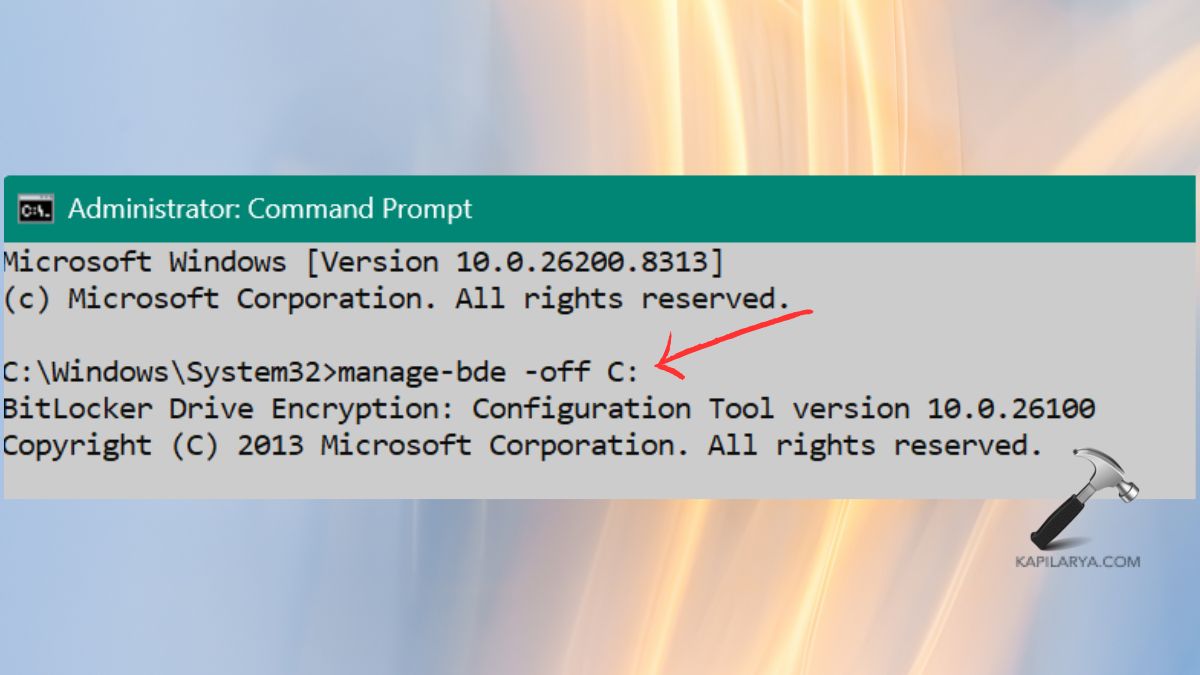
2. Enter the following command to temporarily decrypt the system drive.
manage-bde -off C:
Now, you have to wait until the decryption process is complete.
3. Install your Windows updates (KB5083769). To re-enable BitLocker, run this command after updating.
manage-bde -on C:
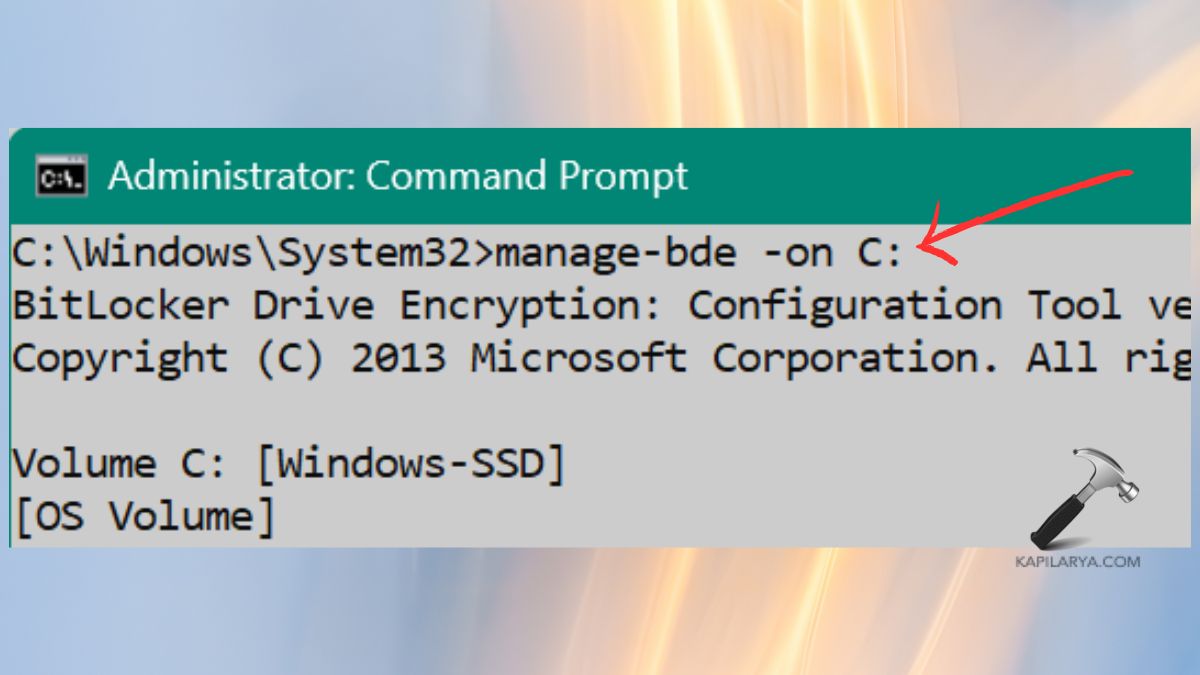
This will ensure that BitLocker does not misunderstand system changes done by the update and prevent future recovery key prompts.
Frequently Asked Questions (FAQs)
How to solve BitLocker recovery key issue in Windows 11?
To resolve the BitLocker recovery key problem, first of all, enter the correct recovery key of your Microsoft account. Once you have unlocked your system, restart and reboot BitLocker, reset TPM-related Group Policies, and make sure that Secure Boot or TPM settings are not misconfigured. In case the problem began after the installation of KB5083769, use certain solutions, including resetting TPM validation and changing BitLocker policies.
Why does my laptop prompt for BitLocker recovery key after Windows 11 update?
Windows can prompt to provide a BitLocker recovery key following updates, particularly significant security updates such as KB5083769, since system files, boot configuration, or TPM measurements have been modified. BitLocker perceives such changes as possible security risks and decides to go into recovery mode to secure your data.
Why did BitLocker lock my computer in Windows 11?
BitLocker secures your computer by locking it when it notices some unusual changes to the boot environment, firmware, TPM, or Secure Boot settings. Windows updates, BIOS updates, hardware changes, TPM resets, or erroneous Group Policies may cause these changes. BitLocker does so in order to make sure that your encrypted drive is not being accessed via unauthorized changes.
Does Windows 11 enable BitLocker?
Yes, Windows 11 will automatically enable BitLocker on most devices, particularly laptops with Windows 11 Pro, Enterprise, or Education versions. Some devices with Windows 11 Home use “Device Encryption,” which works similarly to BitLocker.
Can I skip the BitLocker recovery key?
No, you cannot bypass the BitLocker recovery key screen. It is an obligatory security measure that is aimed at deterring unauthorized access to your encrypted drive. The only option is to enter the right recovery key.
That’s it!