You switch on your computer, expecting it to start normally. And BitLocker keeps asking for the recovery key again and again. Entering the key once after a hardware or system change is common.
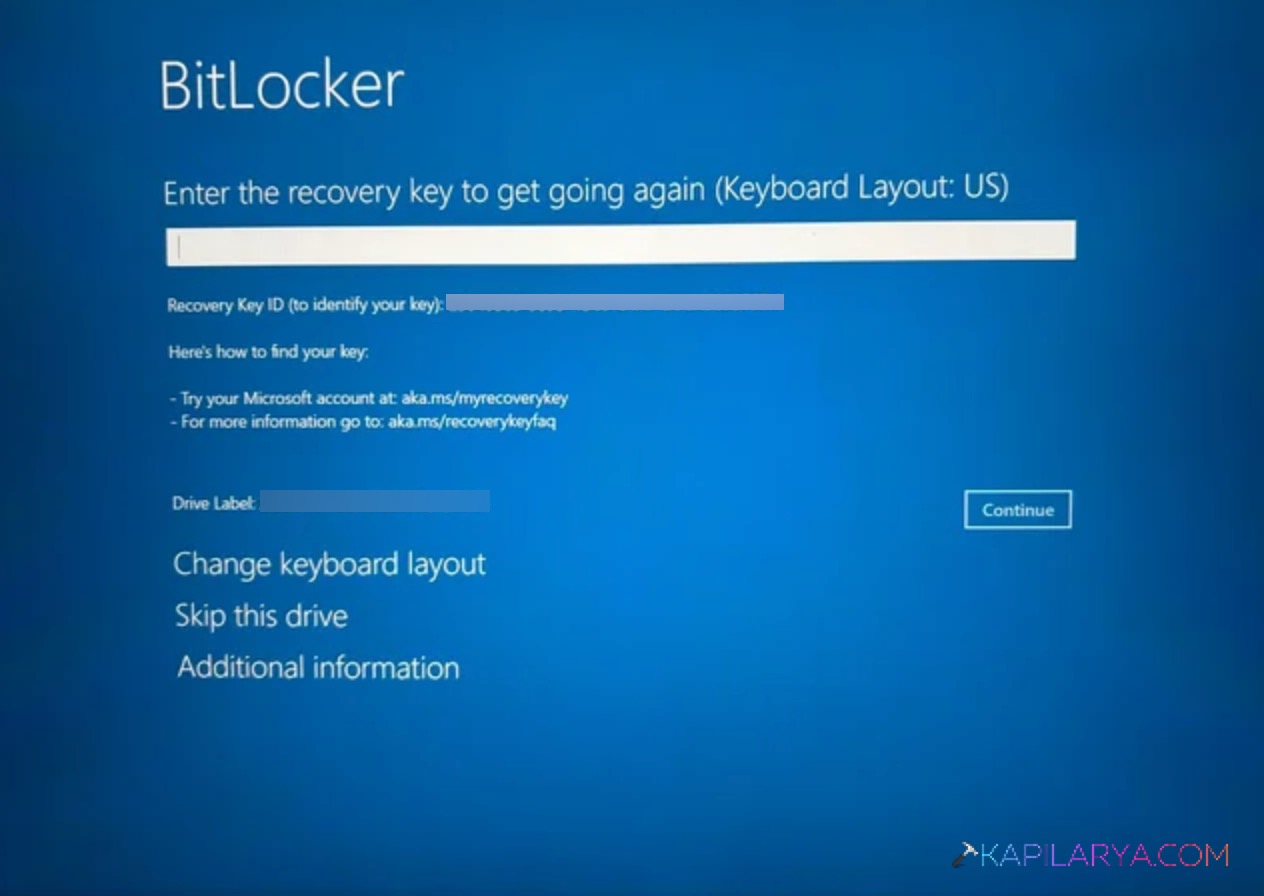
However, if BitLocker prompts for the recovery key every time you boot your Windows 11, it can be annoying. There could be multiple reasons this may happen. Usually TPM, BIOS changes or corrupted system files contribute to these type of issues.
Page Contents
How To Fix BitLocker Keeps Asking Recovery Key
Try the fixes below to fix up this problem on your device.
Fix 1: Check TPM Settings
The Trusted Platform Module (TPM) chip basically stores the security information used by BitLocker. Check it’s status with these steps:
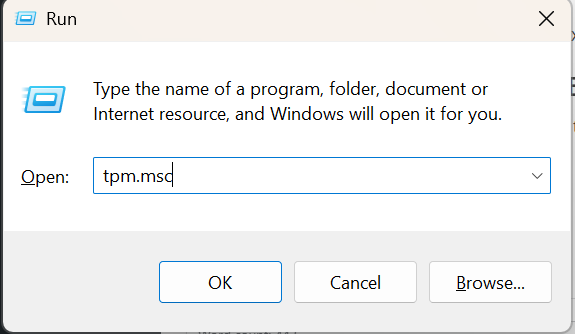
1. Press Windows + R, type tpm.msc, and press Enter.
2. Check whether TPM is enabled and ready for use.
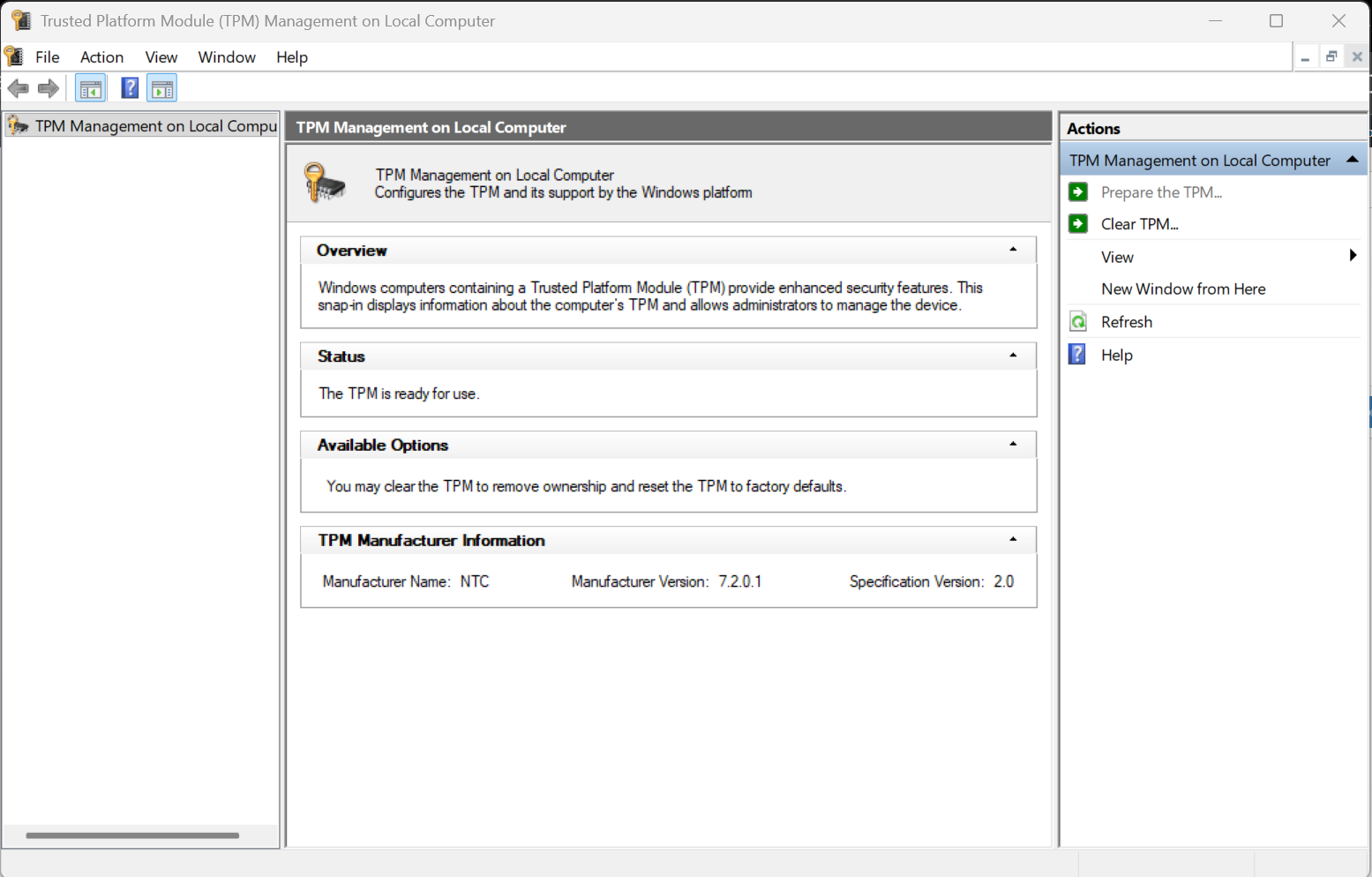
3. If TPM is disabled, enable it from the BIOS or UEFI settings.
4. Restart your PC and check if the issue is fixed.
Fix 2: Suspend And Resume BitLocker
Refreshing BitLocker protection can resolve temporary configuration problems. Try this:
1. Open Control Panel.
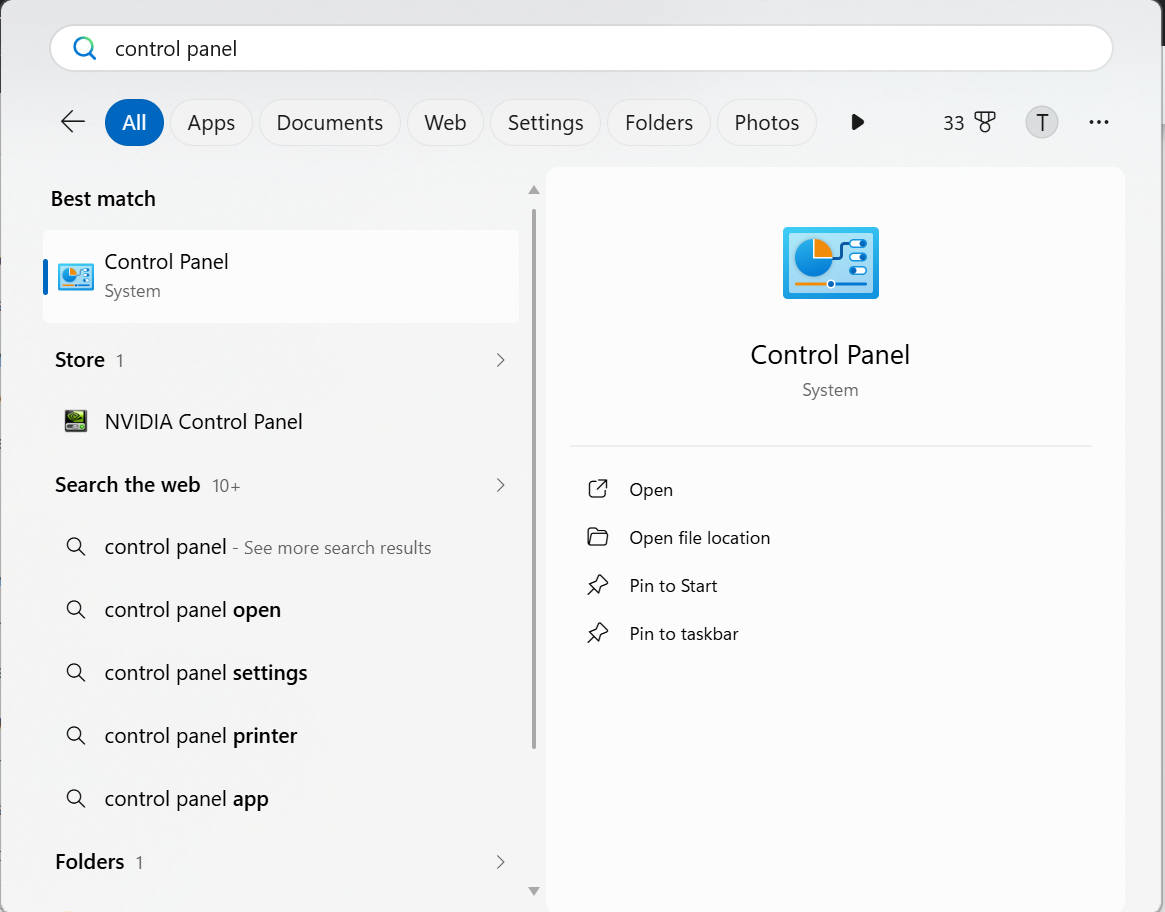
2. Search for BitLocker Drive Encryption.

3. Locate your OS drive (C:), click Suspend protection, then confirm by clicking Yes.
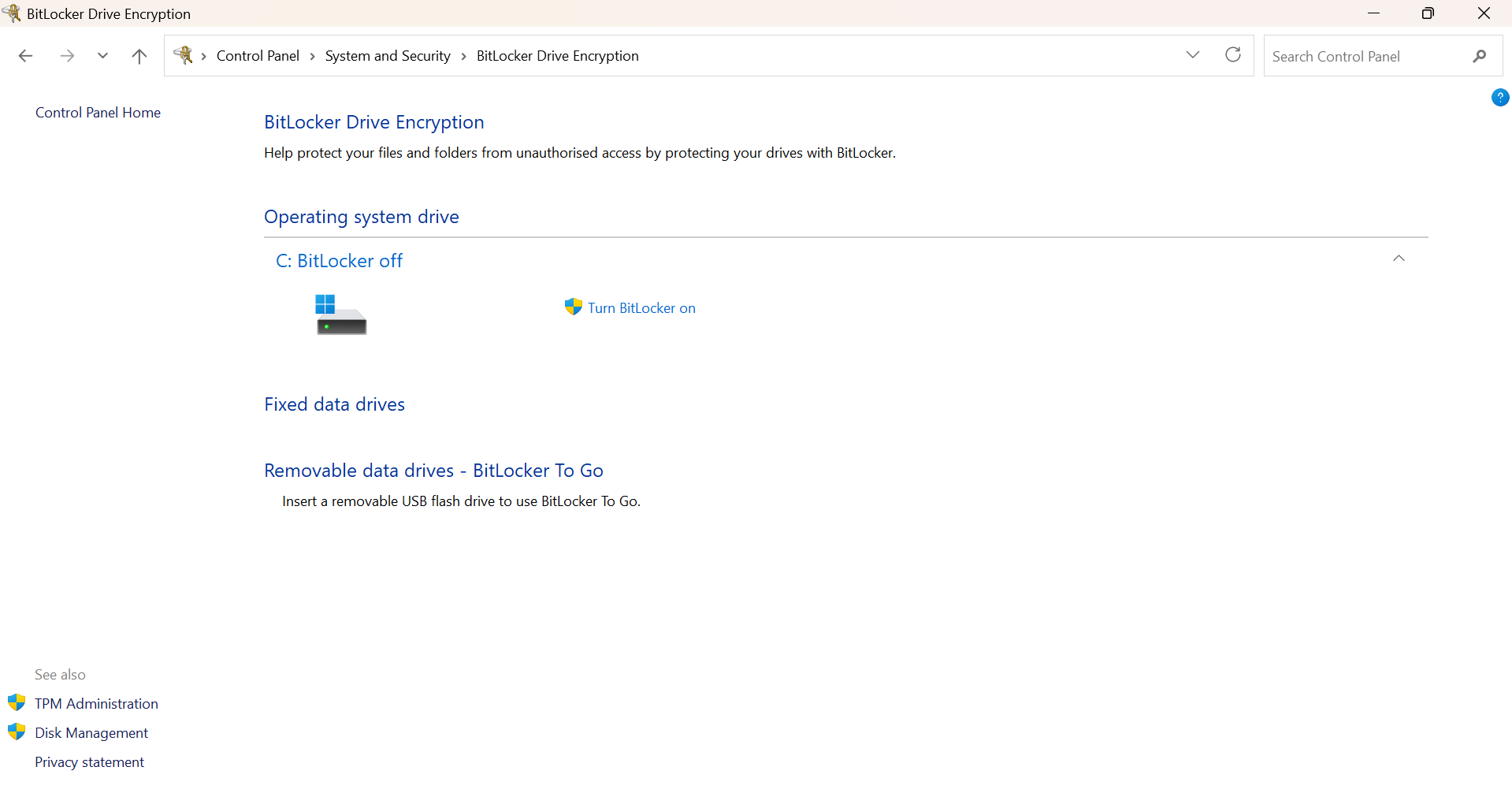
4. Restart your computer.
5. Open BitLocker again and click Resume Protection.
Fix 3: Review BIOS Or UEFI Changes
Recent firmware changes may trigger BitLocker recovery mode.
1. Restart your PC and enter BIOS/UEFI.
2. Check for recent changes to boot settings, TPM, or Secure Boot.
3. Restore the previous settings, if needed.
4. Save the changes and restart Windows 11.
Fix 4: Enable Secure Boot Properly
Incorrect Secure Boot settings can cause BitLocker to request the recovery key.
1. Open BIOS/UEFI settings.
2. Locate Secure Boot.
3. Enable it if your system supports it.
4. Save the settings and restart the PC.
Fix 5: Update Windows And Drivers
Outdated files and drivers can interfere with BitLocker.
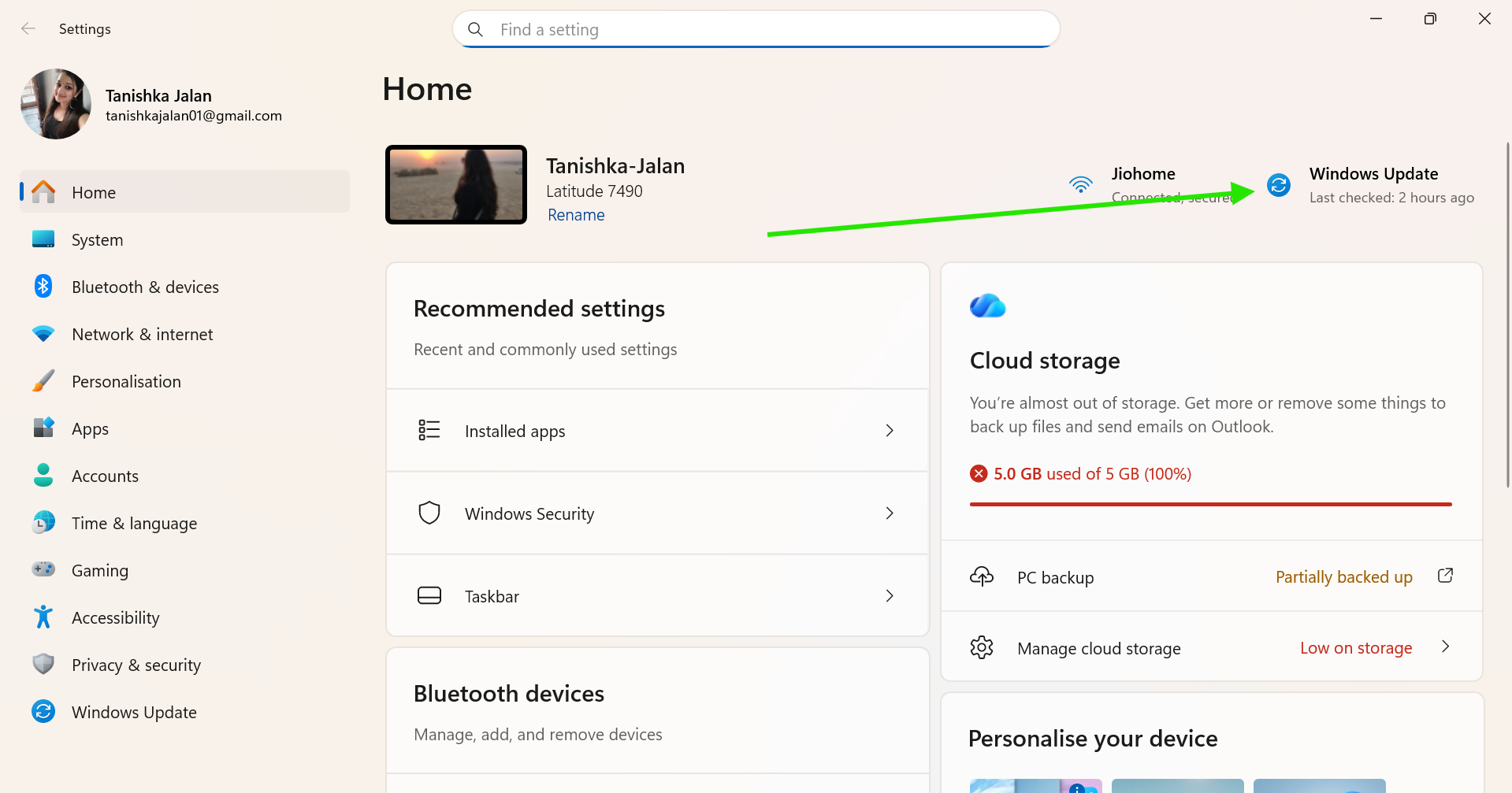
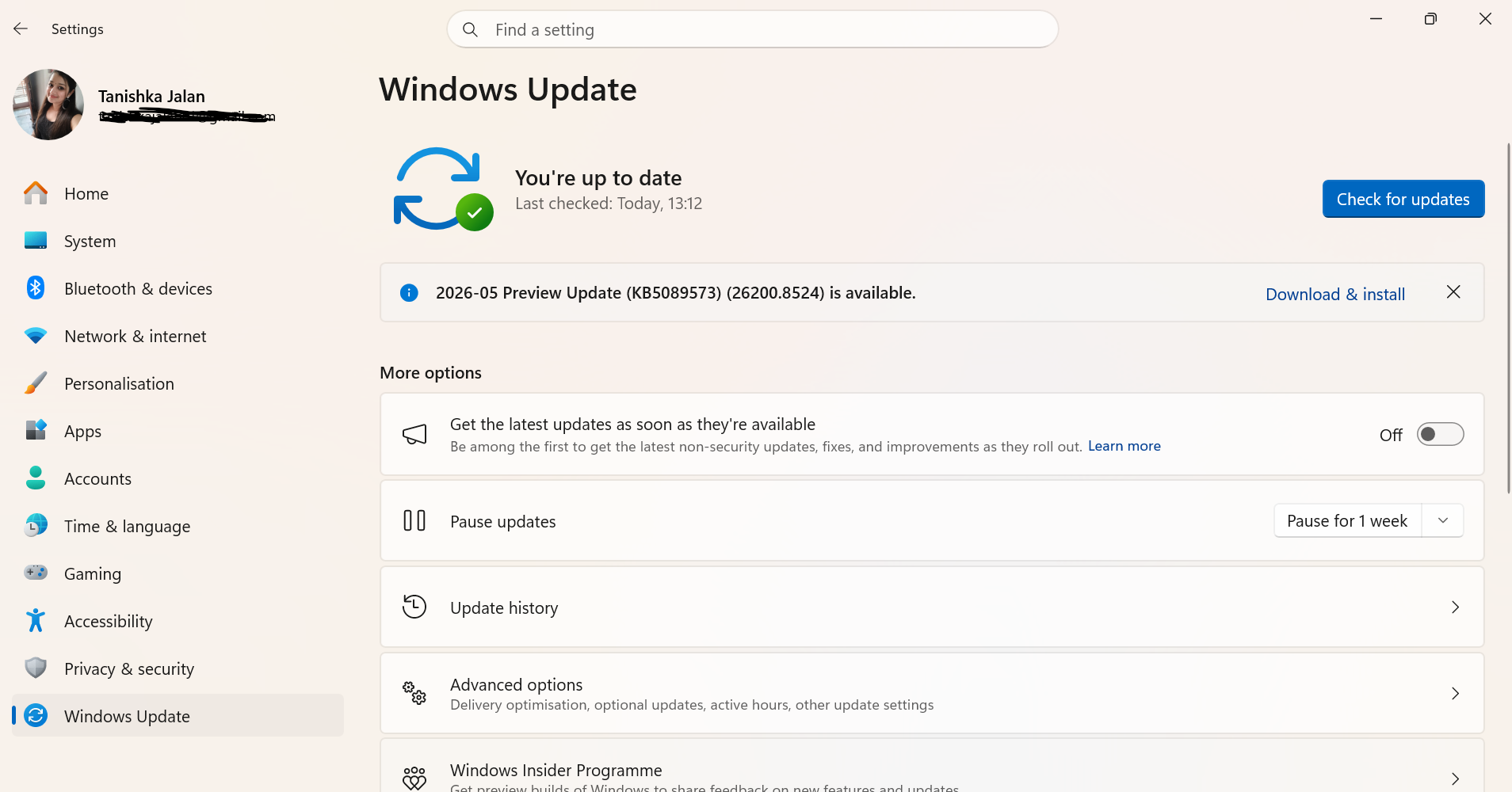
1. Open Settings > Windows Update.
2. Install all available updates.
3. Open Device Manager.
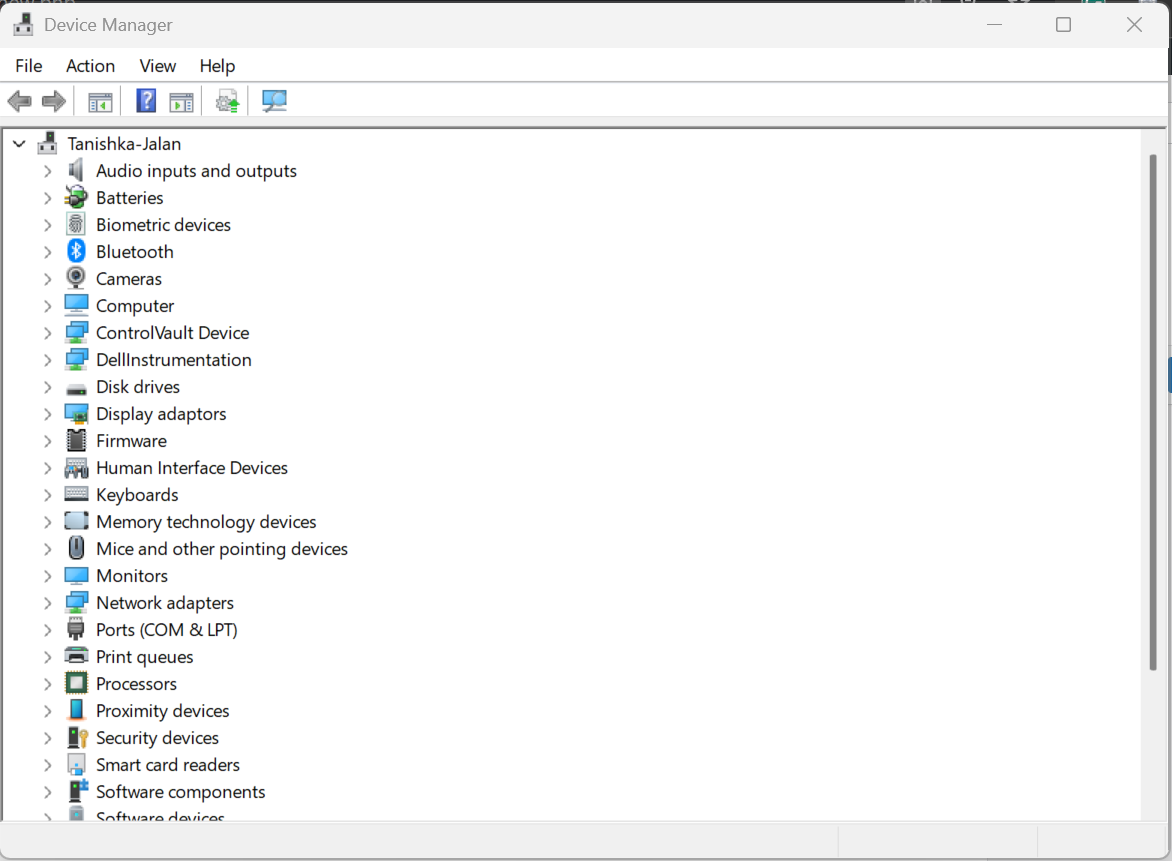
4. Right-click and update important hardware drivers.
5. Restart the computer.
Fix 6: Run SFC And DISM Scans
System file corruption can trigger BitLocker issues. Run SFC and DISM scan to fix system file corruption.
1. Open Command Prompt as Administrator.
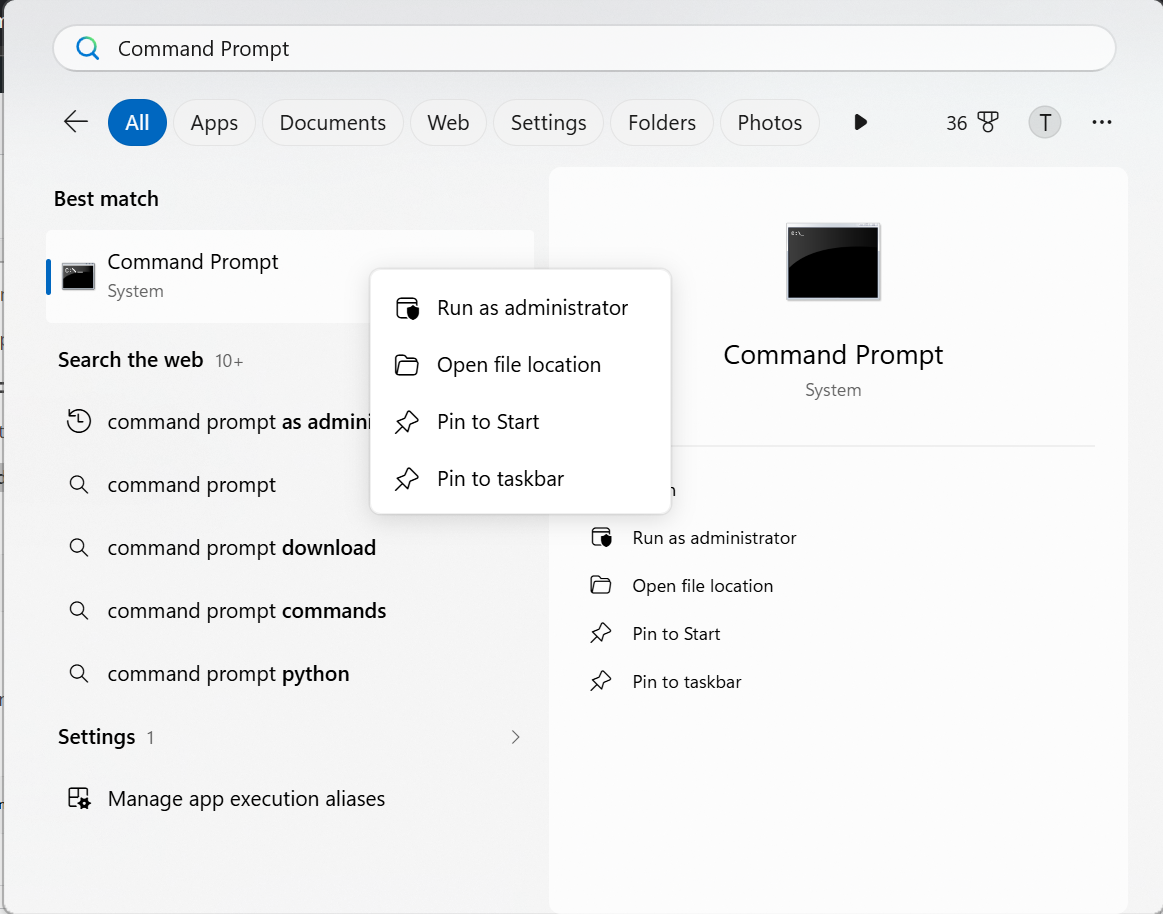
2. Run:
sfc /scannow
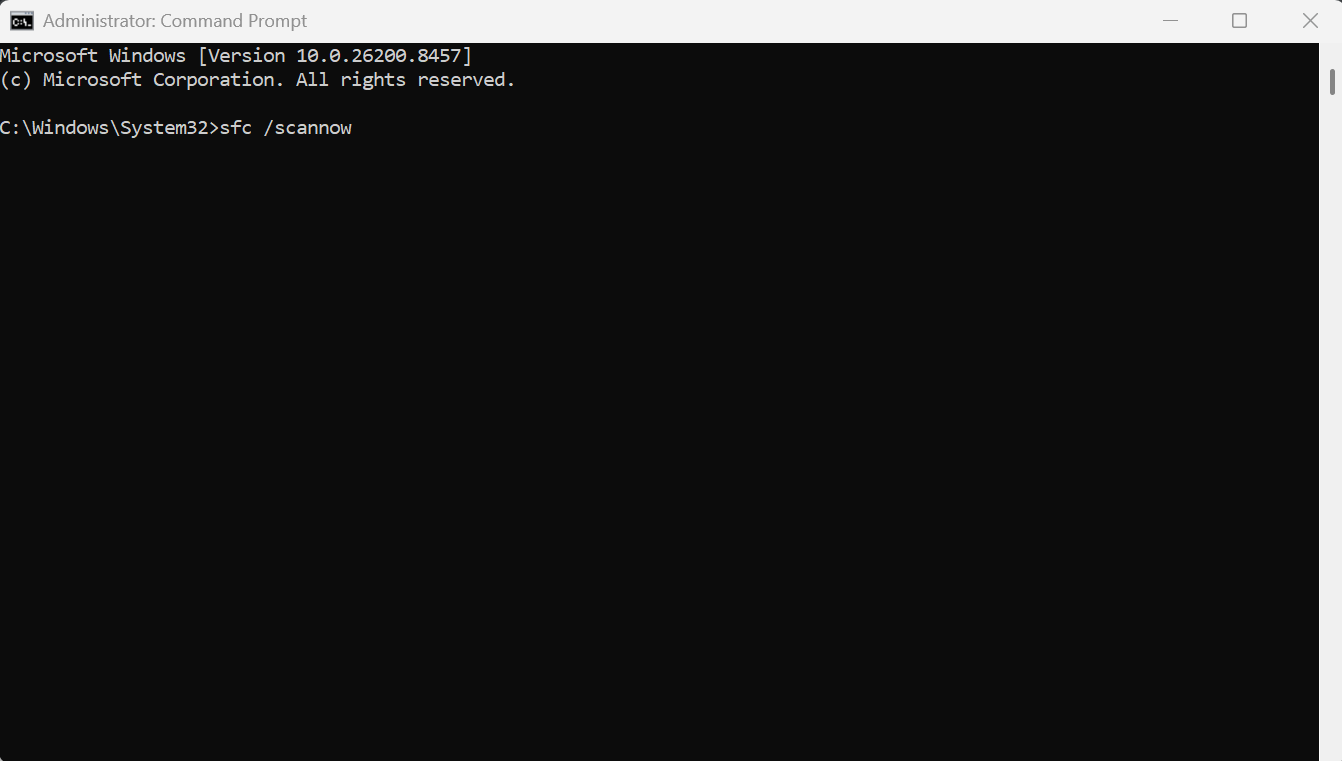
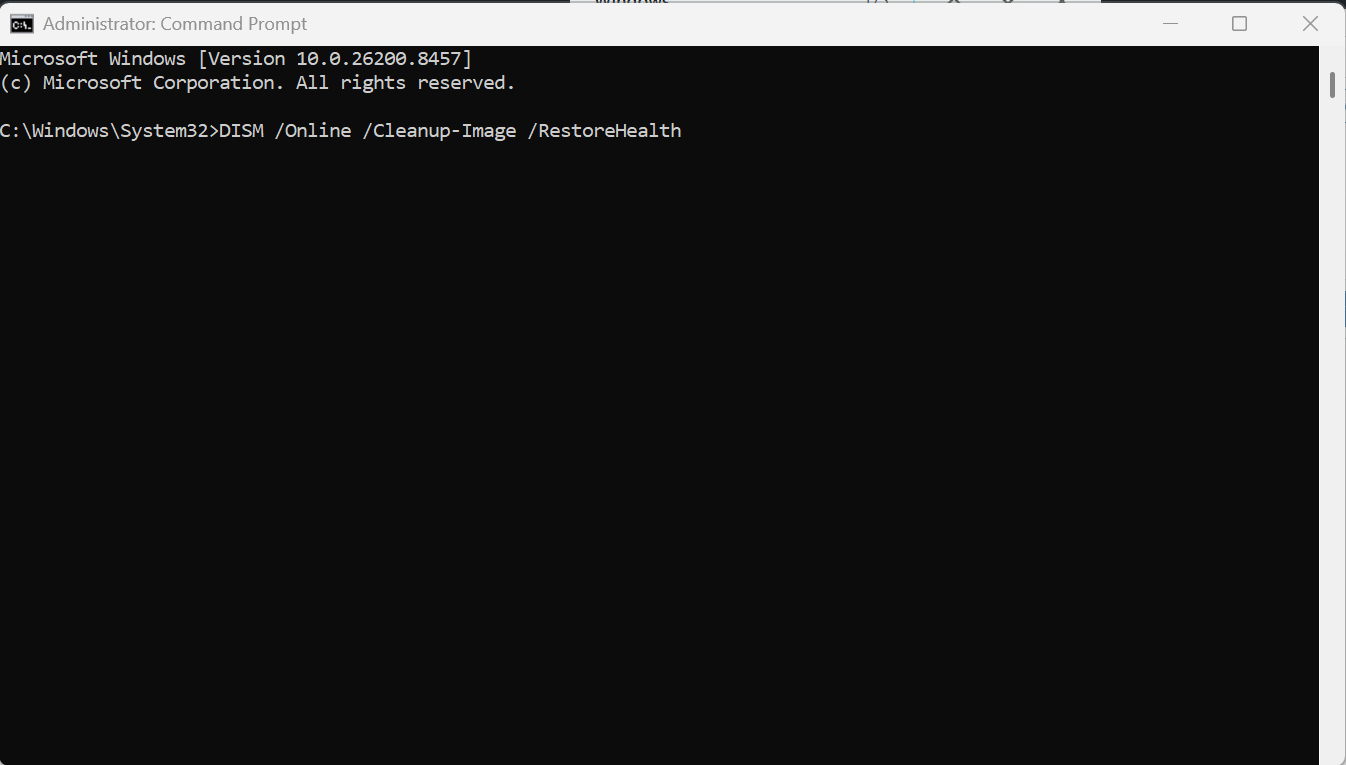
3. After the scan finishes, run:
DISM /Online /Cleanup-Image /RestoreHealth
4. Restart your PC.
Fix 7: Disable And Re-enable BitLocker
Re-configuring BitLocker can fix persistent encryption issues. Follow these steps:
1. Open Control Panel > System and Security > BitLocker Drive Encryption.
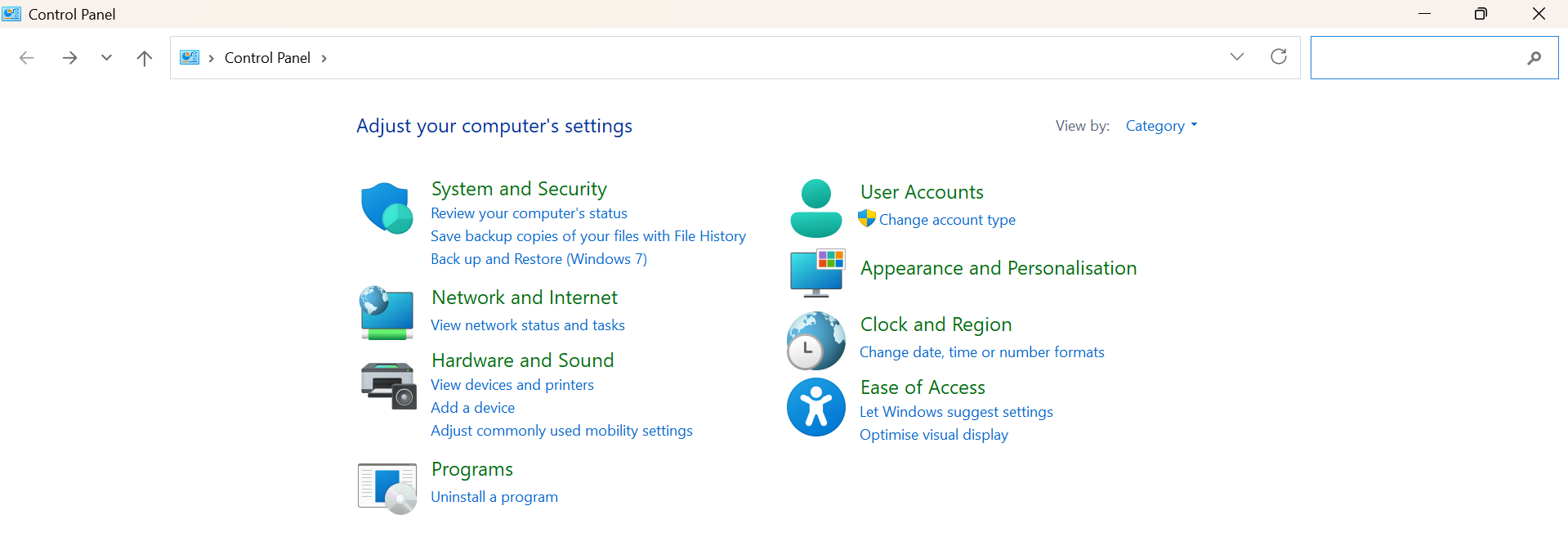
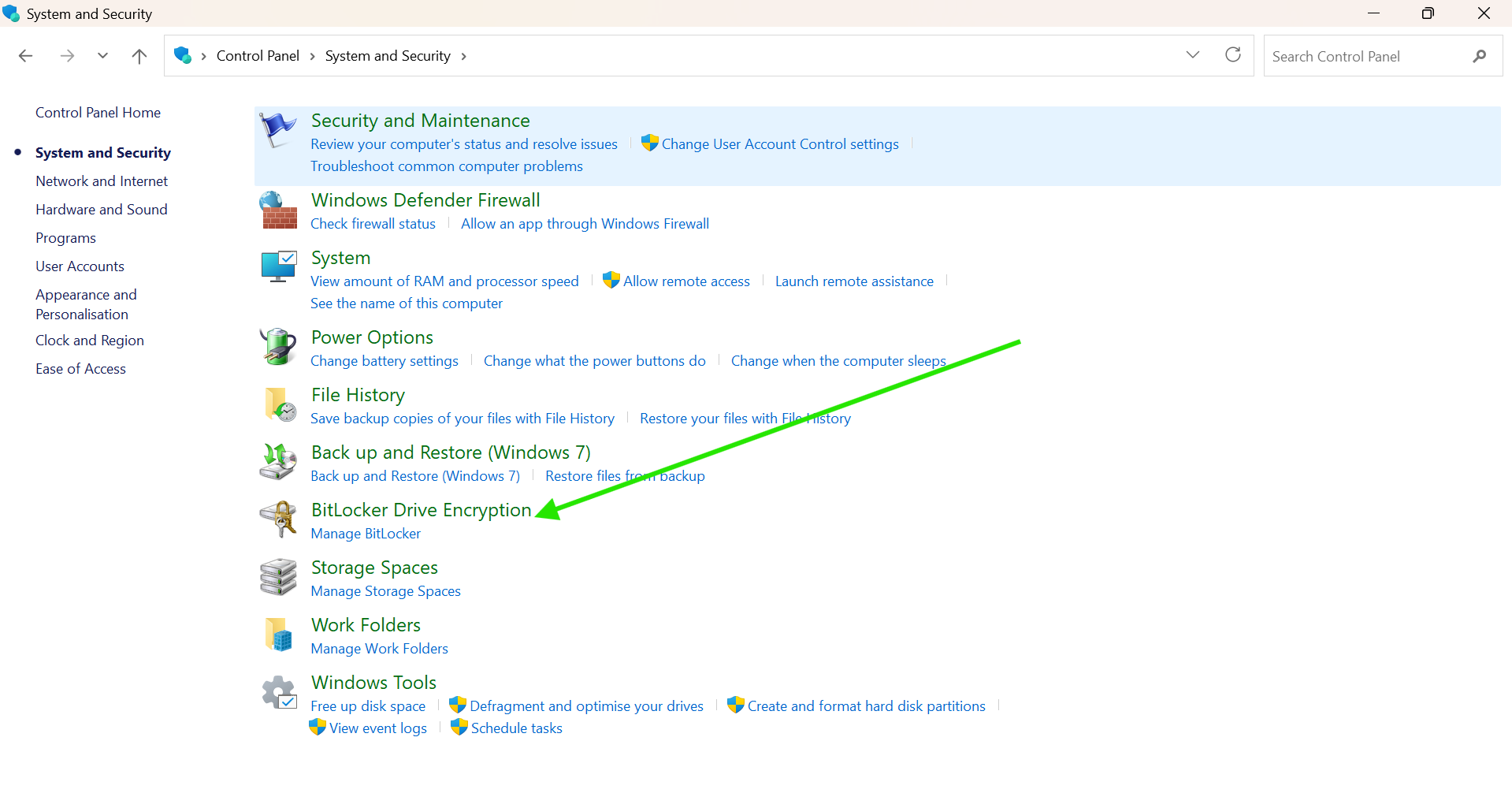
2. Click Turn Off BitLocker.
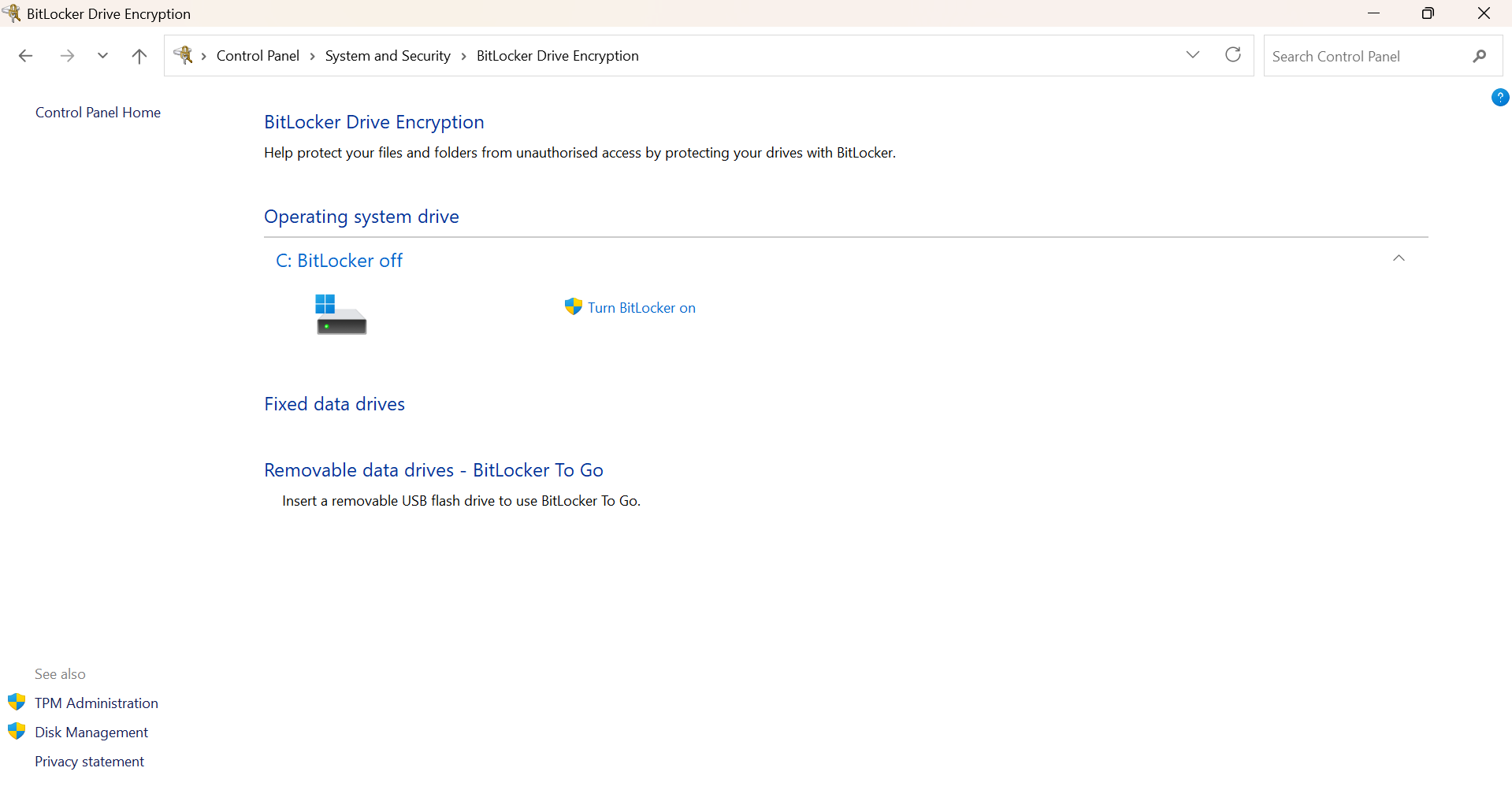
3. Wait for the drive to decrypt.
4. Turn BitLocker back on and complete the setup.
Fix 8: Reset TPM
A corrupted TPM can repeatedly trigger recovery mode. Let’s fix it.
1. Search for Windows Security and open it.
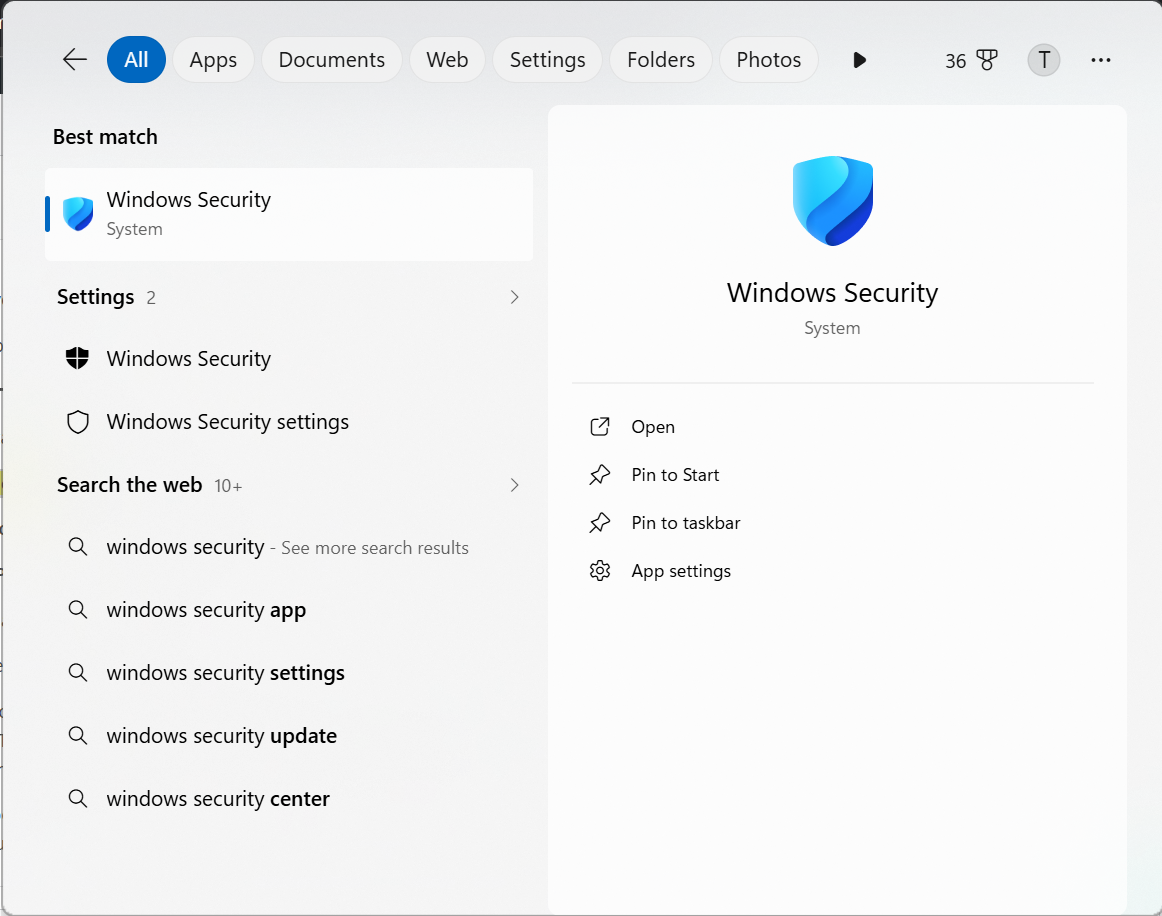
2. Go to Device Security > Security Processor Details.
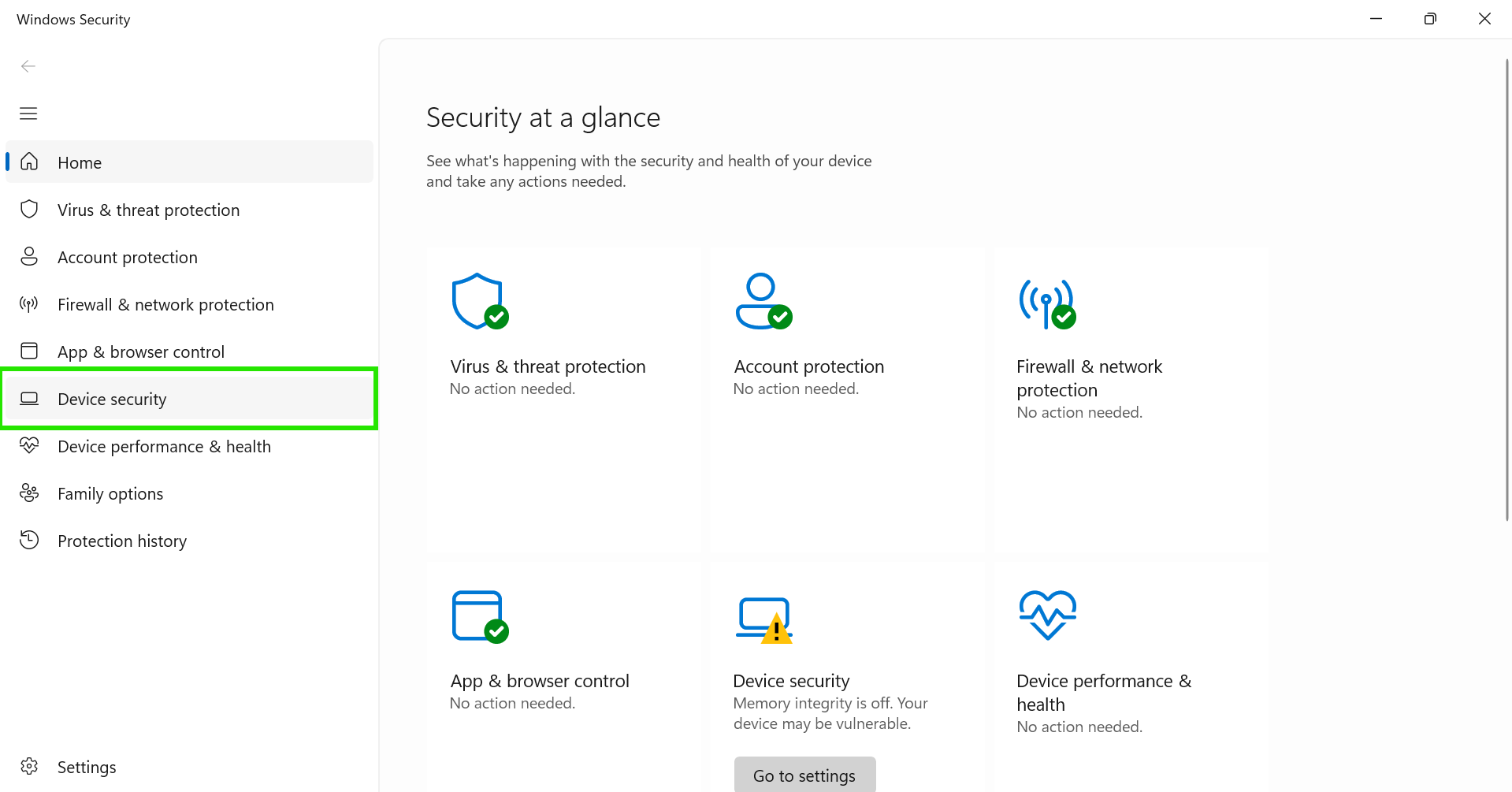
3. Select Security Processor Troubleshooting.
4. Click Clear TPM and restart the PC.
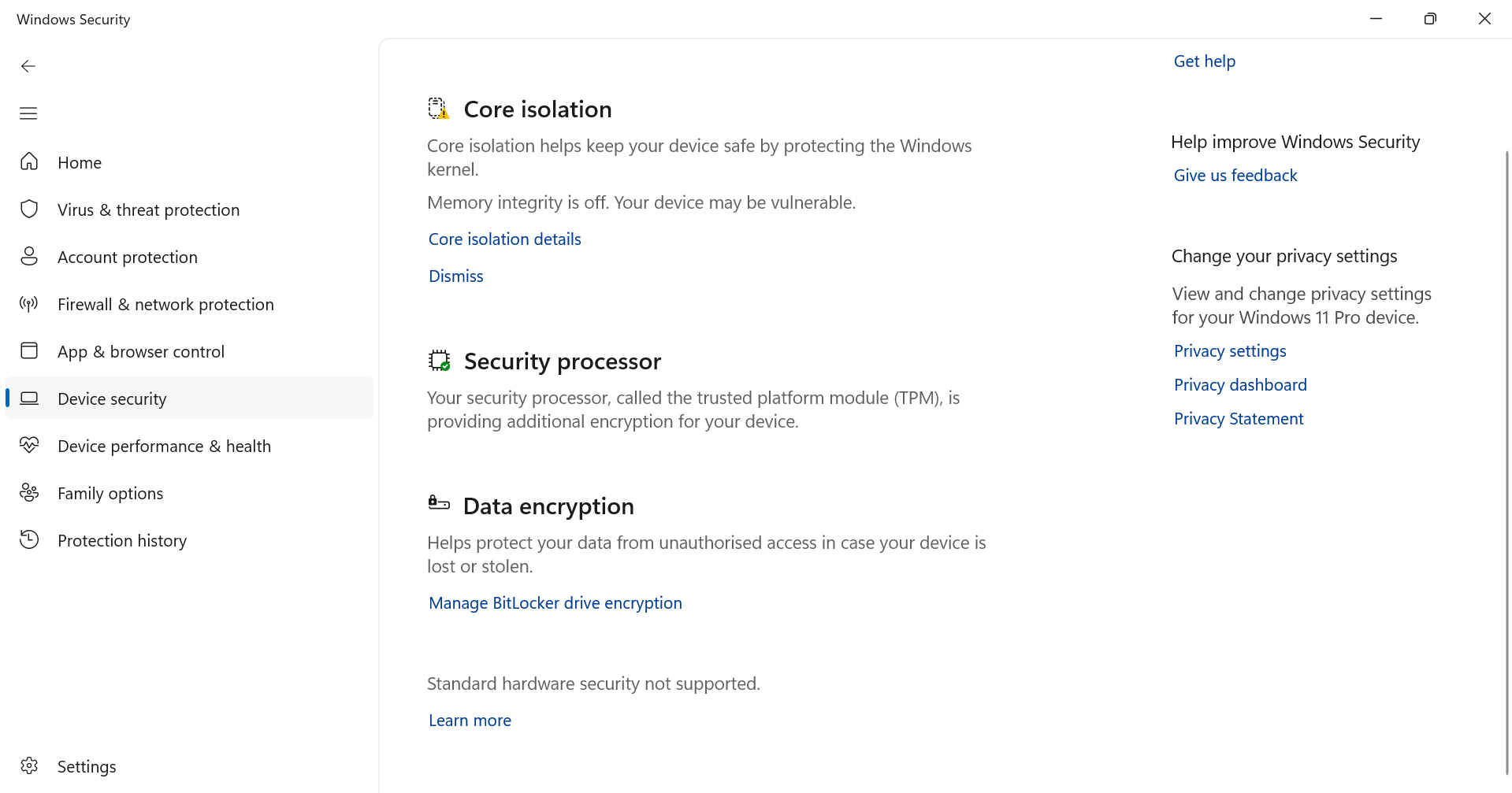
5. Enter the recovery key when prompted.
So that’s how you can fix BitLocker repeatedly asking for the recovery key.
Follow the fixes above in order, and the recovery key prompt should stop appearing during every startup.