If you have the problem of OneDrive showing offline on Windows 11 PC, check the internet connection first. That should resolve the issue. But, if it still persists, read through the article to know more ways to fix it to restore your OneDrive connectivity.
Page Contents
OneDrive Is Showing Offline on Windows 11: Fixes
Method 1: Check the service status
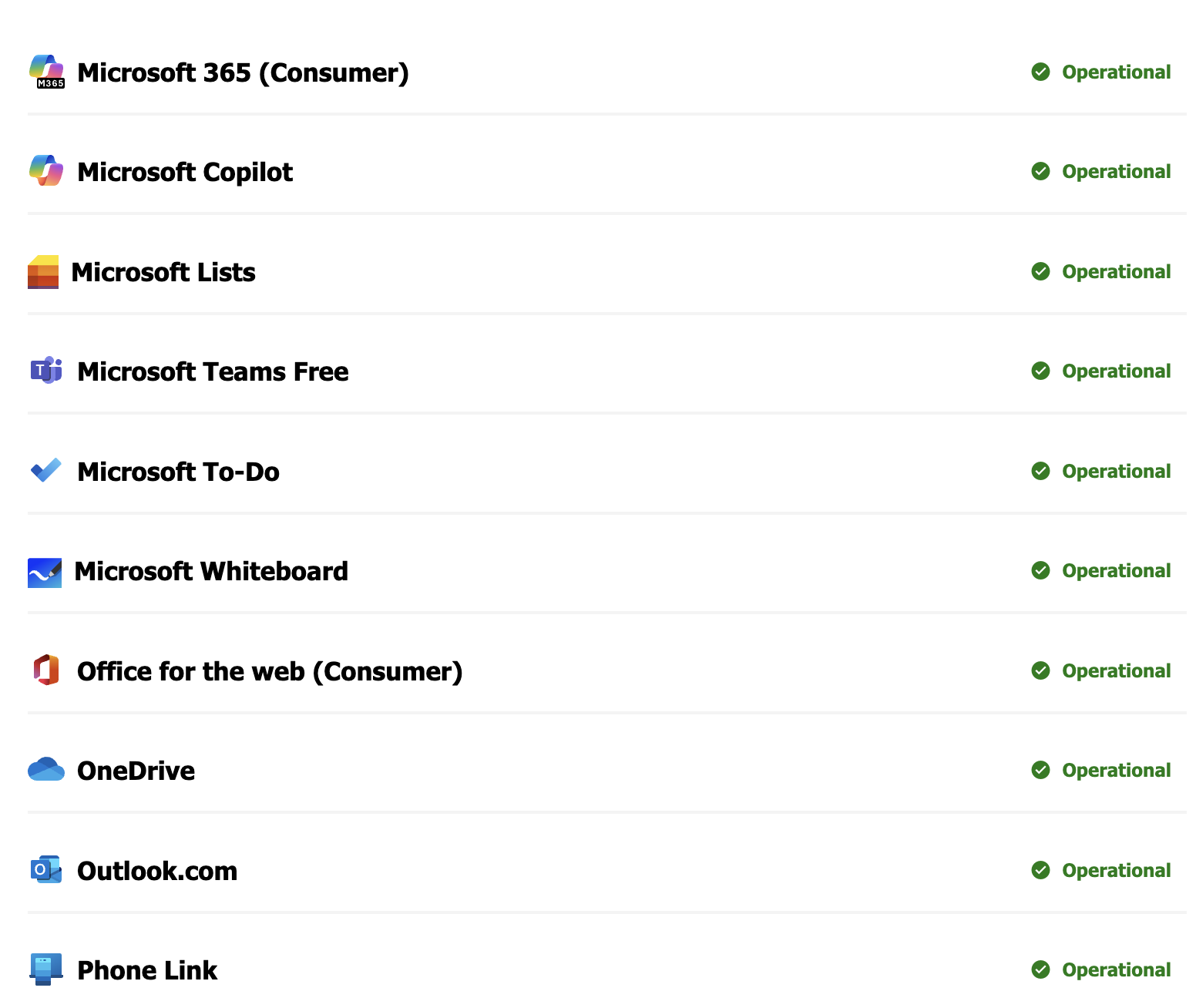
1. Go to official Microsoft website (https://status.cloud.microsoft/m365).
2. Under Microsoft consumer products section, click on show products.
3. Check the status of OneDrive there. It should show as operational. If the status is not operational, then, you must wait till Microsoft fixes this issue.
Method 2: Switch to another available network
Sometimes, the problem could be WiFi. If you power cycle the router, it will resolve this issue.
1. Turn off WiFi router.
2. Unplug adapter from the socket, wait for a few minutes, replug it again.
3. Turn on the router.
4. Connect to the internet once the router initializes.

Method 3: Disable VPN or proxy
Sometimes VPN client may contradict with OneDrive. Disabling it may help.
1. Disconnect your VPN or proxy.
2. If OneDrive starts working fine, that connection might be preventing OneDrive from accessing the network.
3. In that case, connect to a different VPN server.
Method 4: Clear your browser cache and cookies
When you open the My files folder, you may see a blank screen or an error message saying “Connect to the internet to open this page.”
If that occurs, clear your your web browser cache and cookies. Alternatively, you can just clear the cache and cookies for OneDrive only.

Method 5: Disable your browser extensions
1. Disable all extensions from your browser.
2. Open OneDrive in private or incognito window.
3. If OneDrive works, enable the extensions one by one, while reloading the page after each one.
4. If the issue reappears, the lastly enabled extension may be the likely cause. Remove that and look for an alternative.
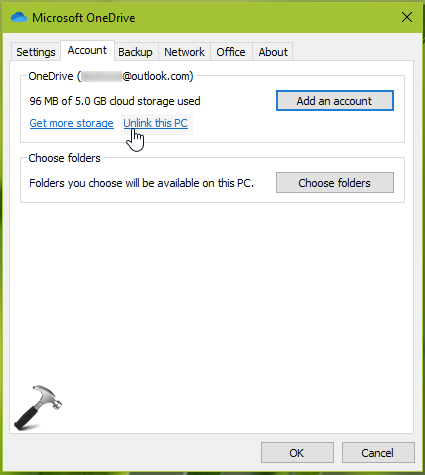
Method 6: Unlink and relink OneDrive
1. In the task bar, click on OneDrive cloud icon.
2. Click gear icon in the top right corner and click on Settings > Account > Unlink this PC.
3. Restart your system.
4. Click on Cloud icon in the taskbar and enter your Microsoft account credentials. You have now relinked OneDrive.
Method 7: Clear OneDrive cache
You must reset your OneDrive. To do so,
1. Launch the command box.
2. Run the command %localappdata%\Microsoft\OneDrive\onedrive.exe /reset
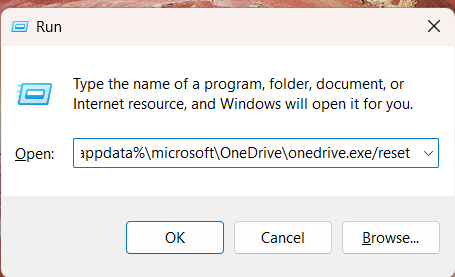
3.Windows will now launch OneDrive after resetting.
4. Now, run the command %localappdata%\Microsoft\OneDrive\onedrive.exe. By doing this, the OneDrive icon will reappear and will let you know that OneDrive is now opened.
Method 8: Disable antivirus and firewall
Go to your antivirus or firewall and disable it. See if the issue is fixed. If it is fixed, you need to add OneDrive to your antivirus exception list. If you do not use any third party antivirus, then add OneDrive as an excemption in your Windows Security.
1. Locate this path: C:\Program Files\Microsoft OneDrive
2. Select OneDrive and add it as an exception.
Method 9: Reset your network
Warning: Save all your pending tasks before you do this method.
1. Go to Settings > Network and Internet > Network Reset.
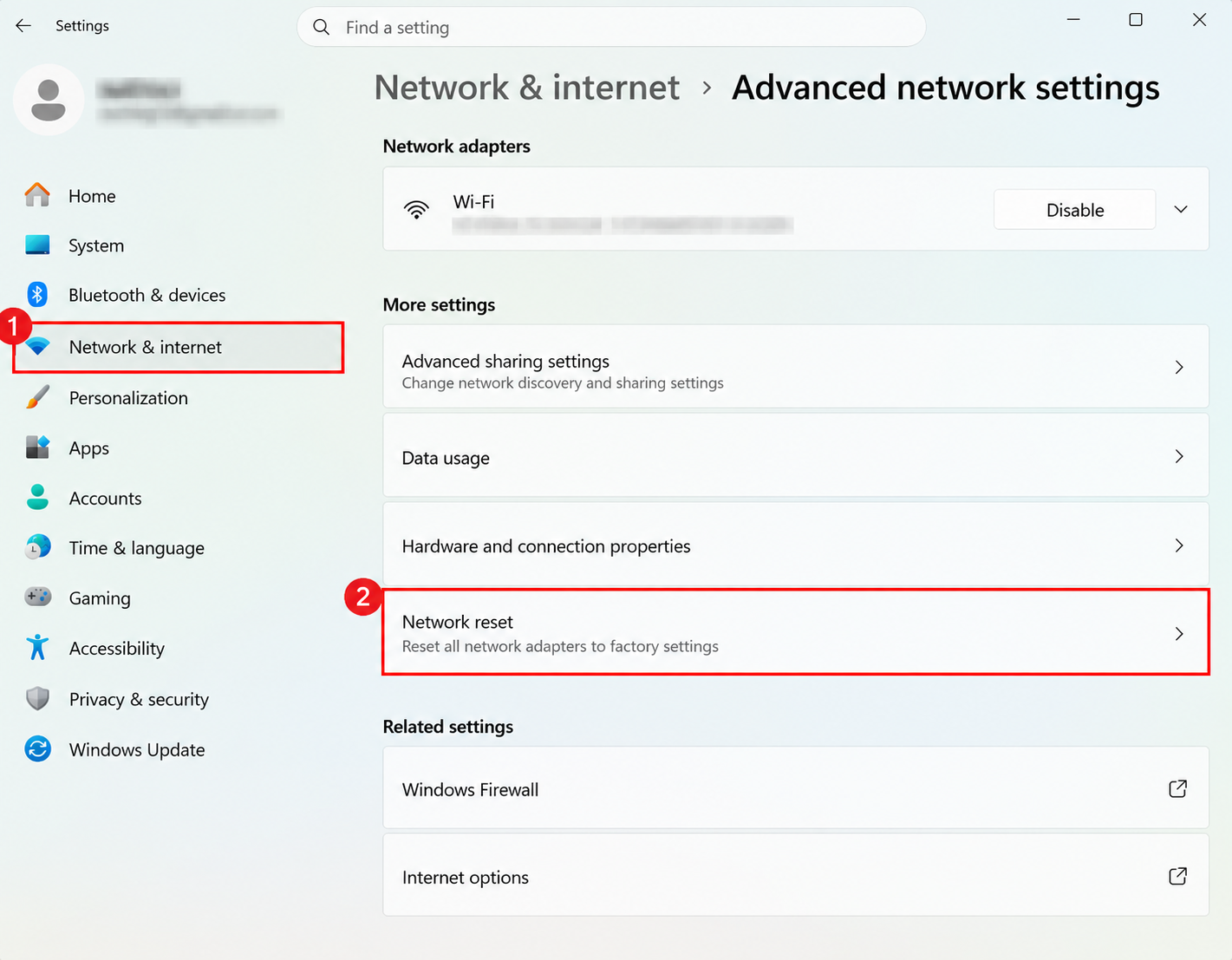
2. This will reinstall all your network adapters. It would reset them to their default state.
3. Restart Windows to complete this process.
Method 10: Uninstall and reinstall OneDrive
1. Open Windows 11 settings and uninstall OneDrive.
2. Restart your computer.
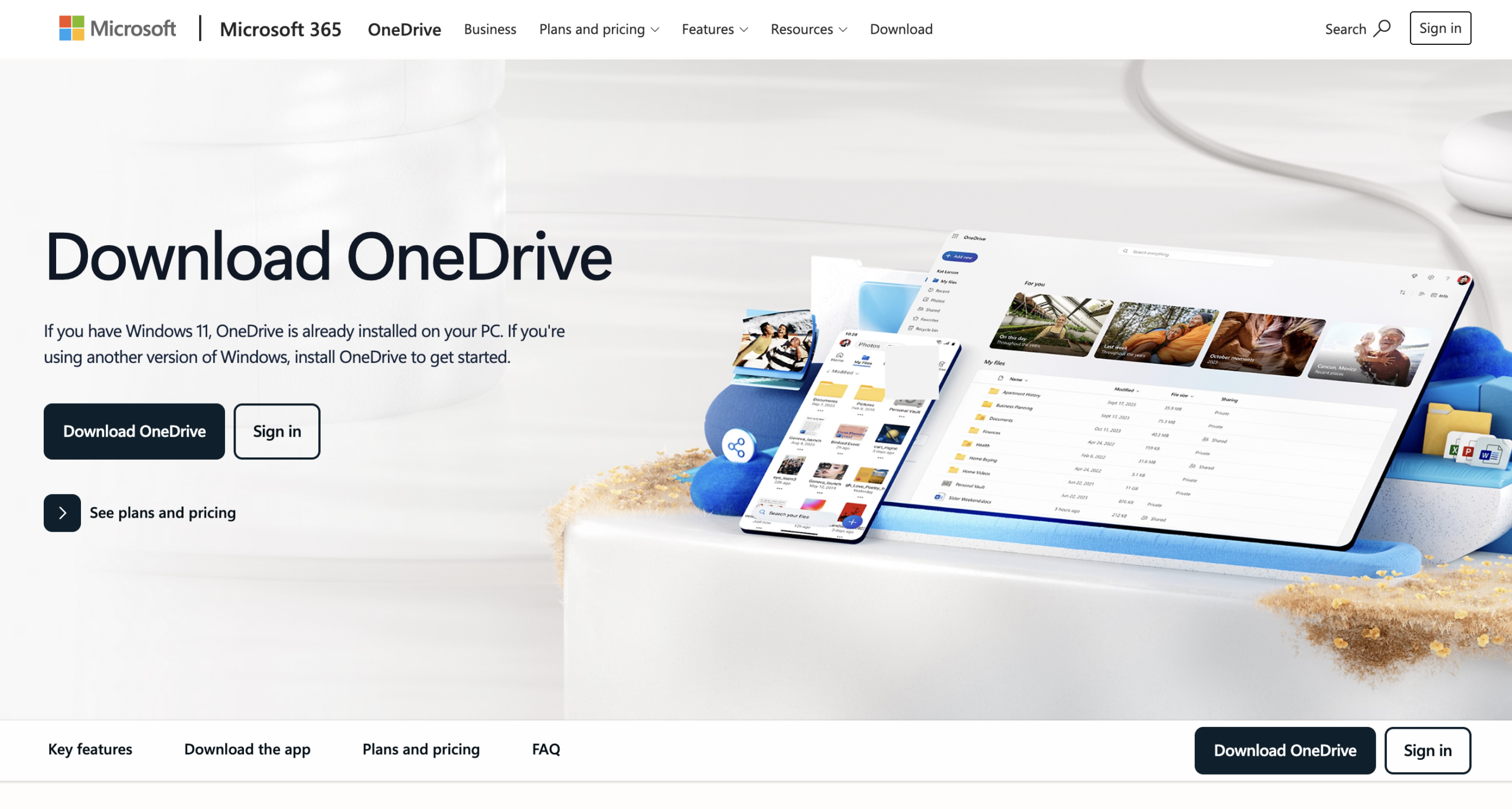
3. Download OneDrive from Microsoft’s official website (https://www.microsoft.com/en-in/microsoft-365/onedrive/download), and install it again.
That’s it!