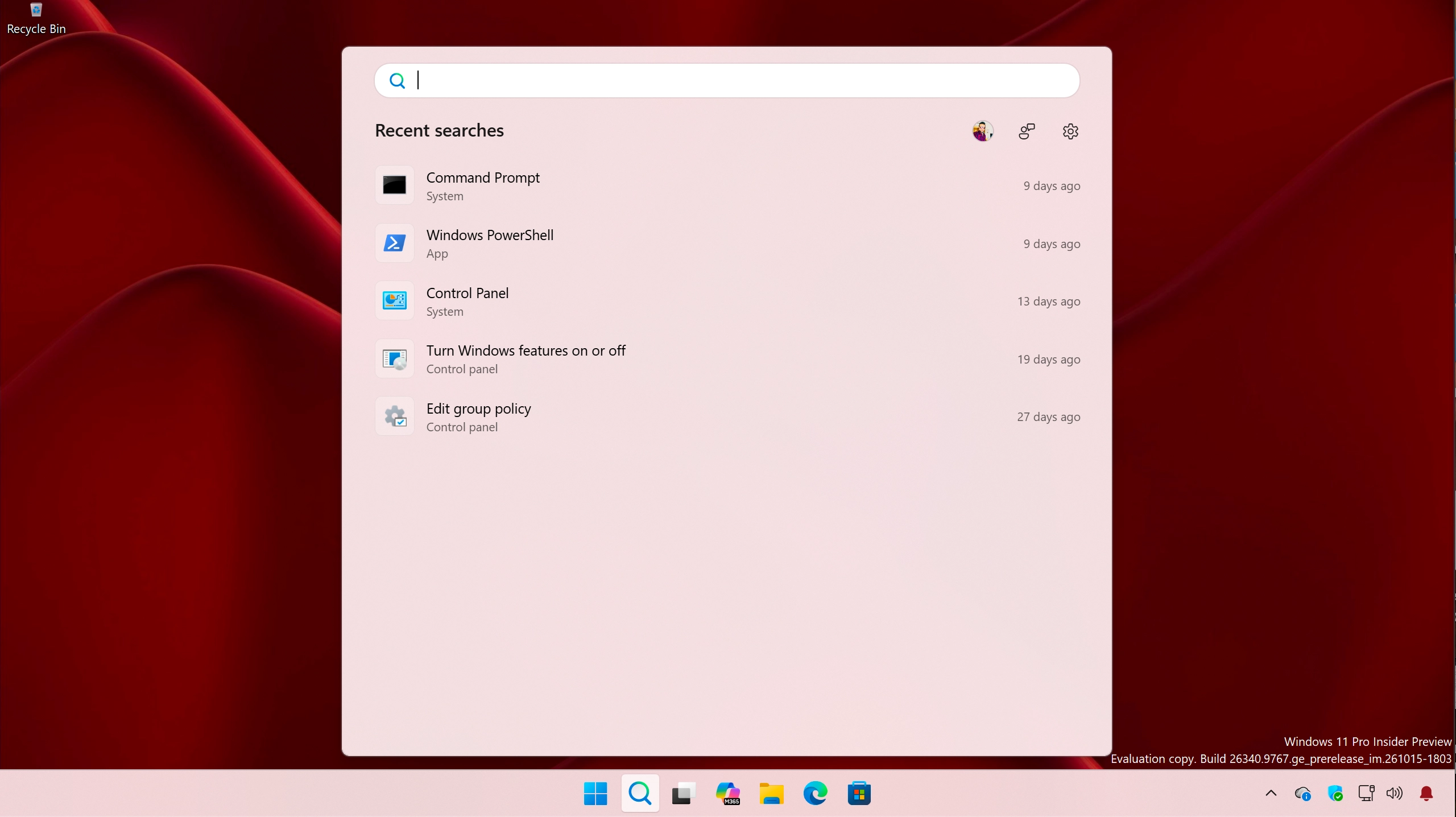
If the search bar is not working in Windows 11, it is impossible for you to type in it to find apps and files on your system. This mostly happens when you have to issues related to File Explorer, Windows Search service, or the search index. You can follow the methods below to fix the problem and get Windows Search working again.
Page Contents
How to Fix Search Bar Not Working in Windows 11
Fix 1: Restart File Explorer
If your Windows search bar faces issues, the easiest fix is to restart the File Explorer. Follow these steps to restart it.
1. Right-click the Start button and select Task Manager.
2. Find “Windows Explorer” in the Processes tab.
3. Right-click it and select “Restart”.
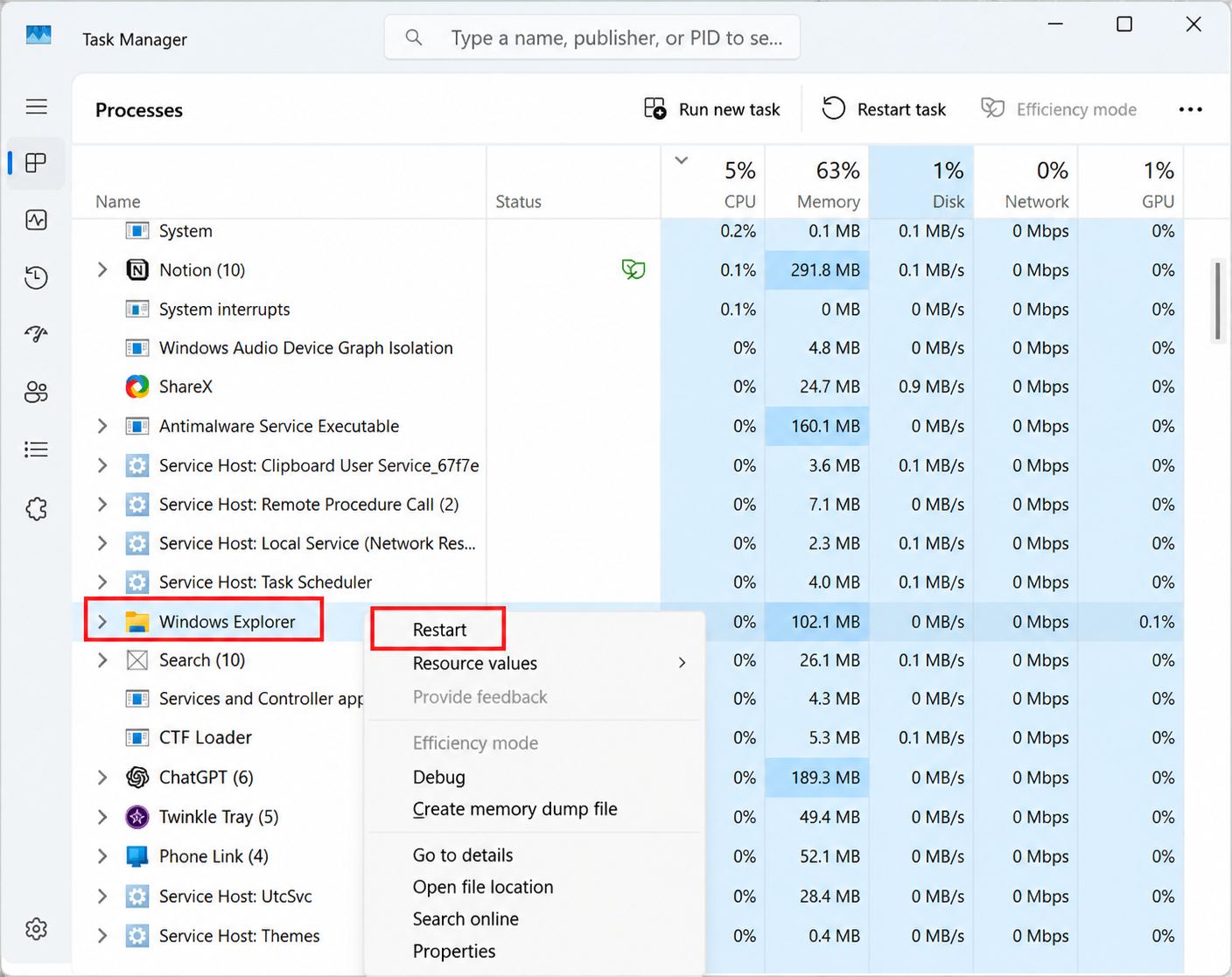
4. Wait a few seconds. Search bar should work now.
Fix 2: Restart the Windows Search Service
If you cannot type in the search bar, restarting the Windows Search service may help.
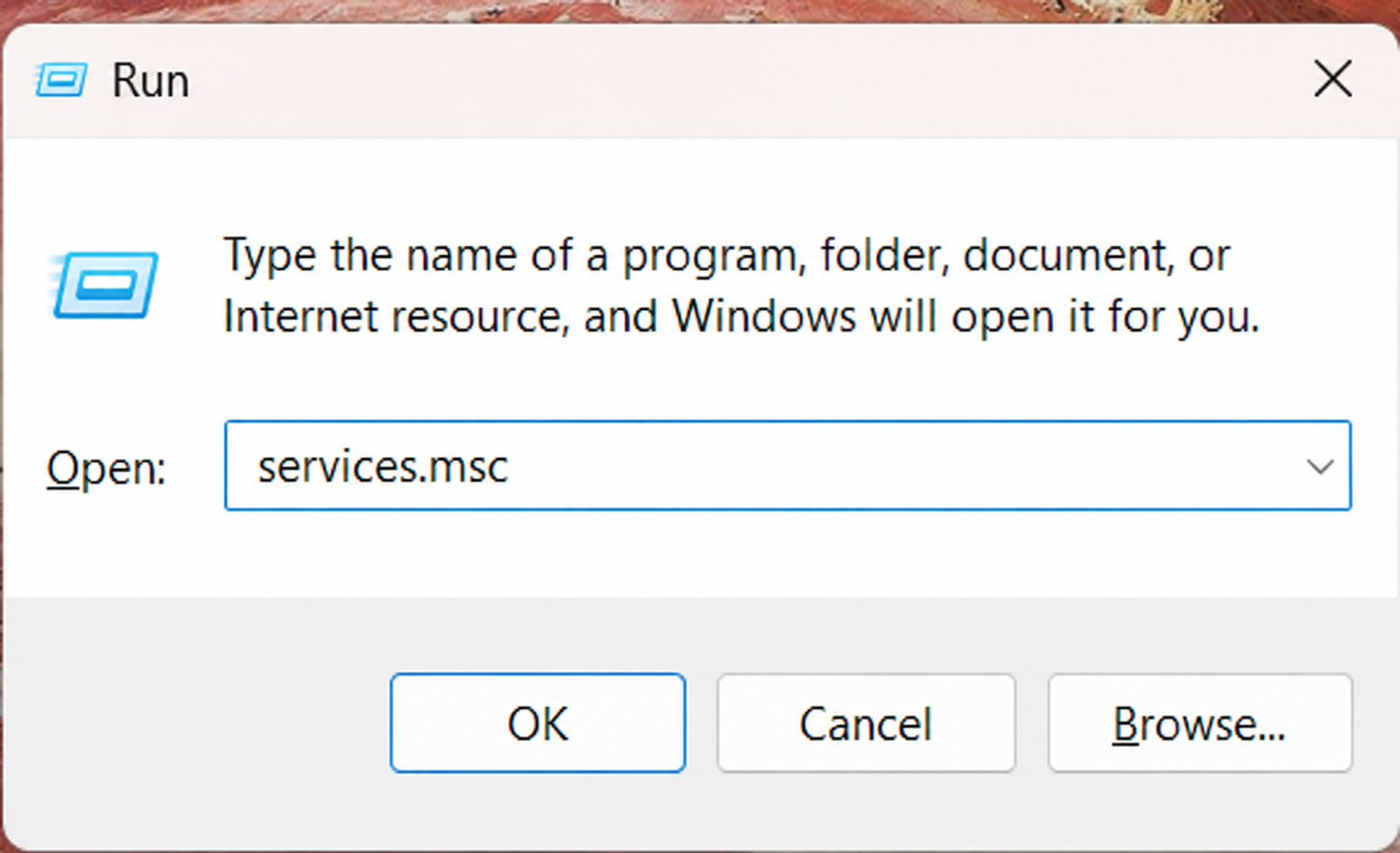
1. Open the Run dialog box by pressing Win + R.
2. Type services.msc and press Enter.
3. Find “Windows Search”. Double click it.
4. First, click “Stop” to stop the service. Then, click “Start” to restart the service again.
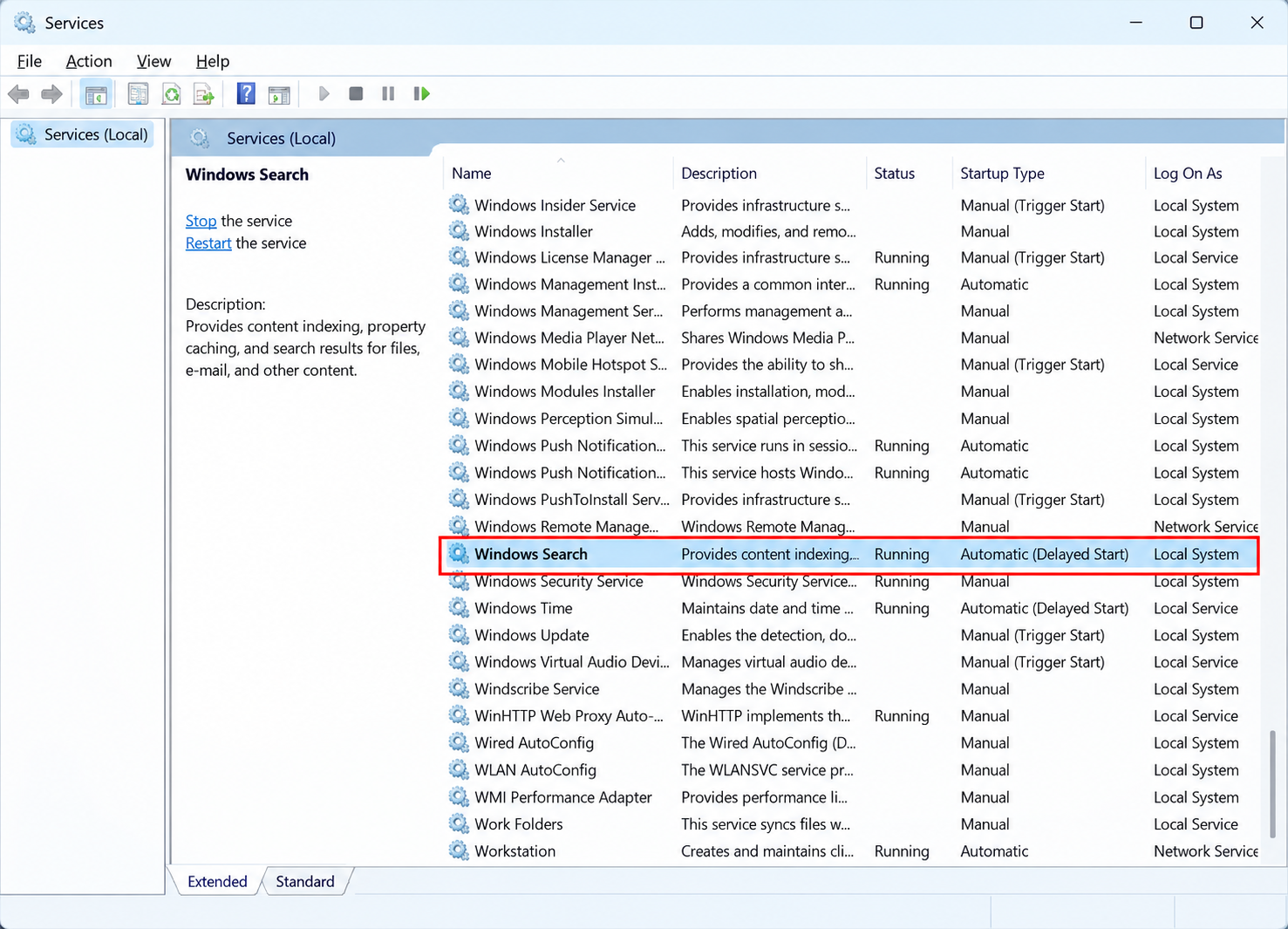
5. Next, under the Startup type, set it to “Automatic”.
5. Click “Apply”, then click “OK.”
Once you restart your PC, your search bar will now work fine.
Fix 3: Rebuild the Search Index
Windows usually creates an index to help you find files and other items faster. If the index becomes corrupted, rebuilding it may fix the search issue. Follow the steps below to fix it.
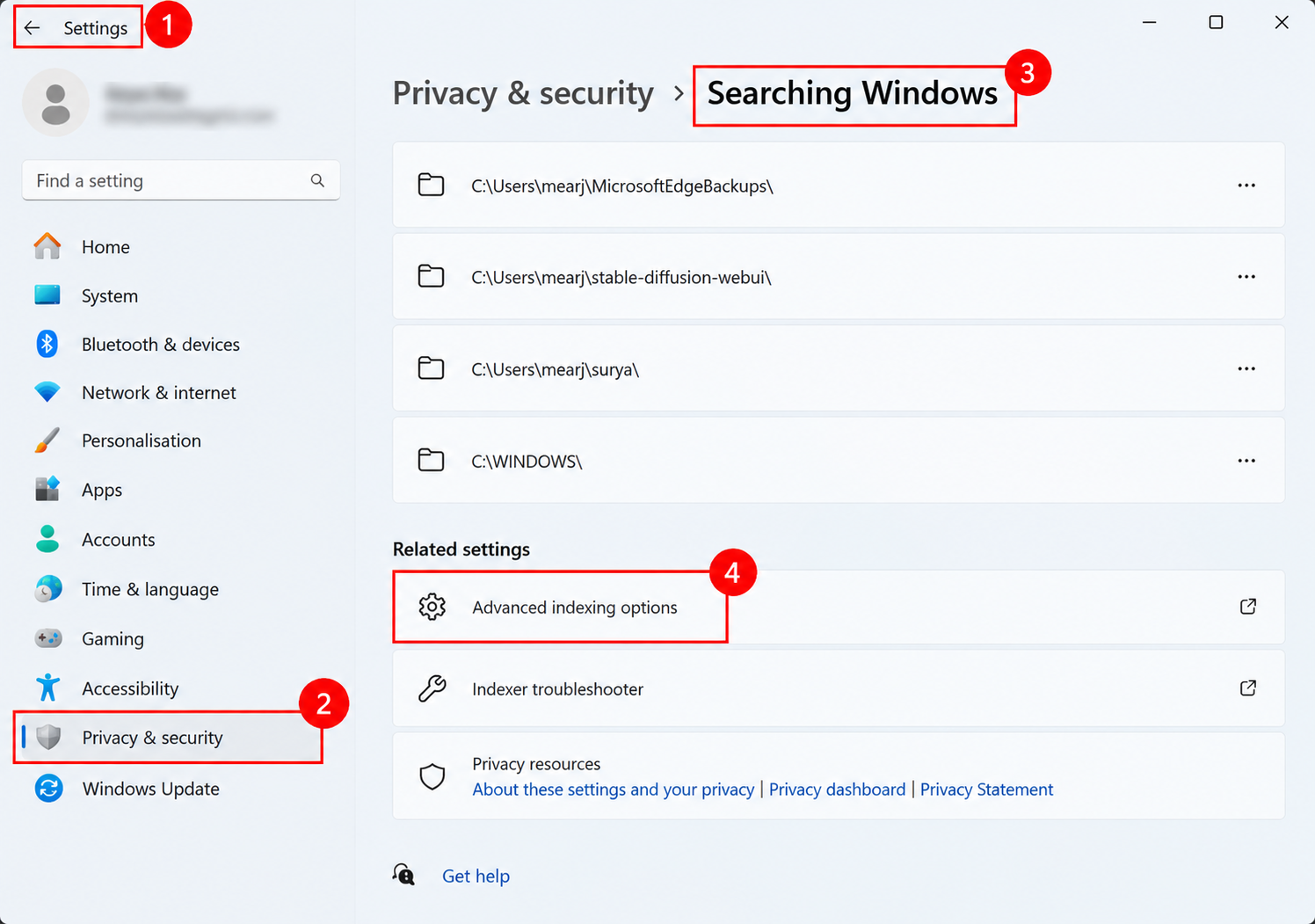
1. Open Settings. Go to “Privacy & security” and select “Searching Windows.”
2. Click on”Advanced indexing options.”
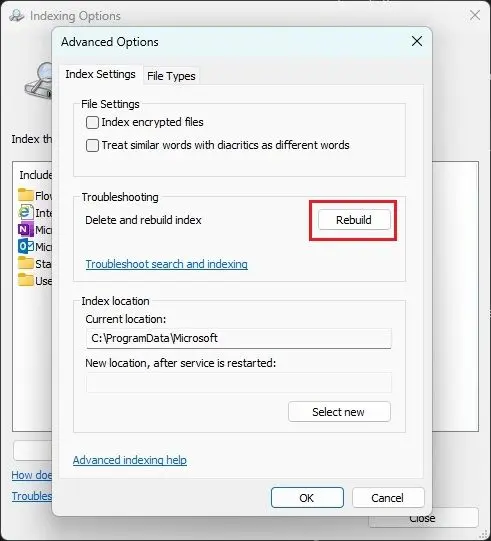
3. Under Indexing Options window, click “Advanced.”
4. Now, click on “Rebuild” under Troubleshooting.
5. Wait for Windows to rebuild the index.
The process may take some time, depending on the number of files on your PC. Once this is done, you can try searching again.
Fix 4: Restart the Search Process
If the search bar is still not working, restart the Search process from Task Manager. Windows should start the process again when you open Search.
1. Press Ctrl + Shift + Esc to open Task Manager.
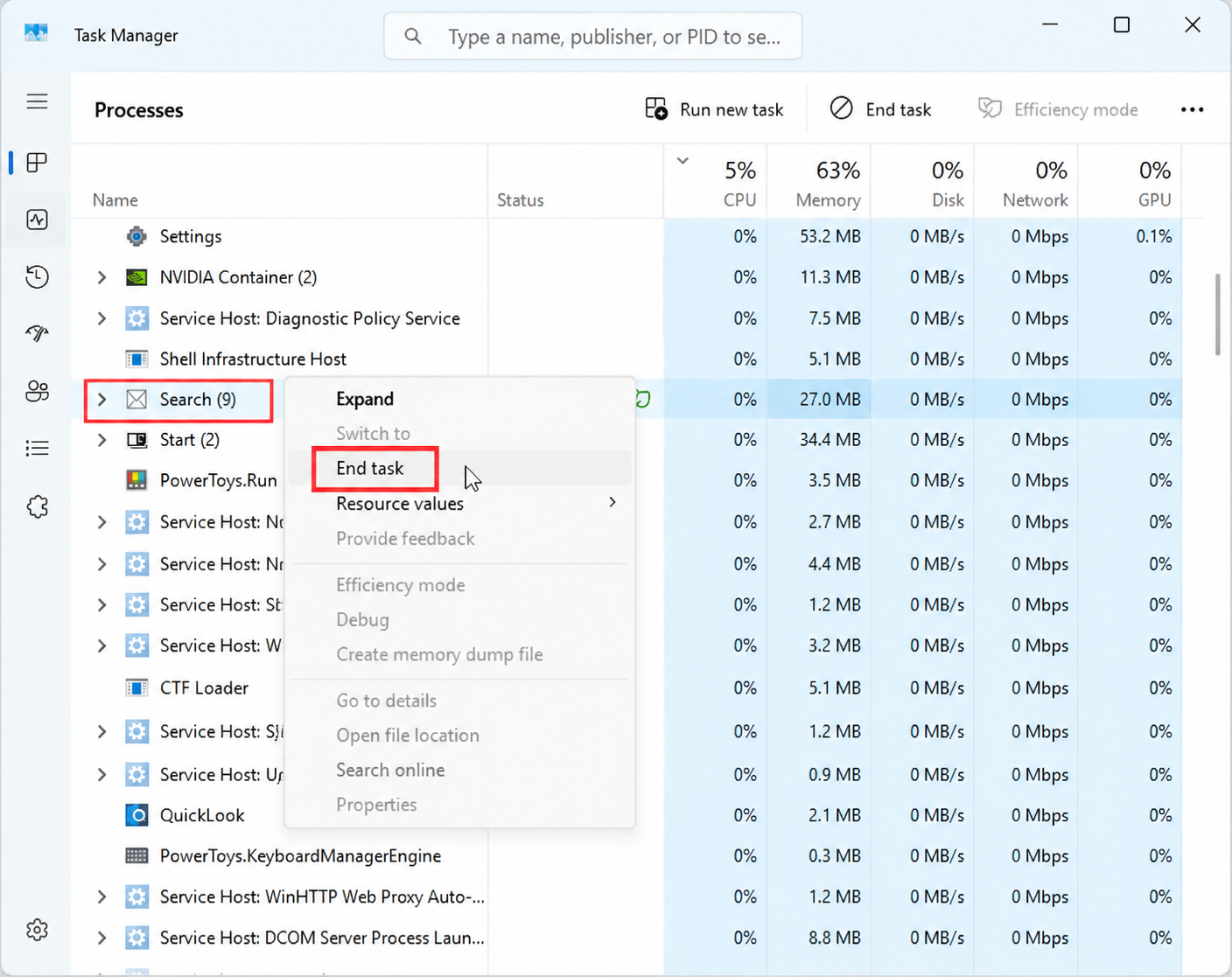
2. Find Search in the Processes tab.
3. Right-click it and select End task.
4. Now, if you open the search bar, it should work normally.
Fix 5: Reinstall Windows Using Windows Update
If none of the above methods work, you can try reinstalling your current version of Windows using Windows Update. This repairs system files without removing or messing up your personal files.
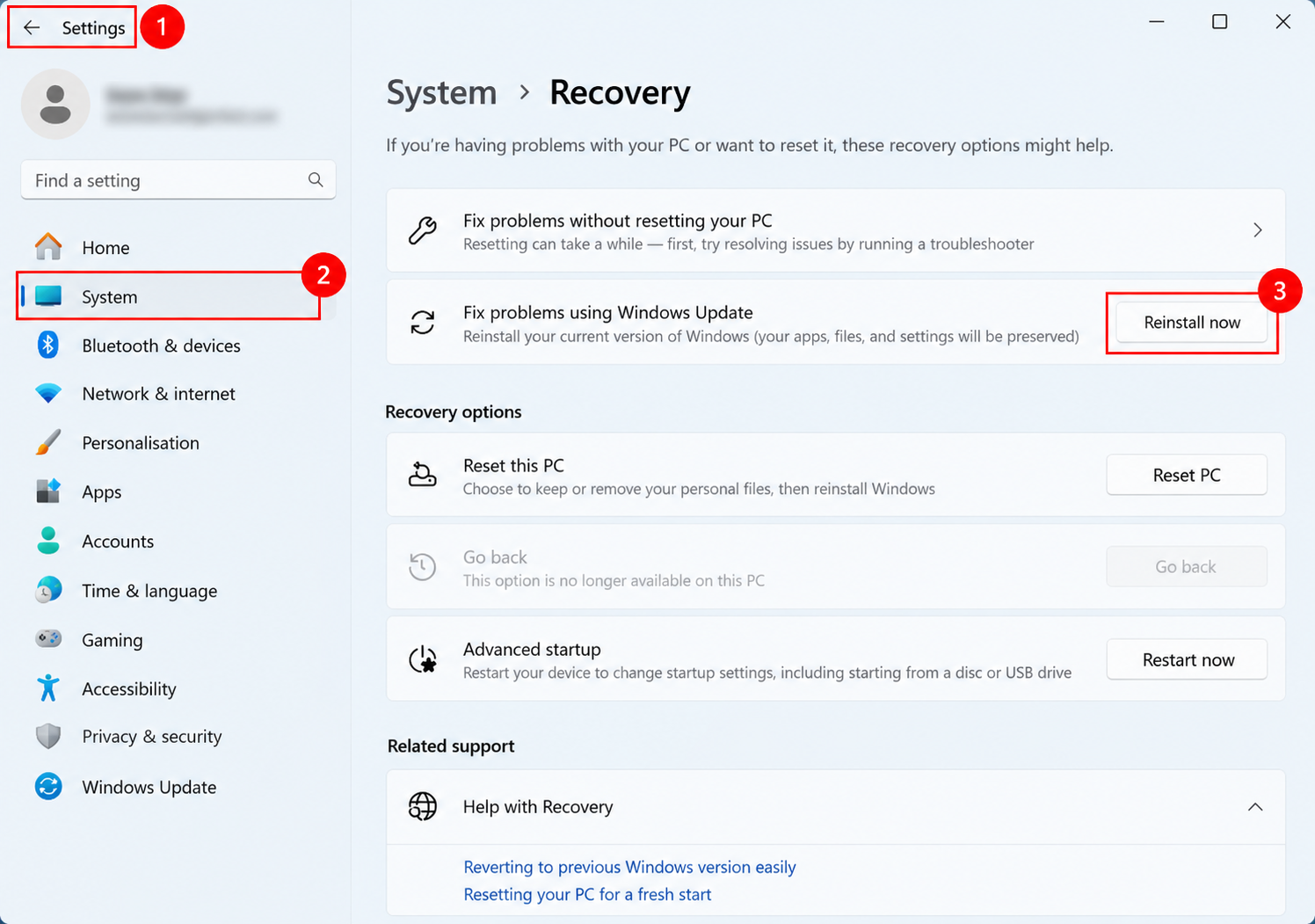
1. Open Settings. Go to System and select Recovery.
2. Find Fix problems using Windows Update.
3. Click on Reinstall now.
4. Now, follow the on-screen instructions. It will help you complete the process. Once your PC restarts your search bar should work just fine.
That’s it!