Toast notifications are one of the new thousand features introduced in Windows 8. They are basically displayed on right top corner of screen. Successive to classical Notifications from taskbar, they are also displayed for 5 seconds by default. However user can close this options on the go if they want.
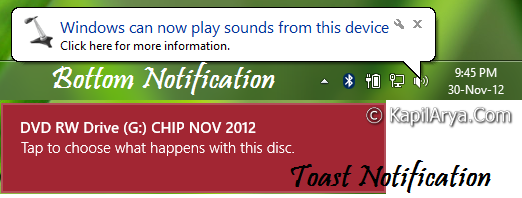
How Toast notifications can be differentiated from classical Notifications?
Toast notifications are balloon type notifications that appear as a themed bar in the upper right corner of your main display to allow a Metro app to communicate with the user whether the user is in another app, on the Start screen, on the desktop, or on the lock screen.
Notifications are small pop-up dialog boxes that are displayed in the notification area of the taskbar. They provide information about a variety of things, including status, progress, and the detection of new devices. Action Center also displays messages about recommended security and maintenance tasks next to its flag icon in the notification area.
In this article, I’ll tell you how you can customize the time taken by notifications to display. As we know that default time is for 5 seconds, so it may be short for some users and if you want to increase it, you can follow these two ways…
Page Contents
Customize Notifications Display Time In Windows 8.1 Using PC Settings
1. Press  + C and select Settings, then choose PC Settings.
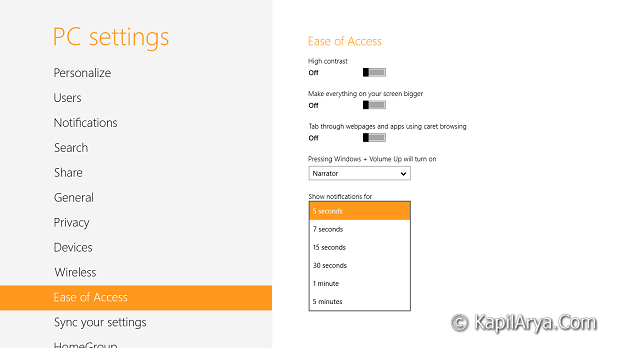
2. In the Show notification for column, pick out the desired time for notifications delay. Done!
Customize Notifications Display Time In Windows 8.1 Using Registry Editor
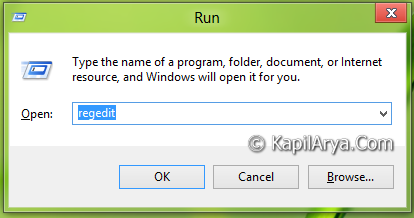
1. Press + R and put regedit in Run dialog box to open Registry Editor (if you’re not familiar with Registry Editor, then click here). Click OK.
2. Navigate to following location:
HKEY_CURRENT_USER\Control Panel\Accessibility
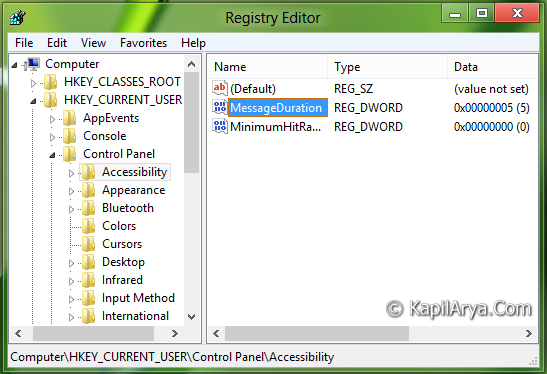
3. In the right pane of this location, double click on 32-bit value MessageDuration, you’ll got this:
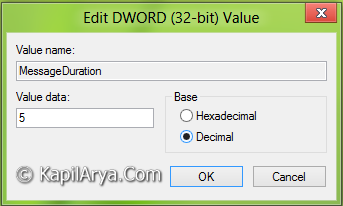
4. Input the Value data equals to the number of seconds you want to display notifications. Make sure you selected Decimal Base here. Click OK. Close Registry Editor and reboot to get results.
P.S. : Since default time is 5 seconds, so if we put the value less than 5, suppose 3 for instance, notifications will still be displayed for 5 seconds. So as a matter of fact, you can only increase the duration not decrease it.
To help you more on this topic, we have an illustration video for you:
Hope you enjoyed the tip!