Generally, we access Google applications, such Gmail, Google Chrome, Google Drive, Youtube etc. using uniform resource locator(s) (URLs) or by enabling extension(s) in Google Chrome browser. So basically, we need to input the URLs in the browser and unfortunately there was no direct access.
But there exists a way that could help you to have direct access to Google Apps from taskbar. In Windows, this could be done with the help of Google Chrome settings. In this article, we’ll let you now how to do this. So here we go:
Access Google Chrome App Launcher Menu From Taskbar
1. Fire up your Google Chrome browser to new tab. In the address bar, type in the location chrome://flags. After that, you’ll see the page to configure core settings of this browser. The headline is Careful, these experiments may bite.
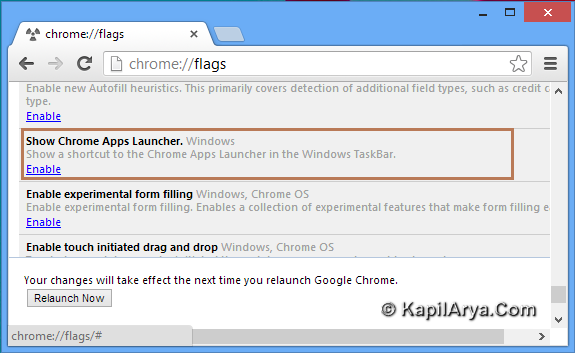
2. From the options, scroll down and look for Show Chrome Apps Launcher. Now click on the Enable link there. You’ll be prompted for relaunch the browser.
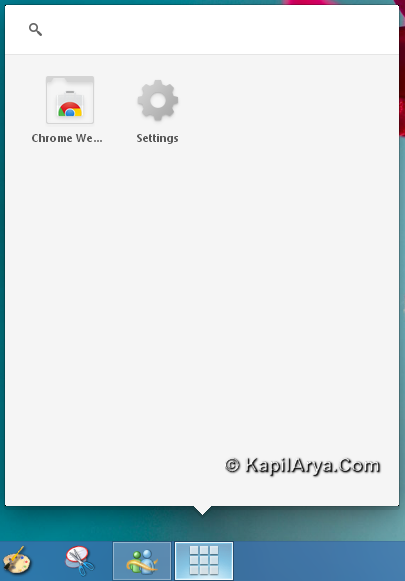
3. Locate the Chrome Apps Launcher pinned on the taskbar. When you click it, you will see all the Google Apps you use. Clicking one of these, opens that app up directly in Chrome.
If Chrome is already open, selecting an app from the launcher causes Chrome to open a new tab and launch that app – there is no need to open a new tab before doing that.
If you no longer wish to use the app launcher menu, simple return to the chrome://flags page and click Disable and restart Chrome to turn off the flag. This will automatically remove the app launcher from the Windows taskbar.
Hope you like the tip and find it useful!