

Consider the scenario, sometimes you’re in a hurry to reply a text message. By default, whatever you type, Windows Phone predicts automatically and correct it. Actually this might irritate you because you’re typing in your comfortable conversion typos and Windows Phone is making everything destructive by making corrections. As a result of this you have to omit corrected word and type it again to make conversation habitual in your style. The phone generally gets suggestions from the in-built dictionary baked into it. So if you type a word that doesn’t suits the standard of this dictionary, it auto corrects. If you’re getting frustrated with the auto corrections then read on, this article is for you.
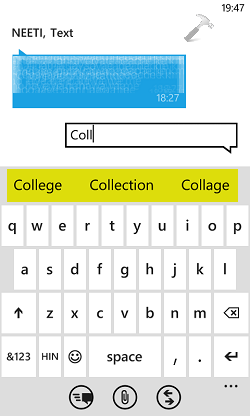
Irrespective of the different keyboard layouts available on your phone, the predictive text is available on every layout. So if you are doing chatting with the in-built Messaging app on your Windows Phone, turning off the predictive text might be significant decision for you. Here is how you get rid of these annoying suggestions.
How To Disable Predictive Text In Windows Phone 8
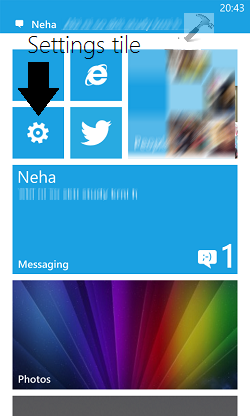
1. Go to Start Screen, tap Settings tile.
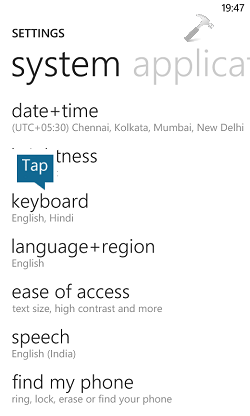
2. In the Settings screen, tap keyboard.
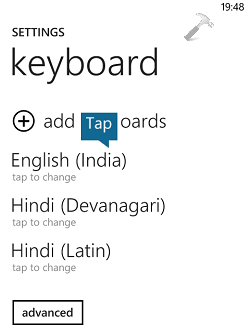
3. Moving on, in the following screen, tap the keyboard layout you’re using currently for which you don’t want to get predictive text.
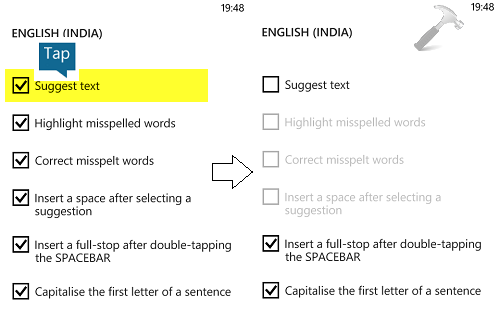
4. Finally, in the following screen, remove check mark from Suggest text option so far. This should turn off the predictive text plus auto correction.
Hope you find the article useful. You might also find disable typing suggestions in iOS 8 equally helpful!







Actually, I’m starting with windows OS- based phones and this worked for me but the oposite way: to turn it on! Thanks a lot!
^^ Glad you find it useful!
Tanx dude….i jst missed that part .
^^ Glad we could help :)
Great help! Applause to author! 😊
^^ Awesome 😊