

Recently, Apple released iOS 8 for all the iDevices users across the world. Typing suggestions or predictive text is one of the many new features introduced inside iOS 8. If you’re using English (US) keyboard, then you might be okay with suggestions so appeared when you type. But if you’re using non-English (US) keyboard, then things might not go straight as you look for.
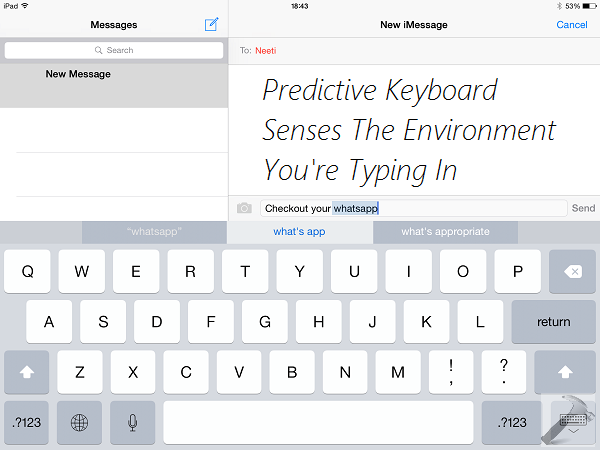
This means that if you’re typing something correct according to your concise, but the keyboard will make auto-correction according to what it knows. So this leads to a synchronization problem between you and the device. In such a condition, you might be looking forward for a way to disable predicted text so far, since you’re comfortable without it. Here is how to turn off those annoying typing suggestions:
How To Disable Typing Suggestions In iOS 8
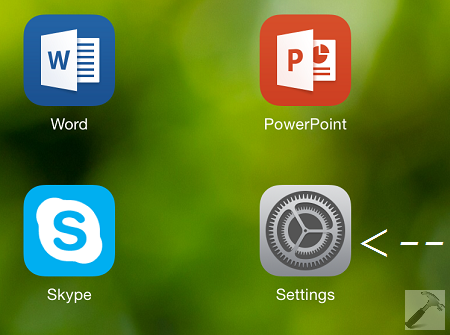
1. Go to Home Screen, tap the Settings app icon there.
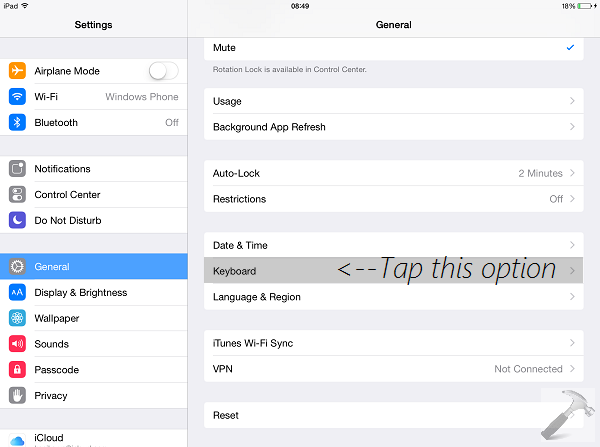
2. In the Settings screen, look for the General option in left pane. Scroll down then, until you find Keyboard option in the right pane, and tap the same.
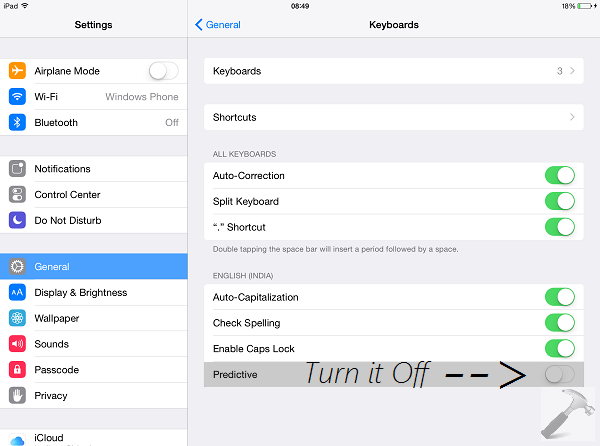
3. Finally, in the below shown screenshot, turn Off or disable the Predictive option under the hood of your native language.
That’s it. You might also find Disable Predictive Text In Windows Phone 8 equally helpful!



Thankx but can disable it also from keyboard changer button just tap n hold it you will find the predctive turn on / off.