

We all know Microsoft has exported the old Windows Explorer search into Cortana. Thus if you’ve to search for apps on your Windows 10 device, you can ask it to Cortana and it should take you to relevant apps you’re looking for.
However, for some users this will not work as they expect. In recent cases, some users reported that Cortana doesn’t returns any results when they search for apps on their device. For example, a simple search with calculator term, the results does not includes Calculator app.
This may irritate you because then you need to look out the app via Start Menu. The Desktop app can be opened via shortcut or from program folder. If you’re also facing this weird issue, try below mentioned fix and see if it helps you.
FIX: Cortana Not Working In Windows 10
Registry Disclaimer: The further steps will involve registry manipulation. Making mistakes while manipulating registry could affect your system adversely. So be careful while editing registry entries and create a System Restore point first.
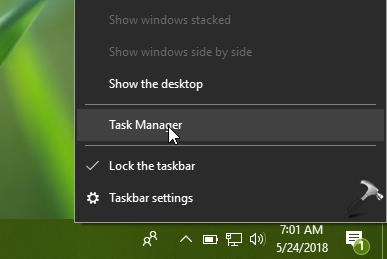
1. Right click on the taskbar and select Task Manager.
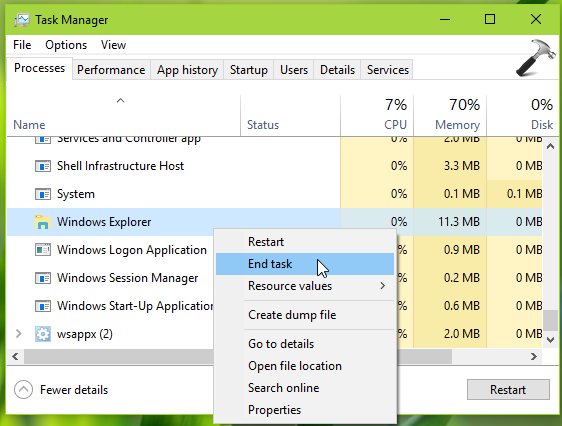
2. In the Task Manager window, find out the Windows Explorer process. Right click on it and select End task. Your Desktop background, taskbar will be gone temporarily, don’t worry about it.
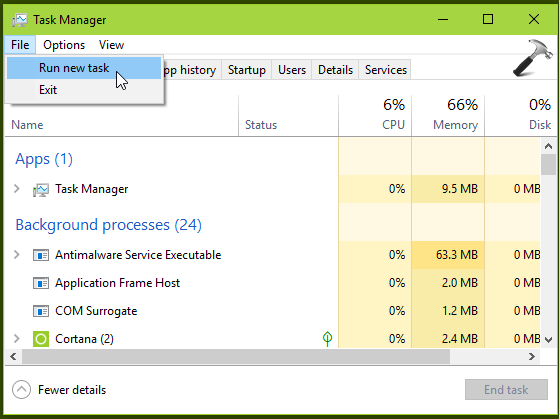
3. Then again in the Task Manager window, click File > Run new task.
4. In Create new task box, type regedit and check Create this task with administrative privileges. Click OK.

5. In left pane of Registry Editor window, navigate to following registry key:
HKEY_LOCAL_MACHINE\SOFTWARE\Microsoft\Windows\CurrentVersion\Explorer\FolderTypes\{ef87b4cb-f2ce-4785-8658-4ca6c63e38c6}\TopViews\{00000000-0000-0000-0000-000000000000}
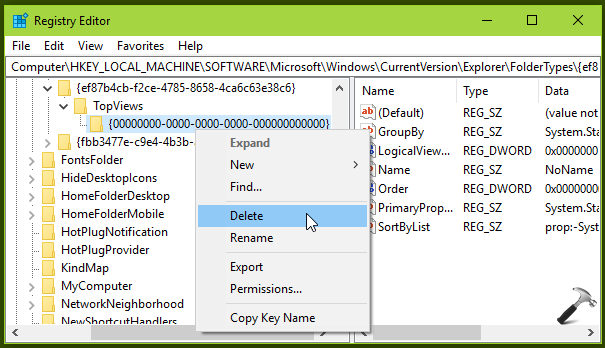
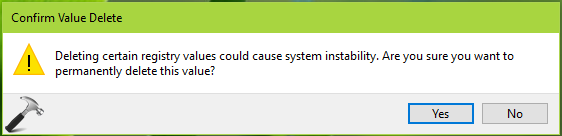
6. Right click on {00000000-0000-0000-0000-000000000000} registry key and select Delete. In the confirmation prompt, select Yes.
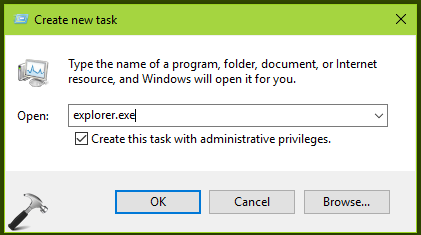
7. Then again in the Task Manager window, click File > Run new task. Type explorer.exe and click OK. Your Desktop background, taskbar will be back now.
You can now reboot the machine. After reboot, try searching via Cortana, it should work fine this time.
If the issue still persists, don’t hesitate to reset and re-register Cortana.
Hope this helps!

There is no 0000 value thing, what should I do?
^^ Make sure you check the correct registry location.