Microsoft Edge is missing in Windows 11, and you are looking at the right place to see how to get it back. According to many users, Microsoft Edge has mysteriously vanished following a Windows Update, malware infection, or software bug. The browser is closely connected to the Windows ecosystem and is essential to everyday browsing, getting access to Microsoft services, and even to features that run on the system, like Windows Copilot. This guide will take you through 6 solutions that are known to resolve a Microsoft Edge issue in Windows 11.
Page Contents
Why Is Microsoft Edge Missing from My Windows 11?
Before we look into the fixes, we need to understand why Microsoft Edge disappears.
- Microsoft update errors
- Infection of malware or a virus
- File Corruption
- Broken application shortcuts
- System Settings Mismatch
These problems can cause it to appear that Edge is uninstalled when it actually is on the device.
Fix Microsoft Edge missing in Windows 11
The best six ways to restore or reinstall Microsoft Edge on a Windows 11 system are as mentioned by experts below.
Fix 1: Use the msedge.exe Application File (Quick Restore)
Make sure you do not have a copy of the executable file of Edge anymore, except that you delete it.
1. Press the keyboard keys Windows + E to invoke File Explorer. Or open it via taskbar.

2. Navigate to this path to move ahead-
C:\Program Files (x86)\Microsoft\Edge\Application
Search for “msedge.exe”.

3. And you can double-click to get into the browser. Right-click the tab and choose to “Pin tab” so that it is easy to locate that site next time.

In case it has opened itself, that means that the browser was not deleted; you just did not notice the shortcut. Yeah, it happens a lot! In another case, follow the next solutions.
Fix 2: Perform a Microsoft Defender Offline Scan (Eliminate Malware)
It might have malware or a virus that is preventing Edge from breaking through or interfering with its documents. Offline scan deep checks the system to the point that the OS does not even boot up
1. Open security settings via the path- Settings > Privacy & Security > Windows Security > Virus & threat protection.
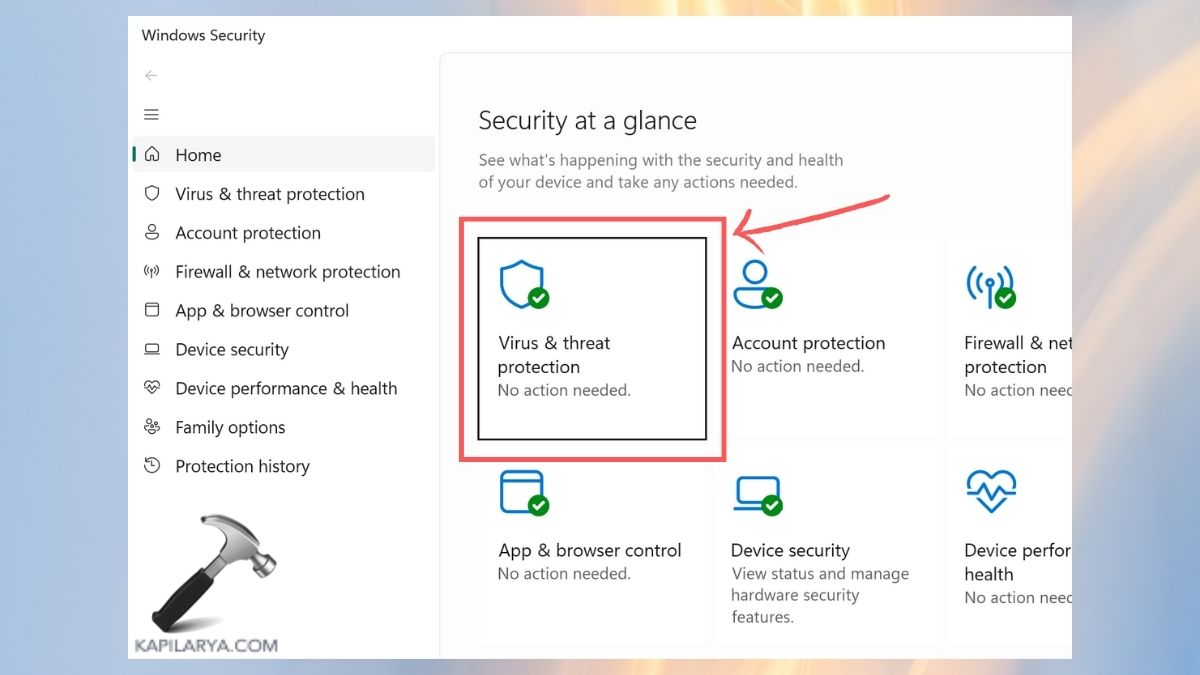
2. Select the Scan options by clicking it.

3. Choose the option of Microsoft Defender Offline scan. Scan now. Your PC will restart and do a thorough check for viruses.
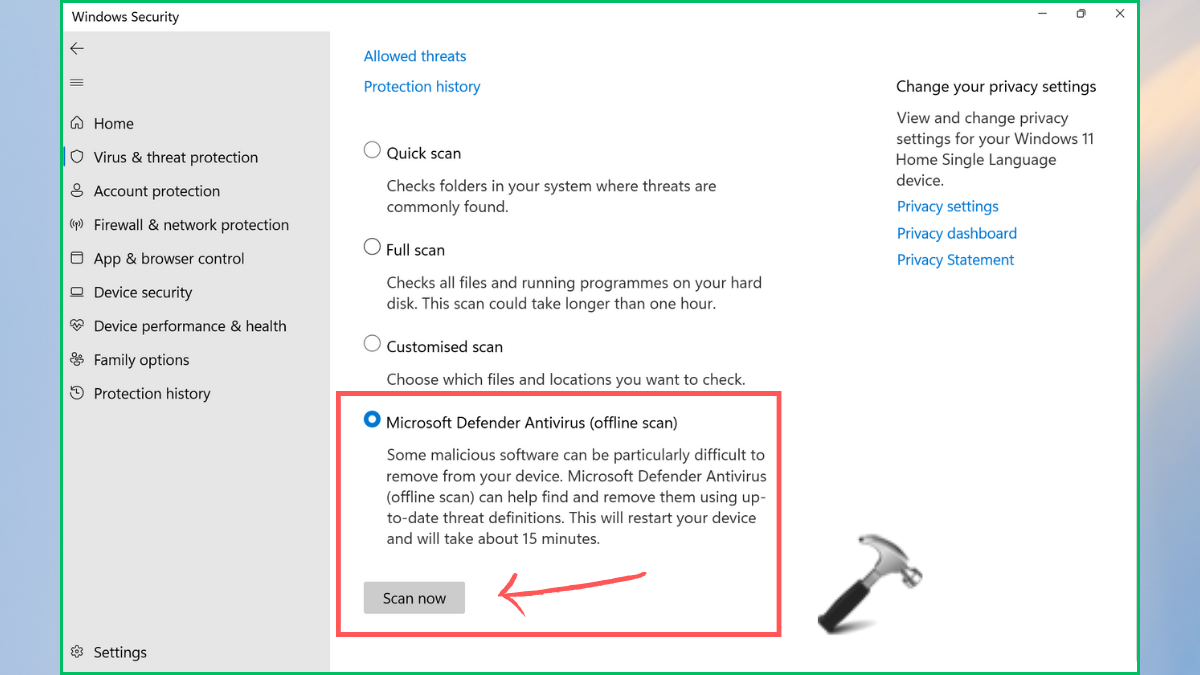
Tip: Make sure you run this scan before trying any form of reset or system recovery.
Fix 3: Reset Microsoft Edge Using PowerShell (Advanced Users)
In case Edge is installed but fails to open, you can re-register the application by using PowerShell.
1. Press Windows + X and look for Terminal(Admin) in the tabular options.

2. Paste the command below:-
Get-AppxPackage *Microsoft.MicrosoftEdge.Stable* | Foreach {Add-AppxPackage -DisableDevelopmentMode -Register "$($_.InstallLocation)\AppXManifest.xml"}
Press Enter and wait for it.

3. Reboot the device once and check if the problem still persists or not.
Fix 4: Download Microsoft Edge Offline Installer (Safe Reinstallation)
In the event that Edge is not there anymore, the safest method to install it is with the help of the official offline installer.
1. Go to the official download site of Microsoft Edge.
URL - https://www.microsoft.com/en-us/edge/download?form=MA13FJ
2. Select Windows 11, and the Windows 11 .exe file will be downloaded. Install it and run it as per the on-screen instructions.

Note: Do not use third-party sites. The user should download only from the official site of Microsoft to avoid the threat of malware.
Fix 5: Use a System Restore Point (Go Back in Time)
A System Restore can revert your PC to the time when Edge was running smoothly, in case you noticed the problem after an update or after installing software.
1. Enter the Start Menu, “Create a restore point”.

2. Go to it and select System Restore.

3. Choose a restore point at which Edge was in progress. Click Next and then Finish.

Nothing to worry about, this will not touch your personal files, but may remove recent apps or drivers.
Fix 6: Reset Your PC (Last Option)
In the last case, a reset of your PC can resolve deep-seated system problems and set Edge to default settings.
1. For this, open the Windows 11 Settings > System > Recovery.

2. Click Reset this PC option to proceed.
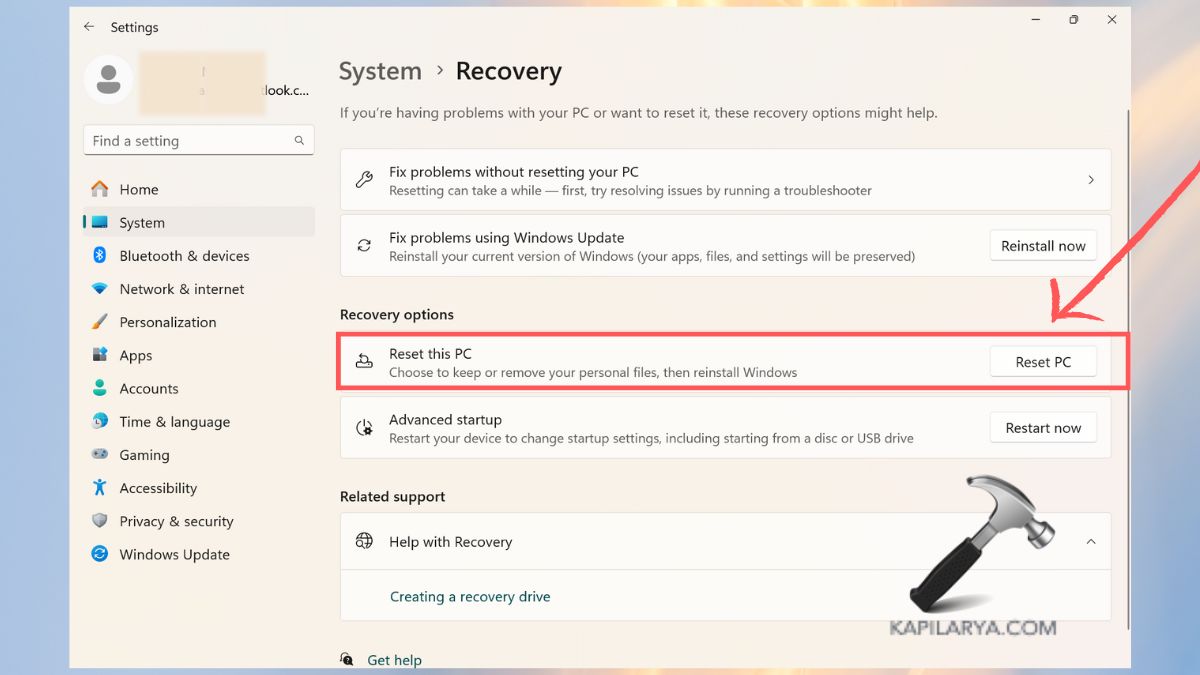
3. Select Keep my files (Recommended). Use the reset wizard and follow the on-screen instructions.

Caution: This is your last resort, and therefore, make a backup of your data before doing this.
Frequently Asked Questions (FAQs)
#1 Why is Microsoft Edge not showing in Windows 11?
Edge can be lost as a result of Windows updates, malware, or accidental removal. It may still be installed, but covered or broken.
#2 Can I reinstall Microsoft Edge in Windows 11?
Yes. You can reinstall Edge by using the official offline installer or the above PowerShell commands.
#3 Is it safe to remove Microsoft Edge from Windows 11?
Windows 11 is closely integrated with Edge, and uninstalling it will make the system unstable. It is not advisable to uninstall it.
#4 Will I lose my data if I reset Edge or reinstall it?
No, your bookmarks and browsing history are synced with your Microsoft account (when you are signed in). Unless you reset Windows completely, you will not lose data.
That’s it!