

In Windows 10, system icons are quite useful for day to day usage. If either of these icons gets missing, you’ve trouble operating the machine. Volume icon is one of those system icons, which helps you to configure audio level of the system on the go.
Recently, we faced the issue of volume icon missing on one of our Windows 10 machine. However, in this case, volume function keys (keyboard shortcut) from OEM were working fine but still, volume icon is quite handy to check audio level.
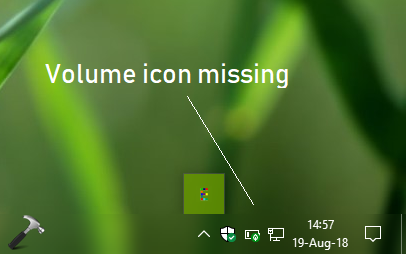
If you’re also facing this issue, try below mentioned fixes to resolve it.
Page Contents
FIX: Volume Icon Missing From Windows 10 Taskbar
FIX 1 – Via Settings App
1. Right click Start Button or press  + X keys and select Settings.
2. In the Settings app, navigate to Personalization > Taskbar.
3. Moving on, under Taskbar, click Turn system icons on or Off link.

4. Then under Turn system icons on or Off, make sure Volume option is turned On.
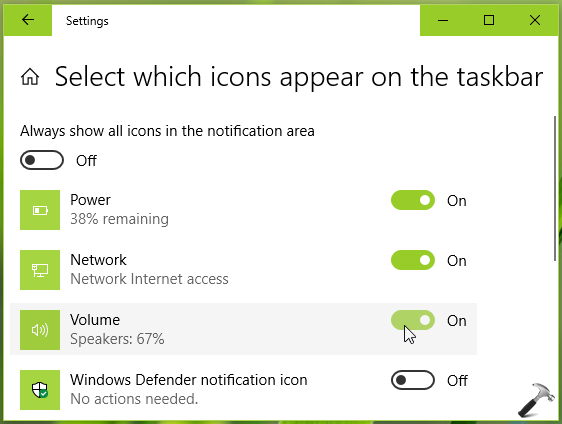
It should immediately restore the missing volume icon.
But if you still have the issue, go ahead with FIX 2.
FIX 2 – Via Registry
Registry Disclaimer: The further steps will involve registry manipulation. Making mistakes while manipulating registry could affect your system adversely. So be careful while editing registry entries and create a System Restore point first.
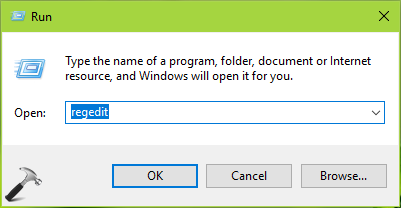
1. Press + R and put regedit in Run dialog box to open Registry Editor (if you’re not familiar with Registry Editor, then click here). Click OK.
2. In left pane of Registry Editor window, navigate to following registry key:
HKEY_CURRENT_USER\Software\Microsoft\Windows\CurrentVersion\Policies
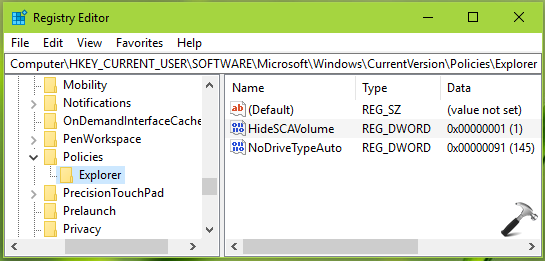
3. Now in the right pane of Explorer registry key, you might see HideSCAVolume named registry DWORD (REG_DWORD) which is set to 1. This is the root cause of the problem and is main culprit for missing volume icon case. So double click on this registry DWORD to modify its Value data:
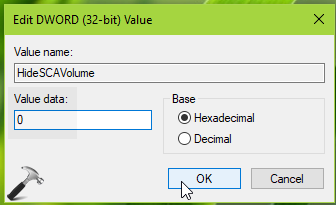
4. Finally, set the Value data to 0 and click OK. If you like, you can directly delete this registry DWORD as well. Both of these operations should restore the volume icon on taskbar. Close Registry Editor and reboot to make changes effective.
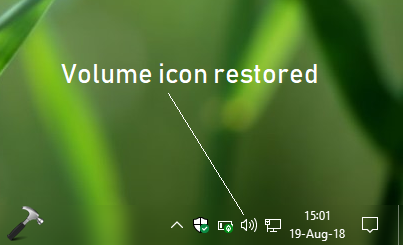
After restarting your machine, volume icon will no longer be missing:
Checkout below video to illustrate this fix:
Hope this helps!




Thank you, Mr. Arya; your suggestion worked very well, although I had re-booted my computer the problem went away but I wanted to find out why and I did all the steps you suggested and “boom..!” very clear, there it was. Have a great day.
^^ Glad we could help 😎
There are no “Explorer” folder in my Policies folder
^^ You can create it manually.
hello how can i remove safely remove hardware icon could you help me ?
^^ Go to step 4 for FIX 1, and under Turn system icons on or off, turn Off that option.
Sometimes none of these are the answer. Try this:
1. Settings
2. Personalization
3. Turn System Icons on or off
4. select the volume switch
^^ Thanks for sharing!