

We all know that Windows 10 support is ending on October 14, 2025. Once the support ends, you’ll no longer receive critical security updates. This can make your Windows 10 more vulnerable to threats. In order to ensure you receive updates after support ends, you can opt for Extended Security Updates (ESU). I have already shared the guide here to enroll into Extended Security Updates. But in case, if the enrollment to ESU option is missing from your Windows 10, this article can help you.

Page Contents
Fix Windows 10 ESU Enroll option missing
Manual steps
The option to enroll into ESU is gradually rolling out from Microsoft. So at the moment, it may be available to some users while may not be available to others. There are some basic requirements for this enrollment option to appear. First of all, I am mentioning those requirements. And you need to ensure that your system meets these requirements:
- Devices need to be running Windows 10 Version 22H2 Home, Professional, Pro Education, or Workstations edition.
- Devices need to have the latest Windows Update installed.
- The Microsoft account used to sign in to the device must be an administrator account. The ESU license will be associated with the Microsoft account used to enroll.
- You may be prompted to sign in with a Microsoft account, if you typically sign into Windows with a local account.
- The signed Microsoft account can’t be a child account.
In case if your system meets all of the requirements above, still, you do not have the option to enroll into ESU? Let’s see the steps to enable the option.
1. Open administrative Command Prompt.
2. Paste this command and press Enter key:
reg.exe query "HKCU\SOFTWARE\Microsoft\Windows NT\CurrentVersion\Windows\ConsumerESU"
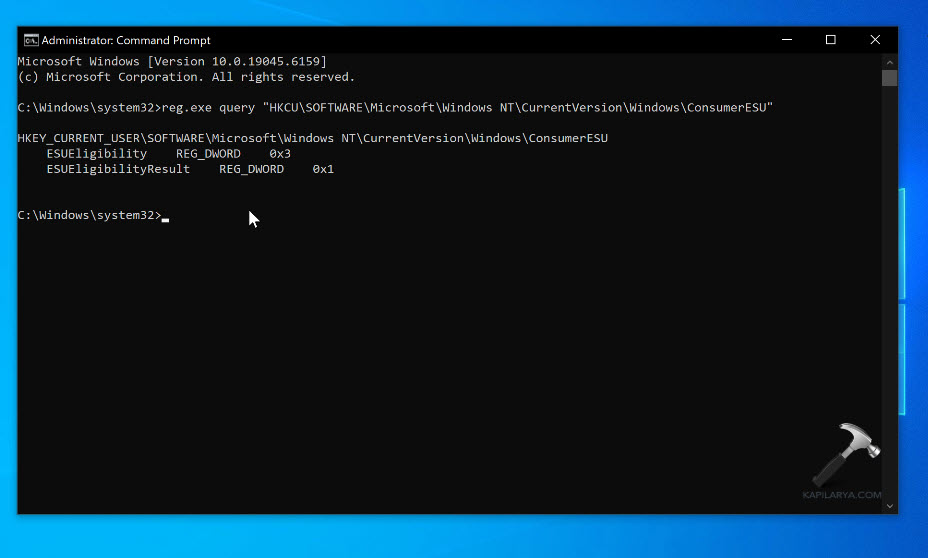
This command will check for two values: ESUEligibility and ESUEligibilityResult.
| ESUEligibility value indication | ESUEligibilityResult value indication |
|---|---|
| 0: Unknown/feature is not enabled | 1: Success |
| 1: Ineligible | 3: Non-Consumer edition |
| 2: Eligible | 4: Commercial device |
| 3: DeviceEnrolled | 5: Non-Admin account |
| 5: MSAEnrolled | 6: Child account |
| 8: LoginWithPrimaryAccountToEnroll | 7: User Region is Embargoed |
| — | 8: Azure device |
| — | 11: Unknown/feature is not enabled |
Depending upon above mentioned command result, if your device is eligible, proceed to next step.
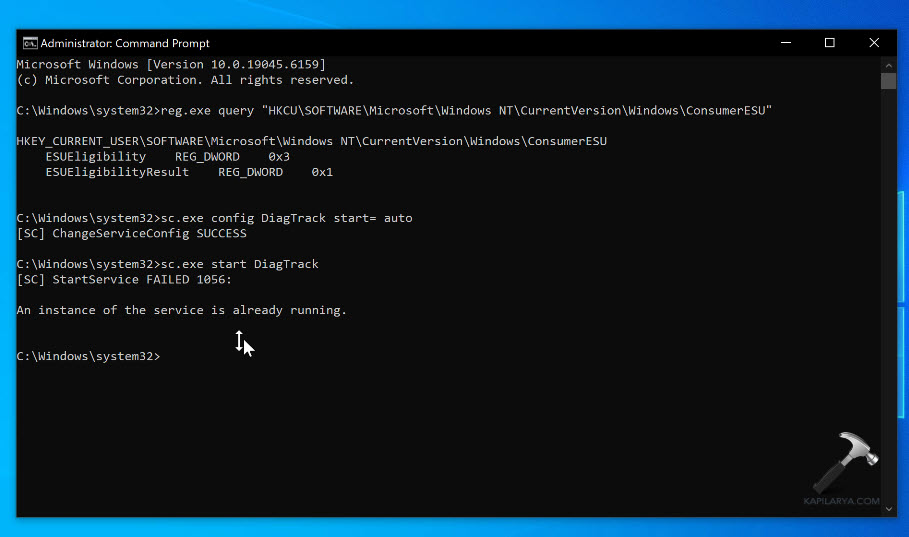
3. Execute these commands one-by-one to start the Connected User Experiences and Telemetry (DiagTrack) service and ensure it’s automatic startup type:
sc.exe config DiagTrack start= auto
sc.exe start DiagTrack
* If you get “An instance of the service is already running”, it means service is already started, simply ignore this.
4. Paste following command to add the registry value:
reg.exe add "HKLM\SYSTEM\CurrentControlSet\Policies\Microsoft\FeatureManagement\Overrides" /v 4011992206 /t REG_DWORD /d 2 /f

5. Once the command executes successfully, close Command Prompt and restart the system.
6. After restart, open administrative Command Prompt again and execute this command:
cmd /c ClipESUConsumer.exe -evaluateEligibility
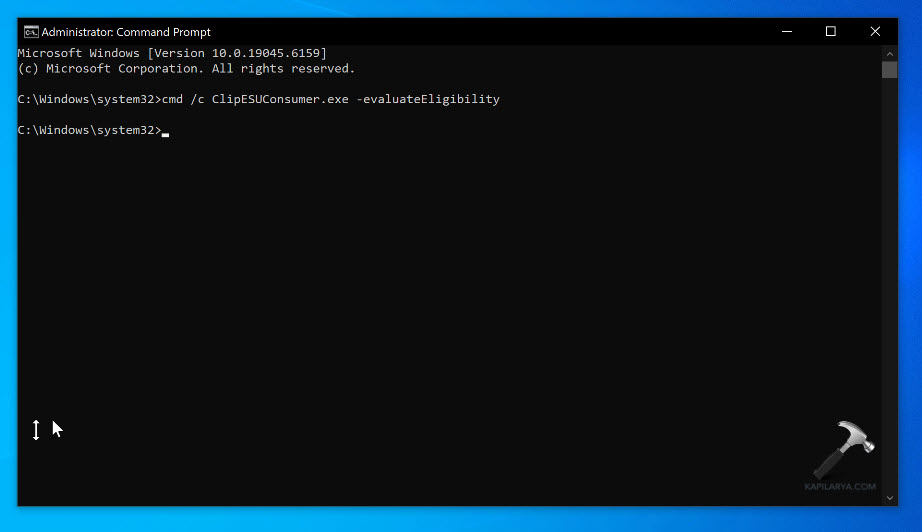
Once the command executes successfully, you can go to Settings app Windows Update page, the enrollment option should be there to start with.

Video guide
Here’s a video guide to demonstrate above mentioned steps:
That’s it!






Initially, neither one of our Windows 10 laptops would present the ESU enrollment option to us. All of the other so-called “fixes” that I found online were worthless. Then I found your very clearly written article with excellent visuals too. Your method worked for both of our laptops and I was so relieved! Thank you very much!
^^ Glad to help 😎
Hello Kapil,
I have successfully applied your solution to a few computers already. But today I had one that really didn’t want to get the ESU it seems. When I check with the command: “reg.exe query “HKCU\SOFTWARE\Microsoft\Windows NT\CurrentVersion\Windows\ConsumerESU”, I get 0x2 and 0x1, which means it should be eligible. Unfortunately, when I go to the windows updates, it doesn’t show up. Before I applied your fix, the registry did not exist, and the command would return nothing.
Do you have any idea what could cause this?
Kind regards,
Ben.
Thank you so much for these easy to follow instructions to solve this annoying issue, it worked like a charm for me.
^^ Glad I could help 😎
I ran a Powershell script to automate the above and received an error notice that ClipESUConsumer.exe was not found, yet this executable is in my C:\windows\system32 folder? Any thoughts?
Below is my Powershell script***************************
# Step 1: Ensure telemetry service (DiagTrack) is set to Auto and running
Write-Output “Configuring and starting DiagTrack (Connected User Experiences & Telemetry)…”
sc.exe config DiagTrack start= auto
sc.exe start DiagTrack
# Step 2: Add the ESU feature override (Feature ID 4011992206, set to 2)
Write-Output “Adding ESU feature override registry key…”
reg.exe add “HKLM\SYSTEM\CurrentControlSet\Policies\Microsoft\FeatureManagement\Overrides” /v 4011992206 /t REG_DWORD /d 2 /f
# Step 3: Run ESU eligibility check tool
Write-Output “Running ClipESUConsumer.exe to evaluate eligibility…”
$clipPath = “$env:SystemRoot\System32\ClipSVC\ClipESUConsumer.exe”
if (Test-Path $clipPath) {
& $clipPath -evaluateEligibility
} else {
Write-Output “ClipESUConsumer.exe not found. Check your Windows version and KB5063709 installation.”
}
# Step 4: Verify registry override was applied
Write-Output “Verifying ESU override registry entry…”
reg query “HKLM\SYSTEM\CurrentControlSet\Policies\Microsoft\FeatureManagement\Overrides” /v 4011992206
# Step 5: Check if ConsumerESU flag appears under HKCU
Write-Output “Checking ConsumerESU user registry…”
reg query “HKCU\SOFTWARE\Microsoft\Windows NT\CurrentVersion\Windows\ConsumerESU” /s
# Step 6: Check if ESU package installed
Write-Output “Checking installed ESU packages…”
dism /online /get-packages | findstr ESU