Windows 10 support to be end by October 14, 2025. Microsoft has allowed users to continue receiving updates after support ends, with the help of Extended Security Updates. We’ve already covered here, how to enroll your Windows 10 using Extended Security Updates. Using that guide, if you’re getting We can’t enroll you in Extended Security Updates right now, this article would help you.
So here is the error message screenshot that you get:

There could be multiple factors involved which may cause this error. You can try fixing the issue with below mentioned solutions.
Page Contents
We can’t enroll you in Extended Security Updates right now
Ensure your system meets the requirements
Before your perform the steps to enroll, it is highly recommended to ensure your system fulfils basic requirements:
- Devices need to be running Windows 10 Version 22H2 Home, Professional, Pro Education, or Workstations edition.
- Devices need to have the latest Windows Update installed.
- The Microsoft account used to sign in to the device must be an administrator account. The ESU license will be associated with the Microsoft account used to enroll.
- You may be prompted to sign in with a Microsoft account, if you typically sign into Windows with a local account.
- The signed Microsoft account can’t be a child account.
In case if the option to enroll is not appearing, or is vanished but was appearing before, check this detailed fix to restore it.
Ensure the background service is running
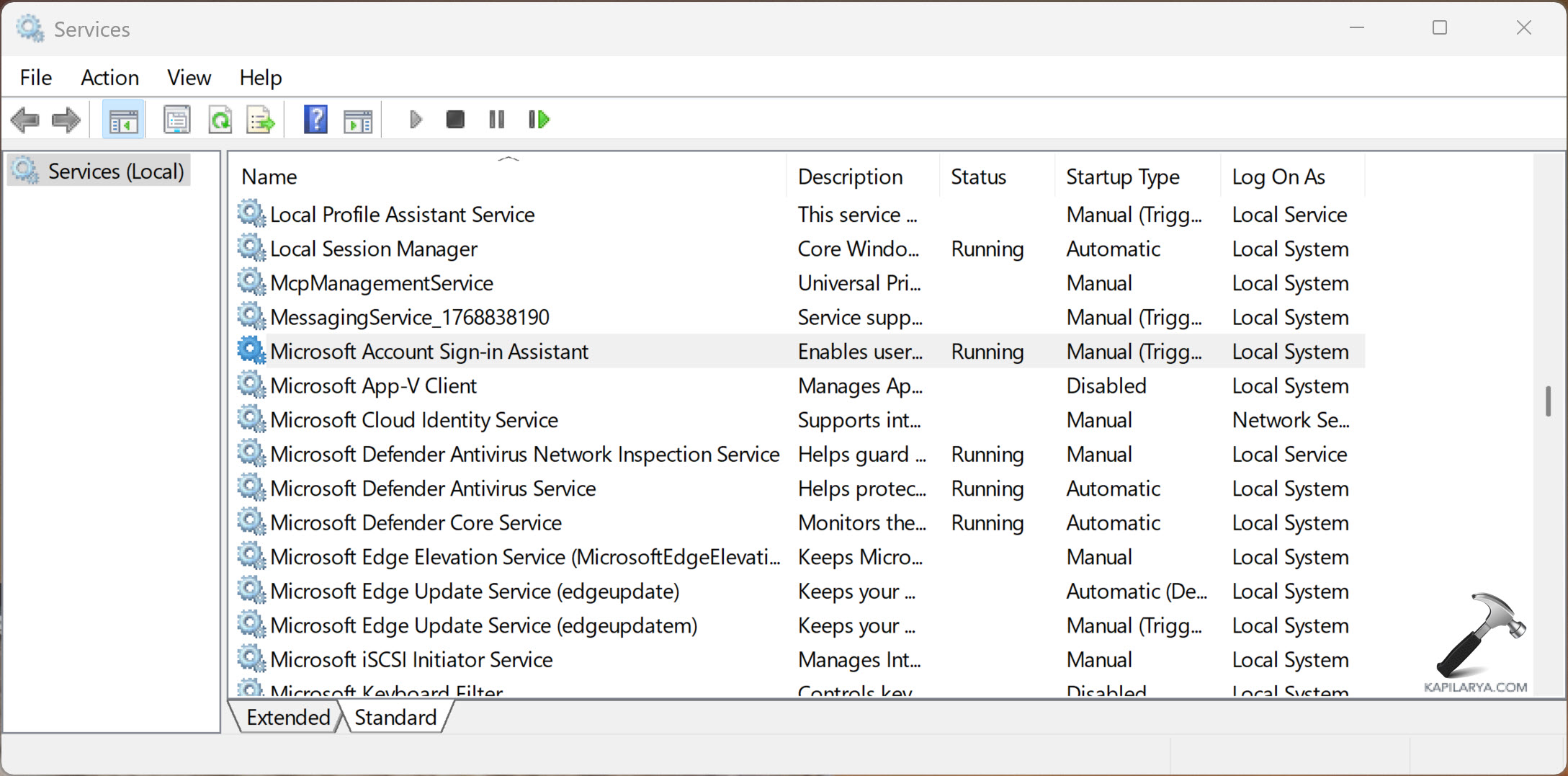
1. Open Services by running services.msc command.
2. Locate the Microsoft Account Sign-in Assistant service.
3. Just double click on it and make sure it’s startup type is set to Normal and the service is running. If it isn’t running, click on Start button there to make it running.
4. Click Apply followed by OK.
5. Close Services snap-in.
Check Microsoft Account
Sometimes problems may remain with Microsoft account (MSA). In some cases, the ESU is looking forward to the MSA you used to setup Windows 10, not the one you’re using right now. It is highly recommended to re-link the device to your current MSA to avoid this.
These steps may help:
- Go to Settings → Accounts → Your info
- Click Sign in with a Microsoft account instead (if it says that).
- Sign in with the same account you used successfully for ESU on the other devices.
- Reboot and check if the device now appears under https://account.microsoft.com/devices.
- Once it does, try enrolling again.
If you’re unsure which account was used, you can reset the connection:
- Sign out of all Microsoft accounts under Settings → Accounts.
- Reboot.
- Sign back in with the same account you used on the other two devices.
- Confirm the device appears on the Devices page.
- Try enrolling again.
Reset Windows Update
You can quickly reset Windows Update to resolve issue associated. Open administrative Command Prompt and type following commands one-by-one followed by Enter key.
Here’s how to do it:
- Open administrative Command Prompt.
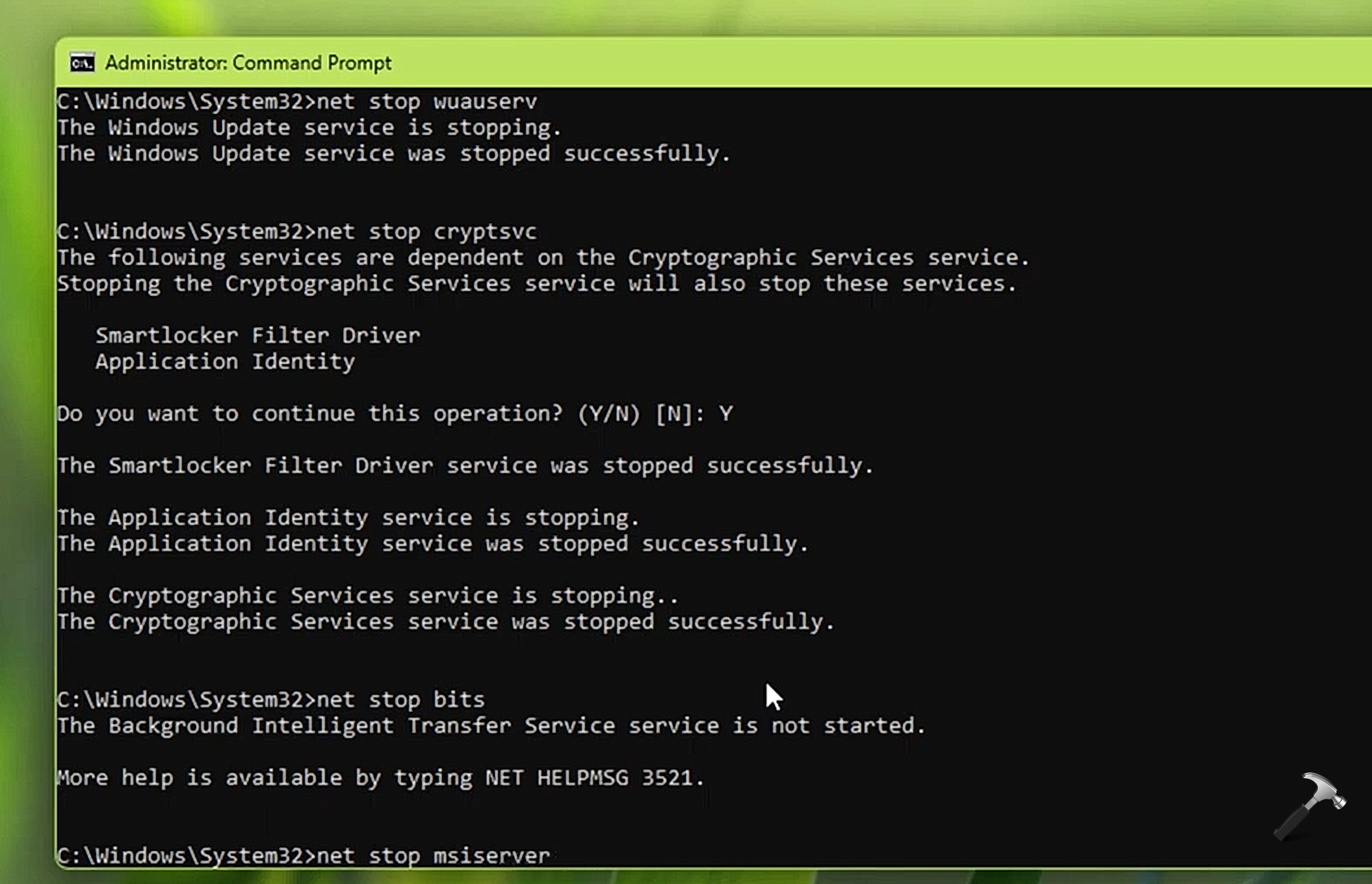
- Type the following commands one-by-one and press Enter after each:
net stop wuauserv
net stop cryptSvc
net stop bits
net stop msiserver
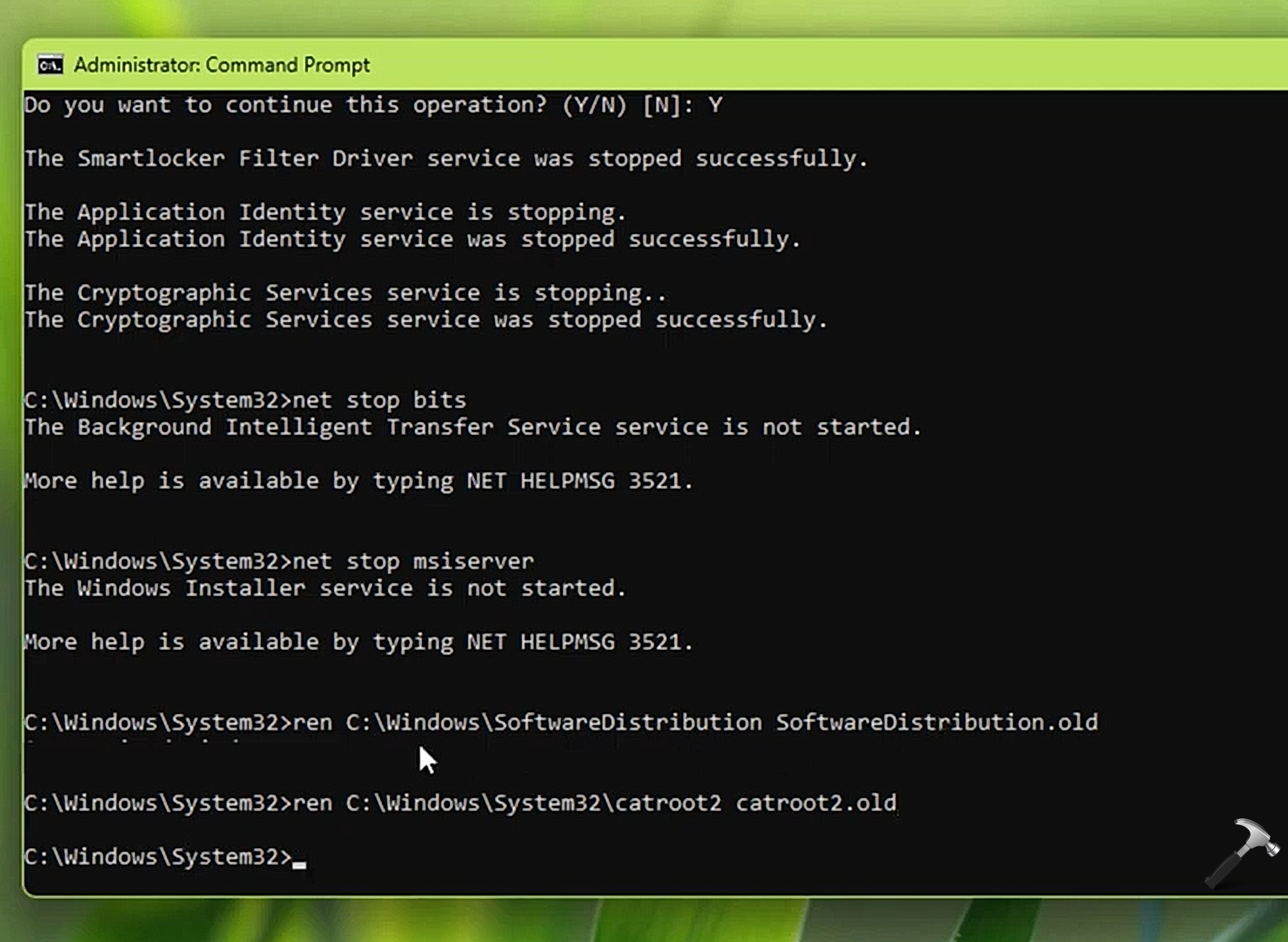
- Then rename “SoftwareDistribution” folder and ‘catroot2’ folder using these commands:
ren C:\Windows\SoftwareDistribution SoftwareDistribution.old
ren C:\Windows\System32\catroot2 catroot2.old
Note: If your Windows installation is on a different drive, replace “C:” with the appropriate drive letter.
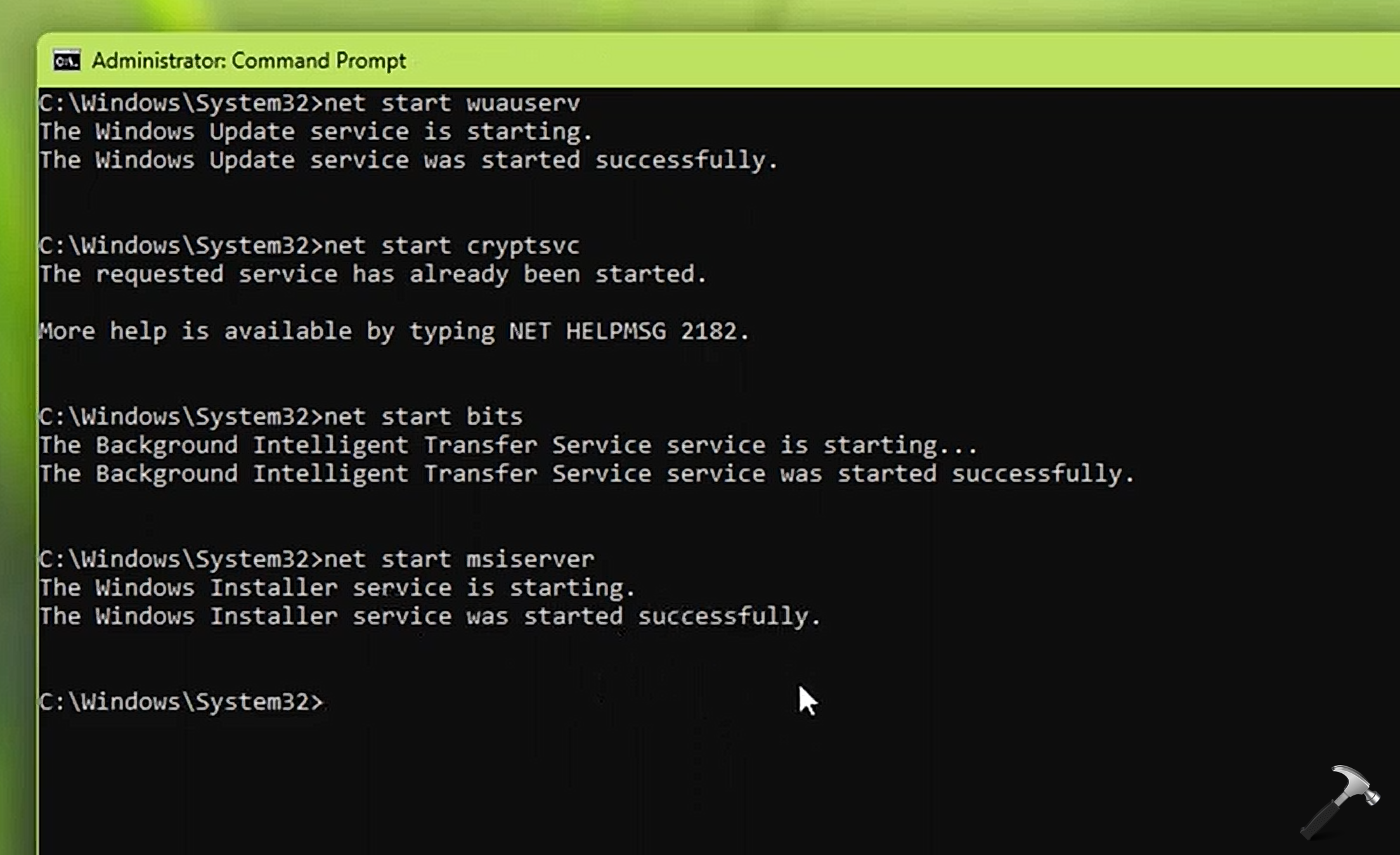
- Now start back services stopped in step 2.
net start wuauserv
net start cryptSvc
net start bits
net start msiserver
- Close Command Prompt.
Video fix
Check out this video fix for further help on this:
After trying above suggestions, I hope this helps to resolve the problem. If issue still persists, drop a comment for further assistance.
That’s it!