

When you are in the process of updating your Windows 11, and then get struck by a firmware update failed message. These problems may get annoying very quickly, particularly when you are eager about novel features, a decrease in performance, or updates on the security aspect. And then, your system presents you with frightening-looking codes such as 0xC0000001, 0xC000009A or 0xC000007B. In this article, you can fix the Windows 11 firmware update failed without necessarily being a tech expert.
Page Contents
Why Does the Windows 11 Firmware Update Fail?
The firmware updates are a bit different as compared to the regular updates. They are directly speaking to your hardware as though these were updating your machine brain. Due to this fact, even a small glitch can disrupt it. These glitches are categorized as Transient Failure and Non-Transient Failure.
Transient Failures (Temporary Issues)
Consider them as the Something went wrong type of errors. They normally occur as a result of your PC:-
- Had a temporary file conflict.
- Ran out of short-term memory.
- Lost network connection.
- Had Windows hiccuped during an update.
Such errors normally rectify themselves after administering the simple troubleshooting measures.
The most common transient error codes are those such as:-
- 0xC0000001 – STATUS_UNSUCCESSFUL
- 0xC000009A – STATUS_INSUFFICIENT_RESOURCES
- 0xC000000F – STATUS_NO_SUCH_FILE
Non-Transient Failures (Serious but Fixable Issues)
These point to a greater reality that is amiss.
- Perhaps a corrupt firmware file is installed…
- Perhaps your antivirus is being overprotective…
- Perhaps the version of the firmware is not compatible with your device…
- Or perhaps there is something wrong with the picture format.
Common error codes that are non-transient:-
- 0xC0000058 – STATUS_UNKNOWN_REVISION
- 0xC0000059 – STATUS_REVISION_MISMATCH
- 0xC000007B – STATUS_INVALID_IMAGE_FORMAT
- 0xC0000022 – STATUS_ACCESS_DENIED
- 0xC00002D3 – STATUS_POWER_STATE_INVALID
- 0xC00002DE – STATUS_INSUFFICIENT_POWER
Fix: Windows 11 firmware update failed
Even in this article, all of these errors can be resolved by taking the correct steps.
Fix 1: Remove the Device from Device Manager
You will not believe how often this simple method works. At times, Windows will continue attempting to update a device whose entry is already broken, or it has a conflicting entry. Here’s how to fix that:-
1. Click on Start, right-click Device Manager.

2. Identify the one that is related to the system firmware. Right-click Uninstall device.
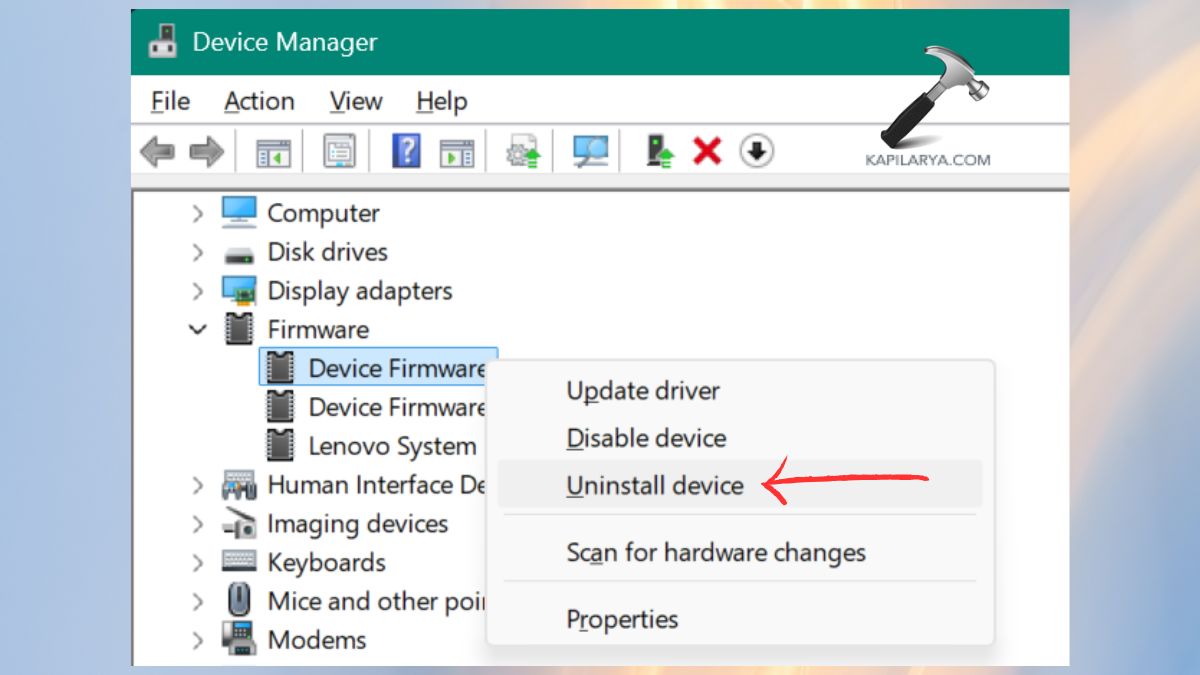
Restart the PC. Reboot, again with a firmware update.
Fix 2: Free Up Some Space on Your Hard Drive
Yes, firmware updates would require additional space, more than you anticipate. Here’s what you can do and follow this article on How to Free up Drive Space in Windows 11.
1. Erase temporary and cache files.
2. Cleanup Windows Update residual.
3. Remove apps you don’t use.
4. Clean your Recycle Bin.
5. Switch on storage sense to clean automatically.
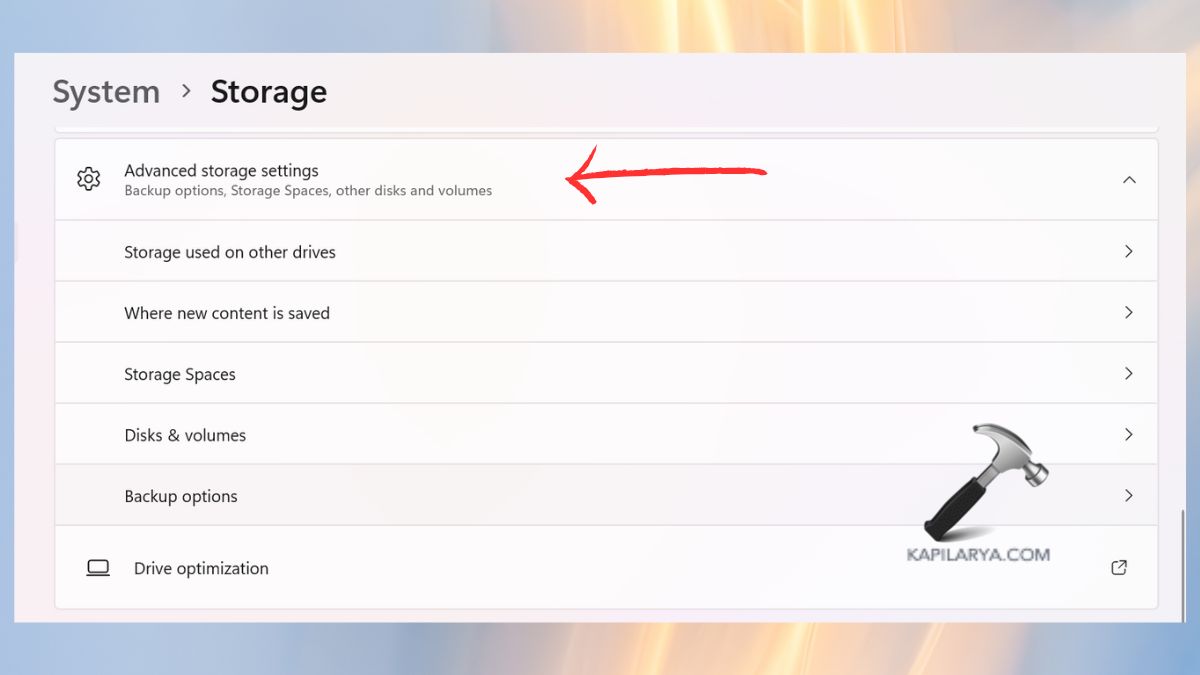
Note: There must be a minimum of 10GB free space, but just in case.
Fix 3: Run Windows Update Troubleshooter
In such a case, your firmware malfunction is a temporary glitch, then the troubleshooter can fix it immediately.
1. Open Settings. Go to System > Troubleshoot.
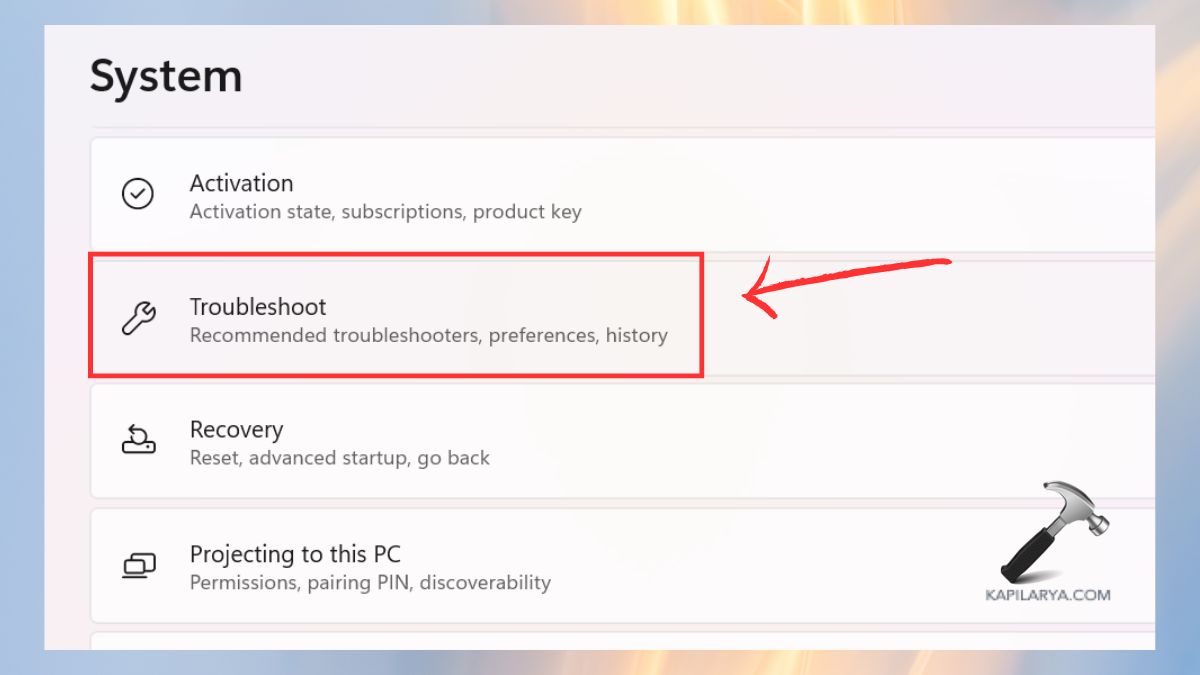
2. Click Other troubleshooters. Run Windows Update.

Fix 4: Disable Firewall or Third-Party Antivirus Temporarily
Security solutions tend to be overprotective and block firmware files.
1. Turn off the antivirus for a couple of minutes.
2. Disabling the Windows Firewall will be done temporarily.
3. Install the update. It is important to turn everything on again.
Fix 5: Download Firmware Directly from the Manufacturer’s Website
When Windows Update continues to malfunction, go to the root. This resolves revision discrepancies, incorrect file type, and Corrupted updates downloads.
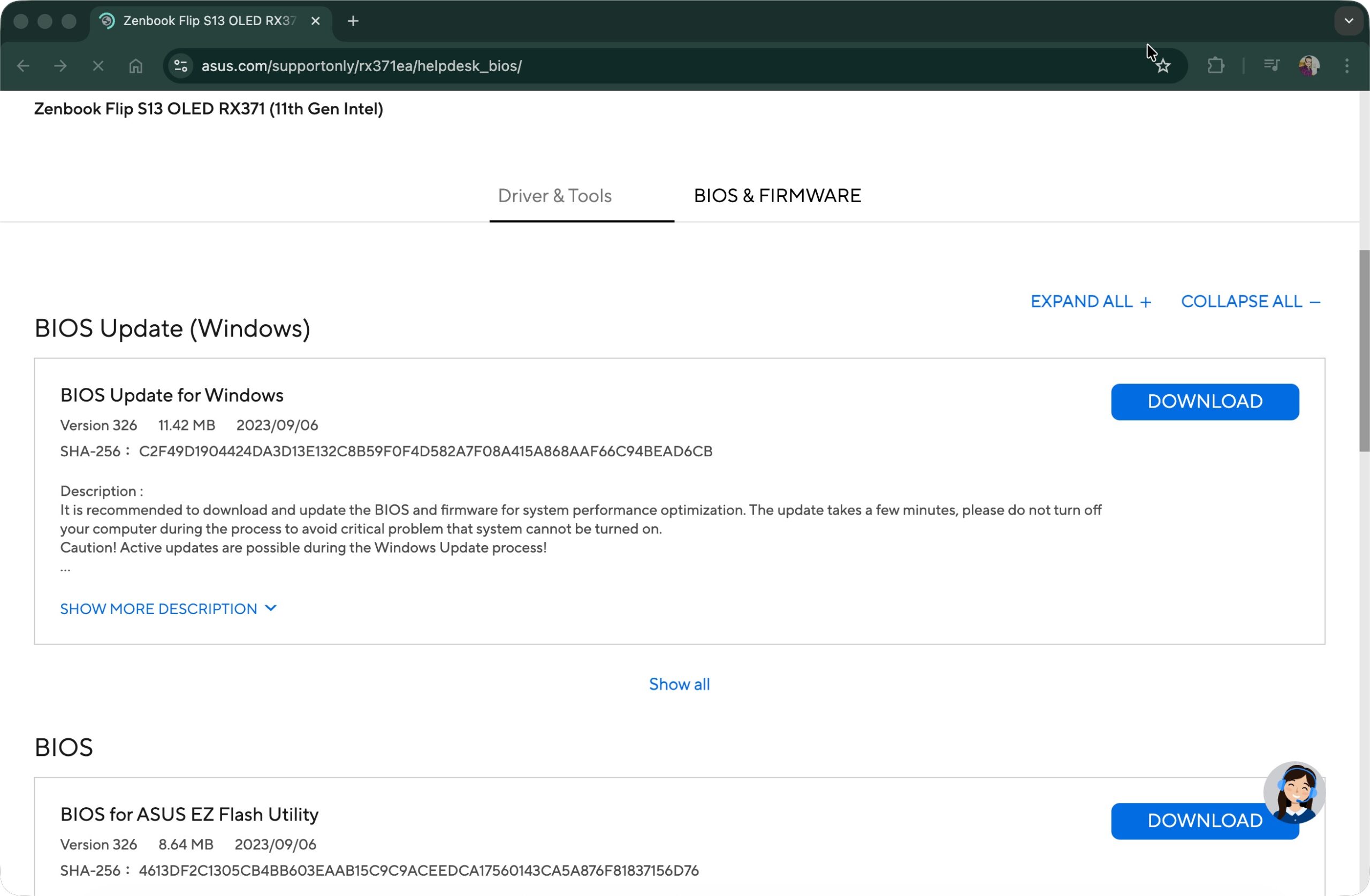
1. Go to the manufacturer’s support website for your laptop/PC.
2. Choose your model number, and fetch the latest BIOS/firmware update manually.
Example of BIOS update download for a ASUS device:
Frequently Asked Questions (FAQs)
Why does my firmware update fail on Windows 11?
Firmware updates may not work because of the corrupted file, the invalid driver, or insufficient storage, power, antivirus blockage, etc.
Are firmware updates dangerous?
Yes. Get the firmware straight off the official site of the manufacturer and install them manually.
Can I install firmware manually?
The right driver will automatically reinstall after reboot on Windows.
Does uninstalling a device from Device Manager harm my PC?
No, when temporarily and then relinquish it later.
That’s it!





