

Earlier, we’ve seen how to show or hide Administrative Tools from Windows 8/8.1 Start Screen:
How to show or hide Administrative Tools in Windows 8/8.1
Now in this article, we’ll show you how to disable admin tools from Start Menu and consecutively from all programs, in Windows 10. The intention behind disabling admin tools is to prevent misuse of the advanced tools by normal users who don’t have enough knowledge to use them. Since these tools are quite crucial tools, improperly configuring them without looking further for consequences will bring destruction only. So if you’re a system admin and you’re afraid that your system users may destroy the machine by playing with admin tools, you can disable these tools and prevent your users from accessing them.
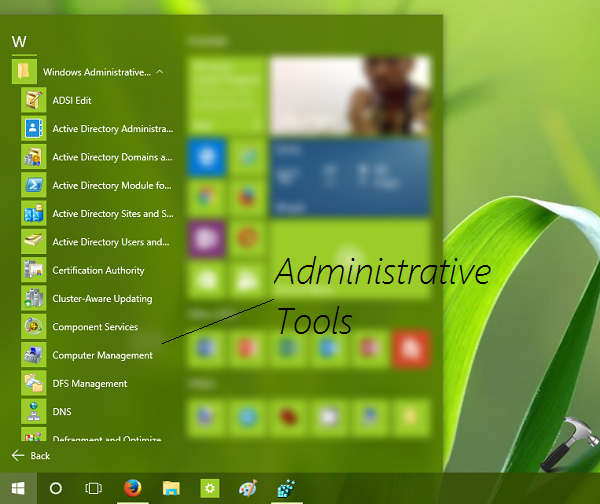
There are two easy ways to do this, both of them are mentioned below.
Page Contents
How To Remove Administrative Tools From Start Menu For All Users In Windows 10
Method 1 – Deny Permissions For Accessing Admin Tools In Start Menu
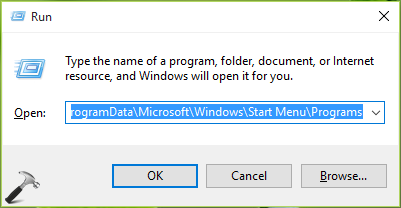
1. Enable Hidden items in File Explorer ribbon (View tab). Press  + R and put C:\ProgramData\Microsoft\Windows\Start Menu\Programs in Run. Remember to replace C: with your system root drive. Click OK/press Enter key.
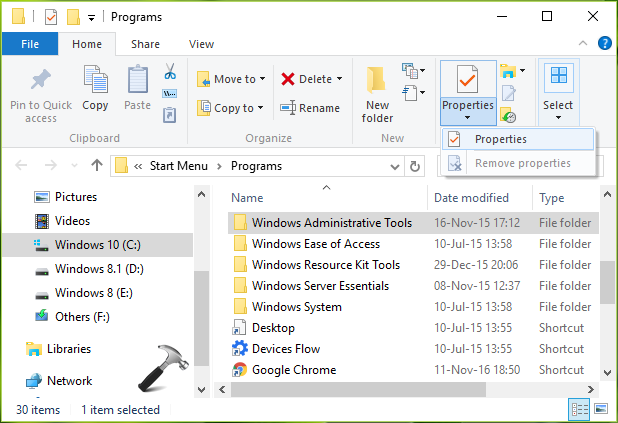
2. In the Programs folder, highlight Windows Administrative Tools folder and click Properties drop down > Properties.
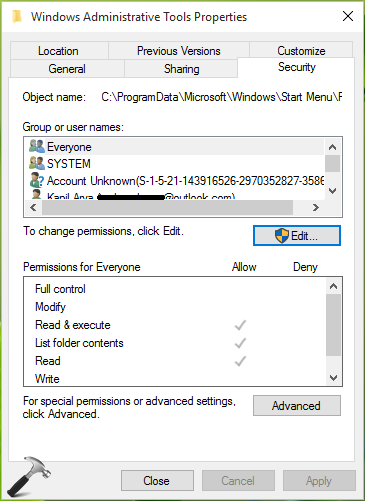
3. On the property sheet, switch to Security tab. Click Edit button.
4. Next, in the Permissions sheet, under Group or user names, select the user account which you want do not want to access admin tools and check Deny for Full Control. Similarly do this for every account, which should be blocked from using admin tools. Click Apply, OK, Apply, Close.
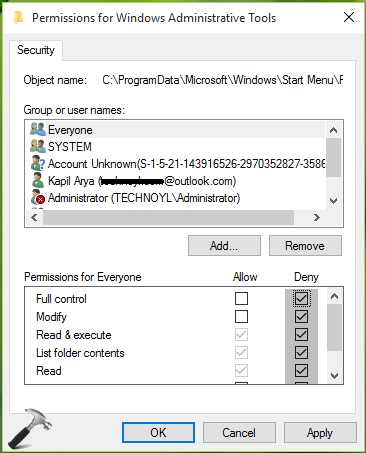
In this way, users don’t have permissions to access admin tools under Start Menu can’t use them. Another approach to make this possible is via registry manipulation. In that method, the registry configuration will automatically block the currently logged in user from accessing admin tools. Here’s how:
Method 2 – Disable Administrative Tools In Windows 10 From All Programs Using Registry
Registry Disclaimer: The further steps will involve registry manipulation. Making mistakes while manipulating registry could affect your system adversely. So be careful while editing registry entries and create a System Restore point first.
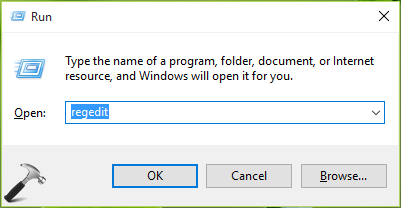
1. Press + R and put regedit in Run dialog box to open Registry Editor (if you’re not familiar with Registry Editor, then click here). Click OK.
2. In the Registry Editor window, navigate to following registry key:
HKEY_CURRENT_USER\Software\Microsoft\Windows\CurrentVersion\Explorer\Advanced
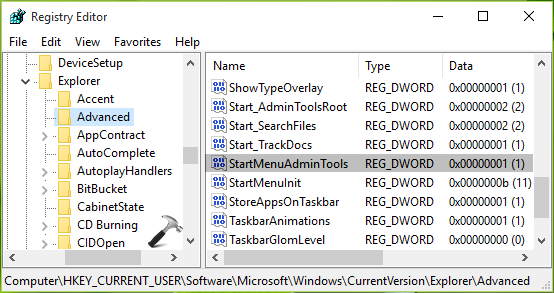
3. In the right pane of Advanced registry key, look for registry DWORD (REG_DWORD) named StartMenuAdminTools which must be having its Value data set to 1. Double click on this DWORD to modify its Data:
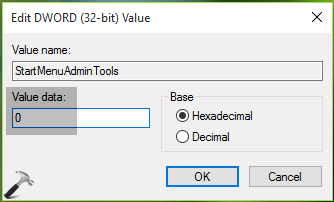
4. Finally, set the Value data to 0 and click OK. Close Registry Editor and reboot to make changes effective.
That’s it!







this doesn’t work in Windows 10 or Server 2016 anymore