

We all know that Windows 10 is shipped with some pre-installed or built-in apps. These apps are some essential apps that will help you to work easily on Windows 10. However, sometimes some users may feel the need of uninstalling built-in apps. Since these apps came pre-installed, users won’t be able to uninstall them like the other apps they downloaded from Store. In such a condition, the built-in apps can be uninstalled using Windows PowerShell cmdlet.

This article will help you to erase built-in apps in Windows 10 using single Windows PowerShell based script. It will also help you to remove built-in apps from hundreds of machines in your workplace with minimal effort required.
Here’s the how-part:
How To Uninstall Built-in Apps In Windows 10
1. Open administrative Windows PowerShell.
2. In the PowerShell window, paste following script and press Enter key.
$AppsList = "Microsoft.MicrosoftOfficeHub", # Get Office
"Microsoft.SkypeApp", # Get Skype
"microsoft.windowscommunicationsapps", # Mail & Calendar
"Microsoft.People", # People
"Microsoft.CommsPhone", # Phone
"Microsoft.WindowsPhone", # Phone Companion
"Microsoft.XboxApp", # Xbox
"Microsoft.Messaging", # Messaging & Skype
"Microsoft.Reader" # Microsoft Reader
"Microsoft.WindowsCamera" # Camera App
"Microsoft.OneConnect" # Microsoft OneConnect
"Microsoft.Office.OneNote" # Microsoft OneNote
"Microsoft.WindowsStore" # Store App
"Microsoft.XboxGameOverlay" # Microsoft Xbox Game Overlay
"Microsoft.Windows.Photos" # Photos app
"Microsoft.MSPaint" # Microsoft Paint
"Microsoft.Windows.ContentDeliveryManager" # Windows Spotlight & Dynamic Content
"Microsoft.WindowsSoundRecorder" # Microsoft Sound Recorder
"Microsoft.BingWeather" # Bing Weather App
"Microsoft.Advertising.Xaml" # Microsoft Advertisement App
"Microsoft.ZuneMusic" # Music App
"Microsoft.WindowsCalculator" # Calculator App
"Microsoft.WindowsAlarms" # Alarms App
"Microsoft.Microsoft3DViewer" # Microsoft 3D Viewer
"Microsoft.ZuneVideo" # Video App
"Microsoft.WindowsFeedbackHub" # Feedback App
"Microsoft.StorePurchaseApp" # Microsoft Store Purchase
"Microsoft.MicrosoftStickyNotes" # Microsoft Sticky Notes
"Microsoft.Wallet" # Microsoft Wallet
"Microsoft.MicrosoftEdge" # Microsoft Edge
"Microsoft.Windows.Cortana" # Cortana App

ForEach ($App in $AppsList)
{
$Packages = Get-AppxPackage | Where-Object {$_.Name -eq $App}
if ($Packages -ne $null)
{
"Removing Appx Package: $App"
foreach ($Package in $Packages) { Remove-AppxPackage -package $Package.PackageFullName }
}
else { "Unable to find package: $App" }

$ProvisionedPackage = Get-AppxProvisionedPackage -online | Where-Object {$_.displayName -eq $App}
if ($ProvisionedPackage -ne $null)
{
"Removing Appx Provisioned Package: $App"
remove-AppxProvisionedPackage -online -packagename $ProvisionedPackage.PackageName
}
else { "Unable to find provisioned package: $App" }
}
3. This automated script will uninstall the pre-installed or built-in apps.
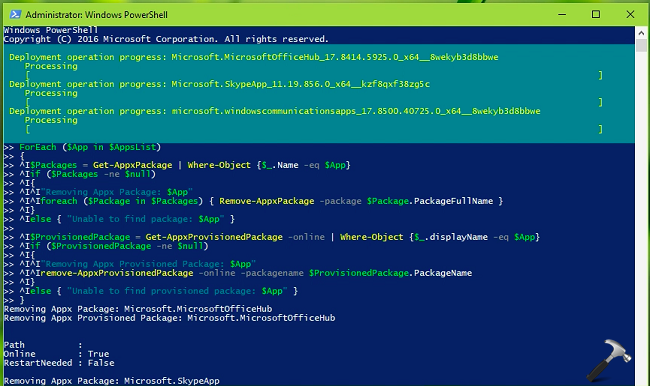
If the script missed to remove any particular app, you can easily modify the script for that app. Simply include “<APP NAME>” after $AppsList in the script. The <APP NAME> is the technical name of the app mentioned (refer below screenshot), after you run Get-AppxPackage cmdlet. After you include the correct “<APP NAME>“, re-run the script to remove concerned app.

Close PowerShell and return to the Desktop. In this way, you can uninstall built-in apps in Windows 10.
Check following video for illustration:
That’s it!





Good going. Thank You Very Much.
^^ Glad to help!