Microsoft Edge by default allows you to print web content using Ctrl+P keyboard combination or UI Print option. As soon as you hit Print option, you’ll be taken to printing preferences window and then you can print as per your requirement.
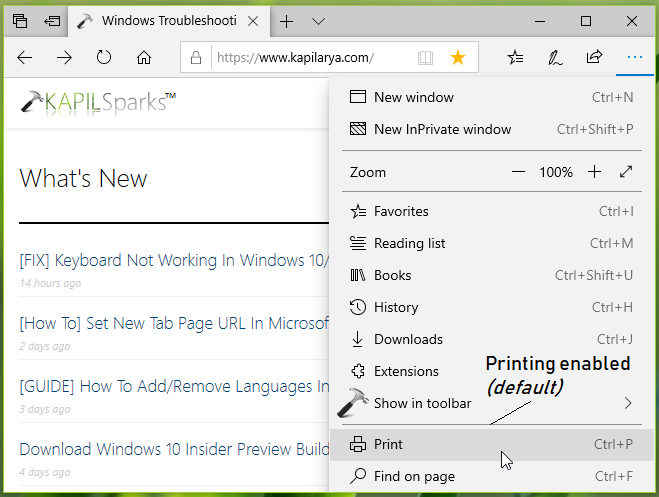
In some special cases, you may need to disable printing in Microsoft Edge. These cases are usually applicable to mass computing environment. To disable printing in such scenarios, you can deploy simple but useful below mentioned registry trick.
FYI: This registry manipulation works only on Windows 10 build 17723 or later.
How To Enable/Disable Printing In Microsoft Edge
Registry Disclaimer: The further steps will involve registry manipulation. Making mistakes while manipulating registry could affect your system adversely. So be careful while editing registry entries and create a System Restore point first.
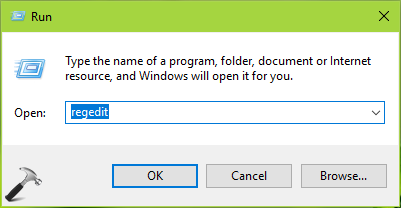
1. Press  + R and put regedit in Run dialog box to open Registry Editor (if you’re not familiar with Registry Editor, then click here). Click OK.
2. In left pane of Registry Editor window, navigate to following registry key:
HKEY_LOCAL_MACHINE\SOFTWARE\Policies\Microsoft
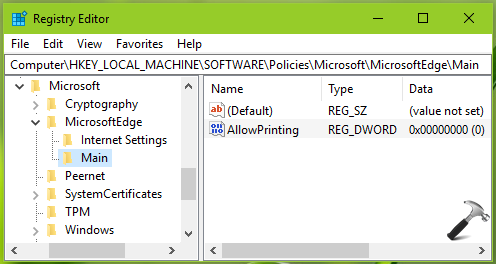
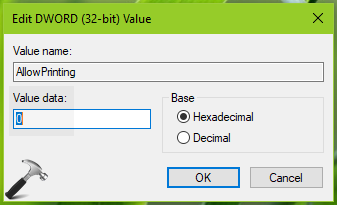
3. Right click Microsoft registry key, select New > Key. Name the newly created sub-key as MicrosoftEdge. Similarly create Main registry sub-key next to Microsoft registry key. If these registry keys already exists, skip creation of new keys. Now in the right pane of Main registry key (HKEY_LOCAL_MACHINE\SOFTWARE\Policies\Microsoft\MicrosoftEdge\Main), right click and select New > DWORD Value. Name the newly created registry DWORD (REG_DWORD) as AllowPrinting. Make sure the DWORD‘s Value data set to 0 to disable printing in Microsoft Edge. Click OK.
4. Close Registry Editor and reboot to make changes effective.
After restarting your system, you’ll find that you can no longer print in Microsoft Edge as Your organization doesn’t allow printing message is there.
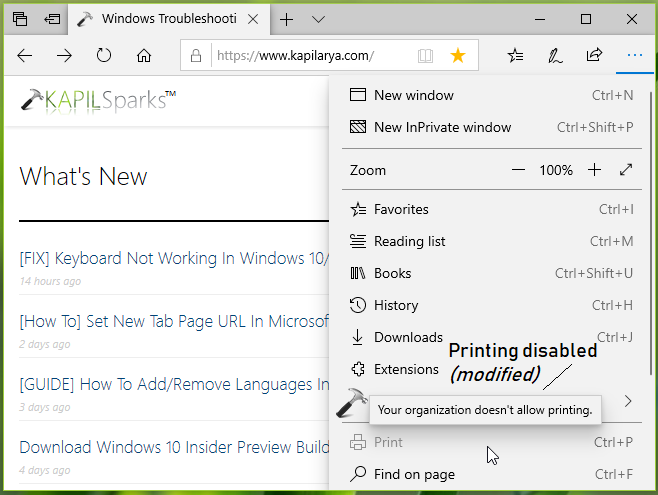
To allow printing again in Microsoft Edge, simply set the AllowPrinting DWORD‘s Value data to 1 or delete it.
So that’s how you can manage printing in Microsoft Edge.
That’s it!