Are you getting Microsoft Edge Kiosk mode error along with “This operation has been cancelled due to restrictions in effect on this computer” message? And you’re experiencing this error with Windows 11 Version 24H2 only? Well, this post will talk about that issue and provide you a working solution at the end.
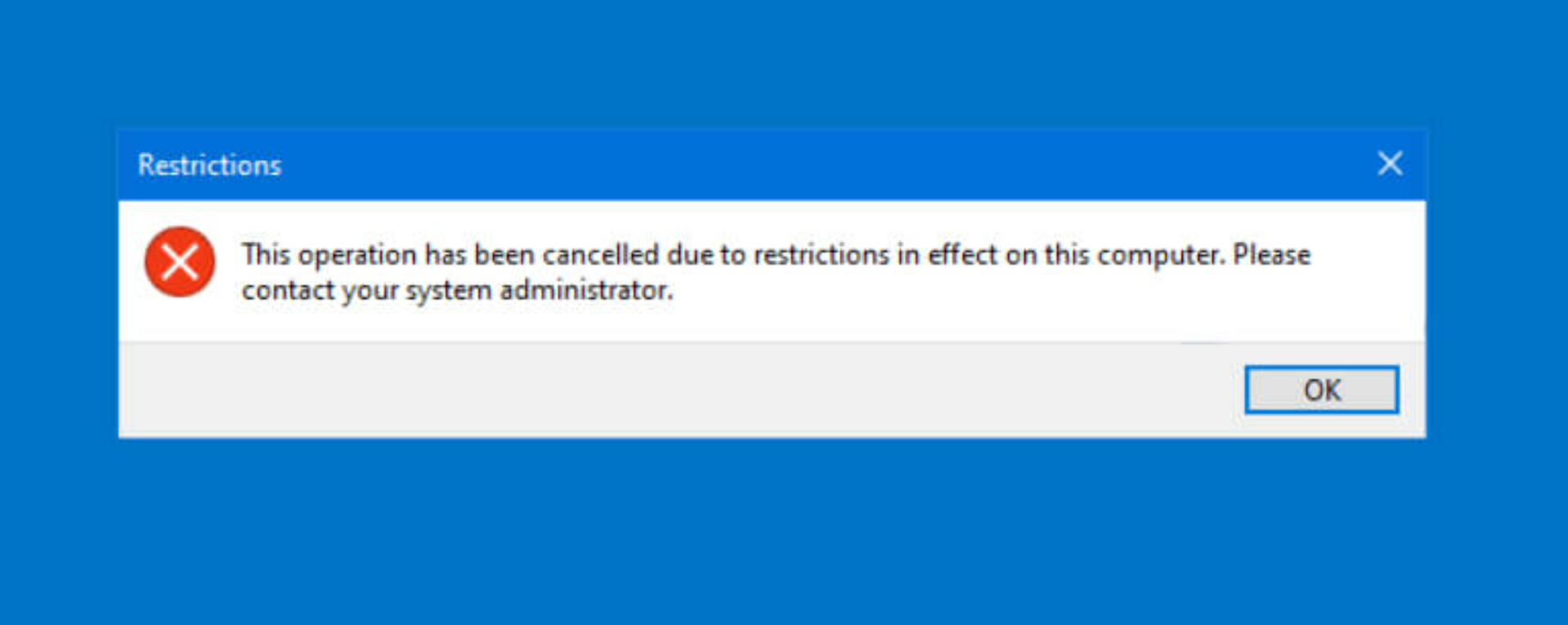
An user impacted with this error, wrote on Microsoft forums, “It appears as if the prompt comes up whenever the application is auto-restarted in Kiosk mode”. If you’re also affected with error, here’s something you can do.
Fix Microsoft Edge Kiosk mode error “This operation has been cancelled”
According to Microsoft, “The issue has been reported in environments using Assigned Access (Single-App Kiosk) with Edge as the designated application. It appears to be specific to the 24H2 release and may be triggered by background applications or system policies that conflict with kiosk restrictions.” Removing conflicting app packages such as for some background apps like Microsoft.YourPhone and MicrosoftWindows.CrossDevice have been linked to this error. You can remove them using Windows PowerShell.
Here are the steps to follow to resolve this issue.
1. Press Windows + X, select Windows Terminal.
2. Once Windows Terminal opens to Windows PowerShell, paste these commands one-by-one:
Get-AppxPackage -AllUsers *Microsoft.YourPhone* | Remove-AppxPackage -AllUsers
Get-AppxPackage -AllUsers *MicrosoftWindows.CrossDevice* | Remove-AppxPackage -AllUsers
3. It is also recommended to remove these provisioned packages:
Get-AppxProvisionedPackage -Online | Where-Object {$_.DisplayName -eq "Microsoft.YourPhone"} | Remove-AppxProvisionedPackage -Online
Get-AppxProvisionedPackage -Online | Where-Object {$_.DisplayName -eq "MicrosoftWindows.CrossDevice"} | Remove-AppxProvisionedPackage -Online
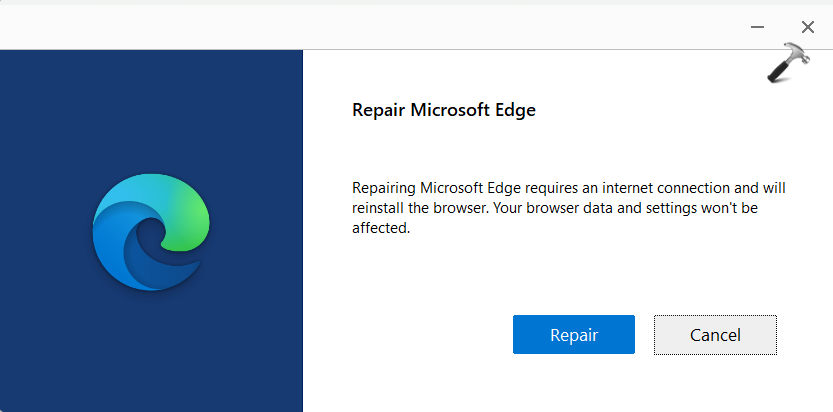
4. Then you can try to repair Microsoft Edge. Simply go to Settings > Apps > Installed Apps. Locate Microsoft Edge, select Modify, and choose Repair.
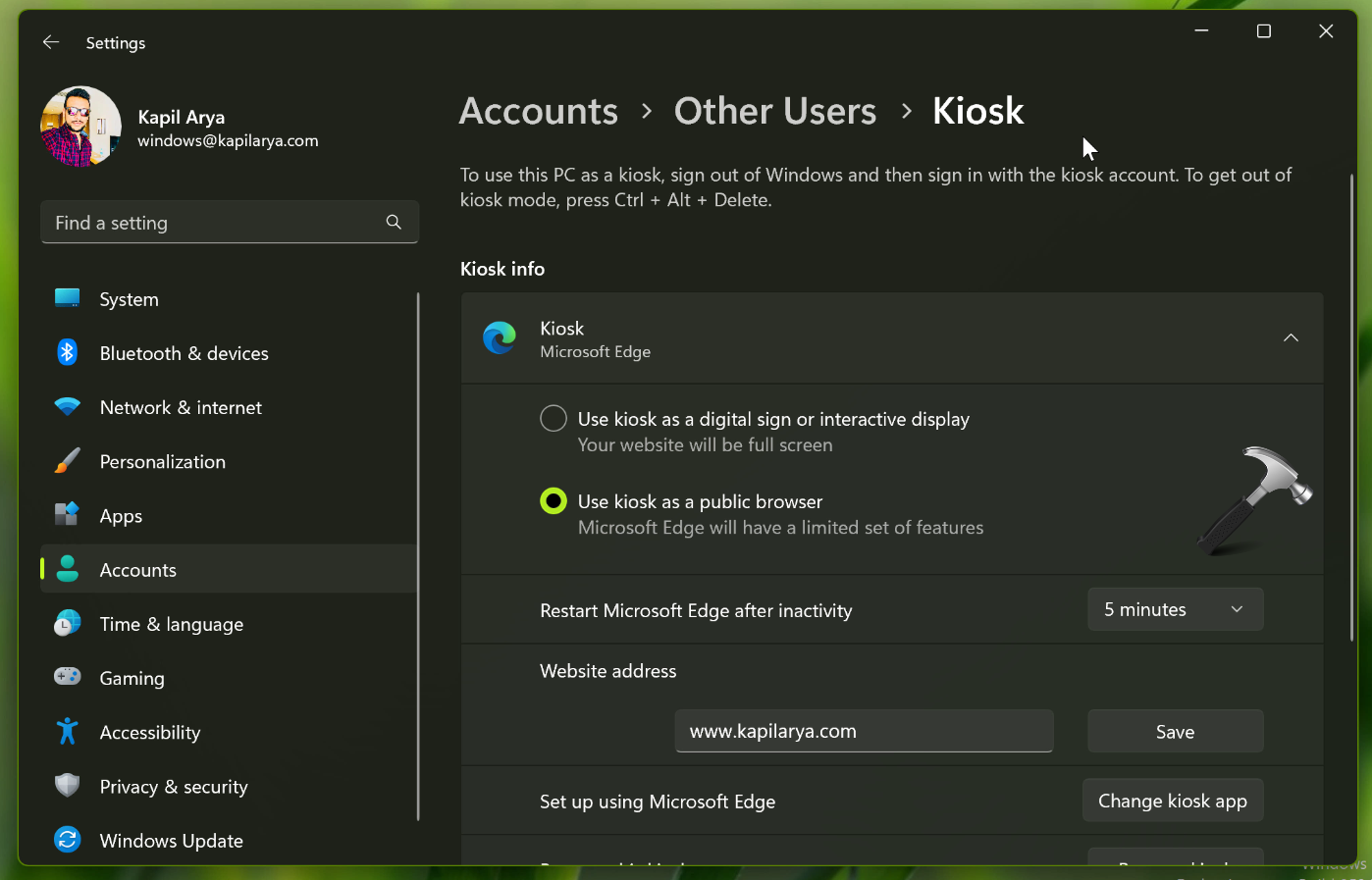
5. Reconfigure Kiosk Mode. Exit kiosk mode and reboot the device. Remove the kiosk user profile completely. Reconfigure kiosk mode from Settings > Accounts > Family & other users > Set up a kiosk.
6. Ensure Windows Is fully patched. Go to Settings > Windows Update and check for latest cumulative updates for Version 24H2.
Hope this helps!