Microsoft Edge is no longer just a browser; it has evolved into an AI-powered productivity tool. With built-in features like Copilot, AI writing tools, summaries, and smart automation, Edge can help you browse, write, research, and even create content faster in Windows 11.

Page Contents
Discover the Secret AI Features Inside Microsoft Edge
Below are the most useful (and often hidden) AI features in Edge and how to use them effectively.
Use Copilot (AI Chat Assistant in Edge)
The most powerful AI feature is Copilot, built directly into the Edge sidebar.
1. Open Edge and click the Copilot icon (top right).
2. Ask questions, summarize pages, or generate content.
3. Use it to research, write emails, or explain complex topics.
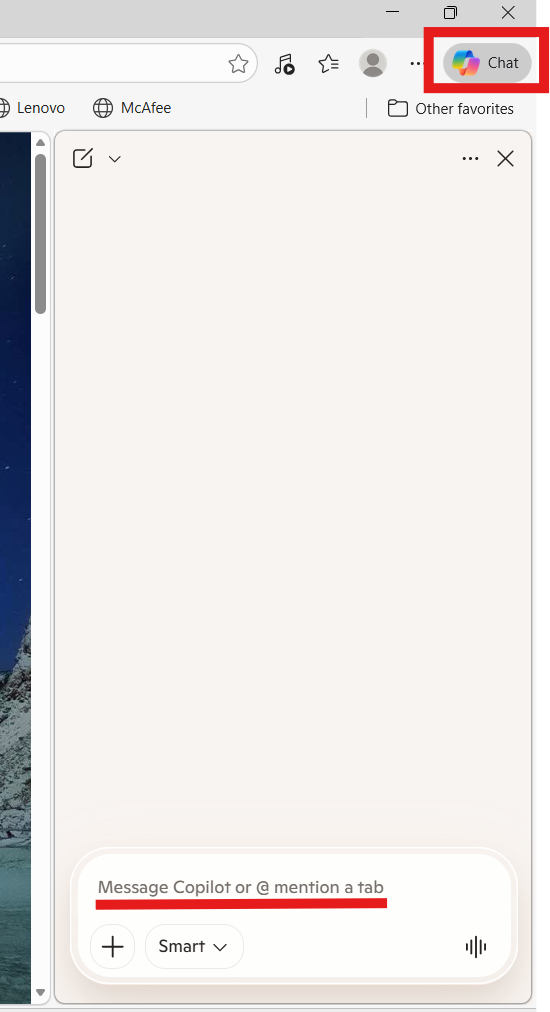
Copilot works like a chatbot, powered by advanced AI models and integrated into the browser for real-time assistance.
Summarize Web Pages Instantly
Instead of reading long articles, let AI summarize them:
1. Open any webpage.
2. Click Copilot and then Ask “Summarize this page.”
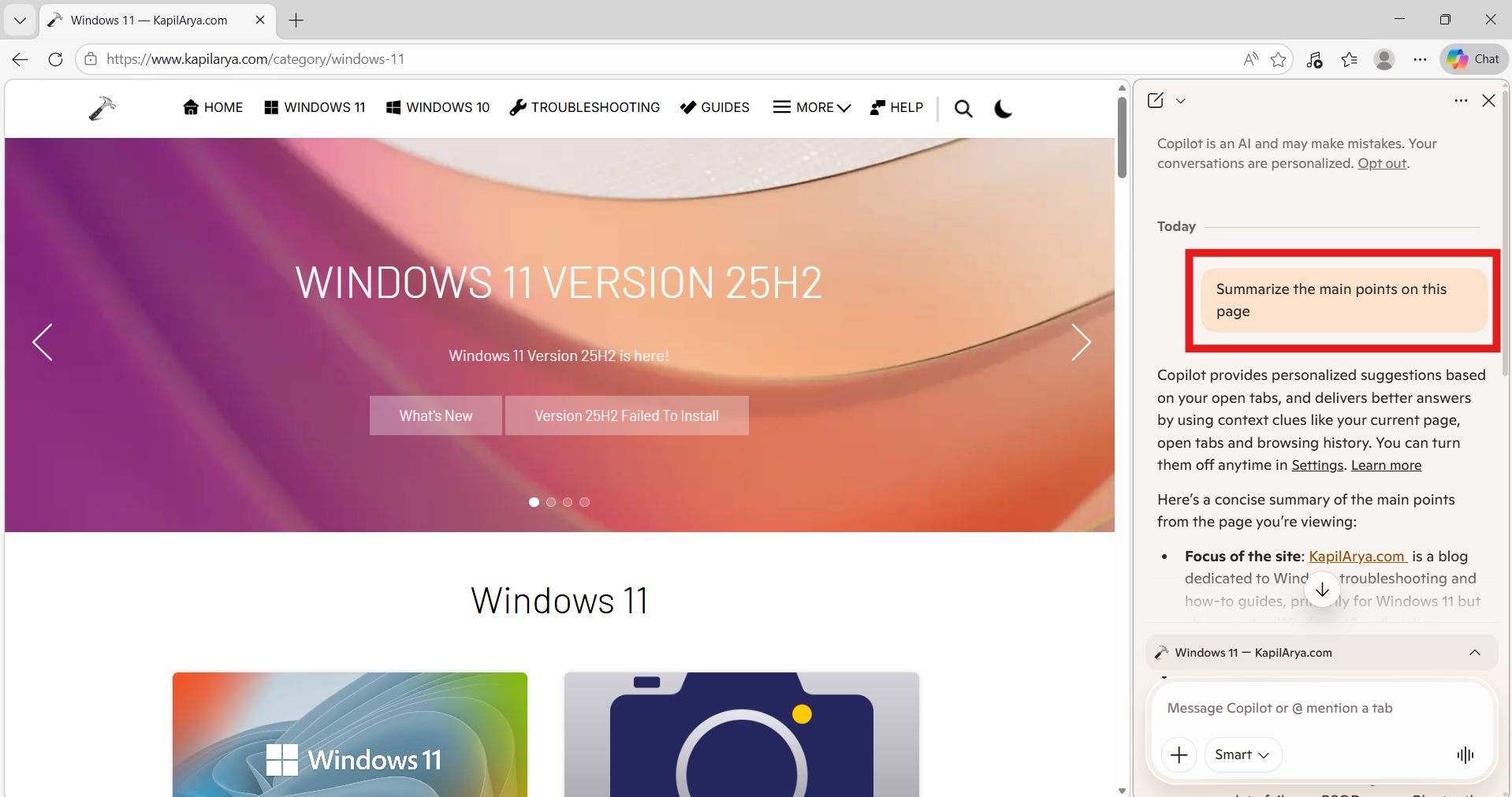
Edge can generate quick summaries, saving time during research or reading.
Use AI Writing (Compose Feature)
Edge includes an AI writing tool that helps you generate text.
1. Right-click inside a text field.
2. Select Copilot and then Write with AI / Compose.
3. Choose tone (formal, casual, etc.) and length.
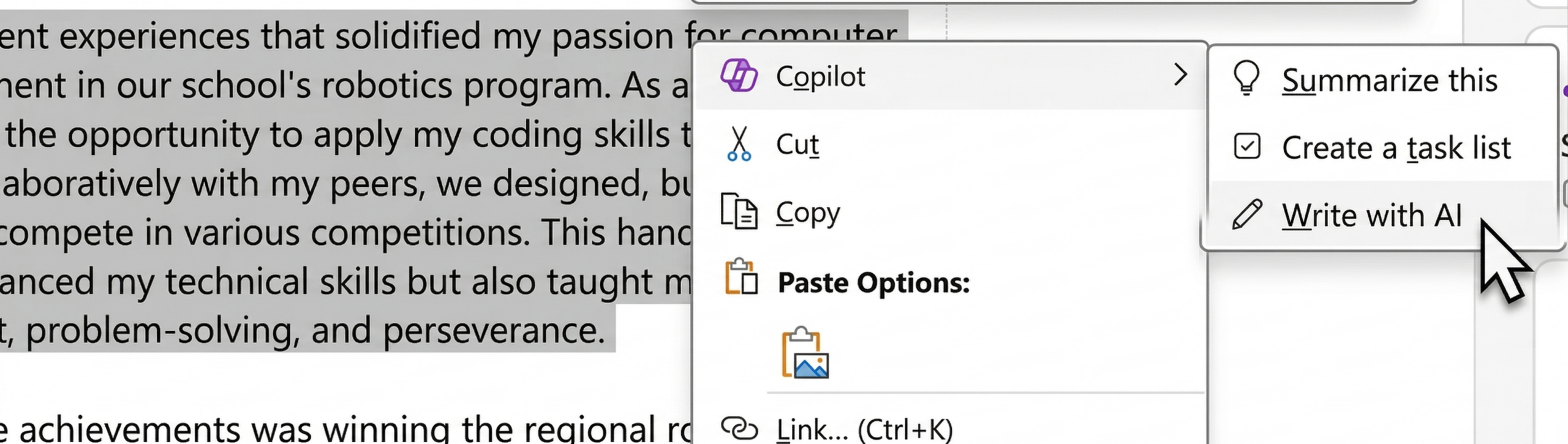
You can instantly create emails, posts, or replies using AI assistance.
AI Image Generation
Edge integrates AI tools that can generate images:
1. Open Copilot.
2. Type something like “Create an image of…”
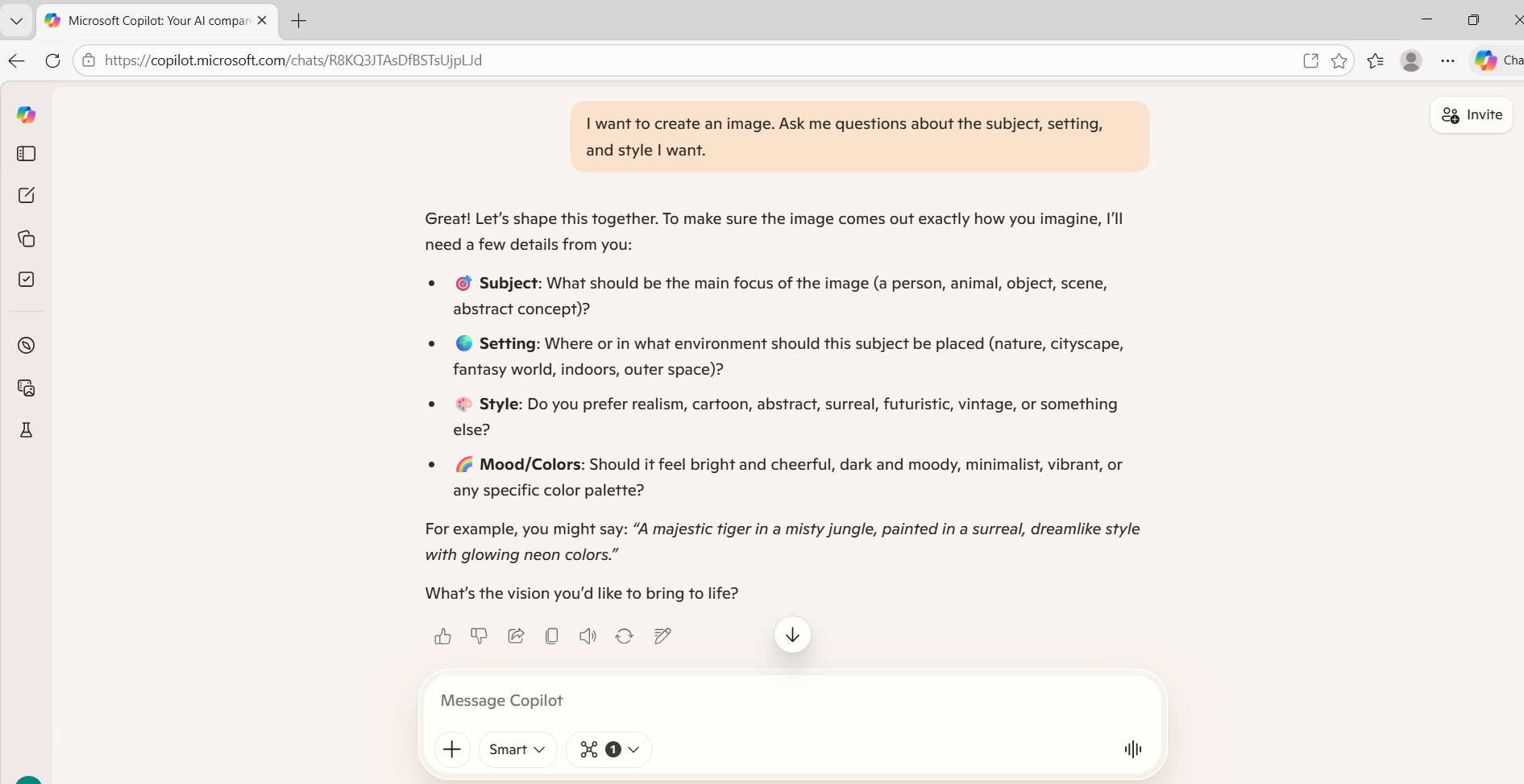
It can generate visuals directly inside the browser, useful for content creation or ideas.
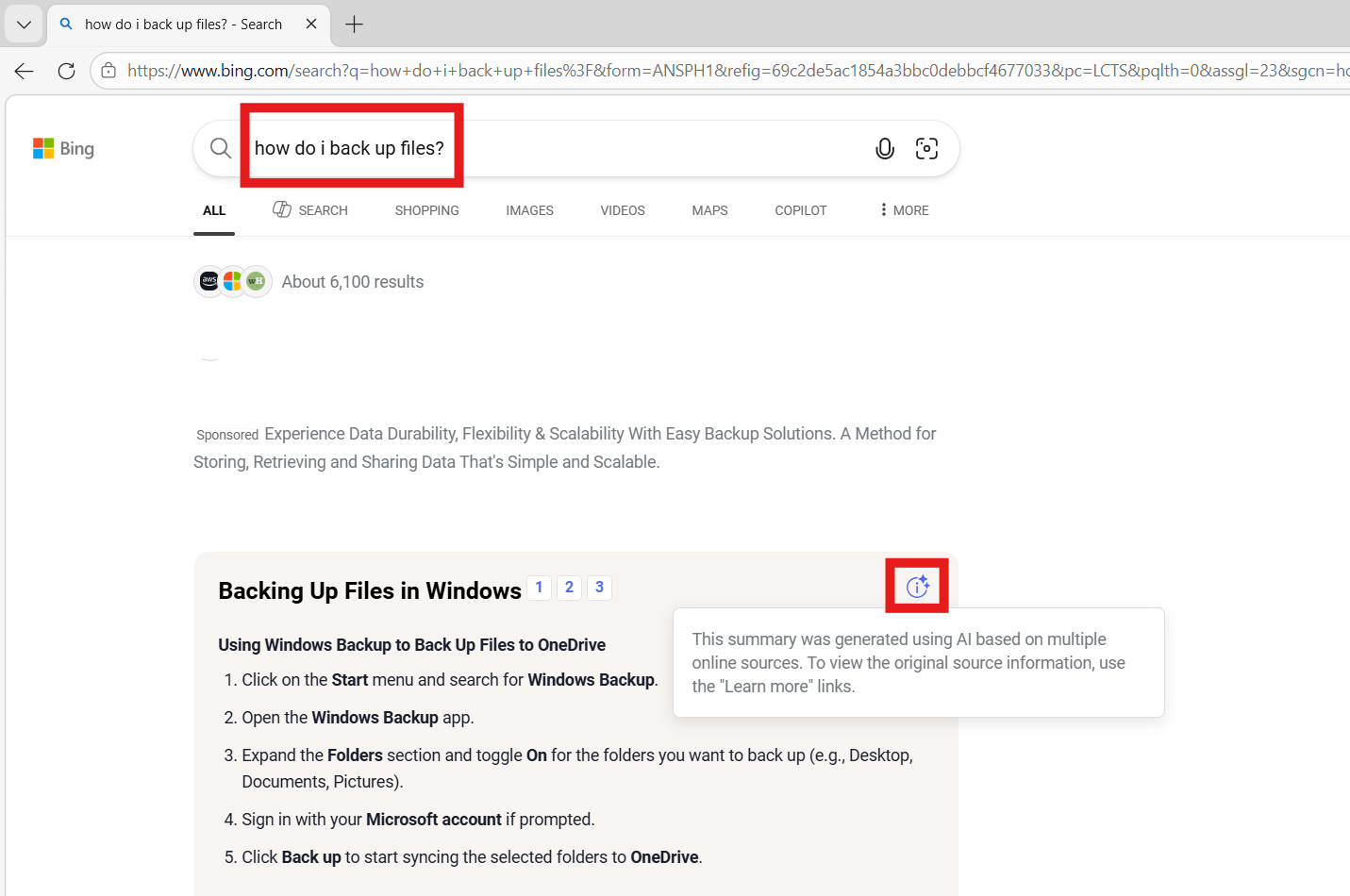
Try AI-Powered Search (Smart Answers) to discover AI features inside Microsoft Edge
Search in Edge is enhanced with AI:
Results may include summaries, visuals, and direct answers. Instead of clicking multiple links, you get structured insights instantly. AI search provides richer results, including images and explanations.
Fix 6: AI Extensions for Advanced Tasks
You can extend Edge’s AI capabilities using tools like:
1. Grammarly (writing improvement).
2. HARPA AI (automation & summaries).
3. Wordtune or Jasper (content creation).

These tools help automate tasks like writing, coding, and research.
Try AI Privacy Settings to discover AI features inside Microsoft Edge
Edge allows you to manage how AI uses your data:
1. Go to Settings and then Appearance. Select Copilot and Sidebar, and then Copilot under App-specific settings. Toggle off the setting that allows Microsoft Edge to access page content.
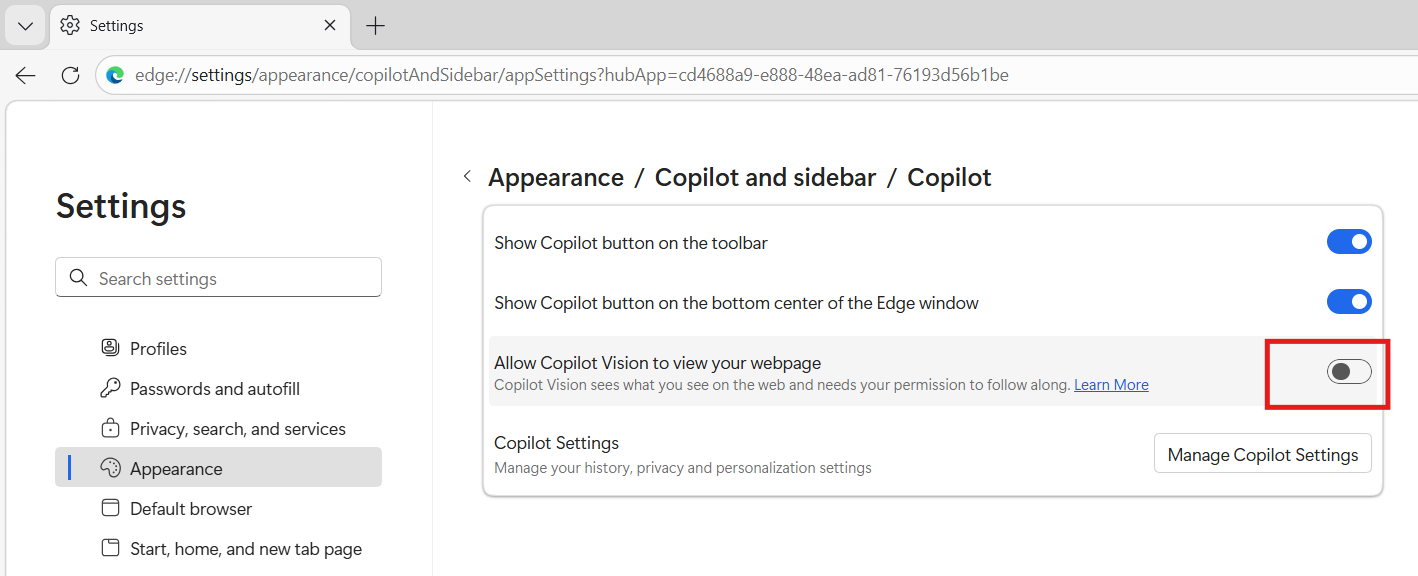
This helps protect your privacy while still using AI features.
Summary
Microsoft Edge’s AI features, especially Copilot, AI writing tools, summaries, and smart search, turn everyday browsing into a powerful productivity experience. Whether you’re researching, writing, or multitasking, these built-in AI tools can save time and improve efficiency.