

Previously, we’ve shared you following guide to show how to turn off Cortana:
How to completely disable Cortana in Windows 10
Recently, one of my reader asked that after following the above linked guide, he was able to completely disable Cortana. But now he wants to re-enable Cortana on his system. So he asked me how to do that? I just told him to revert the process to get Cortana back. This worked well for him.
That scenario lead me to write this separate article to show you how to reinstall or re-register Cortana with factory defaults. This article will also be helpful to those users, for whom Cortana is not working as expected. Reinstalling Cortana should fix up all the issues associated with it.
So without wasting time anymore, here is how to re-register Cortana:
Page Contents
How To Reinstall Or Re-register Cortana In Windows 10
1. Press  + R keys and type
 %WinDir%\SystemApps in Run dialog box. Click OK.
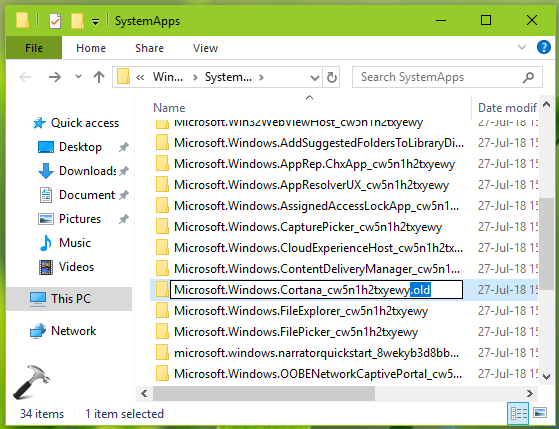
2. In SystemApps folder, rename Microsoft.Windows.Cortana_cw5n1h2txyewy.old or whatever name it has to Microsoft.Windows.Cortana_cw5n1h2txyewy.
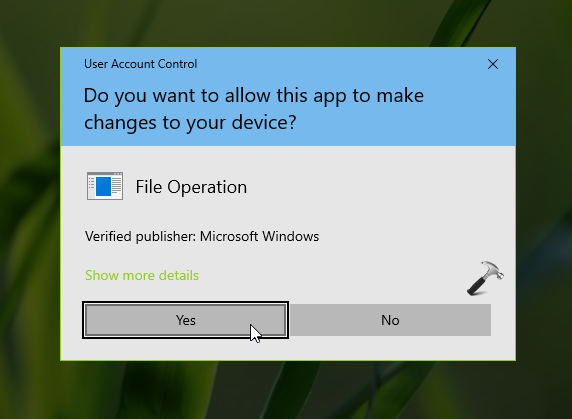
3. In the User Account Permission prompt, click Yes.
4. Now press + X keys and select Windows PowerShell (Admin).
5. Type or paste following cmdlet and press Enter key:
Get-AppXPackage -Name Microsoft.Windows.Cortana | Foreach {Add-AppxPackage -DisableDevelopmentMode -Register "$($_.InstallLocation)\AppXManifest.xml"}
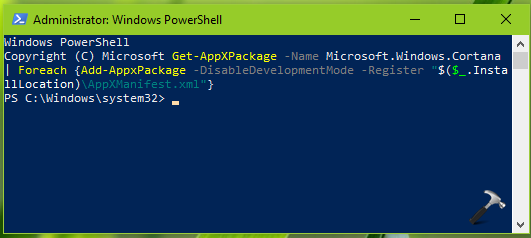
Let the cmdlet execution complete. Once completed successfully, Cortana is reinstalled or re-registered.
NOTE: If you don’t perform step 2 and directly perform step 5, cmdlet execution will fail with below shown error. This is because the execution can’t locate Microsoft.Windows.Cortana_cw5n1h2txyewy folder, which must be present at %WinDir%\SystemApps.

6. Then make sure Cortana is visible on taskbar. Right click on taskbar and select Cortana > Show Cortana box.

So in this way, Cortana is reinstalled and ready to use again. Refer this fix, if it doesn’t recognizes language settings.
That’s it!

But what to do when I can’t stop Cortana and C:\WINDOWS\SystemAppsMicrosoft.Windows.Cortana_cw5n1h2txyewy unable to rename ?
^^ You need to do it quickly by giving multiple tries or you can also use recovery mode Command Prompt for this.