If you don’t want to enter login credentials each time for a particular website, Microsoft Edge has ‘Save passwords‘ feature for that. When this feature is enabled, Edge can remember your passwords and will allow to login directly when you visit the website.
So if you’re wondering how you will allow Microsoft Edge to save passwords, you can follow methods mentioned below and configure this setting.
Page Contents
How To Allow/Prevent Microsoft Edge To Save Passwords
Method 1 – Via Microsoft Edge Settings
1. Open Microsoft Edge, click on triple dots ( · · · ) at top right corner, and select Settings.
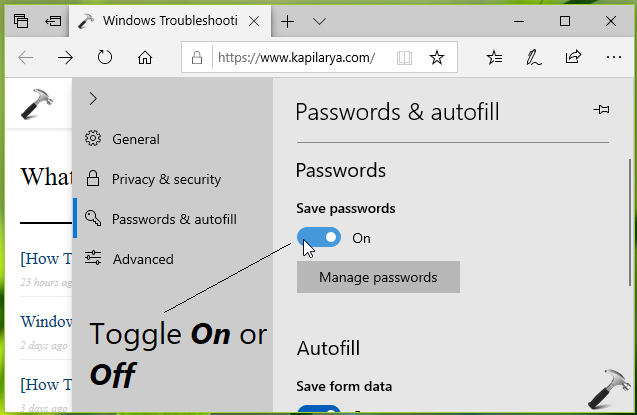
2. Then switch to Passwords & autofill section.
3. Under Passwords & autofill, you’ll find Password heading. Toggle the option for Save passwords to On, which should let Microsoft Edge to ask for saving passwords. Similarly, if turn Off this option, Microsoft Edge will not ask you to save passwords.
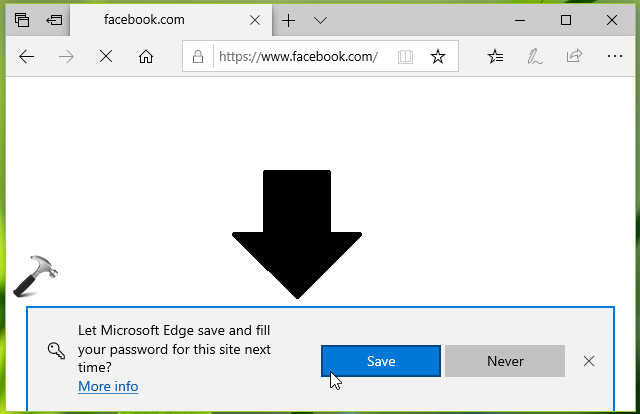
This setting is saved immediately. You can visit any website which requires you to login and enter password. If you’ve allowed Edge to save password, you’ll receive a prompt as shown in below screenshot to confirm saving credentials.
You can also modify Save passwords setting via registry manipulation as mentioned in Method 2.
Method 2 – Via Registry
Registry Disclaimer: The further steps will involve registry manipulation. Making mistakes while manipulating registry could affect your system adversely. So be careful while editing registry entries and create a System Restore point first.
1. Press  + R and put
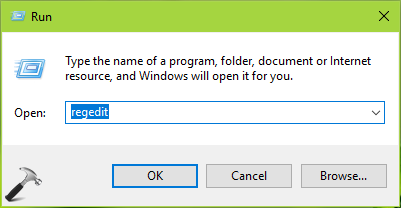
 regedit in Run dialog box to open Registry Editor (if you’re not familiar with Registry Editor, then click here). Click OK.
2. In left pane of Registry Editor window, navigate to following registry key:
HKEY_CURRENT_USER\SOFTWARE\Classes\Local Settings\Software\Microsoft\Windows\CurrentVersion\AppContainer\Storage\microsoft.microsoftedge_8wekyb3d8bbwe\MicrosoftEdge\Main
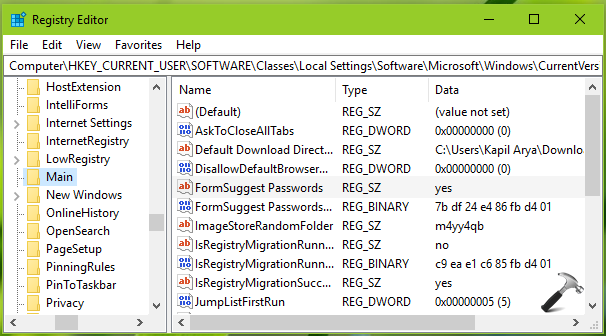
3. In the right pane of Main registry key, look for registry string (REG_SZ) named as FormSuggest Passwords. Double click on this registry string modify its Value data:
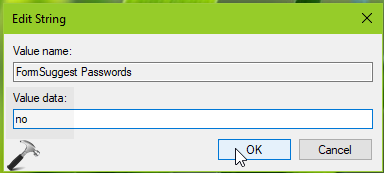
4. Set the Value data to yes to allow Microsoft Edge to save passwords, or set the Value data to no to disable save passwords feature. Click OK. Close Registry Editor and reboot to make changes effective.
That’s it!
Related: How To Configure Autofill Settings In Microsoft Edge.