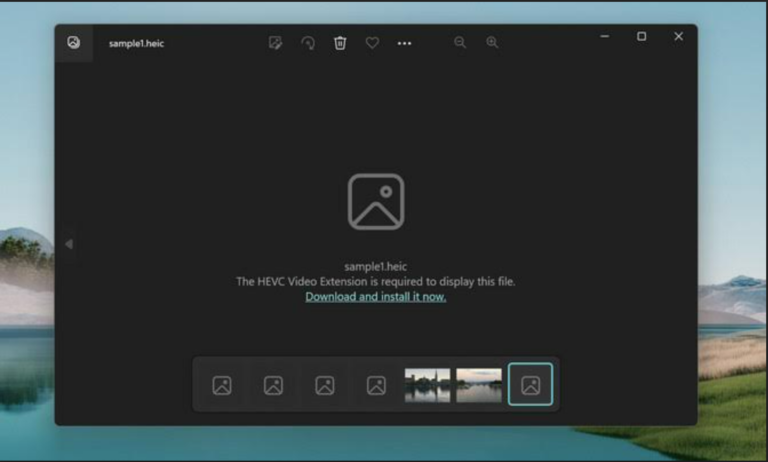
You might have noticed that while you connect your iPhone to Windows 10 running system, Photos app opens automatically. Photos app is launched, so that you can import your iPhone photos or videos instantaneously. Note that, you can still import photos/videos using the File Explorer method. For those users, connecting iPhone only to import photos/videos should be okay with this.
However, there are other users who may find it annoying. If you’re plugging in iPhone to use it network connection as Ethernet, you won’t like Photos app opening automatically. Or in case if you’ve connected iPhone just to charge it, you won’t be either happy with Photos app being auto-launched.
So how to change Photos app behaviour and stop its auto-launch? Well, you may try suggestions provided below and see if they helps.
Stop Photos App From Opening Automatically When Connecting iPhone
iPhone is usually connected as USB device, however it may also be listed as memory card sometimes. This means Windows can treat it as USB device or memory card. So the AutoPlay settings configured for these type of devices will be applied to iPhone, when you connect it. Opening Photos app may be default action for these kind of devices and hence this problem takes birth. So to rectify this issue, you can simply change AutoPlay settings to take no action for either of these type of devices. Once you do that, the issue will be no longer appearing. Here’s what you need to do:
1. Right click Start Button or press  + X keys and select Settings.
2. In the Settings app, navigate to Devices > AutoPlay.
3. Now in right pane of AutoPlay, under Choose AutoPlay defaults, select Take no action option for Removable drive and Memory card.
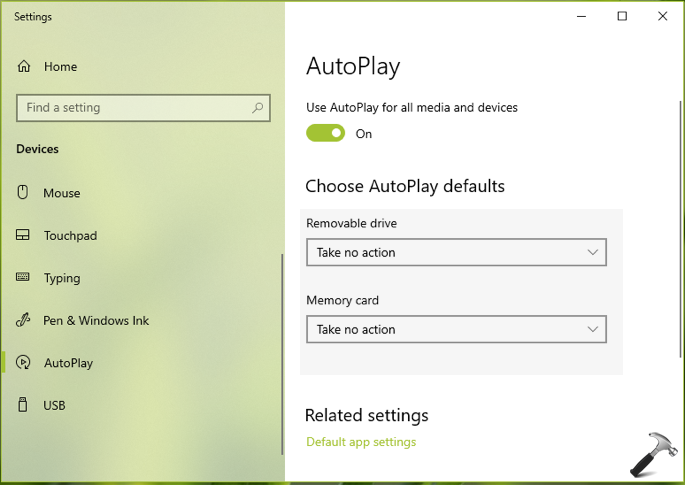
4. Your settings should be applied immediately, so you can now close Settings app.
Try connecting your iPhone then, you’ll see that Photos app is no longer auto-launched now.
Hope this helps!
Also Read: Annoying Frame Effect While Setting DP For WhatsApp On iPhone.