If your work involve interacting people located in different time zones, this post might interest you. Many times it happens we interact with person in different time zone and we often need to check time so we can match it other person’s time zone. For example, if you’re talking to some in Pacific Time, you may first check what time it should be there, so that you can talk to a person in office time. To check the Pacific time, you may use online time converters or your mobile clock etc. But good thing is that you can directly check the time in other zone with Windows directly. For this, you just need to enable additional clocks with relevant time zone.
You can try below mentioned steps to add additional clocks which will be shown along with clock present on taskbar. The additional clocks added can be set to desired time zones.
How To Add Additional Clocks With Multiple Time Zones In Windows 10/8/7
1. In Windows 10, right click Start Button or press  + X keys and select Settings. If you’re on earlier Windows OS such as Windows 7 etc., open Control Panel and click Date and Time > Additional clocks and then skip to step 4 directly.
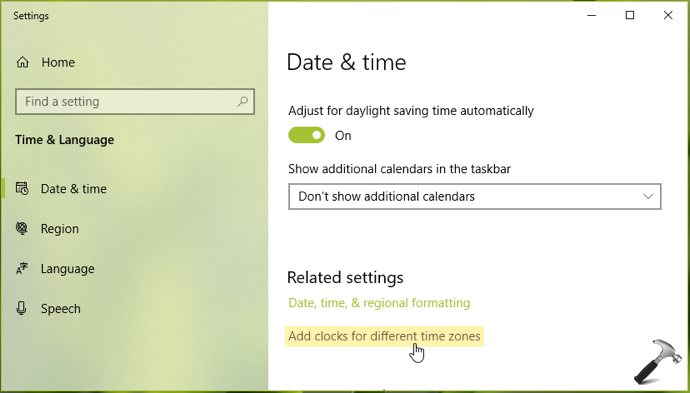
2. In Settings App, navigate to Time & Language > Date & time.
3. In right pane, under Related settings, click on Add clocks for different time zones.
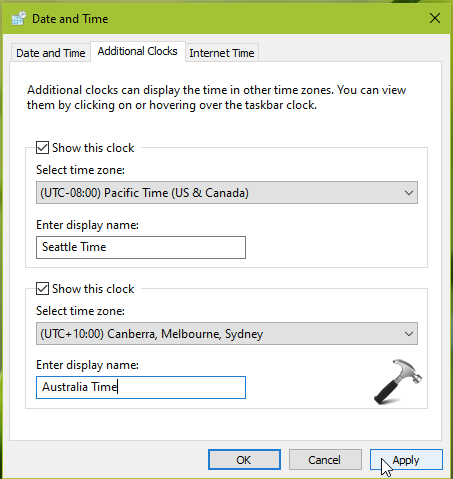
4. Then in the Date and Time window switched to Additional clocks, you can enable/tick Show this clock and set its desired time zone. Then provide a fair display name to recognize this clock/time zone. Similarly, enable another clock and add its time zone plus display name. Click Apply followed by OK to save your settings.
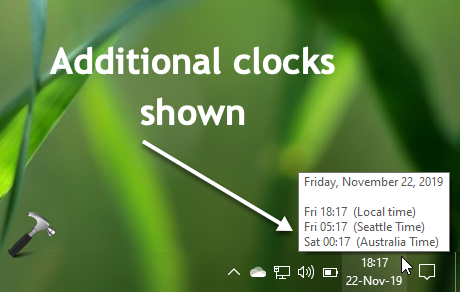
You can now hover the clock on taskbar and it should show additional clocks with multiple time zones you added so far.
That’s it!