Keeping track of colleagues, partners, or family members in different time zones has become simple in Windows 11. You can add multiple time zone clocks using three built-in options: the Clock app, the Control Panel, and the Settings, each of which is useful in different ways.
Page Contents
Add Multiple Time Zone Clocks In Windows 11
Before you begin, make sure your PC is running Windows 11, you’re logged in with a regular user account (no extra access required), and you have a few minutes to complete the setup.
Method 1: Use The Clock App
1. Open the Start menu and search for Clock.
2. Open the app and switch to the World Clock tab.
3. Click Add a new city at the bottom-right corner.
4. Type the city or time zone you want and select Add. Repeat to add as many locations as you like.
5. To make quick access easier, right-click a city and choose Pin to Start, or use Compare to check time differences across dates.
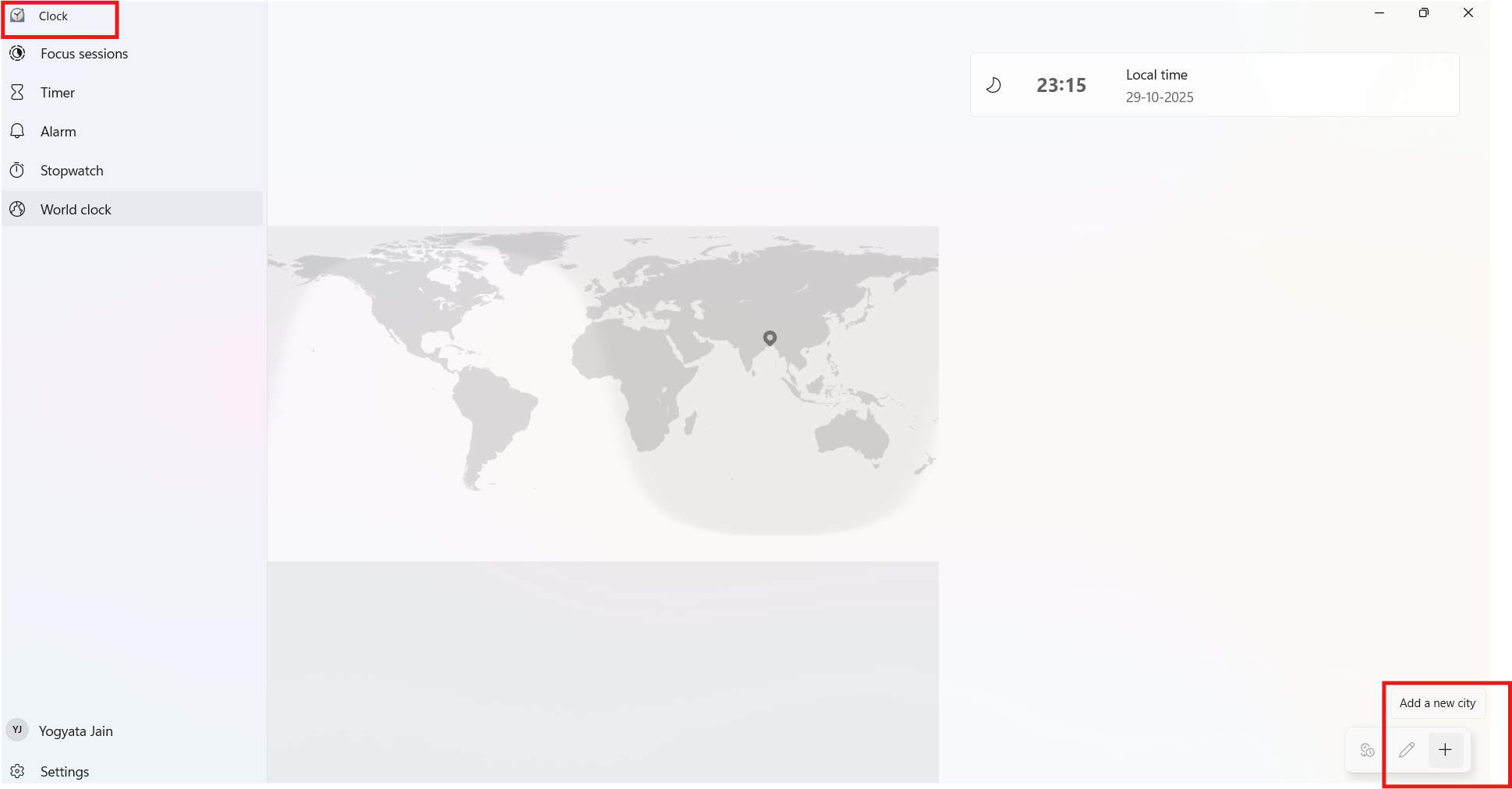
This method is great for anyone who wants to keep track of time in different countries/cities at once, as the app supports unlimited entries of different time zone clocks.
Method 2: Use the Control Panel
1. Click Start and open Control Panel, then select Clock and Region.
2. Click Add clocks for different time zones.
3. Check Show this clock, select a time zone, and enter a display name.
4. You can also enable a second clock in the same way if needed.
5. Click Apply, then Ok.
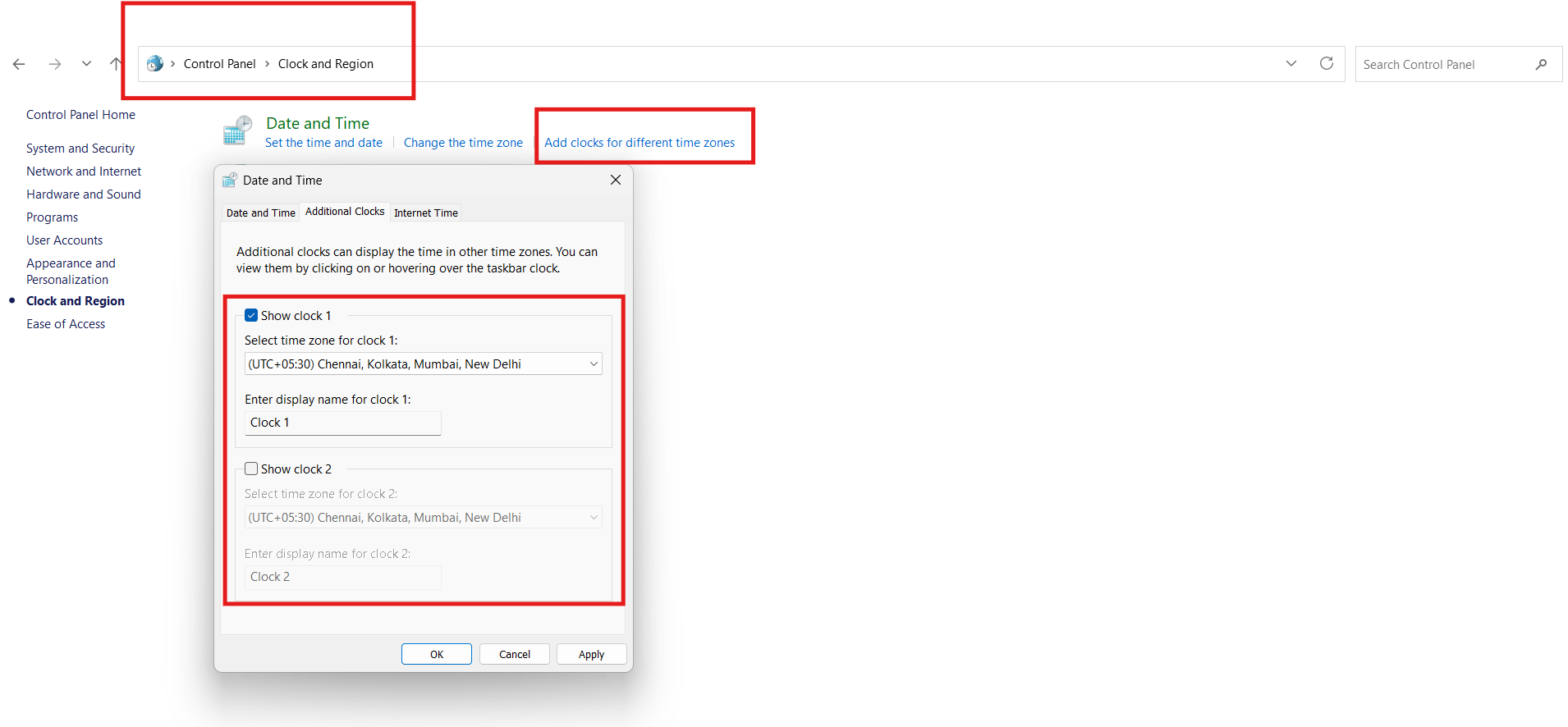
Once you finish, the clocks will appear in the Notifications Center flyout or when hovering the system tray clock.
Method 3: Use the Settings App For Adding Multiple Time Zone Clocks
1. Open Settings and go to Time and Language, then Date and Time.
2. Turn on Show time and date in the System Tray and click on the pointer next to the toggle bar.
3. Scroll to the Additional Clocks section.
4. Click Change, choose a time zone, and enter a name for it.
5. Save your changes.

Restart your PC if needed, and then hover over the system tray clock to see your added time zones.
Choose the method that best fits your workflow and stay perfectly in sync wherever you are by adding multiple time zone clocks on your Windows 11 PC. You can remove the clocks by reversing the same steps.