

By default, users on Windows can check for latest updates available. When they hit Check for updates button, Windows will ping Microsoft update servers to detect updates.
If you’re IT administrator and want to provide updates to your clients via local server/service, this article is for you. To accomplish this aim, you need to push a GPO setting on client’s systems. For this purpose, the best GPO setting is Specify intranet Microsoft update service location. This setting is disabled by default, but when enabled, it forces system to check for updates via local service or server configured. This policy also illustrates that when it is enabled, users do not need to go through firewall to download updates. Additionally, it will give you choice of testing updates before deploying them to clients.
So here is how to configure the Windows 10 to receive updates from local intranet service/server.
How To Specify Intranet Update Service Location In Windows 10
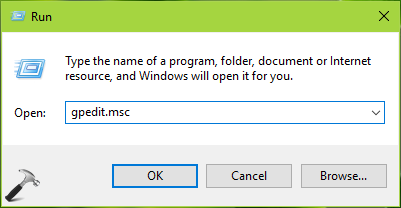
1. Press  + R and put
 gpedit.msc in Run dialog box to open GPO snap-in. Click OK.
2. Next, in the GPO snap-in window, navigate here:
Computer Configuration > Administrative Templates

> Windows Components > BitLocker Drive Encryption > Operating

System Drives
For GPMC snap-in, you should have Policies folder after Computer Configuration and before Administrative Templates folder.
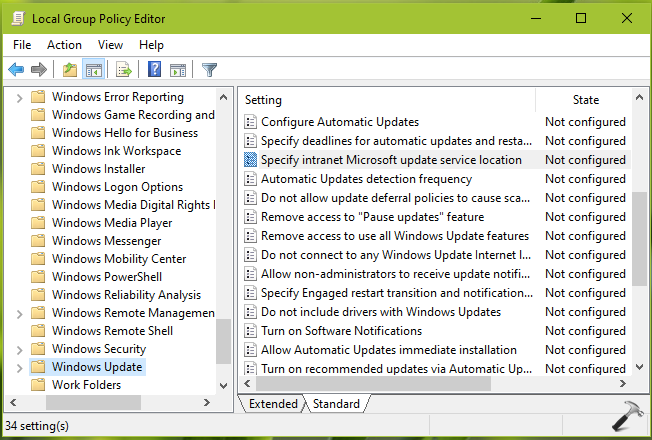
3. In the right pane of Windows Update, look for the policy setting named Specify intranet Microsoft update service location. The policy is Not Configured by default. Double click on it to modify its status:
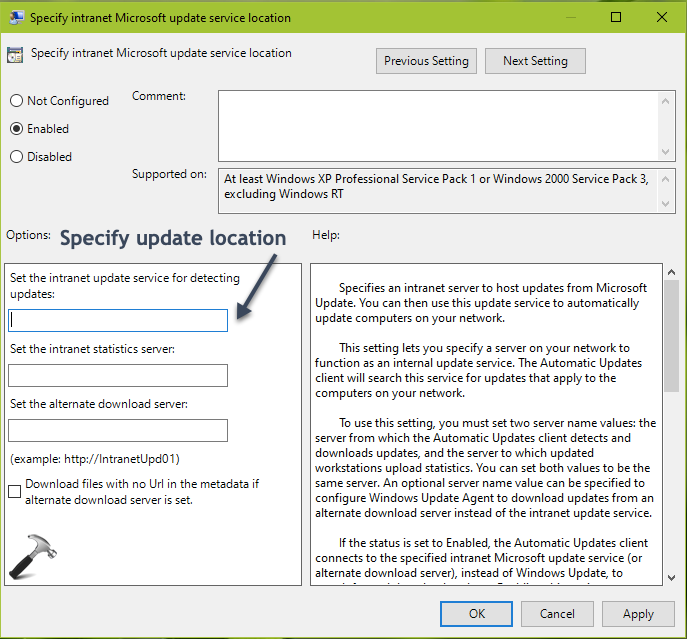
4. On the policy configuration window, set the policy to Enabled and under Options, you can specify the intranet update service location. Microsoft recommends http://Your_WSUS_Server_FQDN:PortNumber format for specifying intranet update locations. Then click Apply, followed by OK. Close GPO snap-in.
5. Run gpupdate /force command in administrative Command Prompt to make changes effective.
Now when clients will check for updates, their system will download updates from local server/service. Don’t forgot to read how to disable ‘check for updates’ button in Windows 10.
That’s it!
Related: Allow Signed Updates From An Intranet Microsoft Update Service Location.





