

In our previous guide, we’ve seen how to specify intranet Microsoft update service location. When you specify local server or service to provide updates to Windows, still there is a possibility that Windows will check for updates via public update service periodically. This is done to ensure future connections to Windows Update and other Microsoft services or Store app.
If you like to prevent Windows 10 from connecting public Windows Update service periodically, you can configure its setting as described in this article. For this, you need to perform the simple registry manipulation mentioned below.
Prevent Windows 10 From Connecting Windows Update Internet Locations
Registry Disclaimer: The further steps will involve registry manipulation. Making mistakes while manipulating registry could affect your system adversely. So be careful while editing registry entries and create a System Restore point first.
1. Press  + R and type
 regedit in Run dialog box to open Registry Editor (if you’re not familiar with Registry Editor, then click here). Click OK.
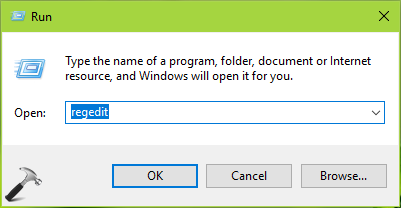
2. In left pane of Registry Editor window, navigate to following registry key:
HKEY_LOCAL_MACHINE\SOFTWARE\Policies\Microsoft\Windows\WindowsUpdate
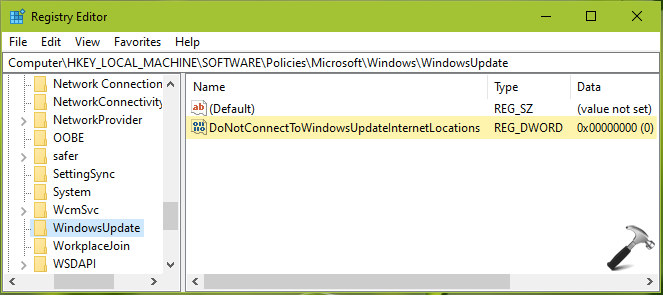
3. Now in the right pane of WindowsUpdate registry key, right click in blank space, select New > DWORD Value. Name the newly created registry DWORD (REG_DWORD) as DoNotConnectToWindowsUpdateInternetLocations. This registry DWORD can be used to allow/prevent Windows 10 from connecting Windows Update Internet locations. Double click on this registry DWORD to modify its Value data.
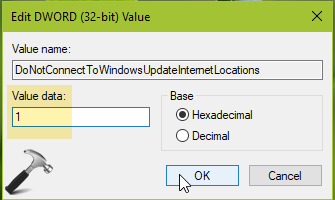
4. Finally, set the Value data to 1 and click OK . Close Registry Editor and reboot the machine to make changes effective.
To restore back the default behaviour later, i.e. allow Windows 10 to connect Windows Update service periodically, restore DoNotConnectToWindowsUpdateInternetLocations to 0.
FYI: Above mentioned registry manipulation will only work, if you’ve specified intranet Microsoft update service location. The registry change will enable Do not connect to any Windows Update Internet locations GPO setting. This may cause the connection to public services such as the Windows Store to stop working.
That’s it!






Hello Kapil how are you? I read the above article, and i am facing a problem with Windows 10 LTSC where in-spite of configuring a local WSUS server and setting the do not connect…. flag to 1, i keep getting this message “We couldn’t check for updates, because you aren’t connected to the Internet. Make sure you have a cellular data or Wi-Fi connection and try again.”
I have checked that the site is pingable, and also when i launch the site using IE on the specified port 8530 in my case, the page opens without any error.
So why is Windows Update still trying to get on to internet for updates.
Appreciate your review on this problem for a possible solution.
^^ Run Network Adapter Troubleshooter, see if it helps you to fix network connection issues and resolve this problem.