

If you’re using Office apps for Mac and facing a sign-in issue, this article may interest you. While signing in to the apps, you might receive The authentication session has expired, Please sign-in again error.
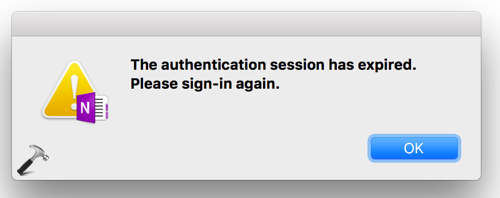
Recently, we came around this error in Office for Mac. In this case, we installed some the Office apps on Mac and they presented the error. When we signed in with Microsoft 365 account, the issue comes in. While we created a test user account and that worked. But with Microsoft 365, the error was continuously present.
If you’re also facing similar problem, here’s how to fix the issue.
Page Contents
Fix: The authentication session has expired in Office for Mac
Follow these methods and you should be able to resolve it:
Method 1
1. First of all, close any opened Office for Mac app such as PowerPoint, OneNote etc.
2. Then use Spotlight search and look out for Keychain Access and open it.
3. In the left pane, click on login Keychain.
4. If the login Keychain has it lock opened, then right click on it and select Lock Keychain “Login”.
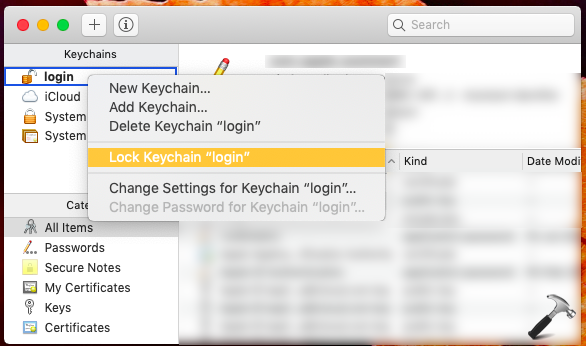
5. Once you make sure that lock is in locked state, open any of the Office for Mac installed on your system.
6. If the permissions dialog appears for access to Keychain, provide the correct password and make sure you select Allow or Always Allow. If the prompt appears multiple times, make sure you do same operation each time.
7. Now when you’re asked to sign in to Office app, sign in once and then you’ll no longer be facing this problem.
Method 2
1. Sign out of the app with which you’re facing this issue.
2. Open Keychain Access app and remove the Keychain.
3. Remove these two entries:
- Microsoft Office Identities Cache 2
- Microsoft Office Identities Settings 2
4. Restart your Mac and sign-in to app again.
If issue still persists, drop us a comment and we’ll be happy to help you.
That’s it!





Hi
I am facing the same issue still despite trying both solutions.
Please could you help