Do you also see the Microsoft Office No License Found error in Windows 11? However, there is no need to panic, this does not imply that your subscription is lost, deleted, or wasted. Usually, Office just fails to connect with your Microsoft account, or it can’t verify your license due to a tiny glitch.
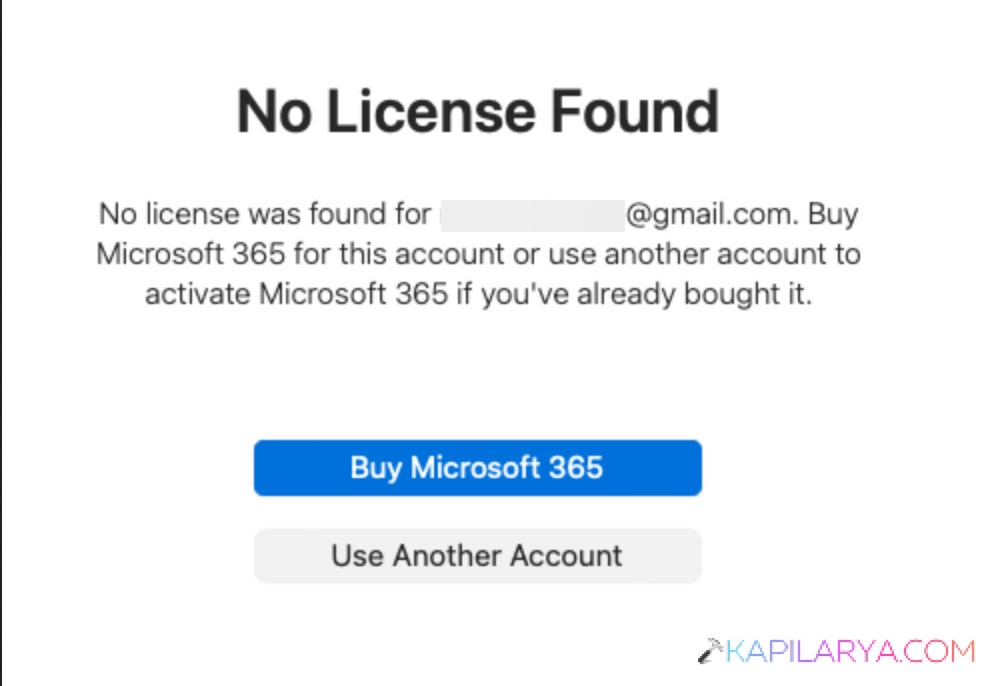
The error fixing process doesn’t have to be complicated in this place. With these steps, you can easily find out the cause and restore your Office apps to functionality.
Page Contents
Symptoms of the Error Microsoft Office No License Found
You may see the error if:-
1. Office applications are changed to View Only.
2. A yellow banner is displayed on the top of the app.
3. You receive messages such as:
- Subscription expired
- Account error
- We cannot locate your license
4. After a Windows update, your Office apps are no longer working.
Fix: Microsoft Office No License Found error
In this guide, we’ll walk you through solutions to resolve the Microsoft Office No License Found error, restore access to your apps, and prevent it from happening again.
Fix 1: Check Your Microsoft Account Sign-In
The most frequent cause of the No License Found error in Microsoft Office is the incorrect account signing in.
1. Open any Office application (Word, Excel, etc.). Click on File > Account.

2. Check the signed-in account. In case of error, press Sign Out.

Re-enter with the account associated with your Office subscription. Ensure that you are using the same email that you used to buy or activate Office.
Fix 2: Verify Microsoft Office Service Health
It may not be your fault sometimes; it may be a temporary outage.
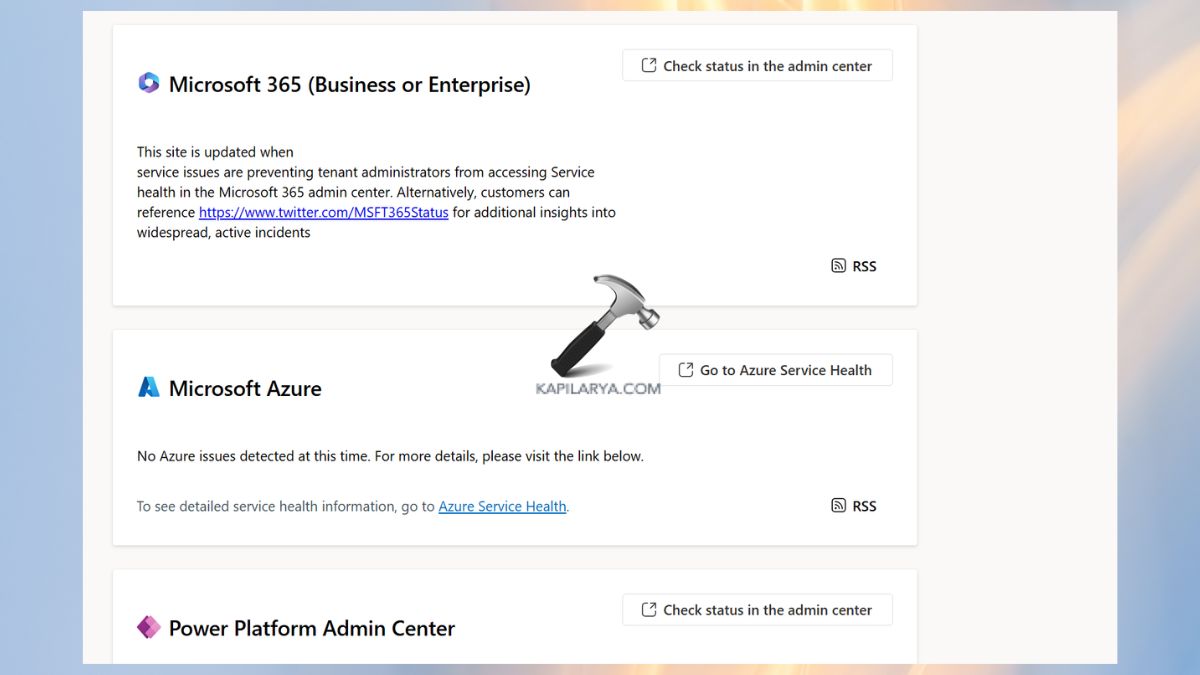
1. Go to the Microsoft service status page: https://status.cloud.microsoft.
2. Check if Office services are down. Wait until services are reinstated. The Microsoft Office license error can be caused temporarily by server problems, so patience may be the only solution in this case.
Fix 3: Check Subscription and Device Limit
You may have a subscription that is active, but is already used on too many devices.
1. Go to your Microsoft account dashboard: https://account.microsoft.com/account.

2. Navigate to Services & Subscriptions.
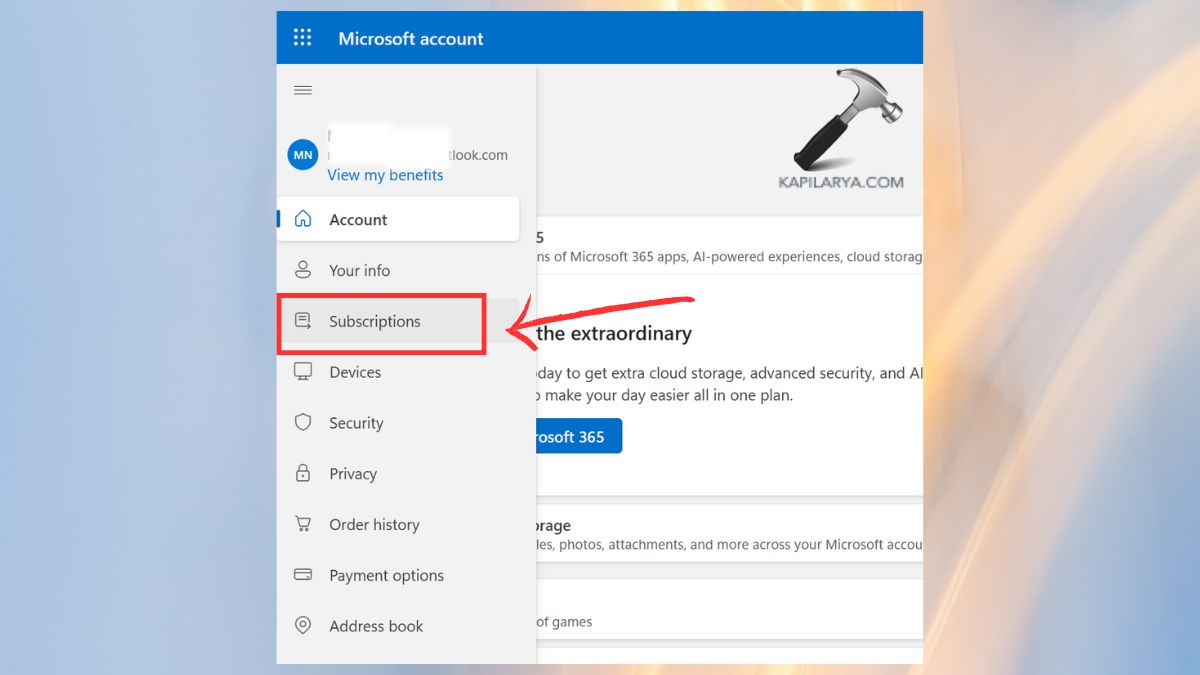
3. Confirm that you are subscribing, the number of devices that are currently in use, and delete idle devices. This is essential to users who have Microsoft 365 plans, which are limited to devices.
Fix 4: Correct Date and Time Settings
An incorrect system clock can interfere with license verification.
1. Open Settings. Select Time and Language > Date & time.
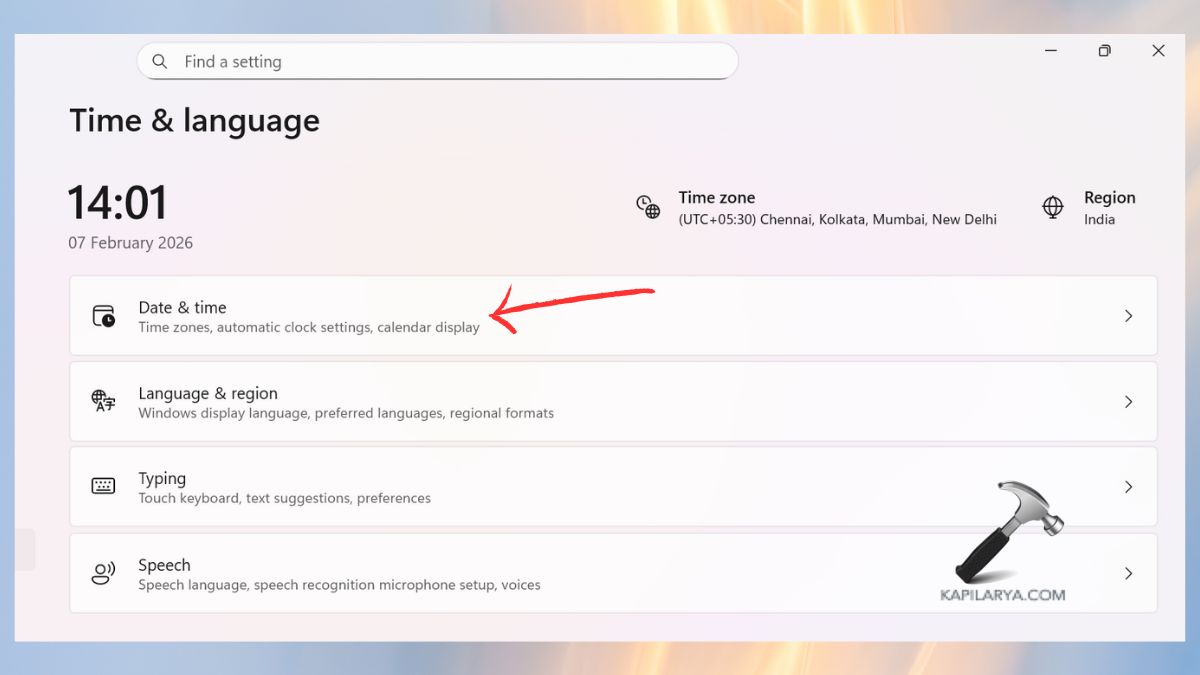
2. Enable these toggles: Set time automatically.
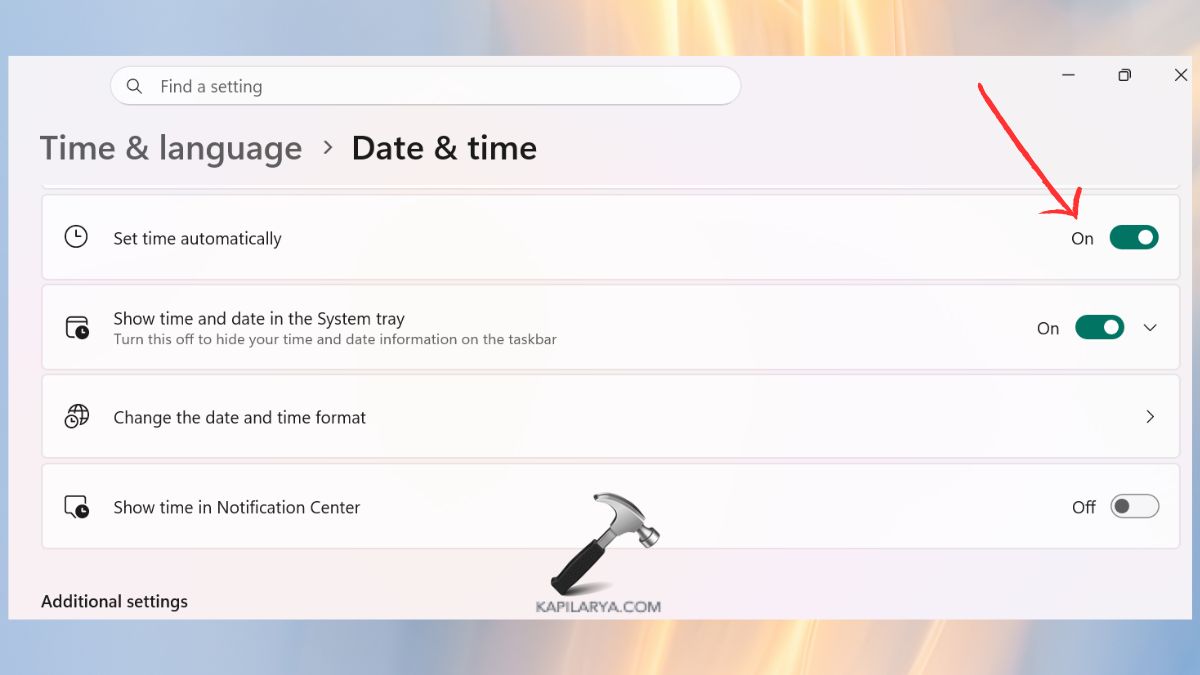
Restart your system. This is a quick solution that can fix the Office activation and license errors immediately.
Fix 5: Uninstall Previous Versions of Office
The presence of several versions of Office can disorient the system and cause the error.
1. Open Control Panel > Programs and Features.

2. Look for older versions of Microsoft Office. Uninstall them completely.

Restart the PC and then reinstall the latest version. This will make sure that there are no conflicts that lead to the No License Found error in Microsoft Office.
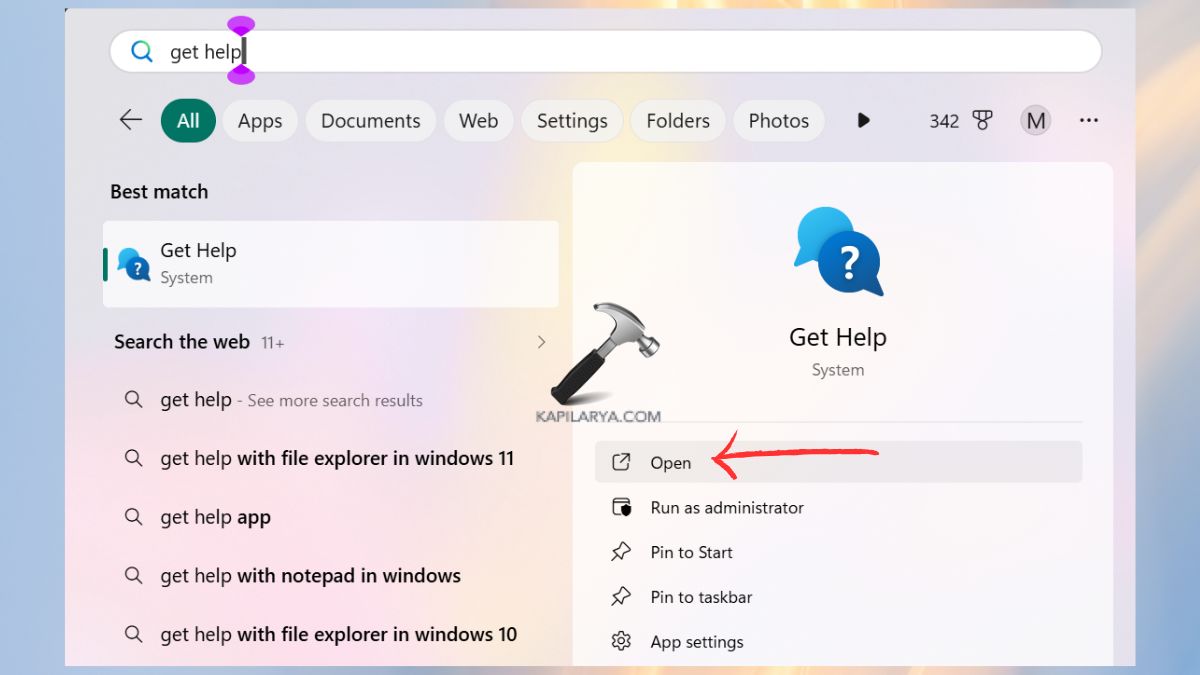
Fix 6: Use the Get Help App for Troubleshooting
Windows has an inbuilt utility to troubleshoot Office.
1. Open the Get Help app.
2. Search: Office activation problems.
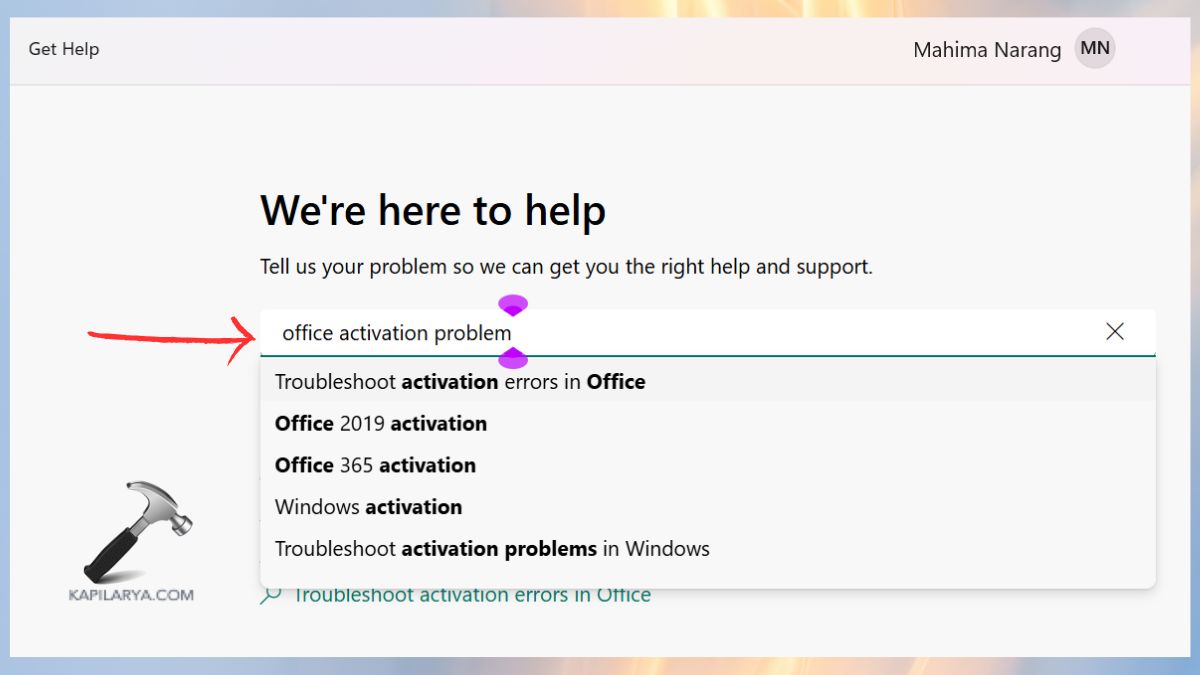
Use the instructed troubleshooting steps. This tool is capable of automatically identifying and correcting typical licensing issues.
Fix 7: Contact Microsoft Support
When nothing helps, then it is time to seek professional assistance. This is how you can proceed:-
1. Go to the Microsoft Support site: https://support.microsoft.com/en-us.

2. Initiate a conversation or call. Give information on your problem. The support team is able to fix more serious problems with your account or subscription.
How to Avoid This Microsoft Office No License Found Error in Future
To make sure that you will never have to deal with this problem again, consider the following tips:-
- Make sure that your system is updated.
- Use the same Microsoft account on all devices.
- Do not install broken or old versions of Office.
- Check your Microsoft subscription monthly.
- Turn on automatic date/time.
- Turn on automatic renewal if possible.
Frequently Asked Questions (FAQs)
Why does Microsoft Office say No License Found?
This happens when your subscription isn’t recognized, your account is incorrect, or there’s a system or server issue.
Can I fix the Microsoft Office No License Found error without reinstalling?
Yes, in the vast majority of cases, the problem can be solved without reinstallation by signing in with the right account or changing date/time settings.
Does this error mean my Office subscription expired?
Not always. It might also be because of account problems or device restrictions, despite having an active subscription.
Is this issue common in Microsoft 365 users?
Yes, particularly in the case of Microsoft 365 users who log in on different devices or accounts.
That’s it!