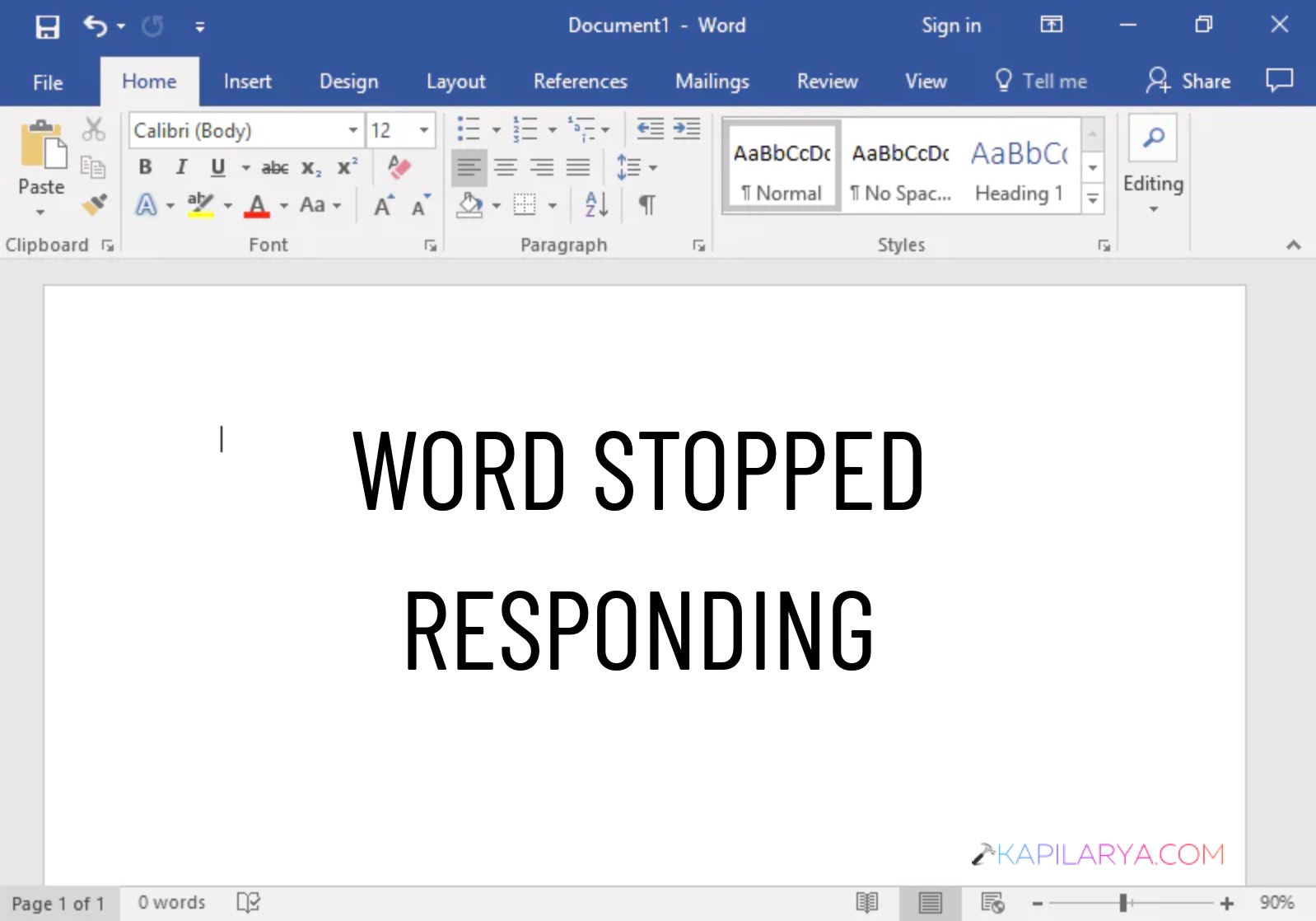
You open Microsoft Word to finish an important document. Everything works fine for a few minutes. Then, suddenly, Word freezes or stops responding. The cursor spins. Nothing clicks. Many Windows 11 users face this problem. It can happen for many reasons. But don’t worry, we’ve got you the solutions.
Page Contents
Why Does Microsoft Word Stop Responding?
Word may become unresponsive due to:
- Corrupted Word documents
- Faulty add-ins
- Damaged Office files
- Printer-related issues
- Insufficient system memory
- Outdated Microsoft Office components
Word Freezes Or Stops Responding On Windows 11
Let’s give you the solutions to the issue:
Fix 1: Repair Microsoft Office
Corrupted Office files can cause Word to freeze.
1. Open Control Panel.
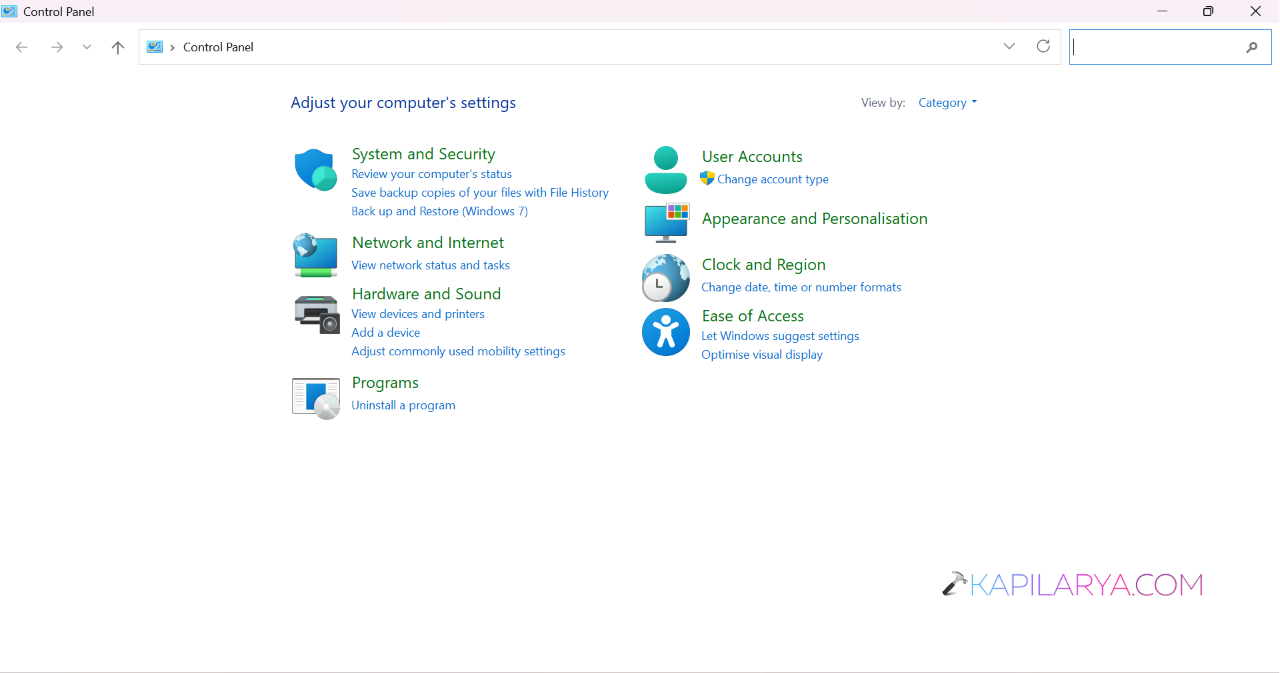
2. Search for Programs and Features.
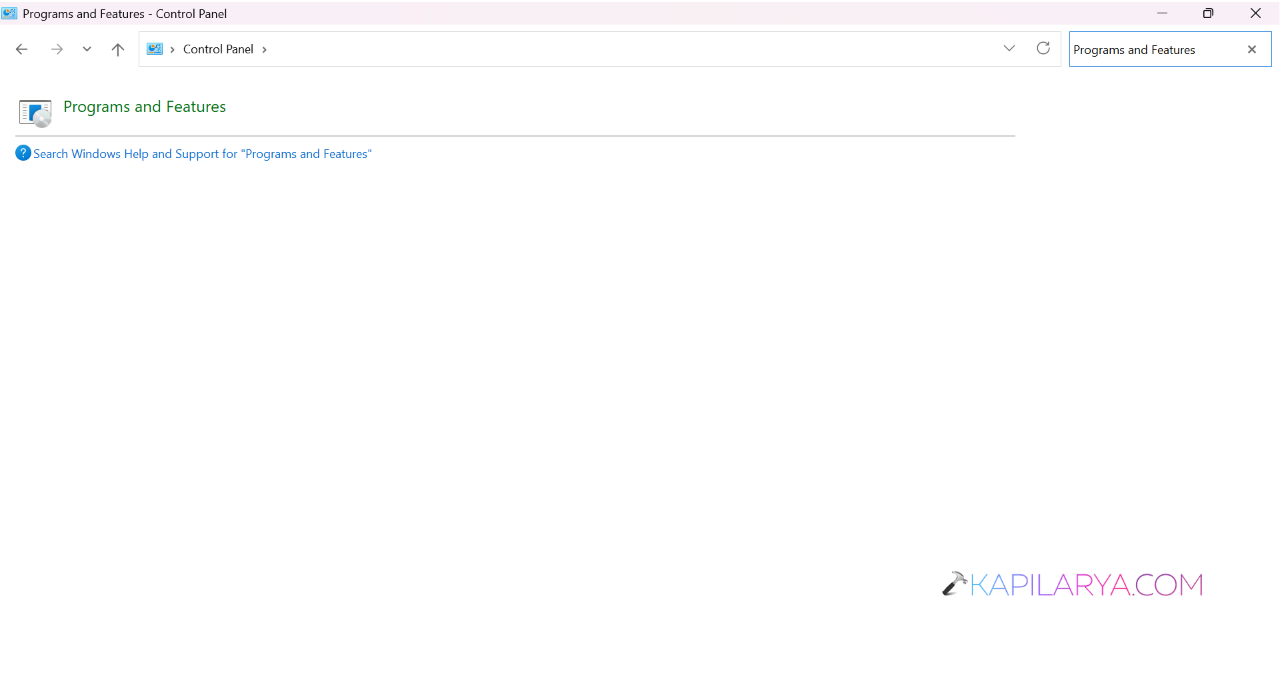
3. Choose Microsoft Office.
4. Click Change.
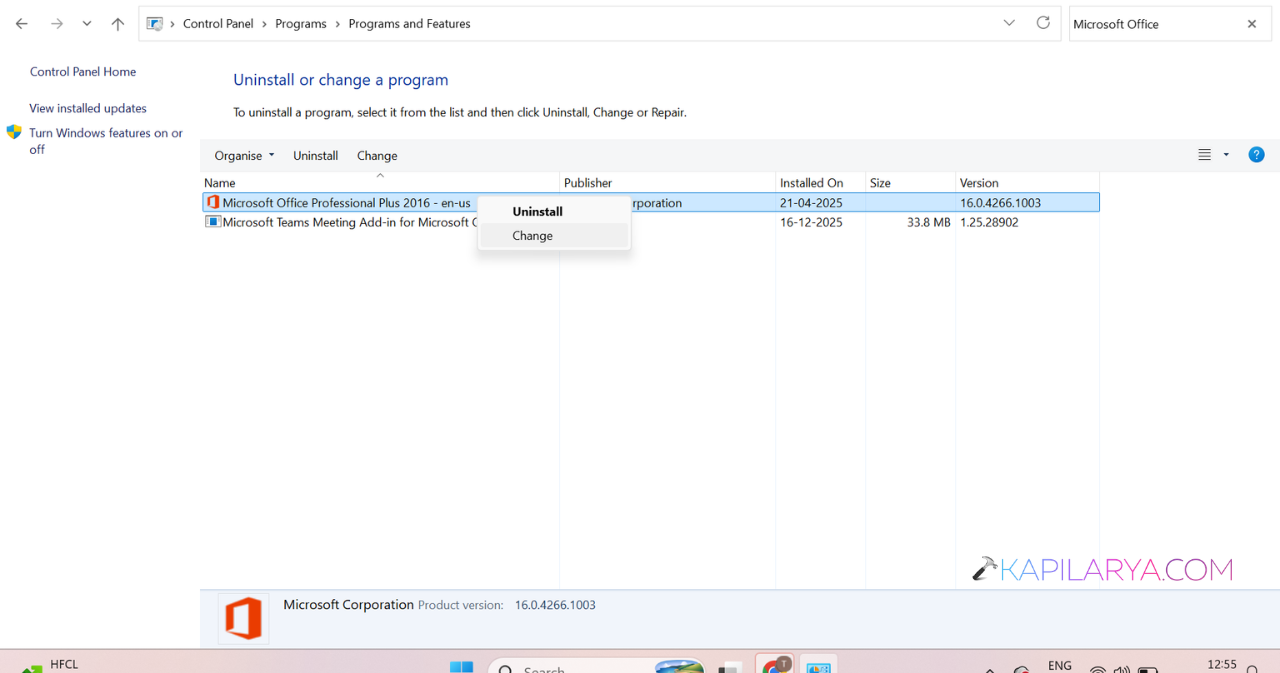
5. Run Quick Repair first.
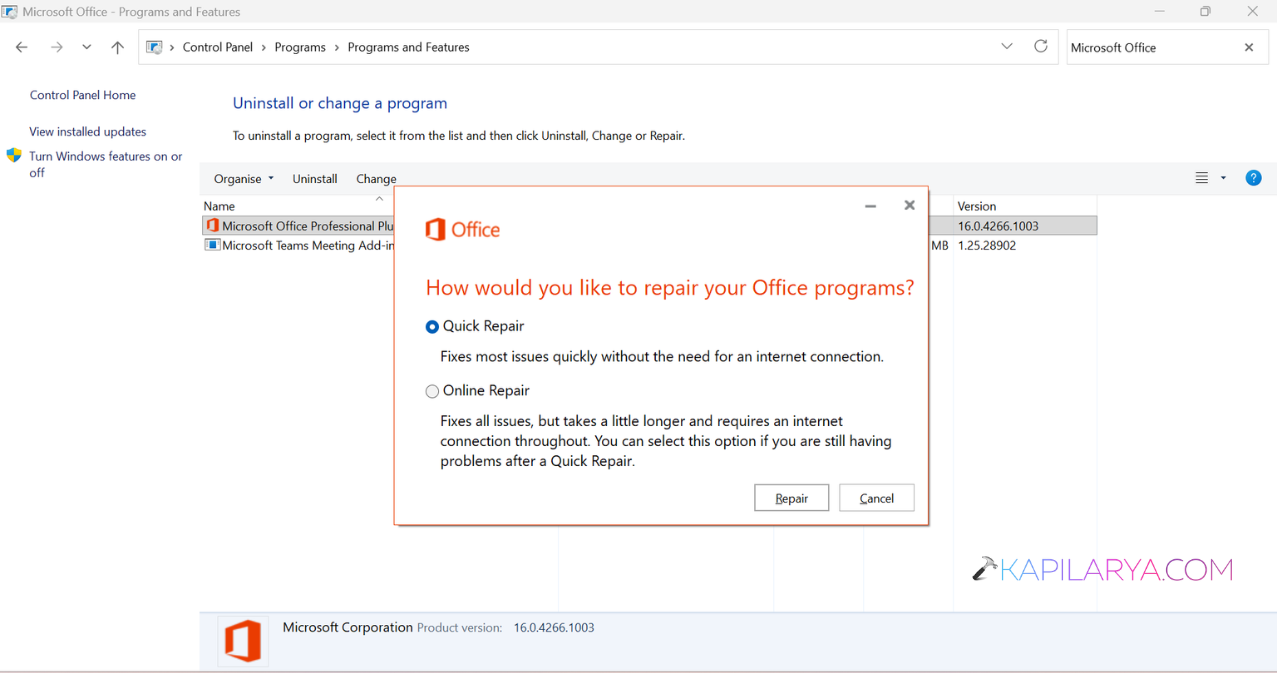
6. If the issue remains, run Online Repair.
Fix 2: Start Word In Safe Mode
Safe Mode opens Word without add-ins.
1. Press Windows + R.
2. Type winword /safe.
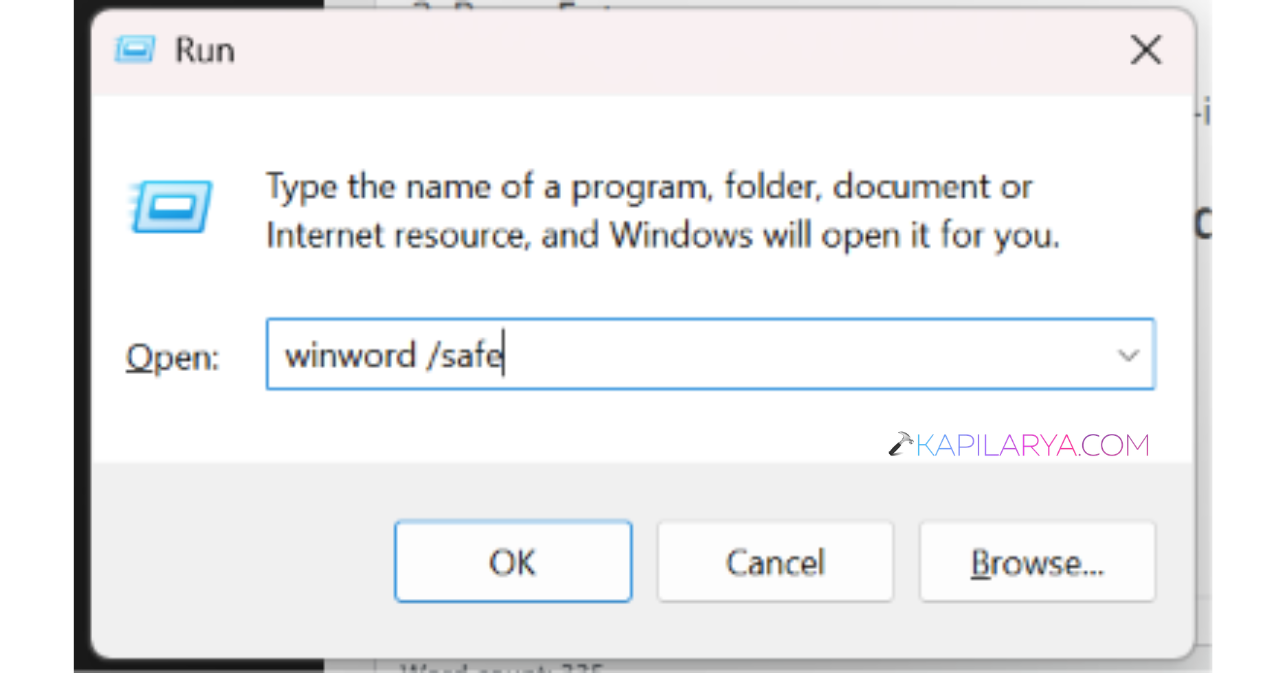
3. Press Enter.
If Word works normally in Safe Mode, an add-in is likely causing the problem.
Fix 3: Disable Problematic Add-ins
Some add-ins can make Word unstable. Try disabling them one-by-one to find problematic add-in.
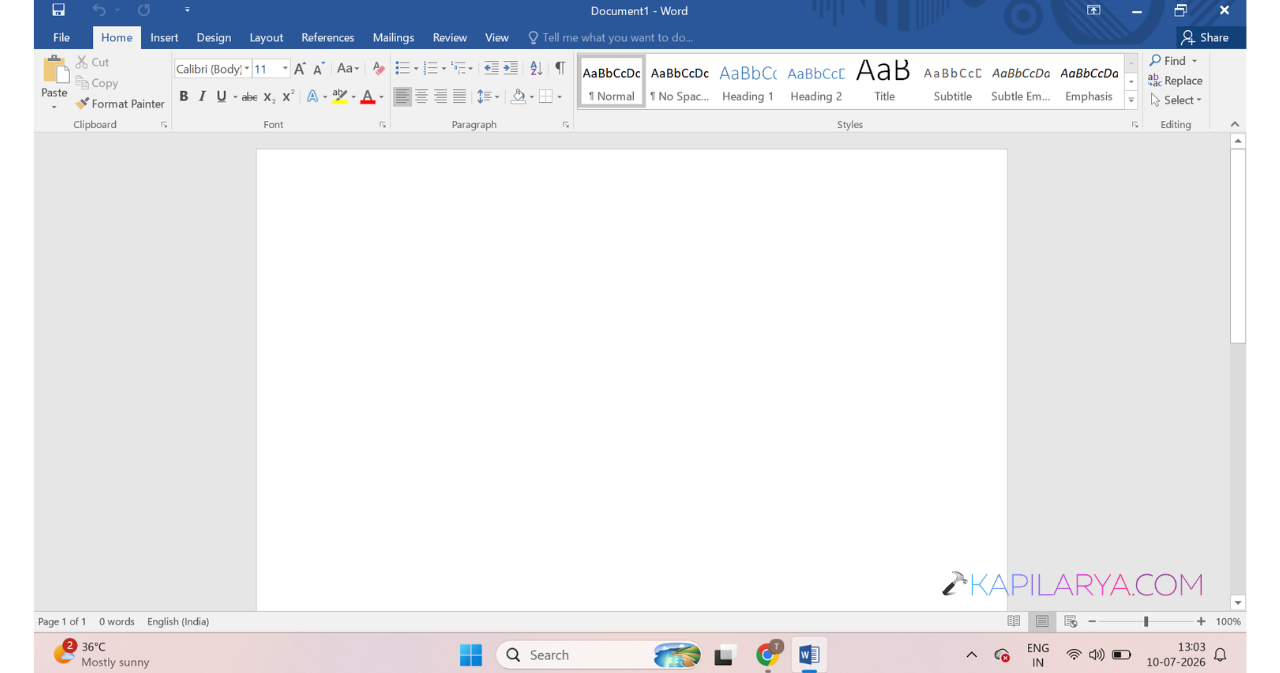
1. Open Word.
2. Go to File > Options > Add-ins.
3. Select COM Add-ins.
4. Click Go.
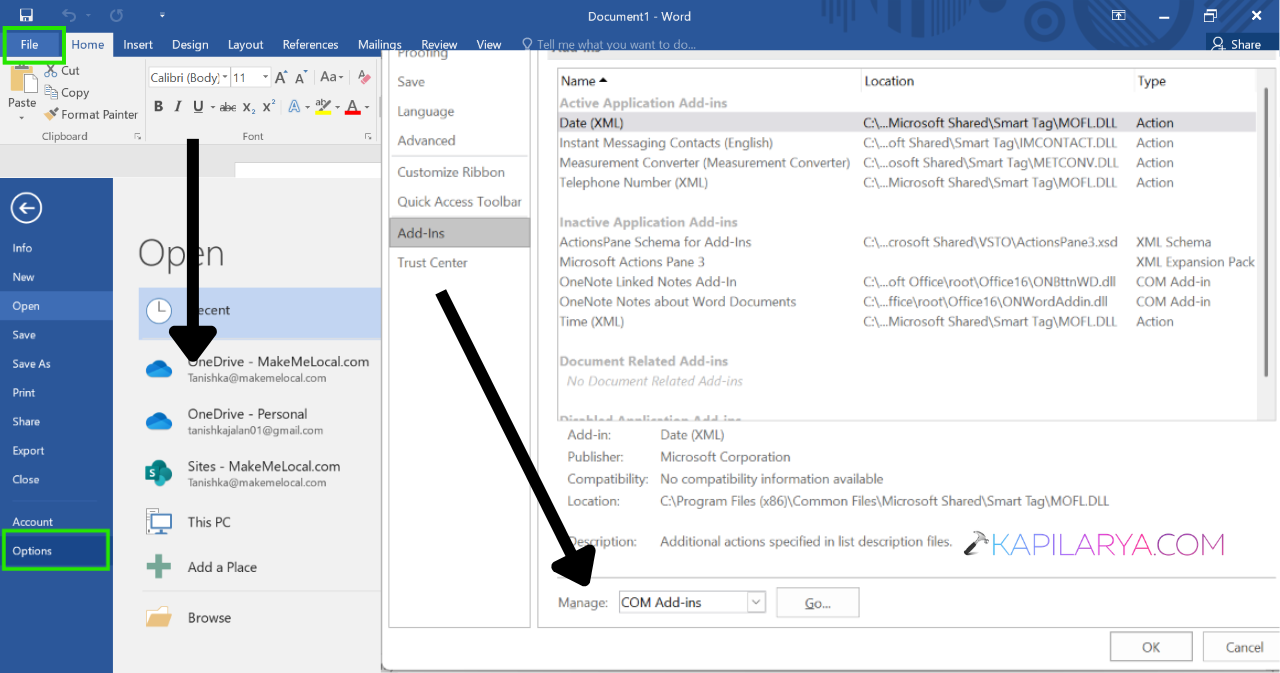
5. Disable add-ins one at a time.
6. Restart Word after each change.
This helps identify the faulty add-in.
Fix 4: Repair A Damaged Word Document
If Word freezes only when opening a specific file, the document may be corrupted.
1. Open Word.
2. Click File > Open.
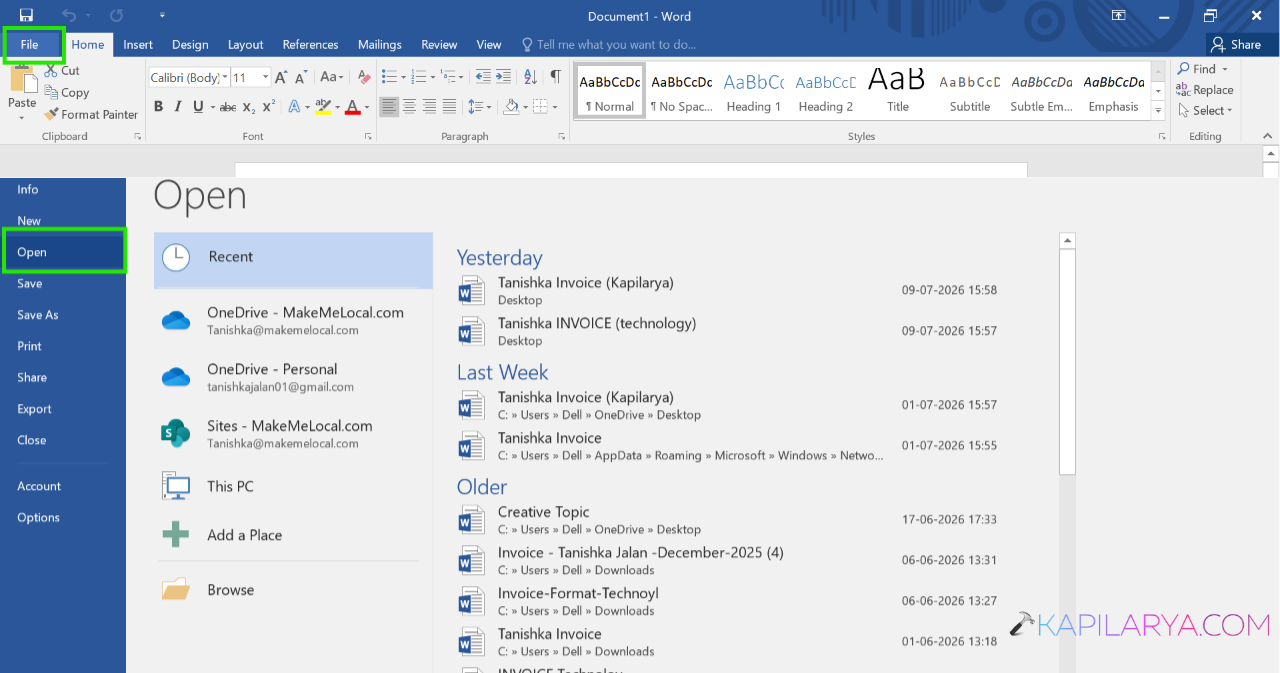
3. Browse to the affected file.
4. Use Word’s repair option when available.
5. Save the repaired document with a new name.
Fix 5: Change The Default Printer
Word sometimes struggles when communicating with the default printer.
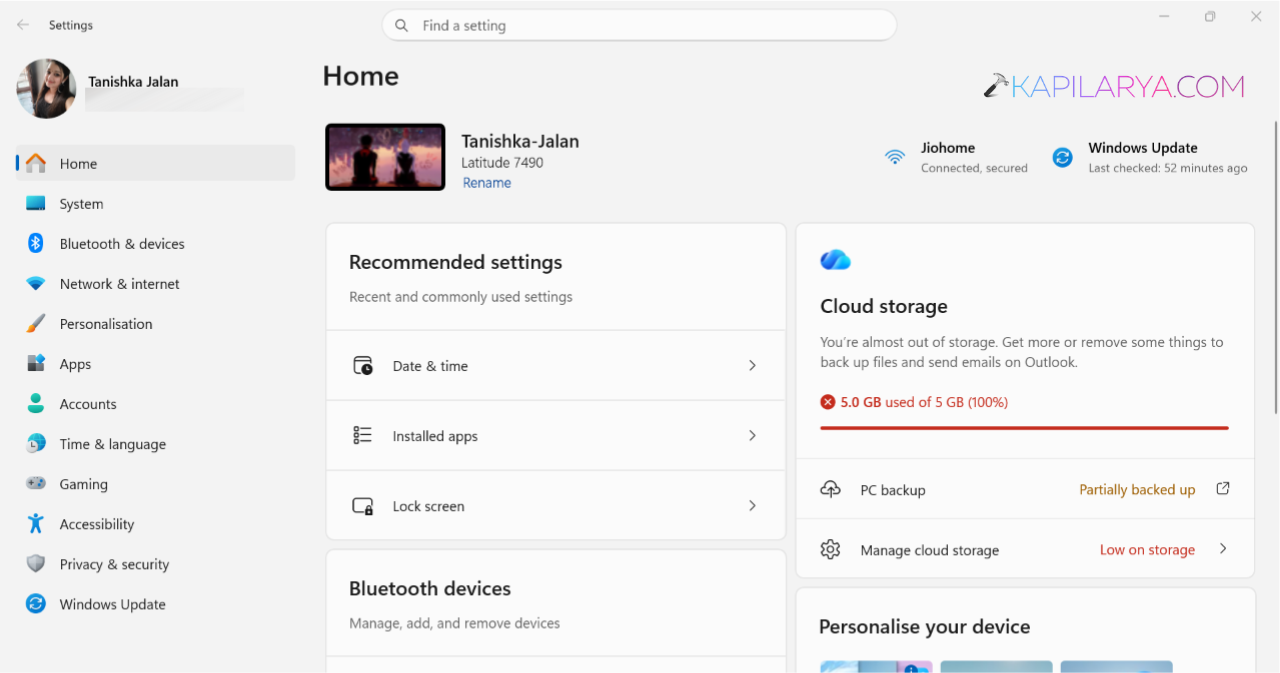
1. Open Settings and go to Bluetooth & Devices > Printers & Scanners.
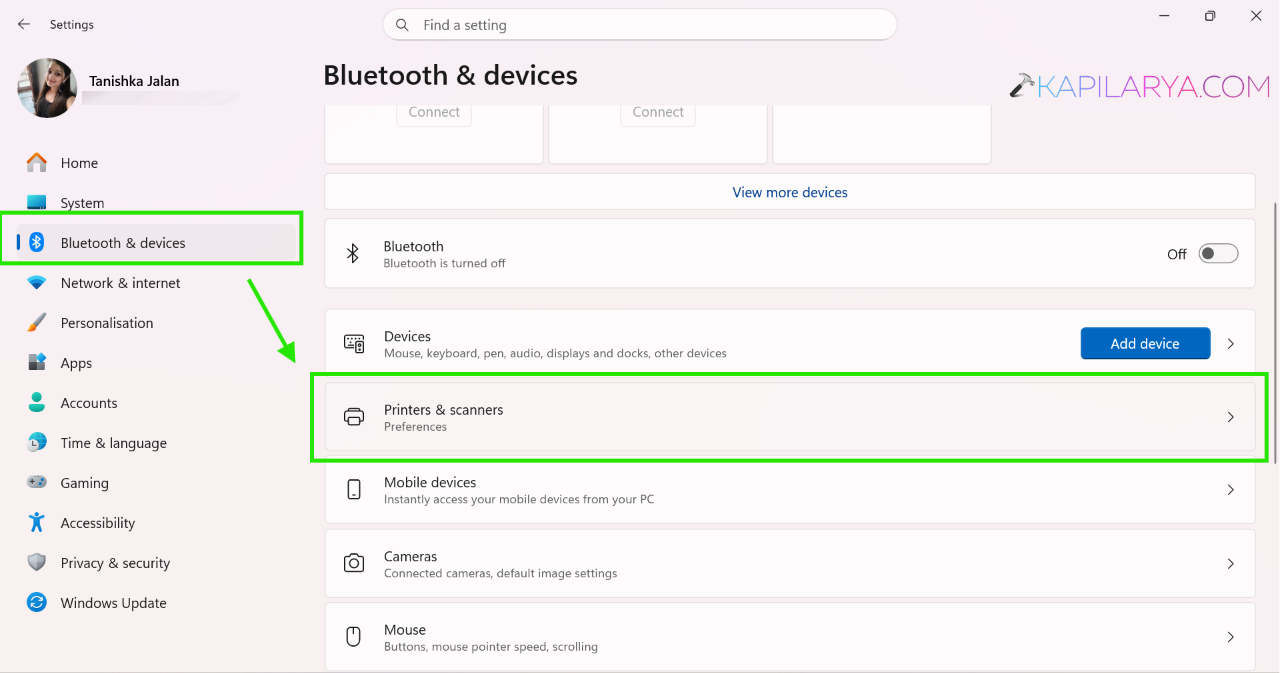
2. Select Microsoft XPS Document Writer.
3. Set it as the default printer.
4. Restart Word and test again.
Fix 6: Reinstall Microsoft Office
If nothing else works, reinstall Office.
1. Uninstall Microsoft Office from Settings > Apps > Installed apps.
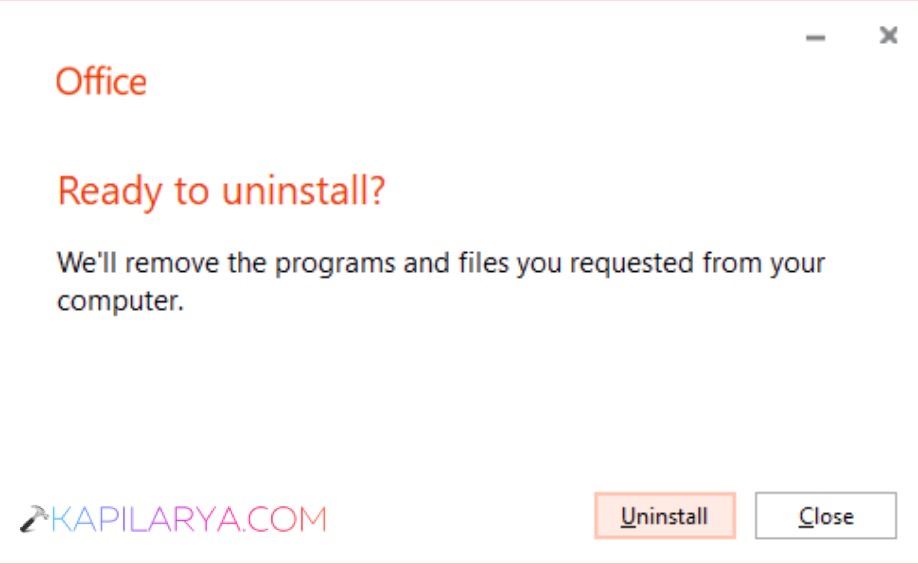
2. Restart your PC.
3. Install Office again.
4. Activate it using your product key.
Hope these options helps you!