Usually, apps in you’ll use on Windows are carefully isolated so that they don’t obstruct with each other. However, there may be scenarios where it might be useful for one app to see certain types of information about other running apps. A very easy example of this is diagnostic tools, which could benefit from getting a list of running apps. This is especially useful during app development, or for apps like Task Manager that report simple information about running apps. If you’re worried about an app getting information from any other apps you’re using on system, this article is for you. Windows always give you control over which apps can get this kind of information about other running apps. In this article, we’ll see how you can enable/disable app diagnostics access in Windows 11.
You may find App diagnostic controls turned off already, in case if you’re using a device assigned to you by your company, or if you’ve added a work or school account to your personal device. If such a case, you’ll see ‘Some settings are managed by your organization’ at the top of the App diagnostics page in Settings app. And obviously, you don’t have any control over these settings as they’re being managed by your company.
To turn on/off app diagnostics access in Windows 11 on your personal device, follow below steps.
Enable/disable app diagnostics access in Windows 11
1. Press  + I keys to open Settings app.
2. In the Settings app, go to Privacy & security > App diagnostics.
3. In right pane of App diagnostics, locate App diagnostics access option. It must be On by default. To enable app diagnostics access, you can turn Off this option.
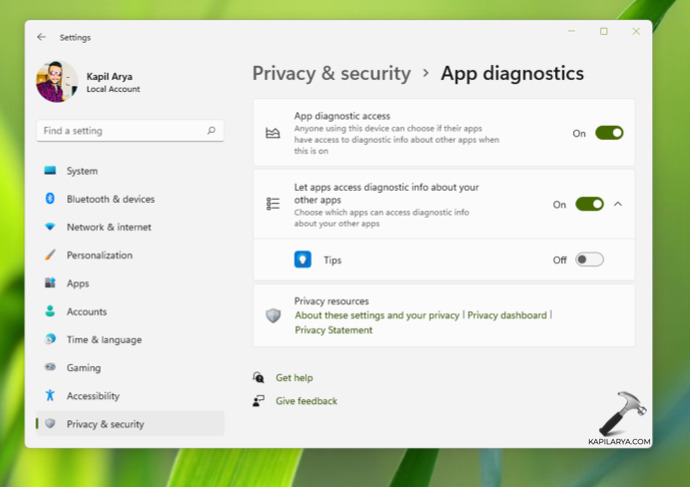
4. If you choose On at step 3, you can further configure Let apps access diagnostic info how about your other apps option. While this option is On, you can configure individual or specific apps that can access diagnostic info about other apps.
5. Once done, you can close Settings app and return to your work. Changes you made should be applied.
That’s it!