

In case if you are facing network related issues on your system and you are unable to resolve these problems, you might be suggested by Windows experts to perform a network reset to restore default network settings. Once you perform a network reset, hopefully most of the network issues you’re facing atm should be fixed. In this article, we’ll see different ways to reset network in Windows 11.
Network reset is the second step after you’ve already run Network Adapter troubleshooter to initially quest the root causes. This troubleshooter can be used from Settings > System > Troubleshoot > Other troubleshooters. In some cases, Network Adapter troubleshooter might found some network problems but may not be able to fix them. So a network reset would be quite helpful to fix all those unresolved issue at once.
Here’s how you can reset network in your Windows 11.
Page Contents
Reset network settings in Windows 11
Method 1: Reset network using Settings app
1. Press  + I keys to open Settings app.
2. Go to Network & internet and click on Advanced network settings in the right pane.
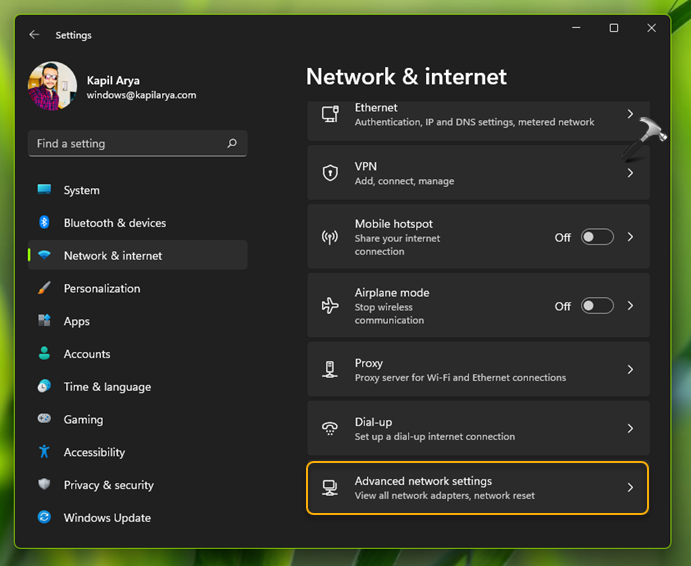
3. Under Advanced network settings, click on the Network reset entry.
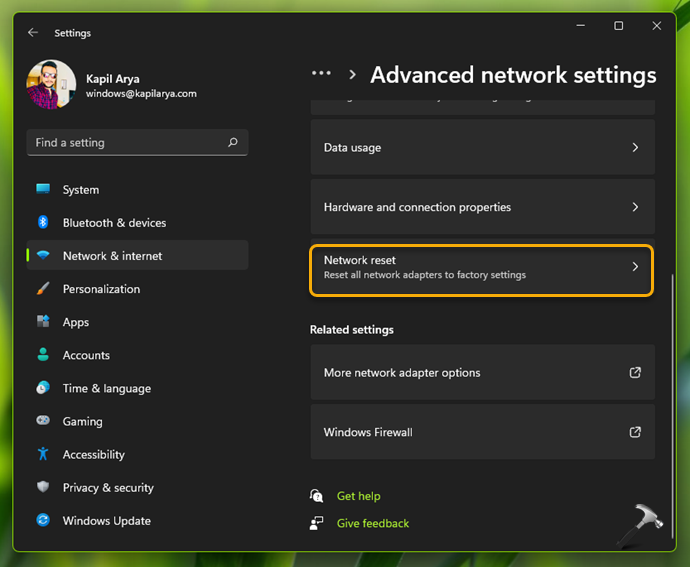
4. Under Network reset, click on Reset now button.
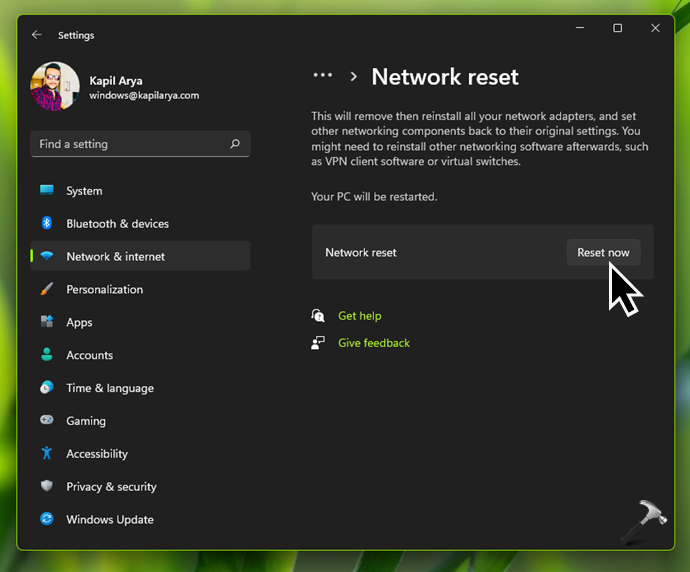
5. In the confirmation prompt, click Yes.
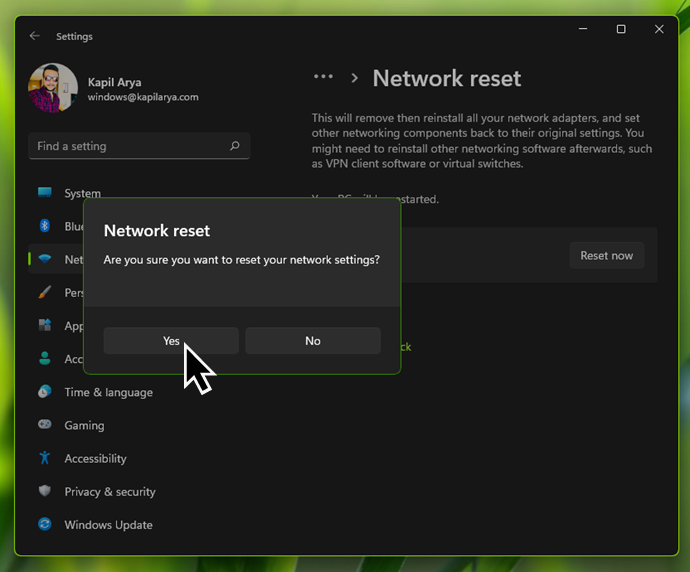
6. To complete network reset, you’d need to restart the system. Typically Windows gives you 5 minutes to save your work before this restart.
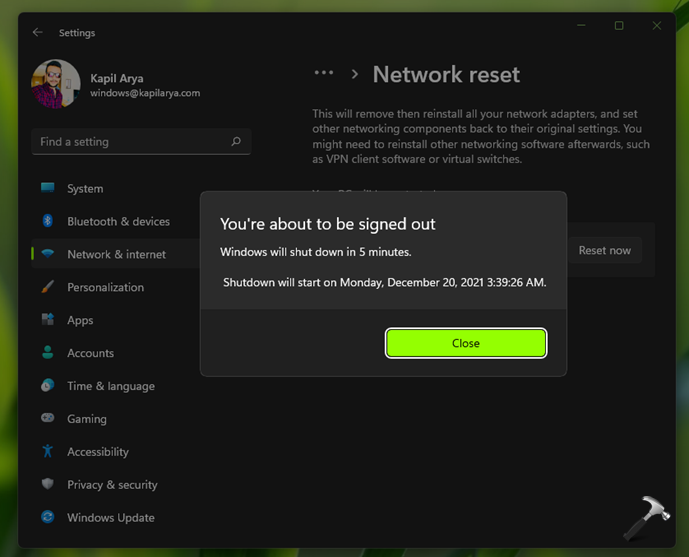
Once your system is restarted, network reset is complete.
Method 2: Reset network using Device Manager
1. Press + X keys or right click Start Button and select Device Manager.
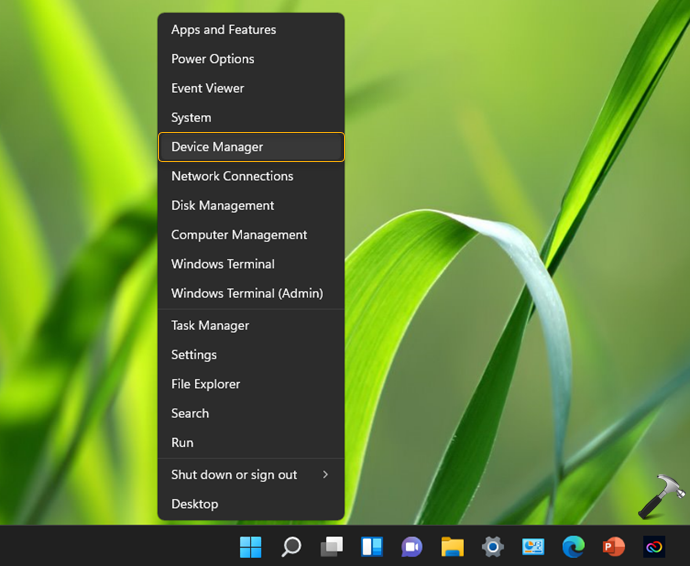
2. Under Device Manager, expand Network adapters. Locate your primary network adapter and right click on it and select Disable device.

3. In the confirmation prompt, click Yes. Once you click on Yes button here, the list of devices will be refreshed automatically.

4. Again do a right click on your primary network adapter and this time select Enable device.
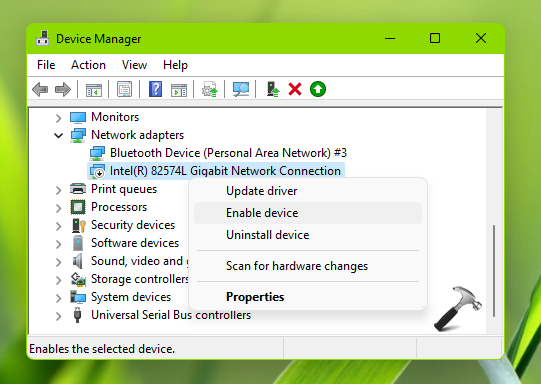
This should reset your primary network adapter on your Windows 11 system.
Video guide
Checkout this video for live illustration:
That’s it!
Also check: How to reset network settings to default in Windows 10.






Can you help me to open plunge In?