

Are you facing issues with the Intel driver? Sometimes, the Intel Graphics Settings keeps crashing on Windows 11. It comes up usually when users try to access the settings, which leads to its instability. When the Intel software crashes frequently, it starts interfering with the system’s OS. There could be many reasons why Intel Graphics Settings keeps crashing, such as outdated drivers, corruption errors and bugs, or issues related to the Intel driver. Now, how to fix Intel Graphics Settings keeps crashing on Windows 11?
In this post, learn how to fix Intel Graphics Settings keeps crashing on Windows 11 issue. Now, let’s get started!
Page Contents
Fix: Intel Graphics Settings Keeps Crashing on Windows 11
Fix 1: Reinstall Intel Graphics Driver and Display HDMI/Audio Driver
1. Open Device Manager by pressing the Windows + X tabs together on your keyboard.

2. After that, look for Display Adapters and expand it.
3. Next, right-click on Intel Graphics Driver and choose the Uninstall device option from the context menu.
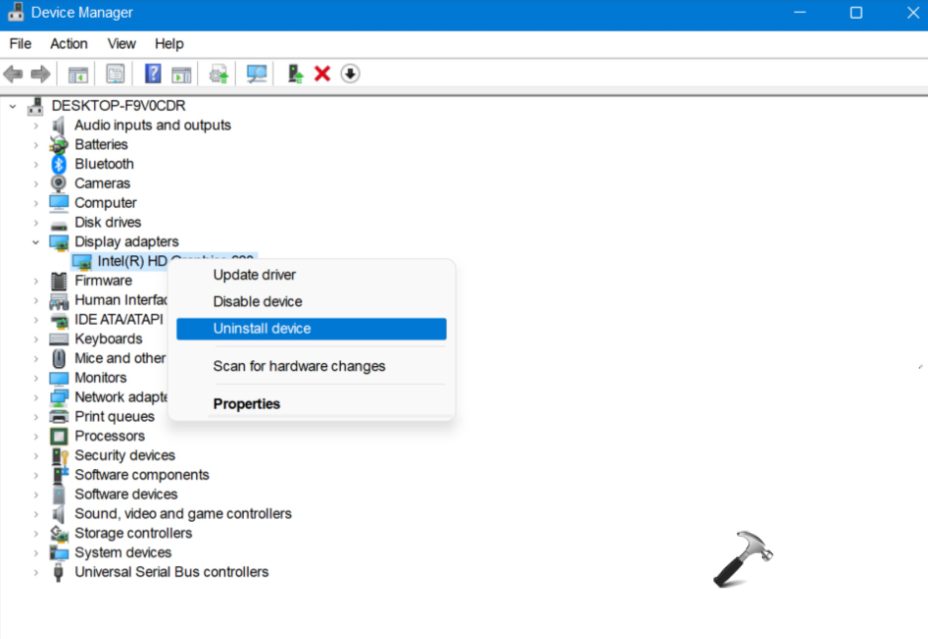
4. Now, tick-mark Delete the driver software for this device and restart your Windows system.
Once done, you also have to uninstall Intel Display HDMI/Audio Driver. For this, go through the following instructions:
1. Open Device Manager by pressing the Windows + X tabs together on your keyboard.
2. After that, look for Sound, video and game controllers and expand it.
3. Next, right-click on Intel Display Audio Driver and choose the Uninstall device option from the context menu.
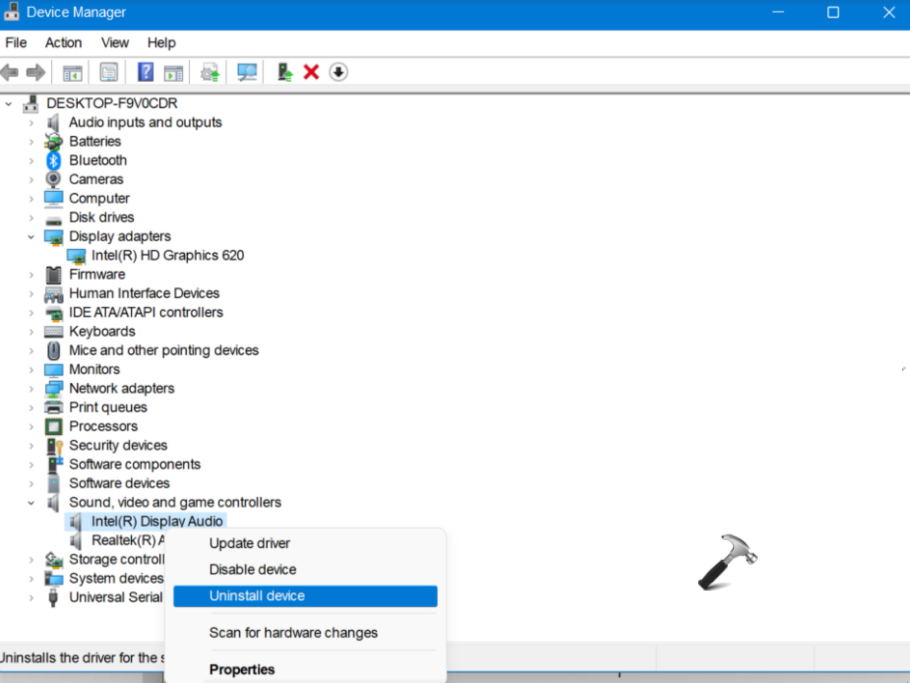
4. Once done, restart your Windows system.
After the uninstallation process is over, you need to reinstall Intel Graphics Driver and Display HDMI/Audio Driver. For this, go to Intel Driver & Support Assistant. It will detect and reinstall the drivers automatically.
Fix 2: Reinstall or Update Intel Software
1. Open Microsoft Store and look for Intel Graphics Command Center.
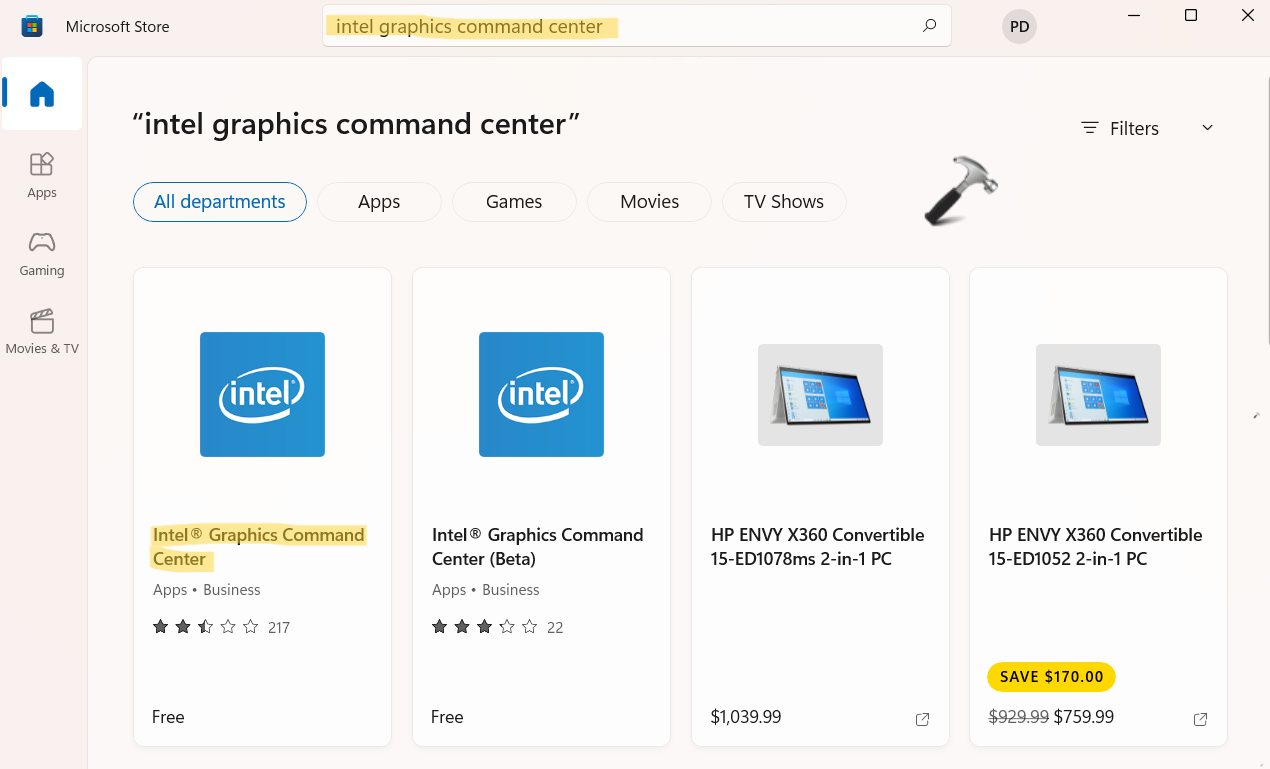
2. Now, click on the Install button to install it. Or else, click on the Update button to update it.
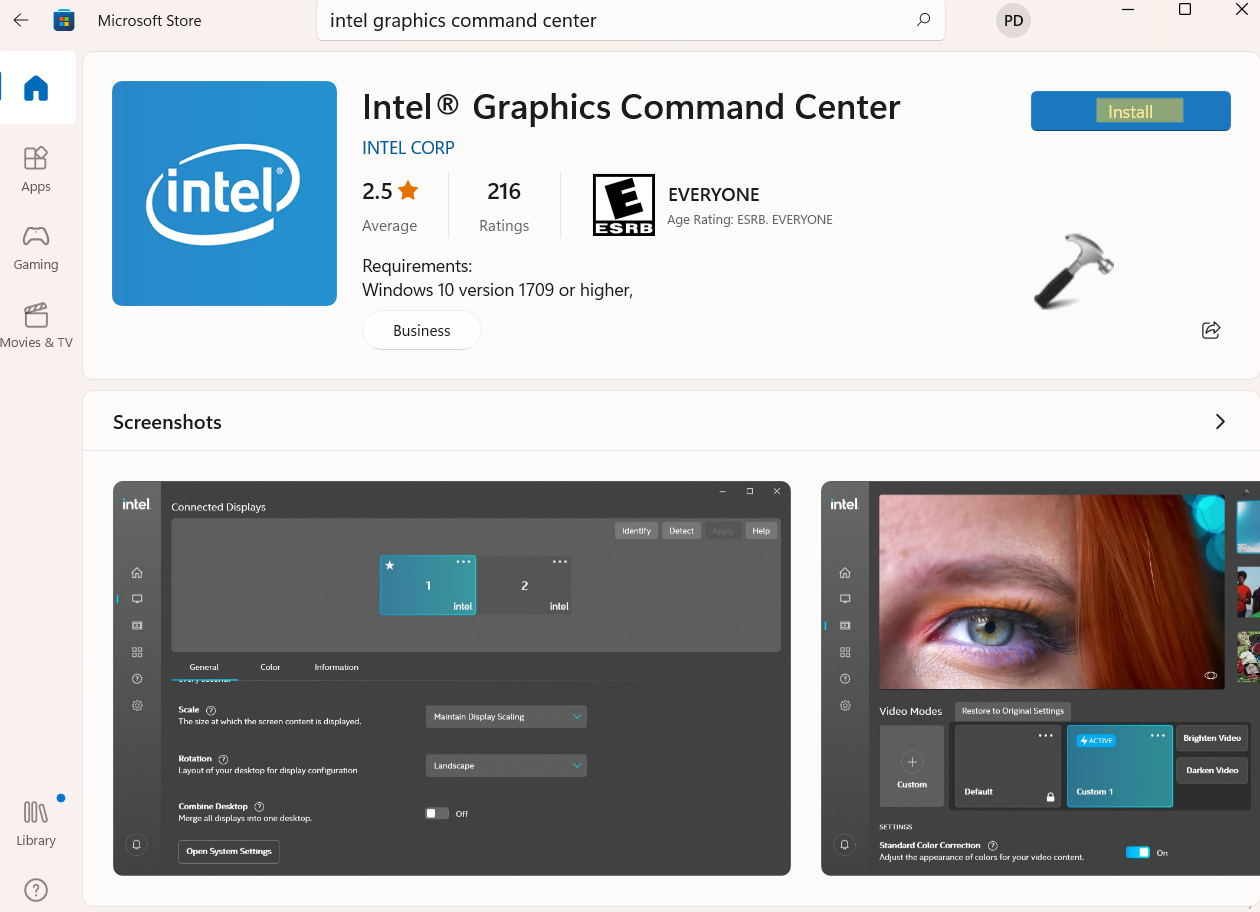
So, this is how Windows users can fix issues related to Intel Graphics Settings on Windows 11 issue.




