System Restore works as a saviour feature when you are about to make a critical change to your Windows operating system. It gives you a backup option that you can use if something went wrong. Using the System Restore feature, you can revert the changes you have made and restore the last known good configuration. However, if the System Restore is not working for you, this article may interest you. In this article, we will see how to fix System Restore did not complete successfully in Windows 11/10/8.1/7 operating system.
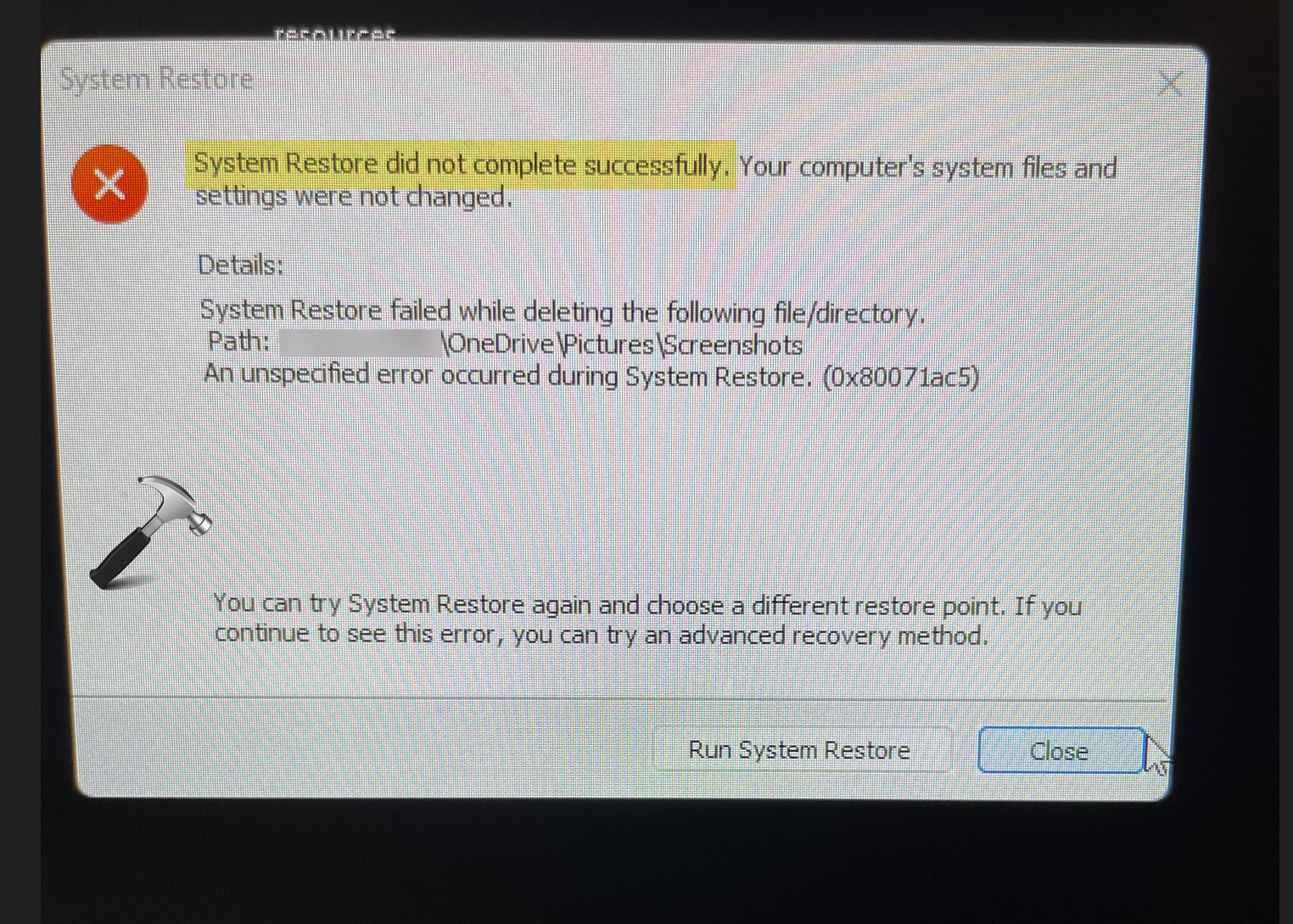
There could be various factors involved in creating this issue. Also, this problem varies system to system. So it is quite true that if on one system you are facing this issue due to a root cause. While on other system it may be due to different root cause. Here are the common solutions you can try to fix this problem.
Page Contents
Fix: System Restore did not complete successfully in Windows 11/10/8.1/7
Fix 1: Temporarily disable antivirus or other security program
This is one of the most common root cause for this problem. It has been seen that on the systems having third-party antivirus is installed, this problem may occur. Hence, it is advisable that you must temporarily disable your antivirus program. Because doing so will remove conflict with System Restore process and this issue can be resolved.
In case, if you are also using any third-party security solutions such as third-party firewall program, then you might want to turn it off for some time.
Fix 2: Perform clean boot
If a third party program’s service or process is conflicting the System Restore process then you can easily find it out using Clean Boot. Follow these steps to make a clean boot for your Windows operating system.
- Press Windows + R.
- Type
msconfigand click OK. - At the General tab, uncheck the Load startup items from the Selective startup radio button.
- At the Services tab, check Hide all Microsoft services and then click Disable all. Click OK.
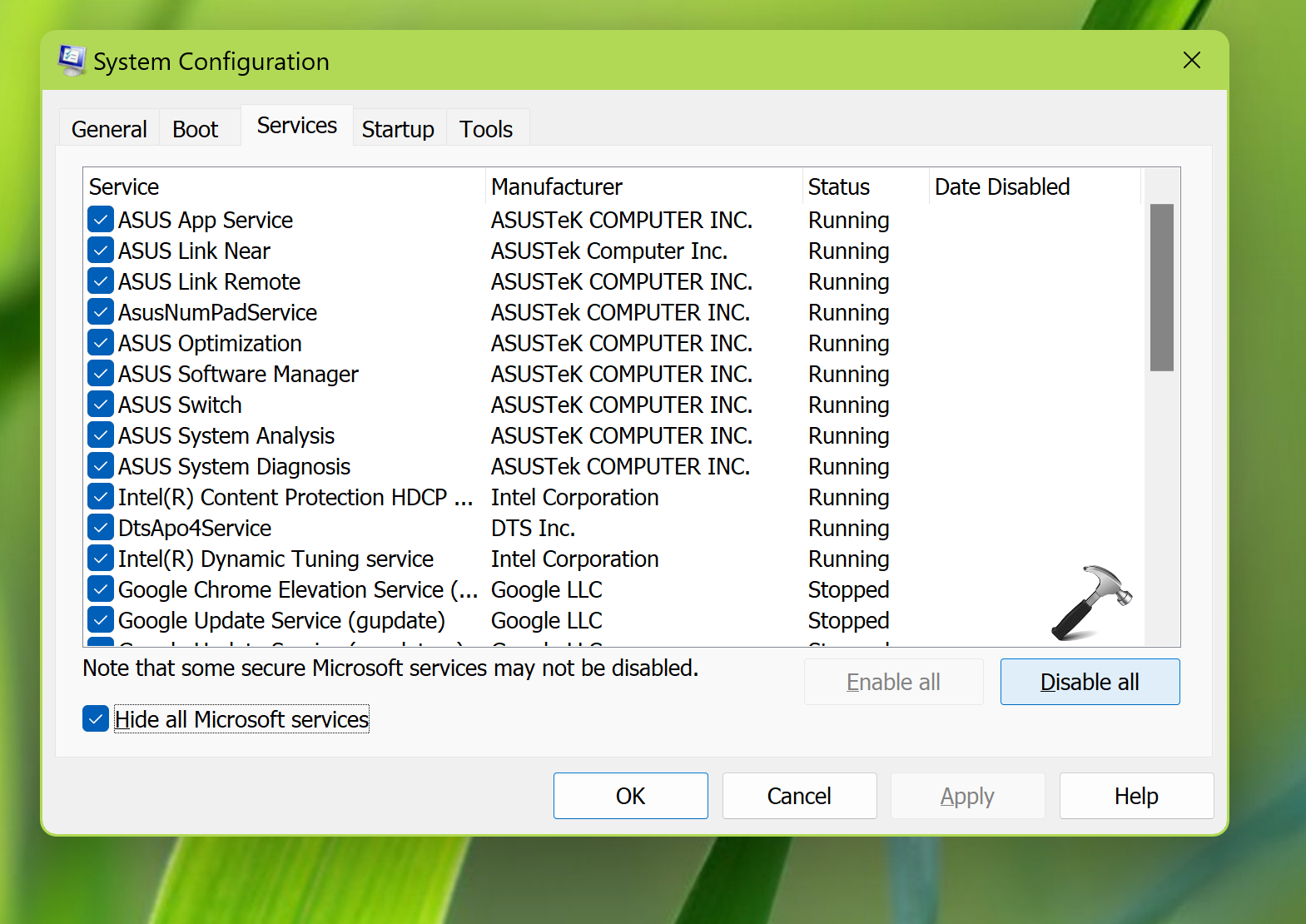
- Restart your system when prompted or manually.
Fix 3: Perform System Restore from Safe Mode
Even if performing the clean boot doesn’t helps, then you can try making the restore process from Safe Mode. We all know that the Safe Mode is used to start Windows with minimal resources.
You can try either of the options mentioned in this guide, in order to boot into safe mode. You can also refer this video guide:
Once you boot into Safe Mode, you can then retry with the System Restore. And this time, it should work fine.
Hope something helps!