Windows can have GPT (GUID Partition Table) or MBR (Master Boot Record) partition style. The partition style distinct how Windows can access the data on disk or drive. In this guide, we’ll see how to check if disk is MBR or GPT in Windows 11/10.
The GUID Partition Table (GPT) was introduced as part of the Unified Extensible Firmware Interface (UEFI) initiative. GPT offers a more flexible mechanism for partitioning disks than the older Master Boot Record (MBR) partitioning scheme that was common to PCs.
Master Boot Record (MBR) disks use the standard BIOS partition table. One advantage of GPT disks is that you can have more than four partitions on each disk. GPT is also required for disks larger than 2 terabytes (TB).
The older MBR only lets you create four primary partitions. However, you can circumvent this limitation by using logical partitions. This means you can create 3 primary partitions and an extended partition. Inside this extended partition, you can have logical partitions. But you can’t use this logical partition as bootable volume. That’s why GPT was introduced.
Here’s how you can check if disk is MBR or GPT in Windows.
Page Contents
How to check if Disk is MBR or GPT in Windows
Method 1: Find using Settings app
1. Open Settings app.
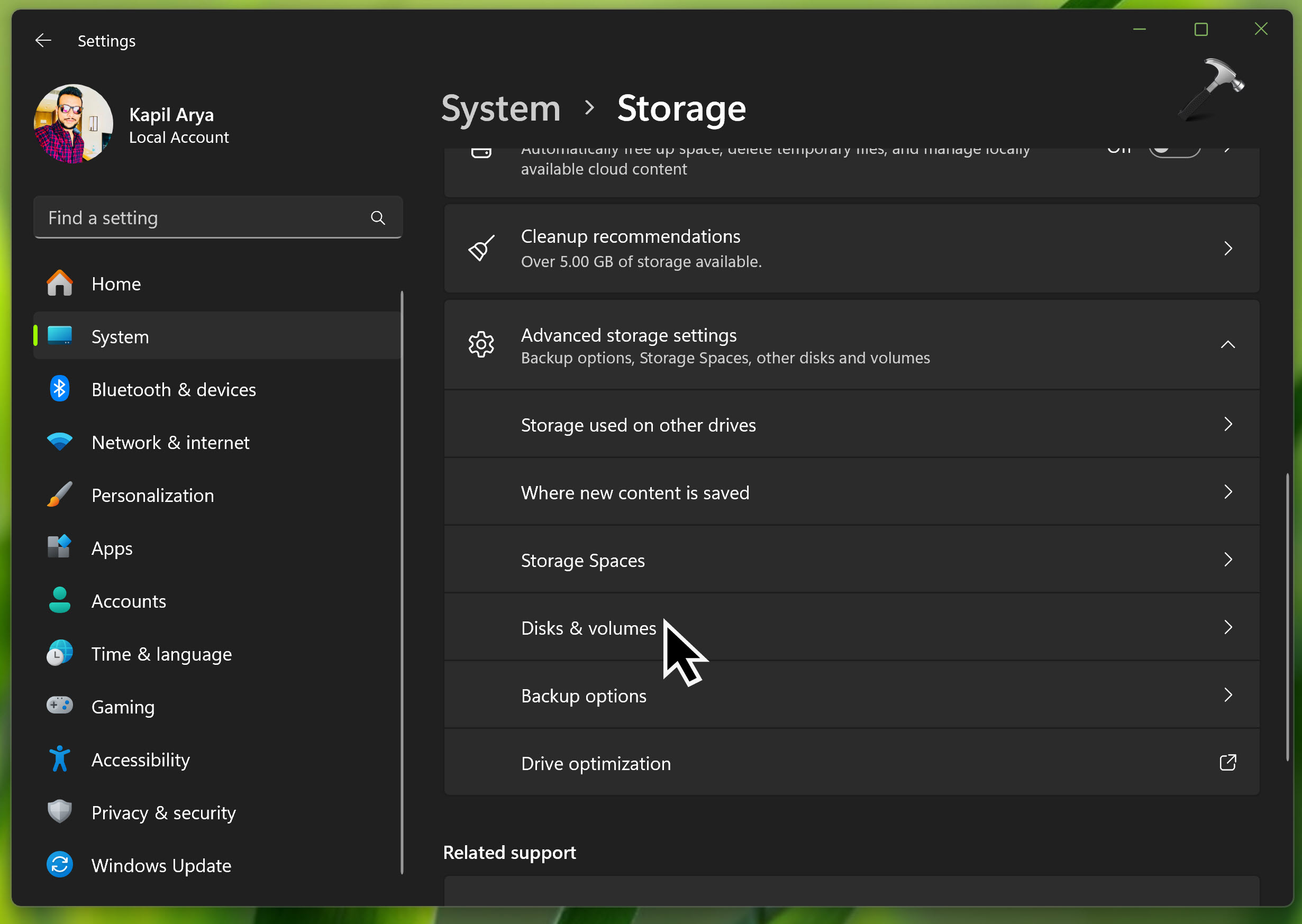
2. Go to System > Storage. Expand Advanced storage settings and select Disks & volumes.
2. Under Disks & volumes, locate your disk and click Properties.
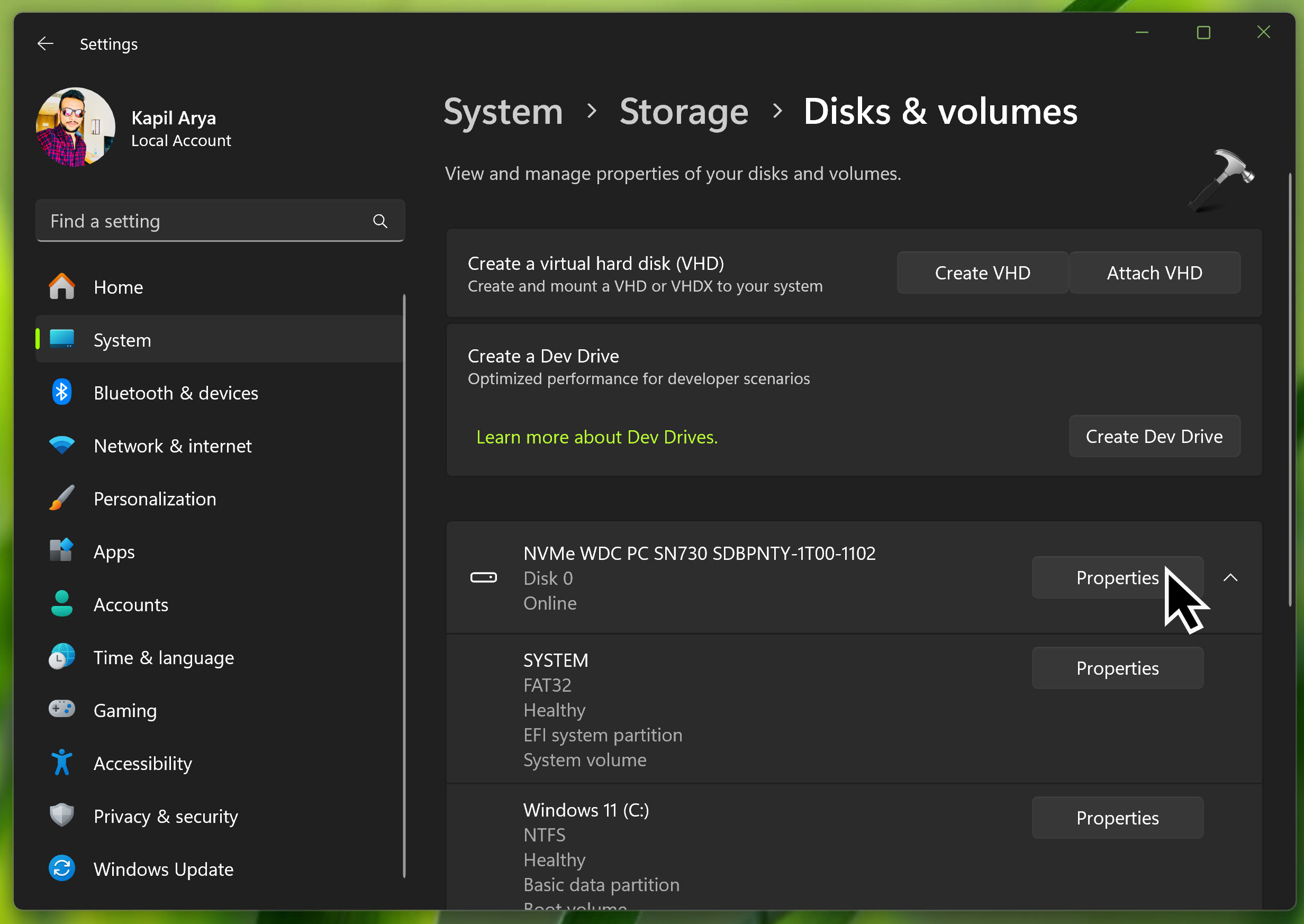
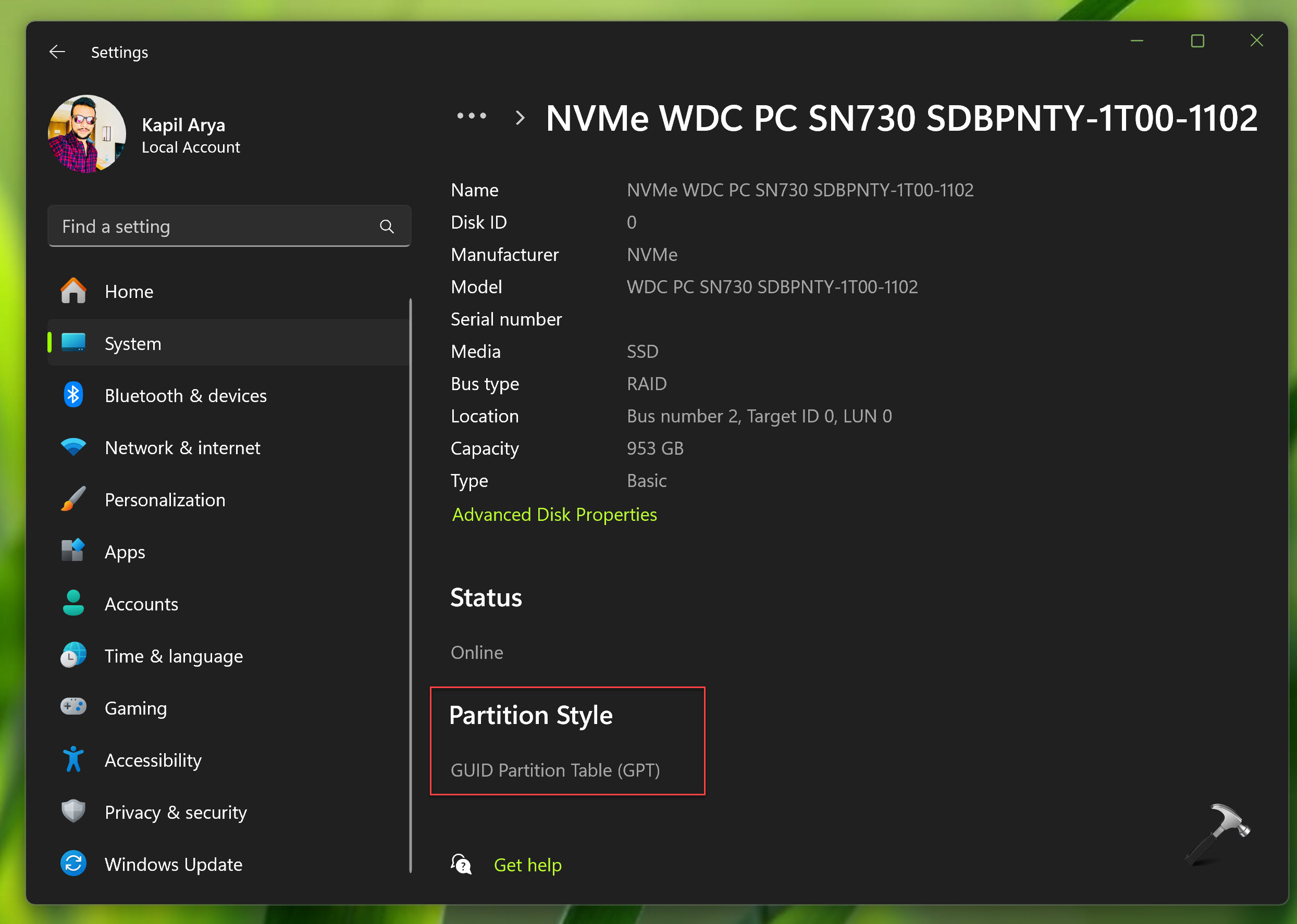
3. Next, in the properties screen, you must have Partition style which should say whether you’ve GPT or MBR.
Method 2: Find using Terminal
1. Right click on Start button and select Terminal (Admin).
2. In the Terminal app, open Windows PowerShell tab.
3. Type Get-Disk and press Enter key. The output for this command should list all the disks available on your system. For each of these disks, they’ve their Partition Style mentioned in the respective column (like the GPT style as shown in below example screenshot).

That’s it!
![Add the Recovery Partition in Windows 11 [2026 Guide]](https://www.kapilarya.com/assets/Disk-768x494.jpg)