When you’ve multiple audio output devices connected to Windows 11, there may be requirement of changing audio output device. In this article, we’ll see some methods
to change audio output device on Windows 11.
It is really important to have a right output device selected while playing anything on your device. When you’ve multiple devices connected, this becomes a priority task to have right audio device working at first place. Check out below to manage your audio output device.
Page Contents
Change Audio Output Device On Windows 11
Change the audio device using sound settings
Click on the sound icon on taskbar.
Then click on Select a sound output/volume mixer icon.

You can directly press Windows + Ctrl + V keys to arrive to this window.
Click on More volume settings option.

This will take you to Settings > System > Sound. You can choose the current sound or audio output device here and it will start acting.

Change the audio device using volume mixer
Right click on the sound icon present on the taskbar. If sound or volume icon is missing from taskbar, refer this fix.
In the small context menu, click Open volume mixer.

This will launch Settings app and takes you to the System > Sound > Volume mixer page.
Here, for the Output device dropdown, you can select the current audio output device.
Whatever device you select here, it will start working as current audio output device with immediate effect.
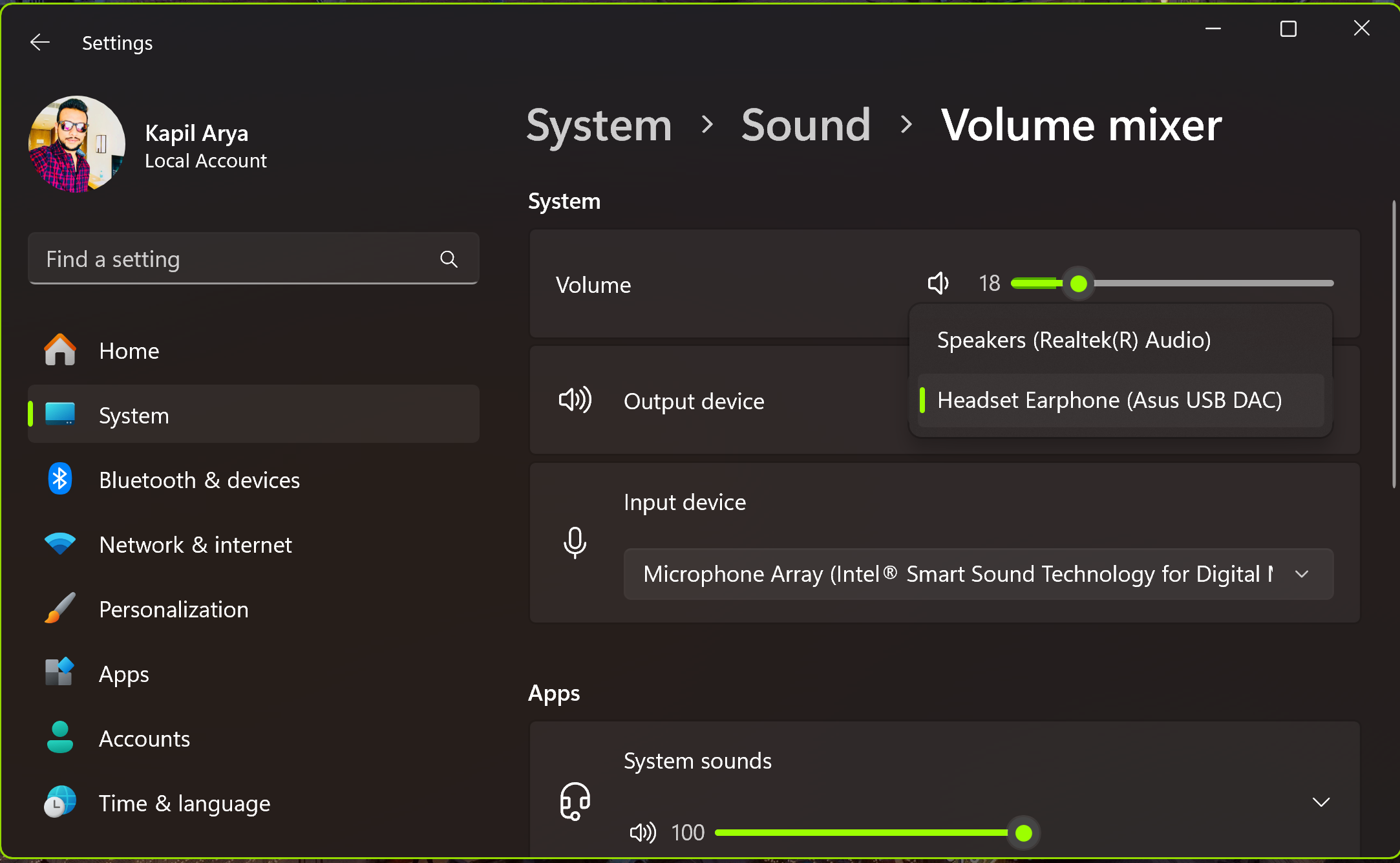
Note that if disconnect the active sound output device, Windows will automatically switch to other sound output device already present.
In case none of audio output device is installed, you’ll have no sound and then you can refer this fix to resolve this known problem.
If you’re not able to change output device using any of the above methods, do let me know via your comments, I’ll happy to help.
That’s it!