By default, users may be able to delete printers on Windows 11. While some administrators may be okay with this while some others may do not want to let this happen. An administrator have the rights to block any user from removing printers. This article will show you how to block users from deleting printers in Windows 11.
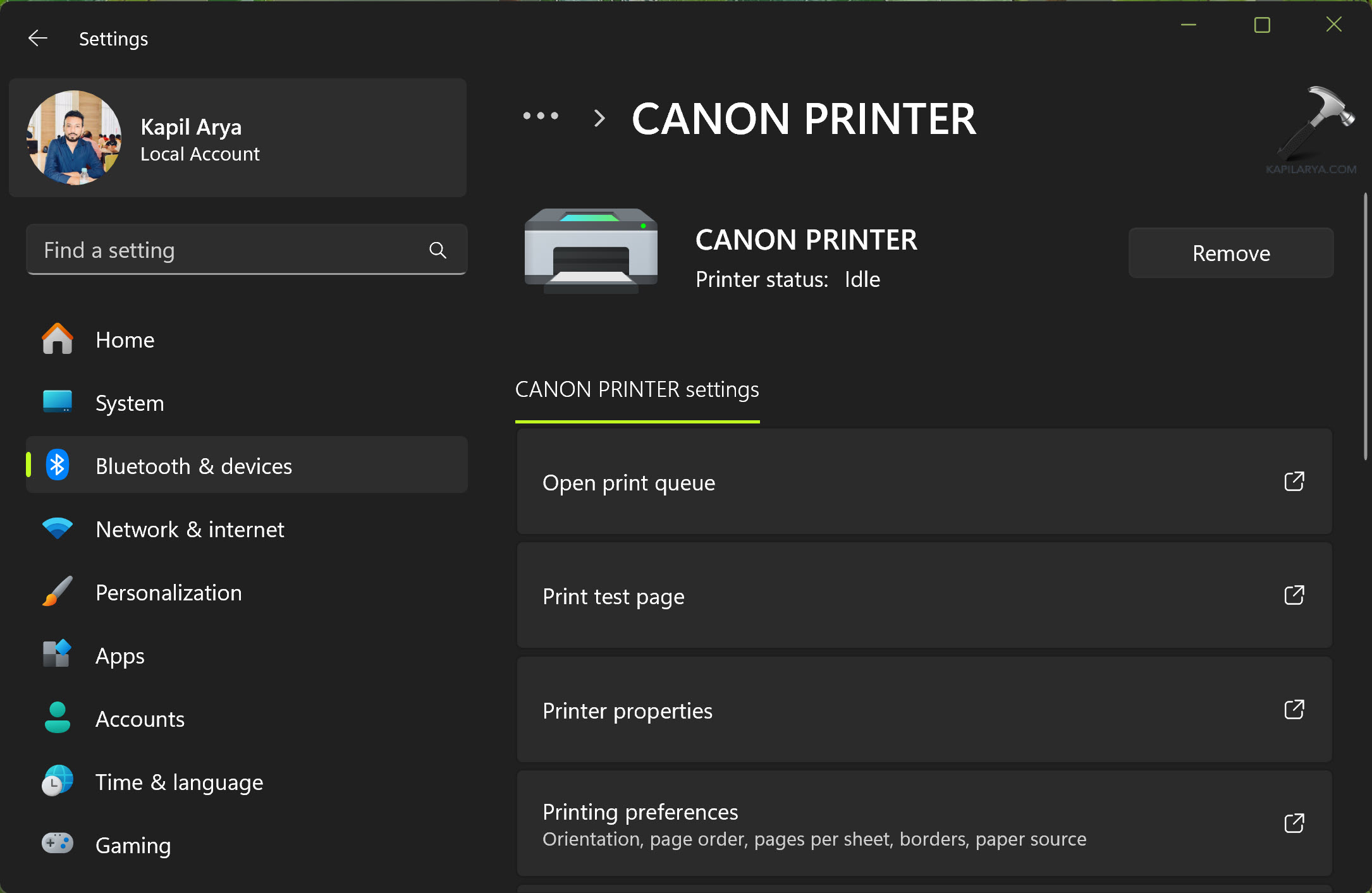
To remove a printer from system, one can go to Settings > Bluetooth & devices > Printers and then click on your Printer name. Finally, you can click on Remove button to initiate transaction of printer removal from the system.
Page Contents
Block users from deleting printers in Windows 11
Method 1: Using Registry
1. Right click on Start button and select Run.
2. Type regedit and click OK to open Registry Editor.
3. Go to following registry key:
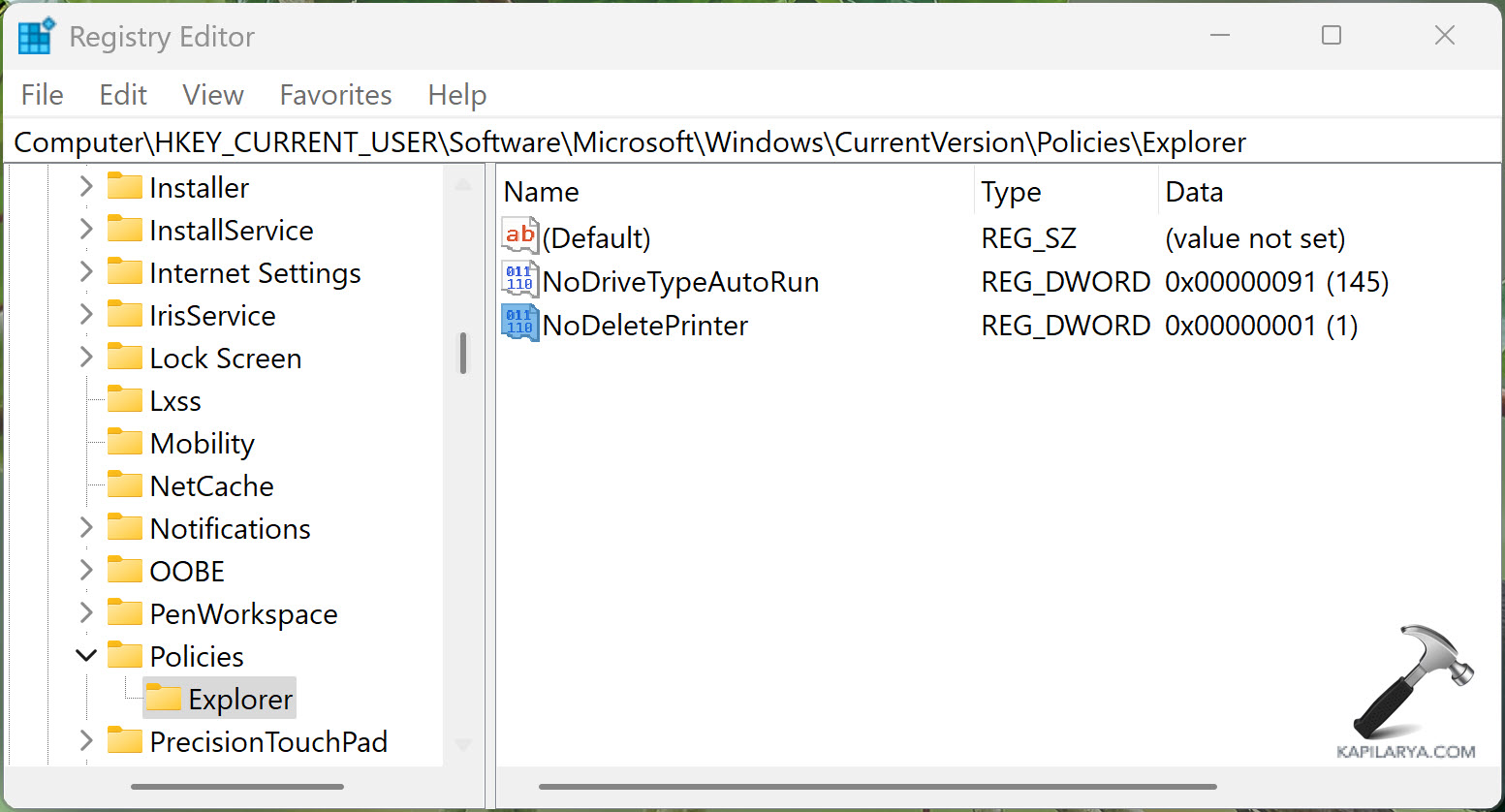
HKEY_CURRENT_USER\Software\Microsoft\Windows\CurrentVersion\Policies\Explorer
4. In the corresponding right pane of Explorer registry key, create registry DWORD named NoDeletePrinter and set it’s Value data to 1.
5. Close Registry Editor, sign out and then sign in back to make changes effective.
Method 2: Using Group Policy
1. Open Group Policy Editor using gpedit.msc command.
2. Go to User Configuration > Policies > Administrative Templates > Control Panel > Printers.
3. In right pane of Printers, locate the policy setting named Prevent deletion of printers. Double-click on it to modify its status.
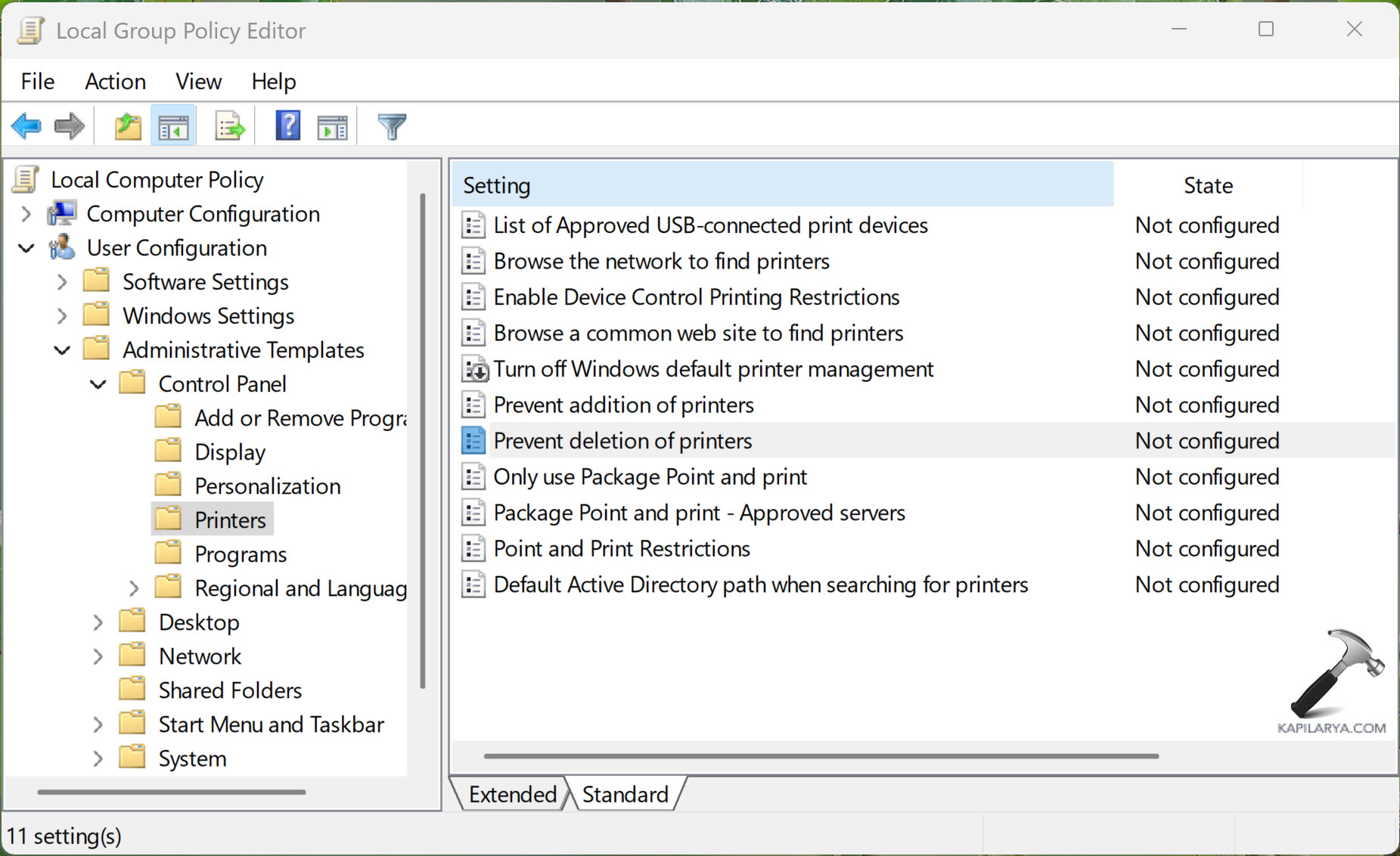
4. Set the policy status to Enabled. Once this policy is enabled, it prevents users from deleting local and network printers. Click Apply, OK.

5. Close the Group Policy Editor and restart your system to make changes effective.
If a user now tries to delete a printer, such as by using the Delete option in Printers in Control Panel or using Remove option in the Settings app, a message appears explaining that a setting prevents the action.
Note that users can still remove printer using third-party program but you can block use of third-party programs on the system using Group Policy. This will help the IT administrators to easily manage printers on their systems.
That’s it!