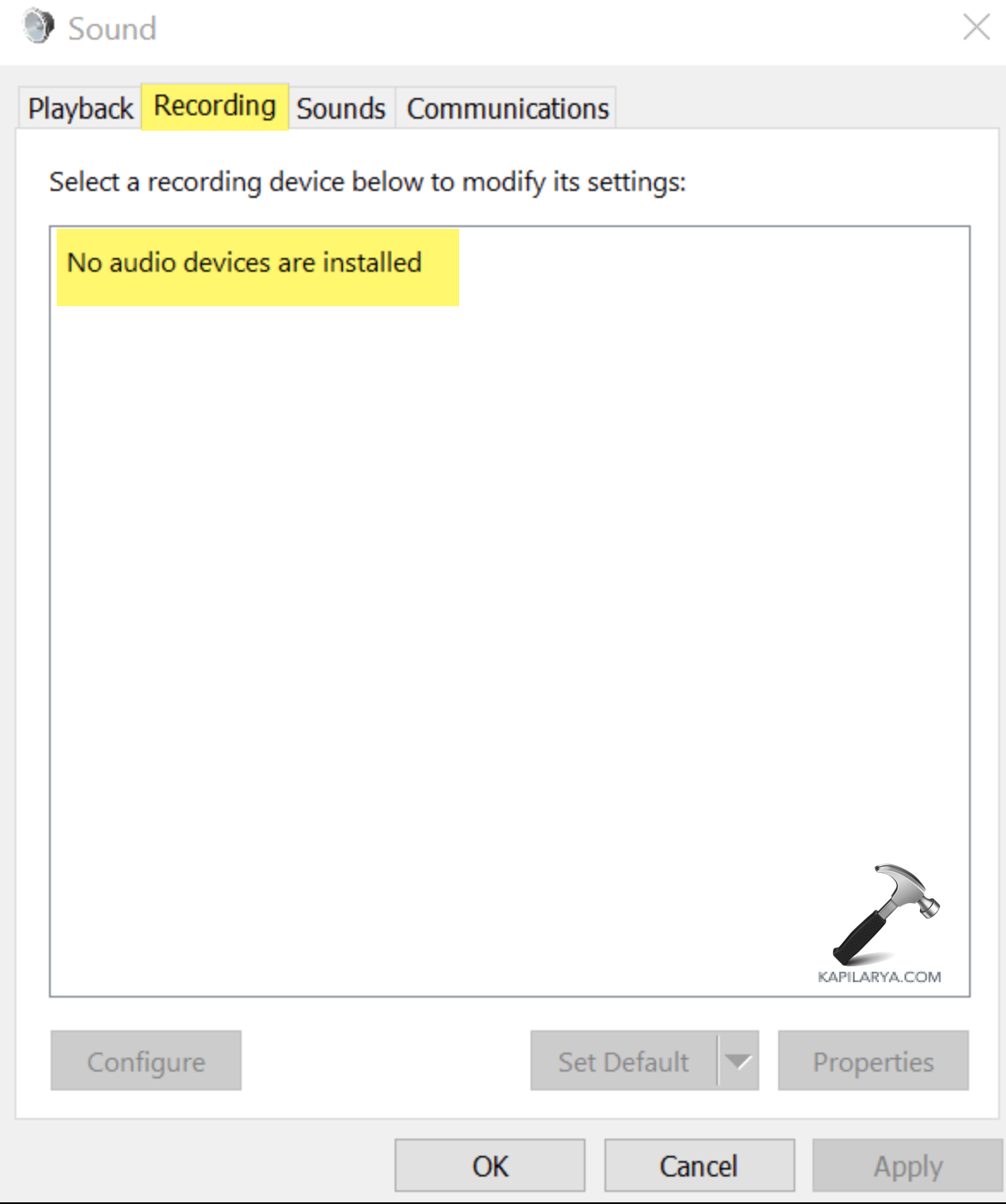
In case you want to fix “No audio input device” in Windows 11, then you are at the right place. This problem will mean that you cannot meet, play games, make calls, record, or do anything that involves audio input using the microphones. This entire article will provide you through easy and effective methods.
Page Contents
Why Does Windows 11 Show “No Audio Input Device”?
It is only good to know the cause of a problem before repairing it. Common reasons include.
- Outsourced sound drivers.
- Windows settings Disabled microphone.
- Faulty updates.
- The audio services are not started.
- Incorrect privacy settings.
- Hardware-related problems.
Whichever the cause, the given solutions will assist you to fix your microphone within a few minutes.
Fix No Audio Input Device in Windows 11
It is less challenging to fix No audio input device in Windows 11. The microphone can be easily fixed with the following troubleshooting techniques.
Fix 1: Update the Sound Driver
The 1st common cause of microphone issues in Windows 11 is driver issues. The following are the processes of updating the Audio Drivers.
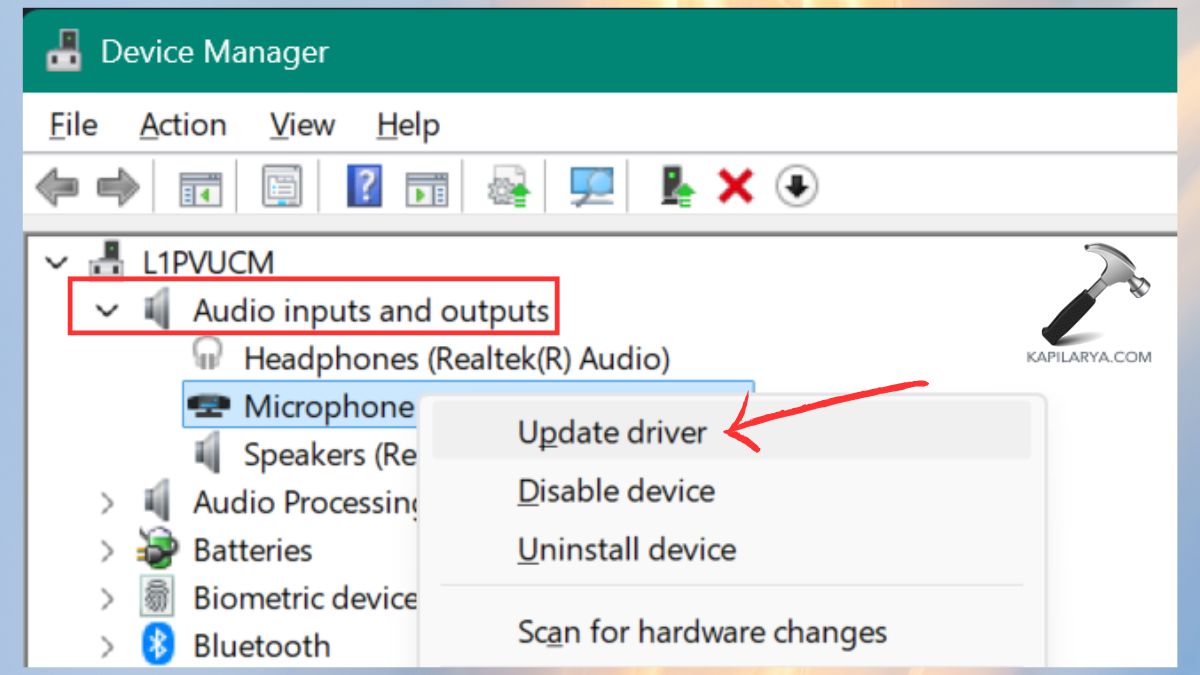
1. Click on Windows + X and on the Device Manager. Or search it directly.

2. Open the Audio inputs and outputs section. Right-click your microphone device then do Update driver Search automatically for drivers.
Restart your PC.
Fix 2: Restart Windows Audio Services
Occasionally, the audio service fails, and Windows displays No input device found.
1. Click on the Start button and open Services.
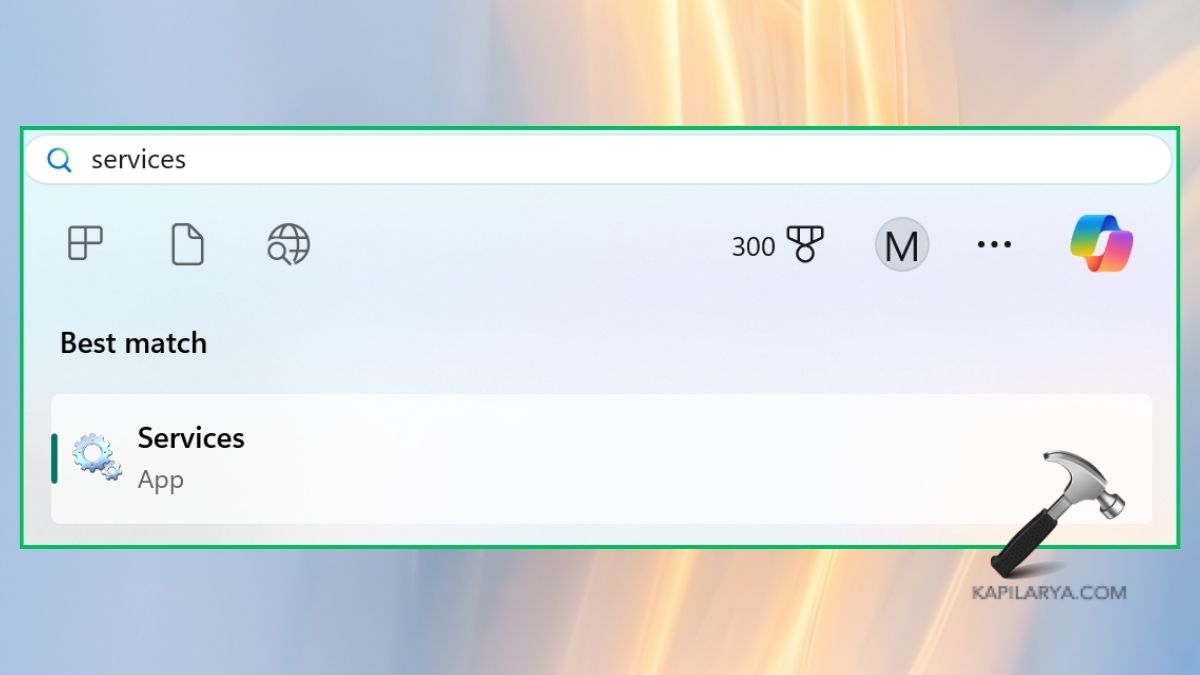
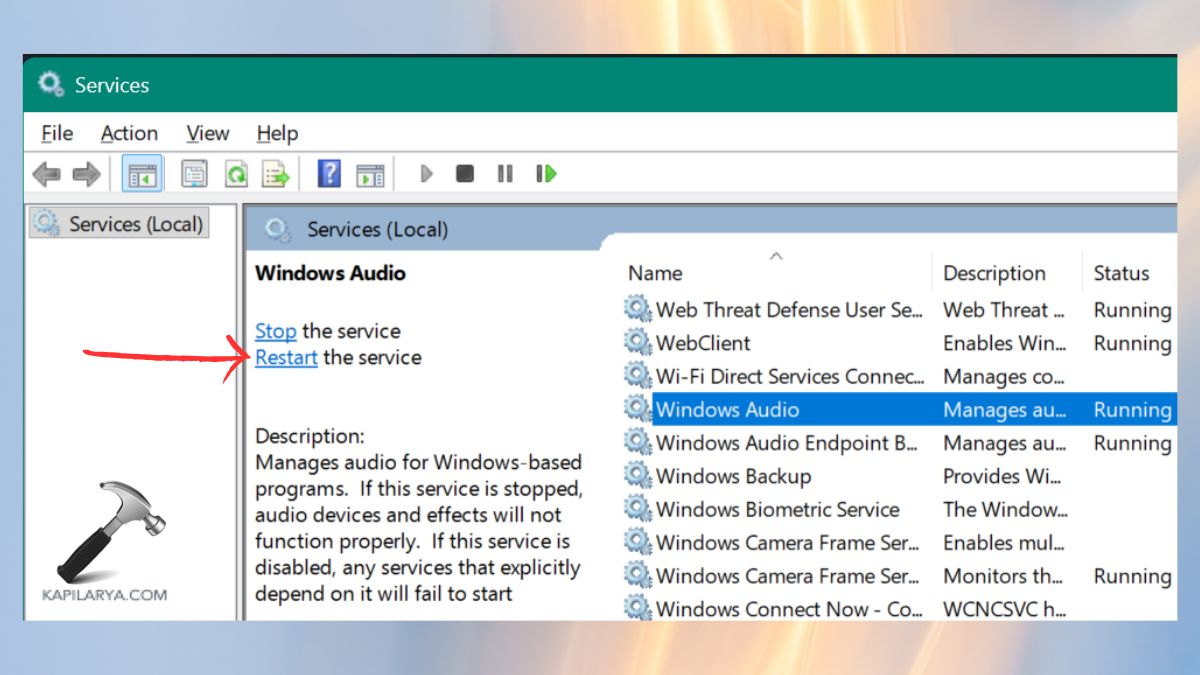
2. Find these services.
Windows Audio
Windows Audio Endpoint Builder
Right-click each > Restart.
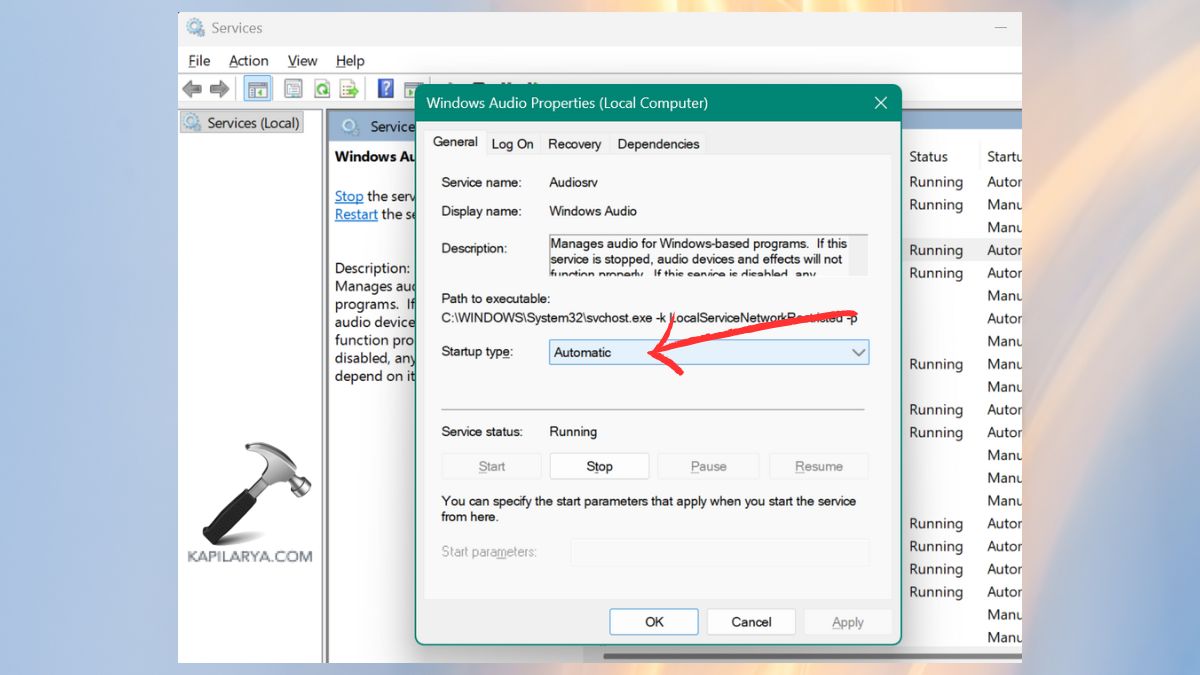
3. Select Startup type as Automatic.
Restart the computer.
Fix 3: Run the Windows 11 Audio Troubleshooter
The automatic feature of Windows has an auto-troubleshooter that identifies and corrects the audio input problems.
1. Open Settings, go to System > Troubleshoot. Then, click Other troubleshooters.
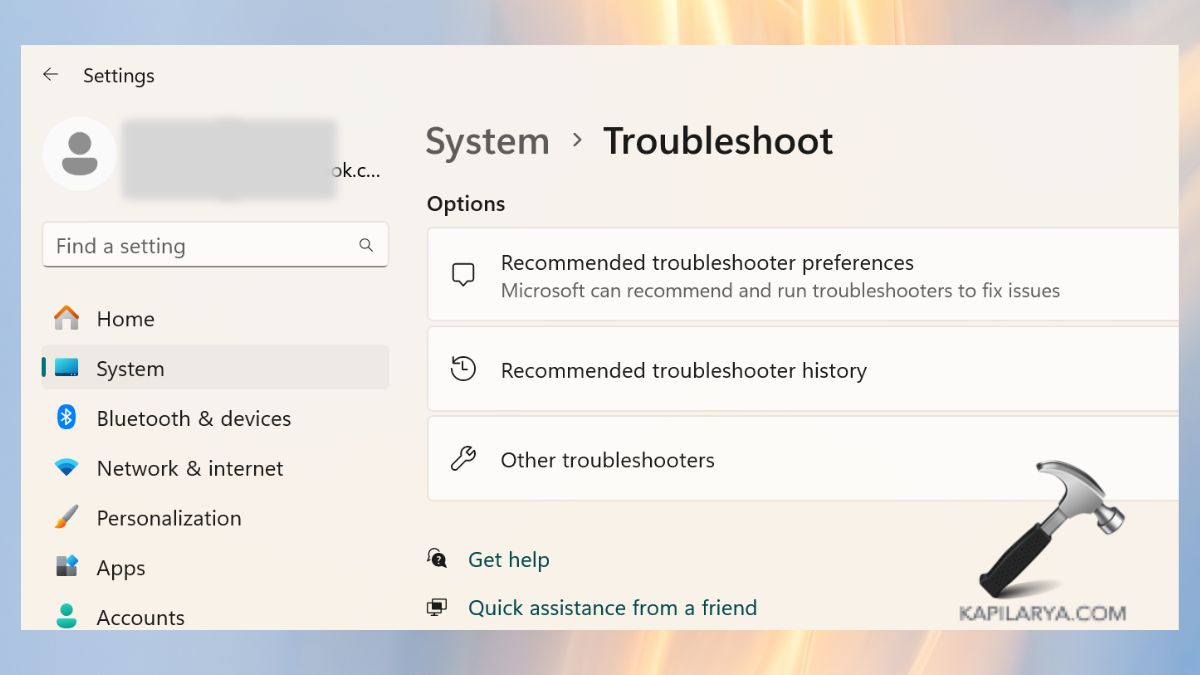
2. Choose Audio and click Run.
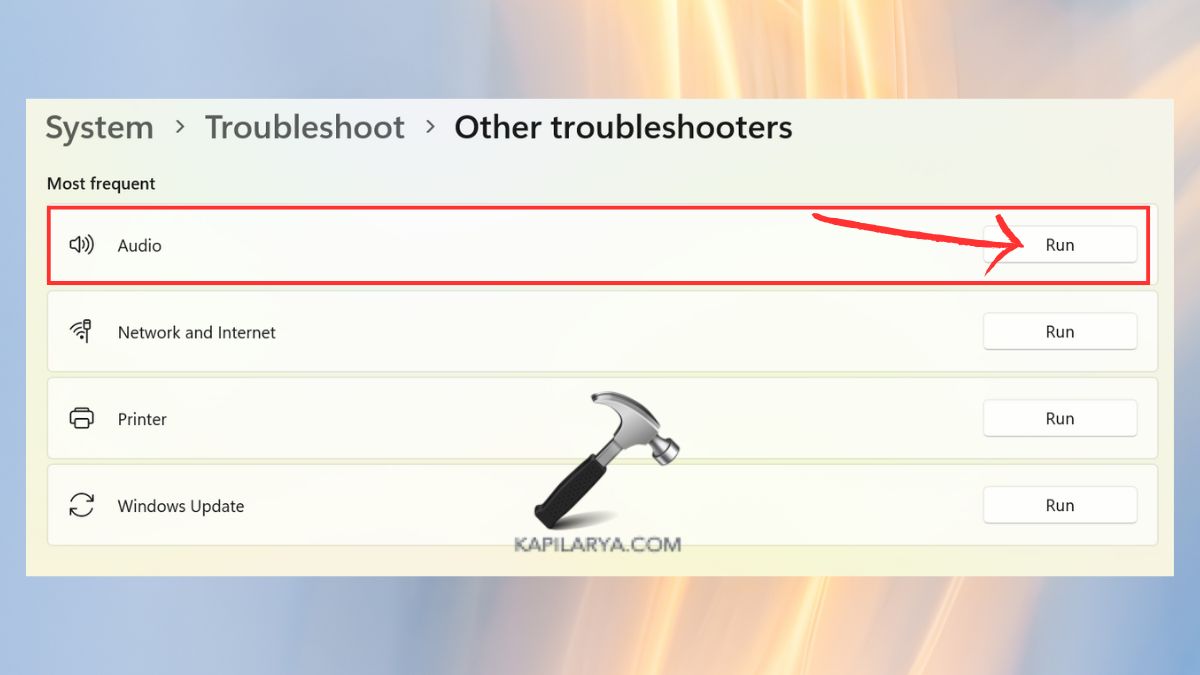
Enter the instructions on the screen. This is an ideal method of the novice and addresses the majority of fundamental microphone detection issues.
Fix 4: Check Microphone Privacy & Permission Settings
Your mic may be present in Windows 11, but you will not be able to use it because of privacy settings.
1. You have to access Settings: Privacy and security. Click Microphone.
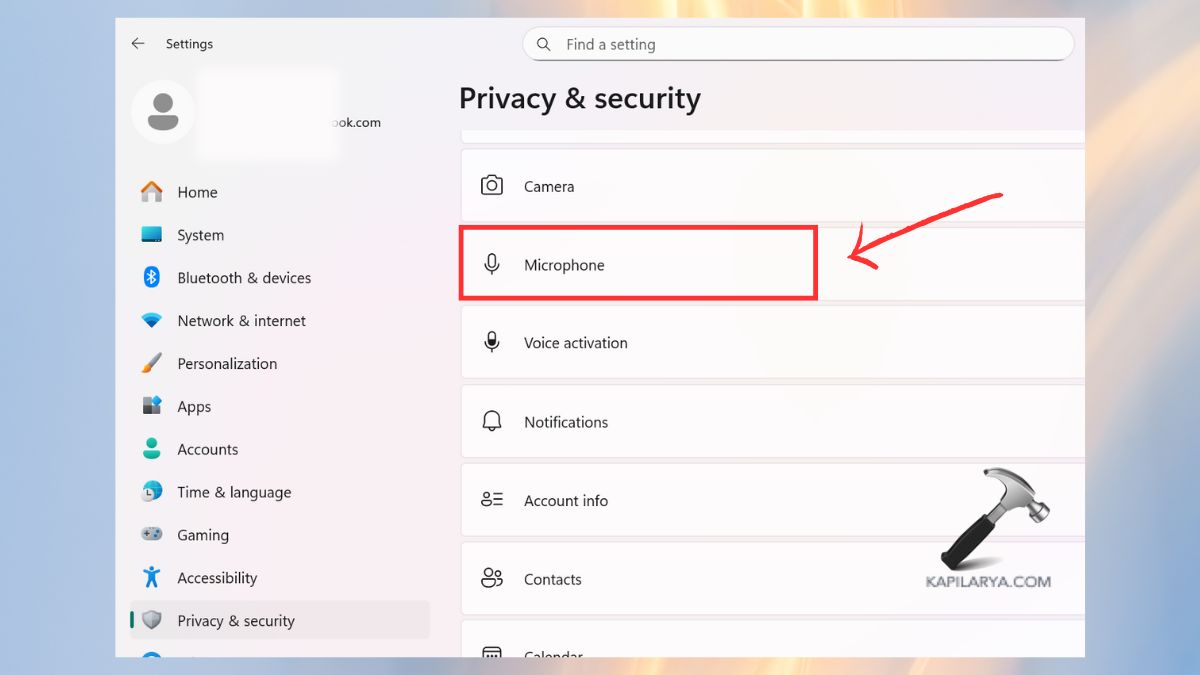
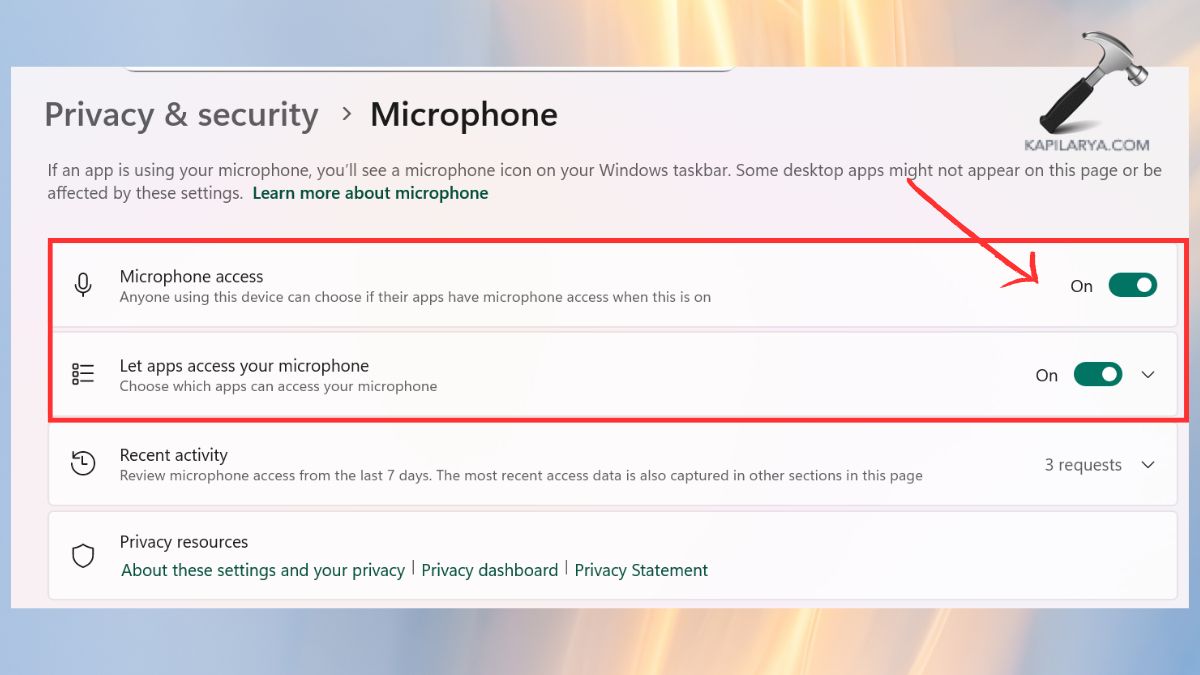
2. Turn on Microphone access. Allow application access to your microphone.
Authorize application access to Zoom, Teams, Chrome, etc.
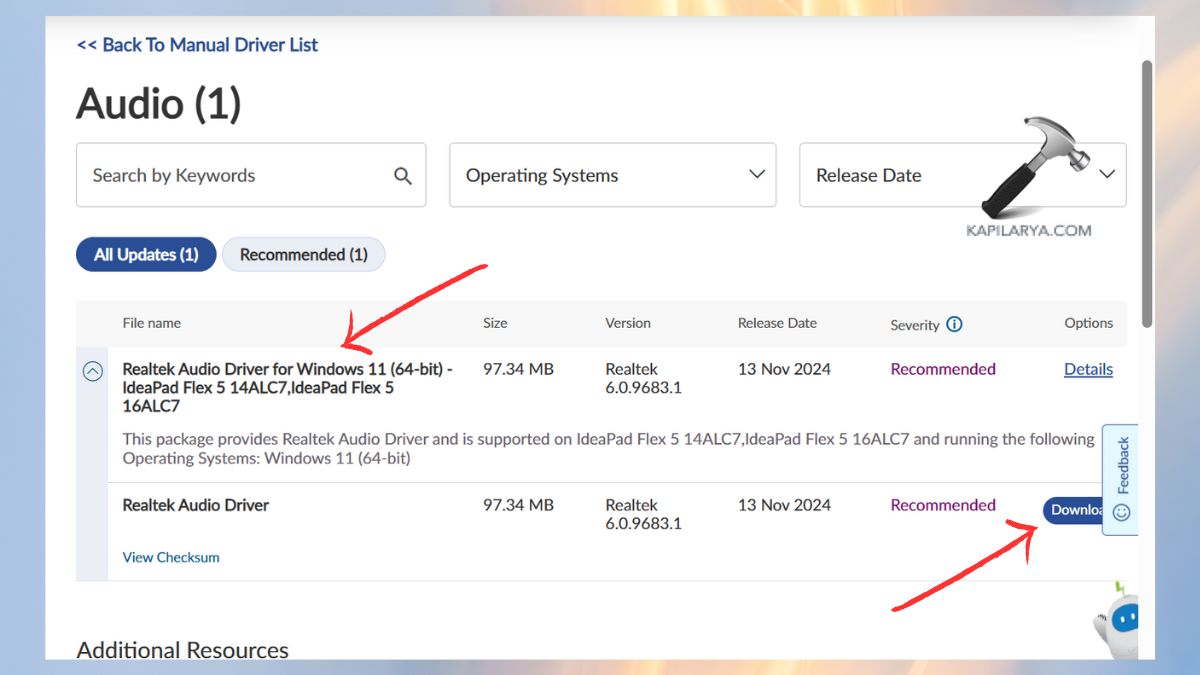
Fix 5: Get the Latest Driver from the Manufacturer’s Website
In case Windows is unable to install the appropriate driver, download it.
1. Go to the support of your device brand. Search your laptop/PC model on their website.
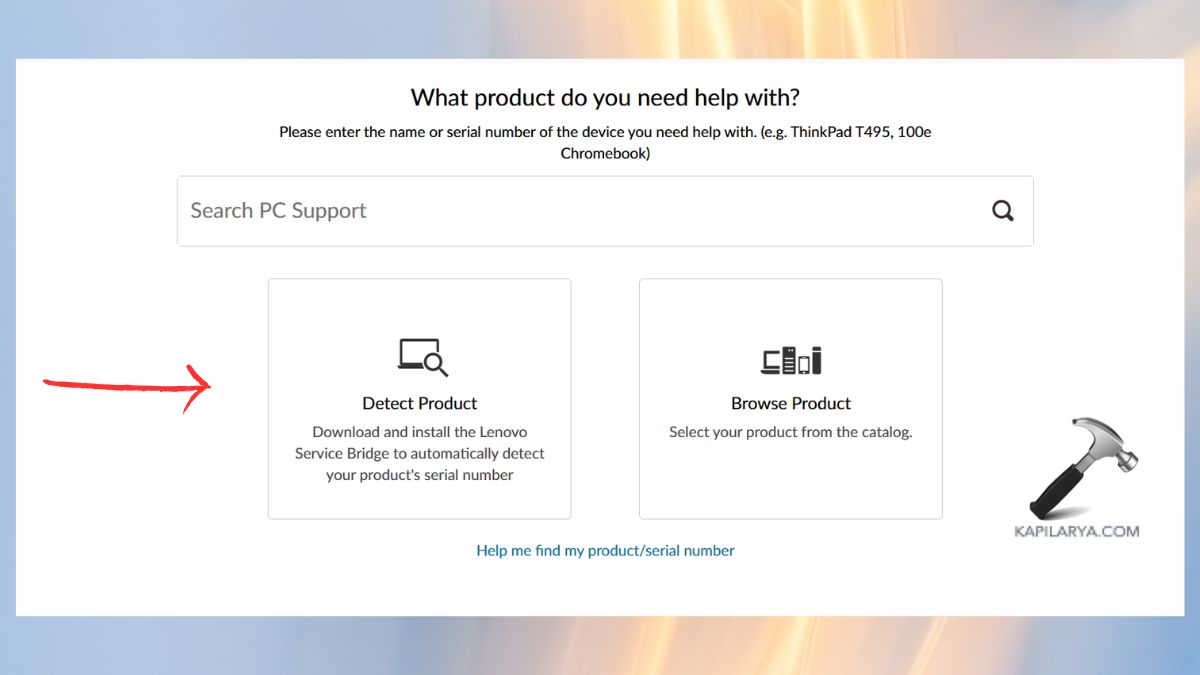
2. Update Audio driver Audio / Realtek / HD Audio Codec.Install it and restart. The approach is optimal when the issue began following a Windows update.
Fix 6: Restart Your Computer
Background processes are sometimes crashing and devices cannot be recognized by Wind tools.
1. Save your work.
2. Shut down the PC and after a few minutes, restart your PC normally. After being restarted, determine whether the microphone is identified. This renews drivers, services and temporary system files.
Frequently Asked Questions (FAQs)
Why does Windows 11 say I have no audio input device?
It is normally caused by infected drivers, broken microphone preferences, privacy laws, broken updates or malfunctioning hardware.
How do I reinstall my microphone driver?
Updates can break drivers. To fix it, install the latest driver by your laptop or motherboard manufacturer.
My PC says “No Input Devices Found.” Is my microphone damaged?
Not always. Attempt to update drivers or grant permissions, or re-start audio services. The final possibility is hardware damage.
That’s it!