

Recently I have write an article on the codecs problem for Windows Media Player. You can check that article on following link:
Win7Codecs 3.4.7 : Complete Collection Of Codecs For Windows Media Player
One of my good friend asked me that when he use codec packs, his system hangs more and becomes unresponsive. That’s why he hates to use codec pack. Similar friend reported me that he is getting some weird errors when trying to play flash files(.flv, .swf etc.) via WMP. Obviously the issue can be solved above said codec pack but he requested me to employ a manual fix to this.
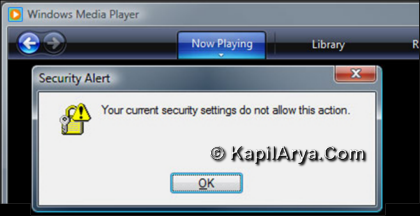
In this article we’ll try to fix the issue via editing of registry keys and see the error is no more! So lets move on…
FIX : Error “Your Current Security Settings Do Not Allow This Action”
1. Press  + R and put regedit in Run dialog box to open Registry Editor (if you’re not familiar with Registry Editor, then click here). Click OK.

2. Navigate to the following location:
HKEY_CURRENT_USER\Software\Microsoft\Windows\CurrentVersion\Internet Settings\Lockdown_Zones\0

3. In the right pane, seek for 1200 and carefully observe the value data against it. If you’re really facing the issue, the data value must not be “0“. Hence making it “0” will surely fix the problem.
4. Now right click on 1200 and select Modify and edit the DWORD value data and put it to “0“.

Finally, Now perform the same action for following location also:
HKEY_LOCAL_MACHINE\Software\Microsoft\Windows\CurrentVersion\Internet Settings\Lockdown_Zones\0
That’s it!





wow,Can we have group policy fix on this?
@jack: what is d need of gpedit if it can b fixed with regedit ;)
thanks kapil i think you have good command in editing registry files.. good!!!
is there any way to change the themes in windows media player . default is boring now plz reply
excellent tip kapil. u’re very tricky!!!!!!!!!!!!!!!!!!!!!!!!!!!!!!!
I spent half of my day looking for a solution for this problem, and it works,,,,, THAAAAAAAANKS
Is their a way you could just type this into notepad and save it as a REG file? I know I can’t exactly type it because that would take forever, but could I just copy and paste something into notepad and save it instead of designing my own REG file?
^^ Highlight 0 key in the left pane (step 2) and click File -> Export. Save the .reg file to you desired location.
In my computer when I go to Run and regedit and click RUN it doesnt give me any other options but the default one. I cannot change anything to 1200 or to 0 because there is only one option and that option is DEFAULT.. Can you help me with this please?
Thanks So Much
^^ You’re welcome!
gret job !
^^ 👍
followed this fix about win media player to the tee, still get the message. does 32bit/64bit have anything to do with it, I’m seeing 32 but have 64 bit use. I do know I followed this to the tee, and with reboot, no change.
Working off this page instructions: [“https://www.kapilarya.com/your-current-security-settings-do-not-allow-this-action”]
THE BEST OF THE BEST!
THANK YOU IT WORKED!
^^ Glad to help!