

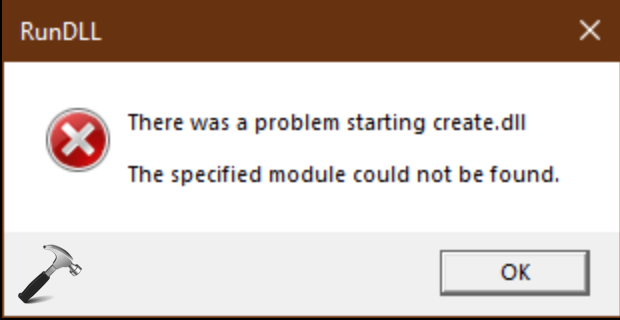
Are you seeing the error The specified module could not be found in Windows 11? Absence of DLL files, corrupt registry keys, broken startup items, malware, or corruption of system files tends to be the cause of the specified module not located. It is among the most common Windows errors since the operating system relies much on small background files known as DLL files (Dynamic Link Libraries).
Several programs share these DLL files. Such that, when a single file is lost, then your applications crash and Windows gives this error. So, follow this step-by-step guide to fix the error with the five best methods on Windows 11.
Page Contents
Know About “The specified module could not be found” Error
As an example, assume you uninstall one of your old photo editing software. During its uninstall, the uninstaller erases a common DLL file that is necessary by another application.
The following time when you log on your system…
Boom the pop-up – “The specified module could not be found”. This occurs even more frequently than you believe.
DLL files resemble shared toolboxes which are utilized by various programs. Windows stores duplicate tools in a single location as opposed to storing them in various locations.
Therefore, when one of the toolboxes is lost, several programs fail simultaneously, and Windows shows errors related to modules.
This is why, uninstalling software, using cleanup tools, deleting suspicious files, malware attacks, and corrupted registry entries can all trigger this error.
Causes of “The Specified Module Could Not Be Found” Error
The most common reasons are listed below.
- This may occur because of unintentional deletion, corruption of files or unsuccessful uninstallation.
- The most common source of this problem is leftover registry entries of programs that have been uninstalled.
- Numerous malware erase/ delete, or conceal crucial DLL files to prevent identification.
- This normally occurs following the uninstallation of software, cleaning tools or antivirus.
Fix: The specified module could not be found
Fix 1: Run System File Checker (SFC)
One of the biggest causes of the error and the reason why The specified module could not be found is the existence of corrupted system files. The Windows operating system also has an in-built utility called the SFC, which will scan the system components and automatically fix what is broken.
1. Firstly, press Windows + S and type cmd. Right-Click Command Prompt > click on the option of running as administrator.

2. Enter this command.
sfc /scannow

Allow the scan to complete (between 10 and 15 minutes). Restart your PC. Provided that SFC is aware of broken files and that it is able to fix those files, your mistake should get corrected automatically.
Fix 2: Stop the Process Related to Missing DLL Files
This mistake is sometimes presented immediately after booting since Windows attempts to load a startup process, which connects with a missing DLL file. The problem is resolved by deleting the flawed entry.
1. To open the Task Manager, hit the keys Ctrl + Shift + Esc. Or open it directly from the menu.
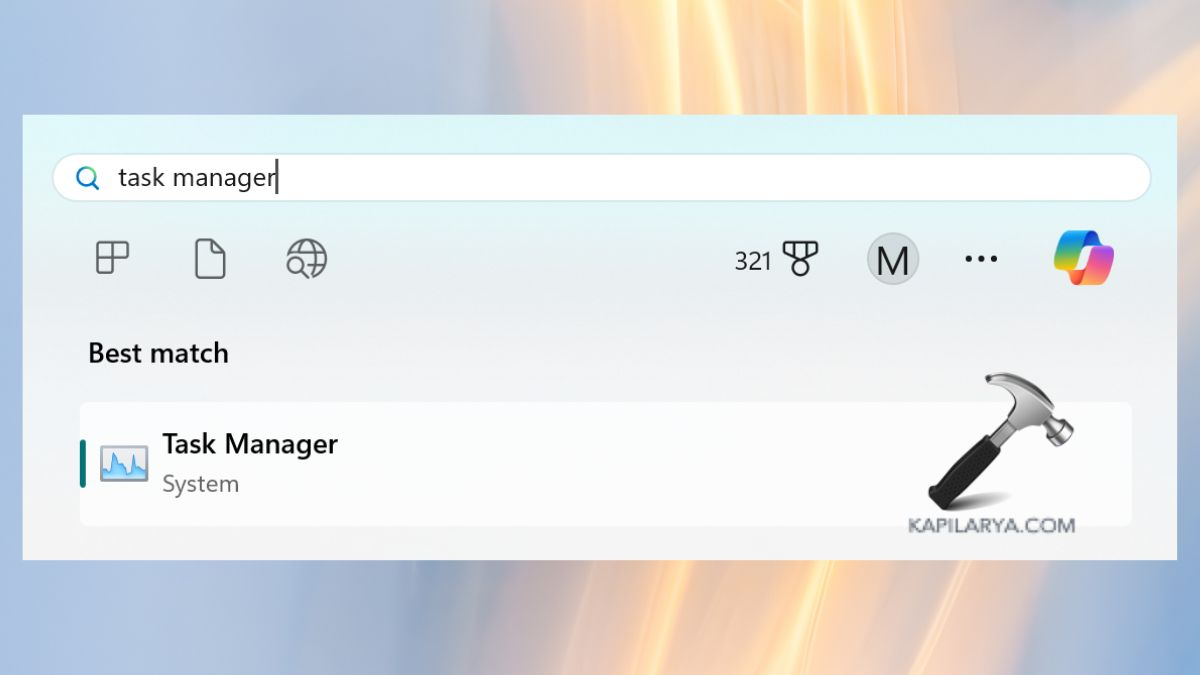
2. Visit the Startup apps tab. It should have programs that look suspicious or programs that you do not know about (especially those that you have recently uninstalled). Click the entry with the right-hand button > click disable.

Restart your PC. When the error is gone upon reboot, then you have the guilty party.
Fix 3: Scan Your PC for Malware
A lot of malware programs will either delete or overwrite the DLL files. Hence, resulting in the prompting of the message: the module cannot be found.
Having a complete malware scan is a sure way that you are not working with infected files.
1. Open the Start Menu, search and click Windows Security.
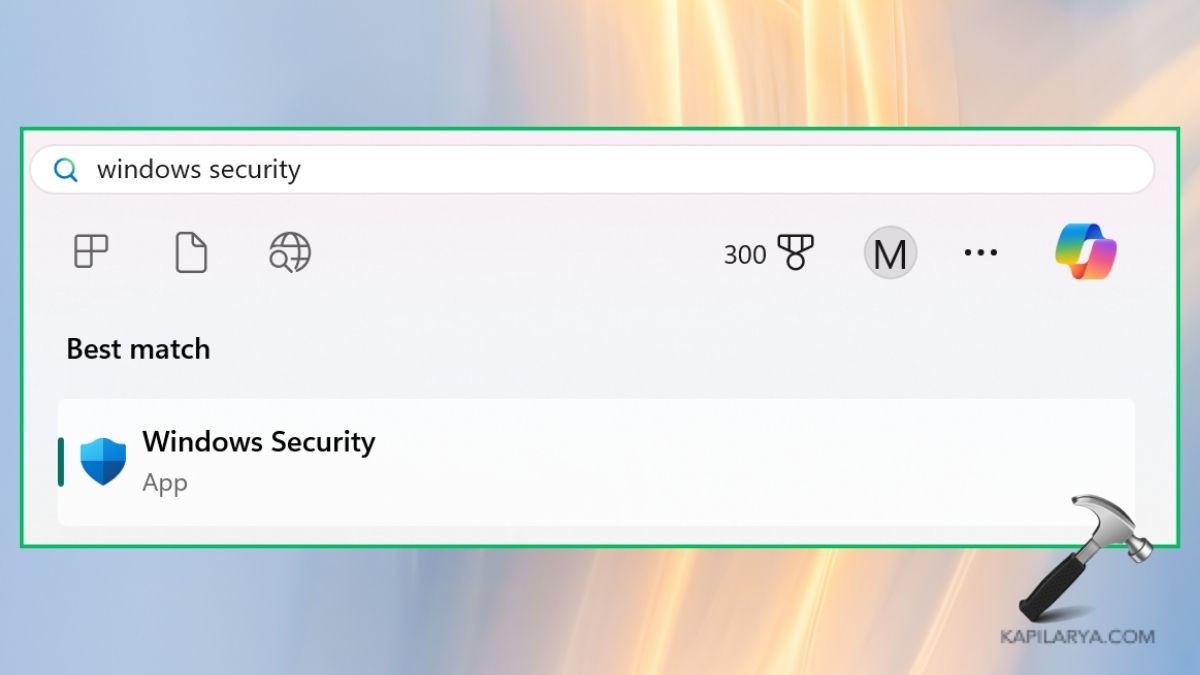
2. Choose Virus & threat protection.

3. Click Scan options.

4. Click Full Scan > click Scan now. Besides, wait till the scan is over and delete threats found.

Fix 4: Delete Corrupt Windows Registry Entries
The error can be repelled by using invalid registry entries that are created to refer to missing modules or DLL files. The deletion of such entries prevents windows searching files which do not exist.
Caution: Manipulation of the registry in the wrong manner may cause damage to your system.
1. Press Windows + R – type in this command.
regedit
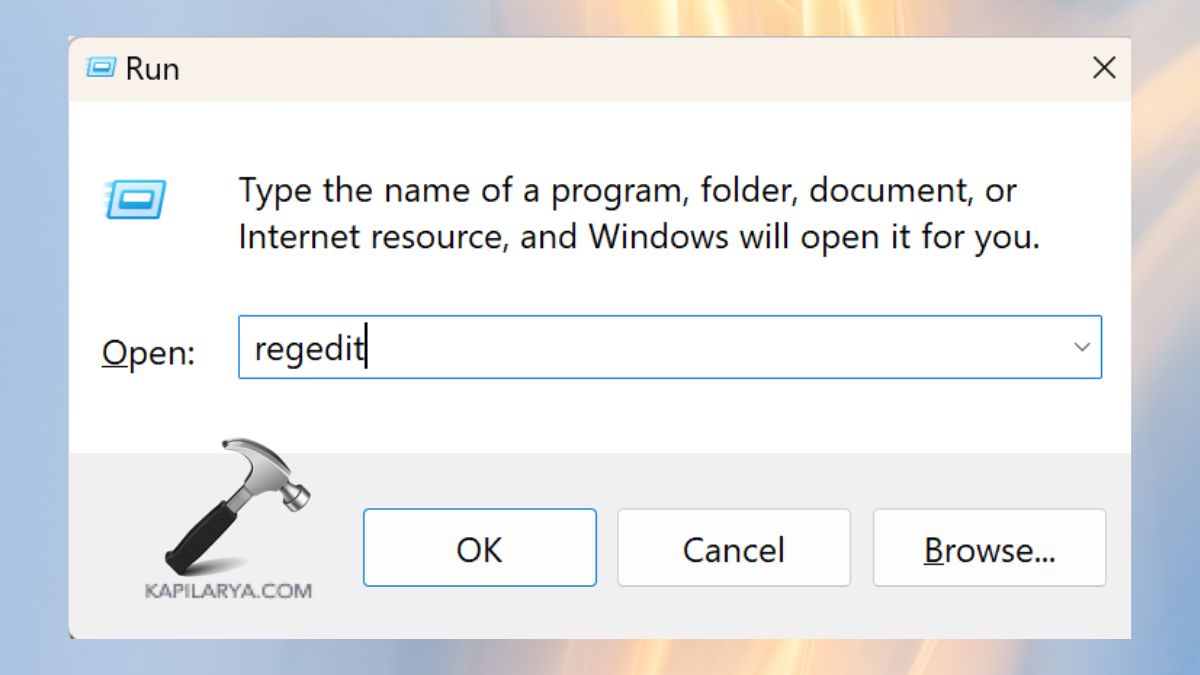
2. Visit the following destinations consecutively.
HKEY_LOCAL_MACHINE\Software\Microsoft\Windows\CurrentVersion\Run
HKEY_CURRENT_USER\Software\Microsoft\Windows\CurrentVersion\Run
3. Search towards entries to these:-
- Missing folders.
- Non-existent DLL files.
- Apps you already uninstalled.
Then, click the suspicious record with the right mouse button > select “Delete”.
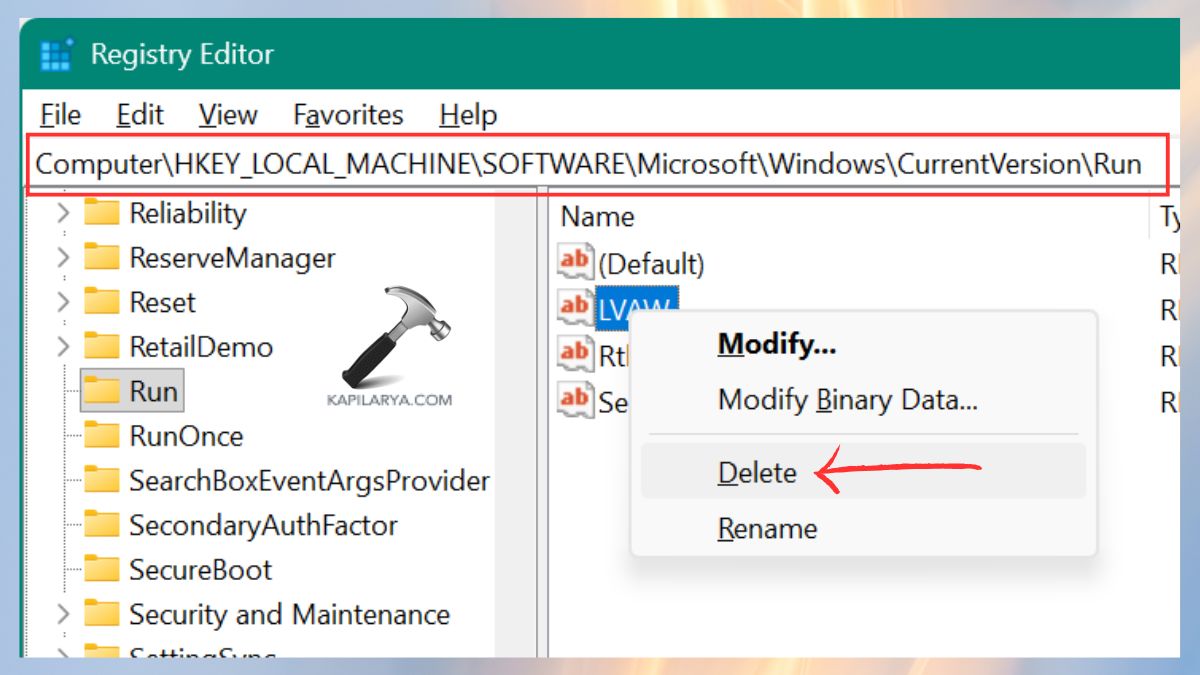
Also, restart your PC/laptop. At this time, it is one of the best ways in case of an error occurs after deleting a virus or software.
Fix 5: Perform a Clean Boot
A clean boot is to determine the source of a missing module error. It is to check whether that is a third-party application or service.
1. Press Windows + R – type in this command.
msconfig
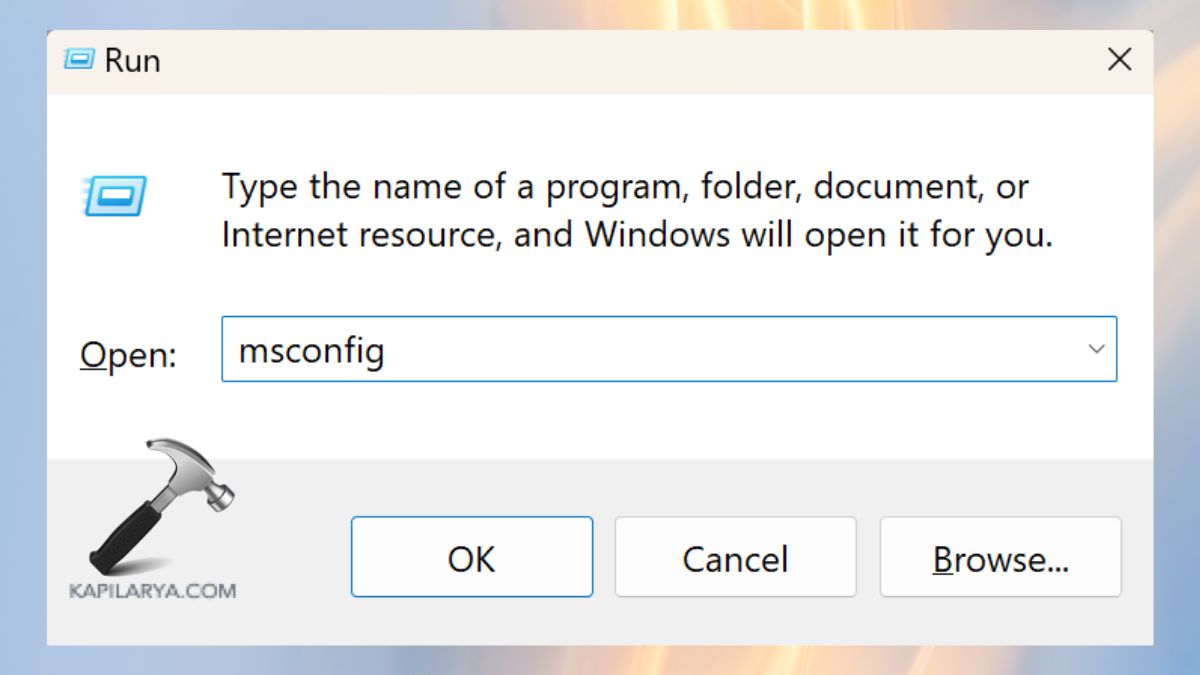
2. Go to the Services tab. Particularly, do check on the option “Hide all Microsoft Services” > Disable all.

So, restart your PC with a clean boot. Just in case the error has ceased to make an appearance, test each service and each app separately until you have identified the culprit.
Frequently Asked Questions (FAQs)
What does “The specified module could not be found” mean?
It should be understood that Windows is attempting to load a file, often a DLL, which has been deleted, is corrupted or improperly registered. Indeed, this may occur as a result of malware, the uninstallation of applications or corruption by systems.
Is this error related to viruses?
Often yes. DLL files are often deleted or concealed by malware. Due so, this message. And that is why we strongly suggest to run a full scan.
Can I fix this error without editing the registry?
Absolutely, to complete this, first enable SFC, clean boot, malware scan and enter start-up items. Registry editing would be necessary only when other procedures fail to resolve the problem.
Does reinstalling software help?
In case the error occurs during the opening of a certain application, it is possible to install it anew, and missing modules will be restored. And, the problem solves immediately.
That’s it!




