The Bluetooth drivers missing in Windows 11 is widespread in the current Windows operating systems. Windows 11 is very dependent on background services, updated drivers, and the correct hardware setup, so even a minor glitch can cause Bluetooth to disappear completely. In this guide, you’ll find easy, step-by-step methods to restore Bluetooth on Windows 11, even if the driver seems completely gone.
Page Contents
Role of Drivers in Windows 11 Bluetooth Performance
The majority of users are not aware that the performance of Bluetooth does not only rely on whether it is ON or OFF. Windows 11 is based on a mixture of:-
- Bluetooth Stack: The software layer that enables your PC to communicate with external devices.
- Hardware Compatibility: Older Bluetooth chips tend to have problems with new devices.
- Windows Security Policies: There are cases when Windows does not allow the installation of drivers at all, in case the system has a feeling that it is not safe.
- Power Management: Windows can automatically switch off Bluetooth devices to conserve battery, causing unforeseen disconnections.
So, it implies that the Bluetooth driver missing error can be triggered by even a minor update, security patch, or unintentional uninstall.
Solved: Bluetooth driver missing in Windows 11
The following are the best ways to assist you in regaining Bluetooth functionality. Be sure to sample each of them.
Way 1: Restart the Bluetooth Service
Windows 11 has specific services to execute Bluetooth. In case these services fail, your Bluetooth driver may not show up at all.
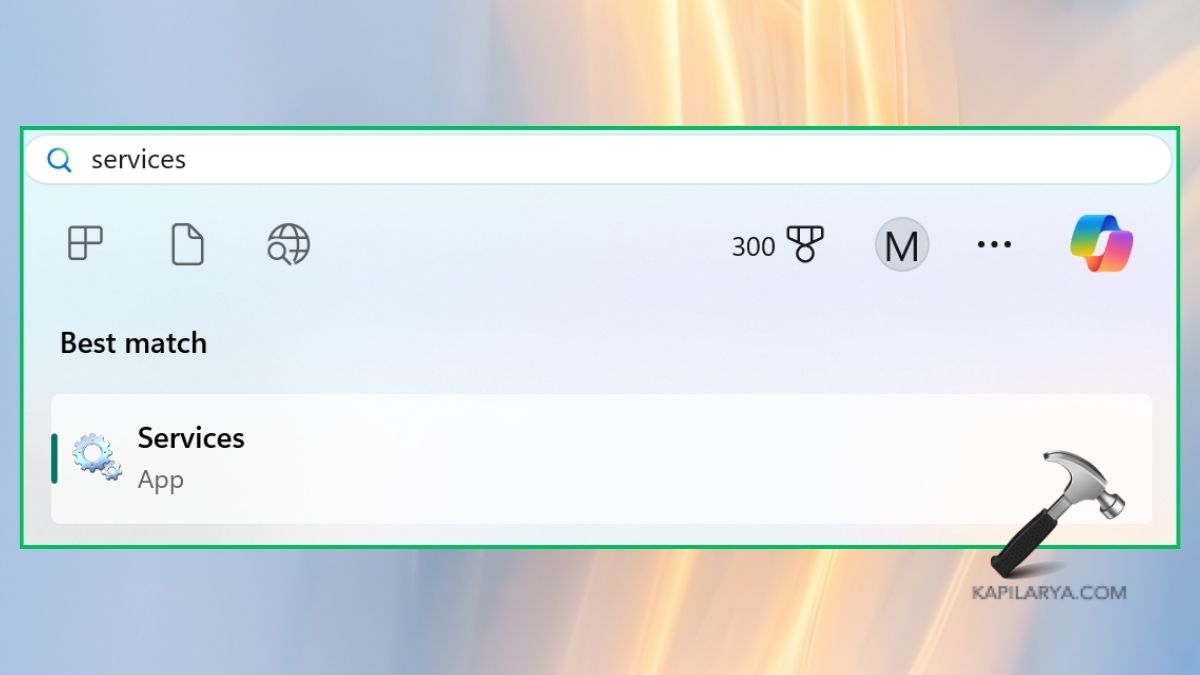
1. To open the application, press the Win key, type Services and press Enter.
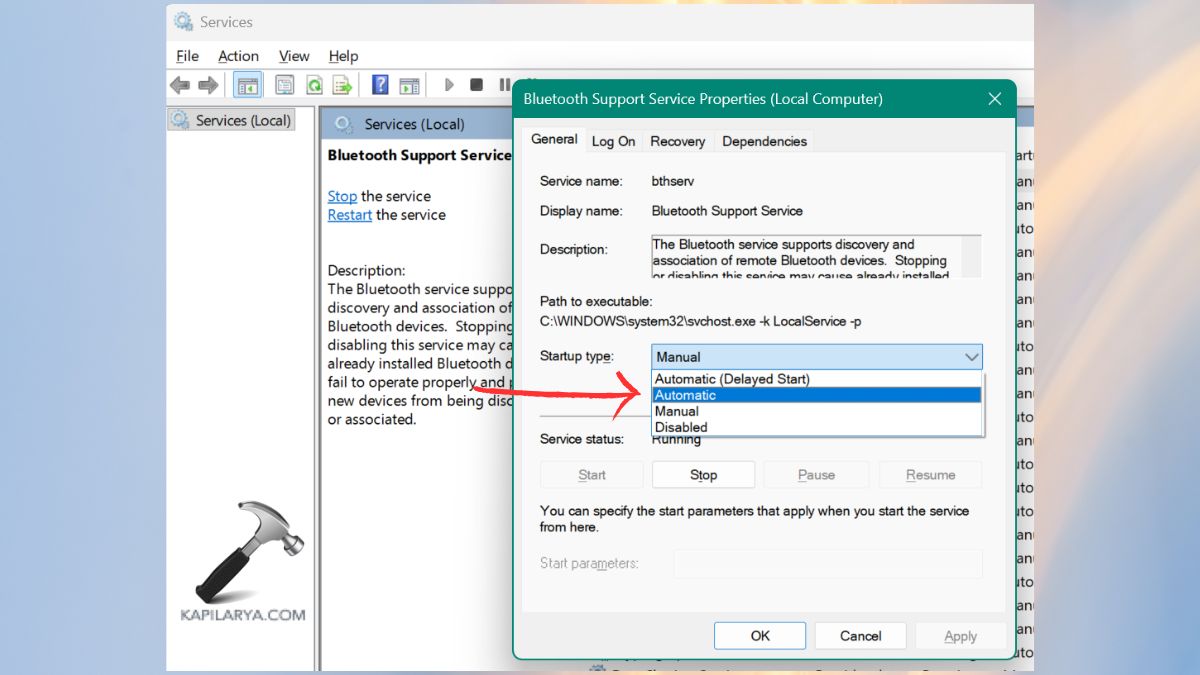
2. Find these services by scrolling down:-
- Bluetooth Support Service
- Bluetooth Audio Gateway Service
- Bluetooth User Support Service
Click on each of them and configure: Startup type > Automatic. Choose Apply > OK.
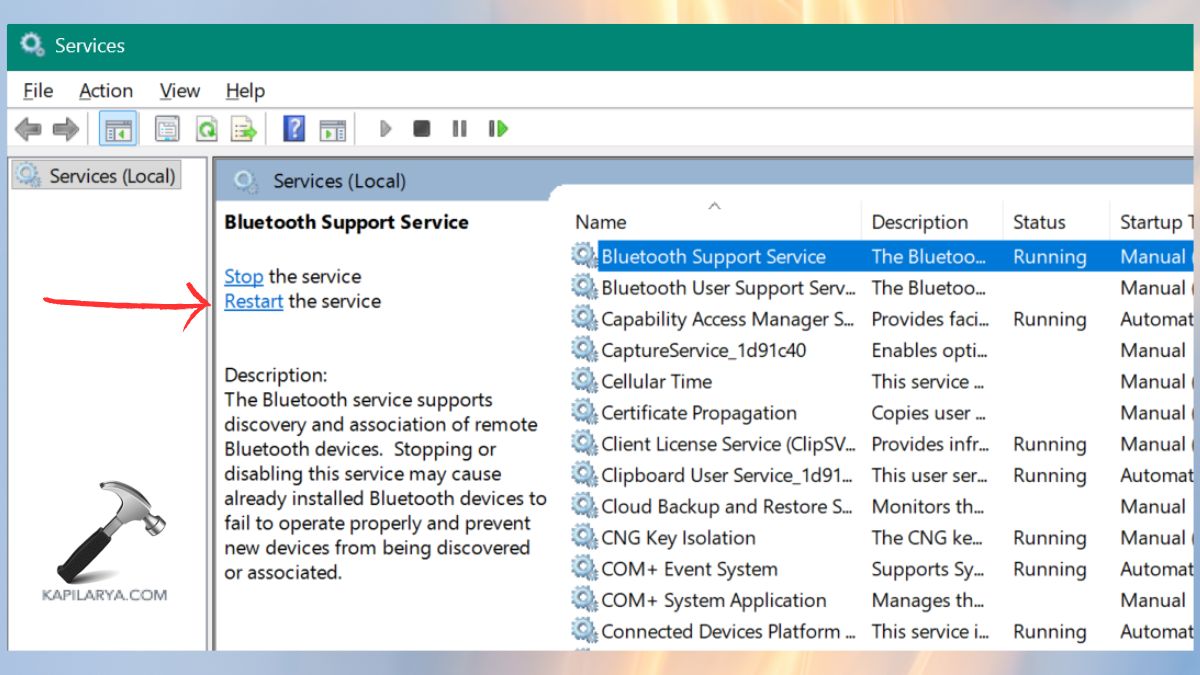
3. Tap on Start or Restart if the service isn’t running. Now, check if Bluetooth reappears in Settings or Device Manager.
Way 2: Update Your Bluetooth Driver
Windows 11 might not recognize your Bluetooth hardware in case the Bluetooth driver is not present or is outdated.
1. Right-click Start > Device Manager.

2. Extend Bluetooth (where possible). Click on the Bluetooth adapter (Intel, Realtek, Qualcomm) with the right-click > select Update driver.
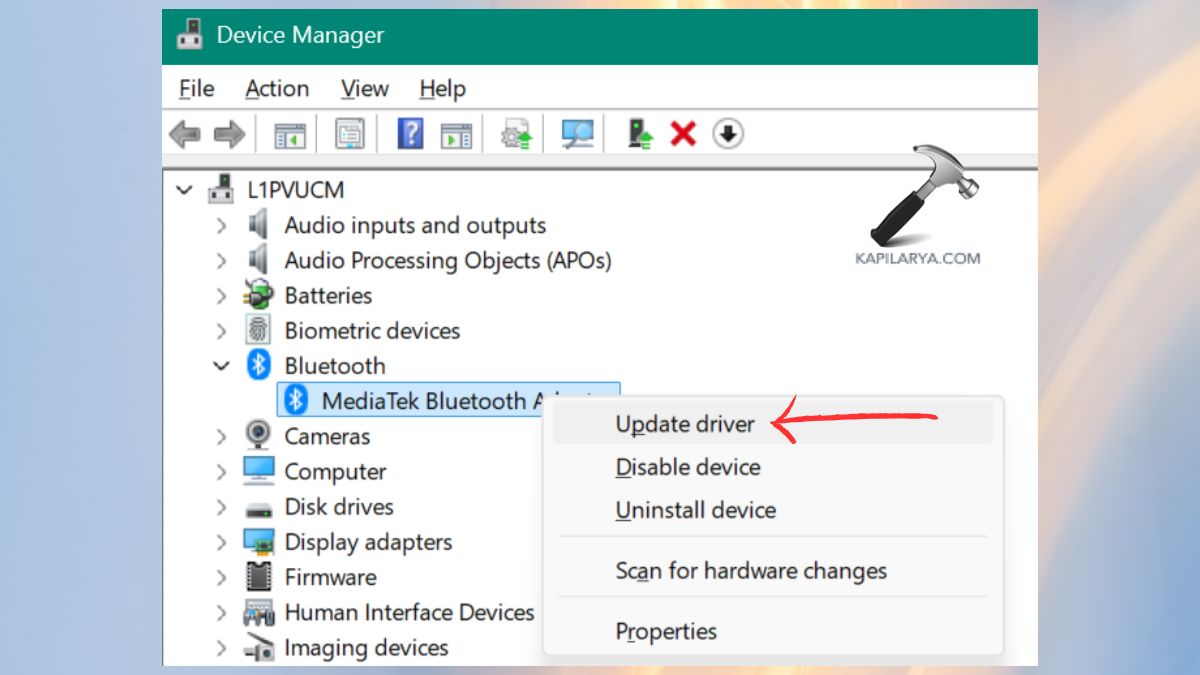
Automatically search drivers. Windows will automatically update itself in case it detects a new update.
Way 3: Use the Automated Bluetooth Troubleshooter
Windows 11 has an automatic troubleshooter that is specifically there to resolve Bluetooth problems.
1. Open Settings. Click on System > Troubleshoot > Other troubleshooters.
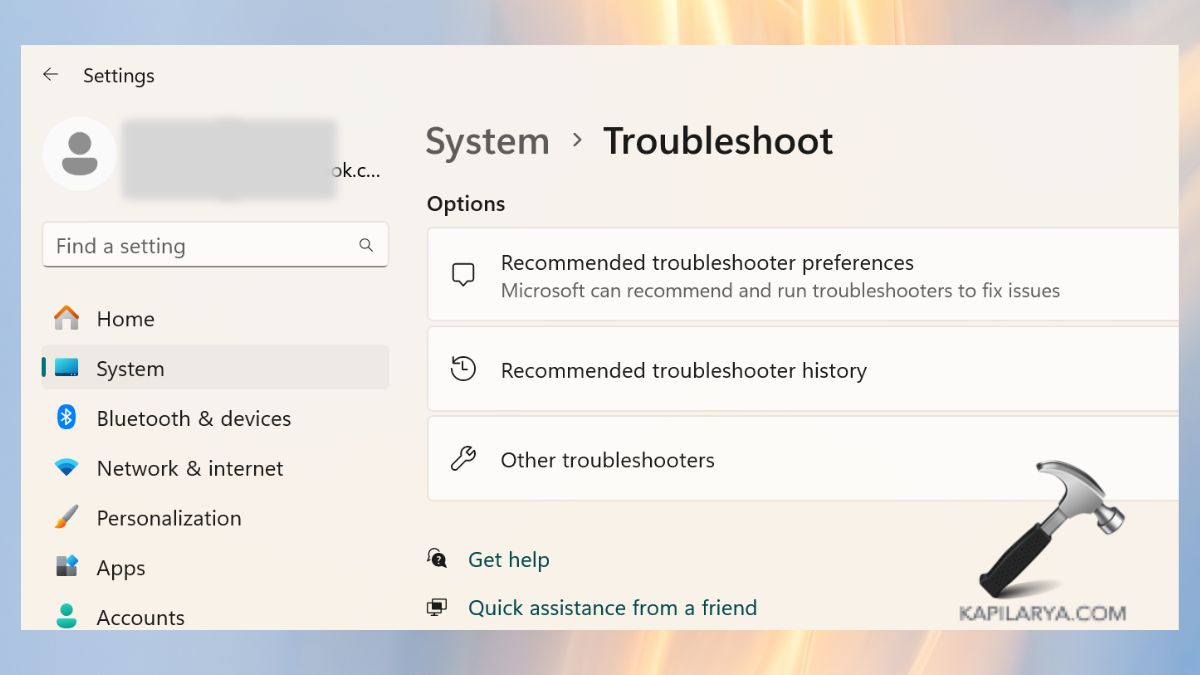
2. Locate Bluetooth and run.
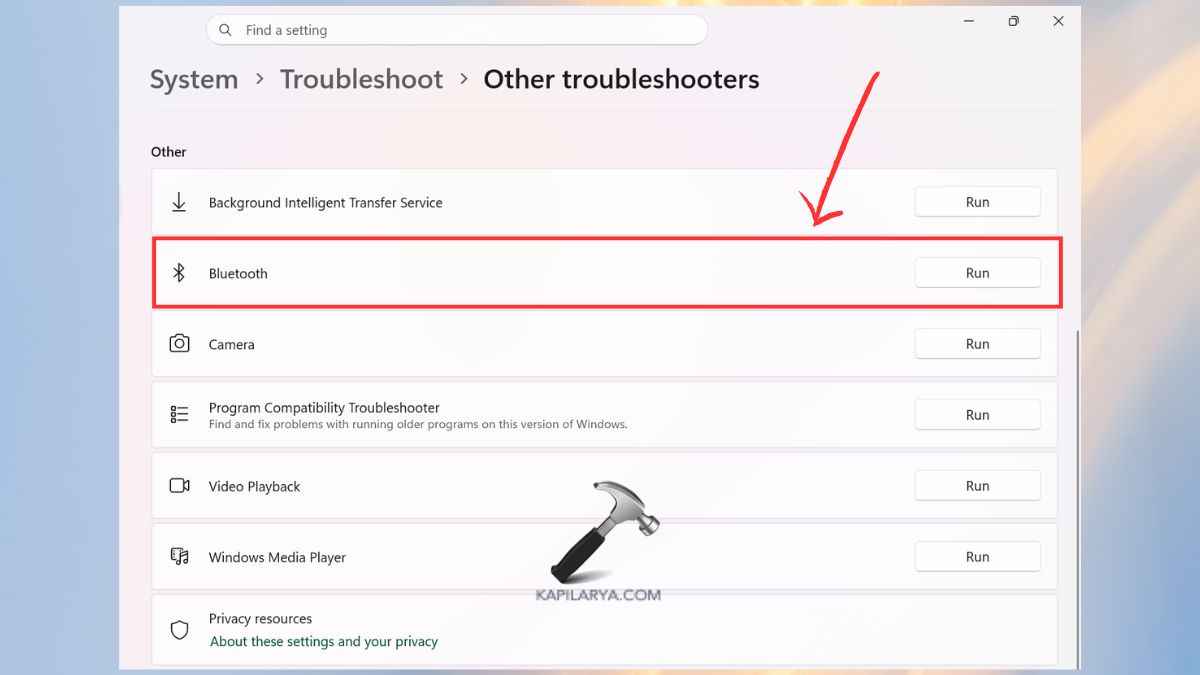
Wait until the scan is finished and implement the recommended fixes. This utility frequently fixes missing drivers, configuration mistakes, and inoperative services on the fly.
Way 4: Reinstall Your Bluetooth Driver
In case the Bluetooth driver is corrupt, then the best option is to reinstall it.
1. Right-click Start > Device Manager.
2. Expand Bluetooth. Right-click on your Bluetooth device > select Uninstall device. Click Uninstall again.
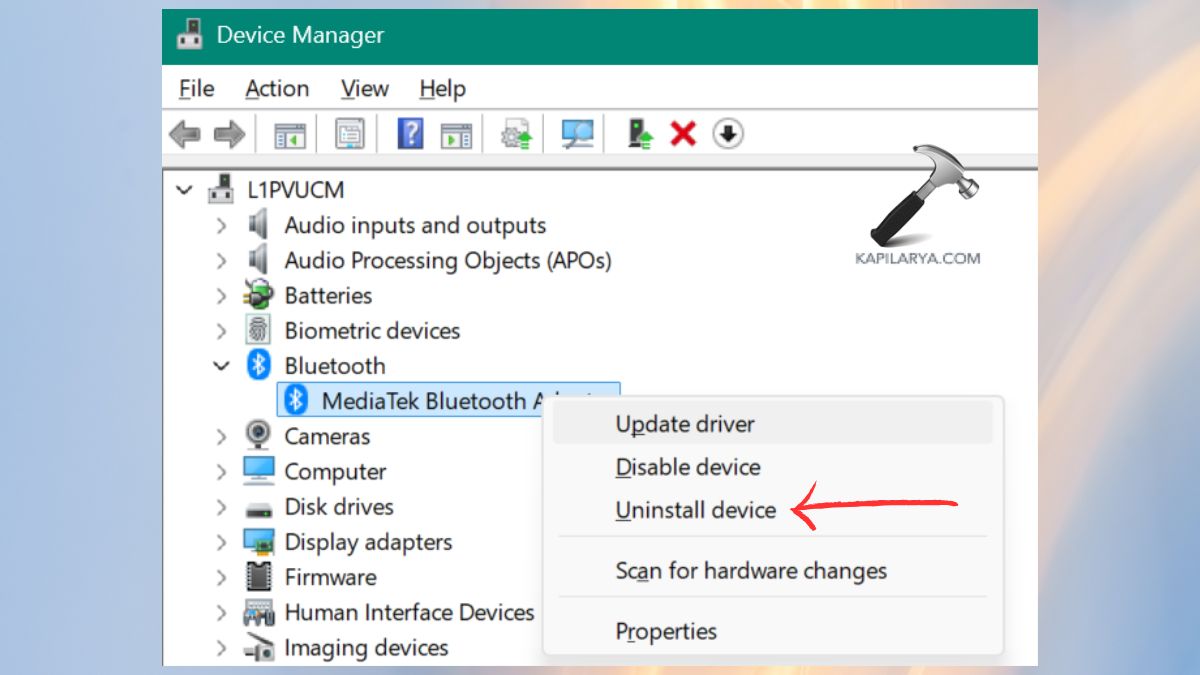
Restart the PC. The driver will be reinstalled automatically after rebooting Windows 11. Otherwise, reinstall the driver manually with Windows Update or your manufacturer.
Way 5: Check the Physical Hardware
When your Bluetooth device is broken or loose, it will not be recognized by any software.
Do these checks:-
1. Make sure that Airplane Mode is OFF.
2. Make sure your wireless card (Wi-Fi + Bluetooth combo module) is working.
3. The internal Bluetooth card can be loose in case your PC has fallen recently or been repaired.
4. Try connecting a USB Bluetooth device to check if the problem is internal. In case Bluetooth is compatible with a USB device, then your internal hardware might be defective.
Way 6: Use a Bluetooth 5.0+ USB Adapter
When all fails, and you still cannot find your Bluetooth driver, then your laptop/PC may be having hardware limitations or a severely corrupted Bluetooth chip.
This is the case with a Bluetooth 5.0 or 5.3 USB adapter, which is the simplest solution.
- Plug-and-play.
- No driver required.
- Quick and more reliable than older Bluetooth cards.
- Supports headphones, speakers, controllers, and more.
Hence, all you need to do is to plug it into your USB port, and Windows 11 will recognize it immediately.
Frequently Asked Questions (FAQs)
Why is my Bluetooth greyed out on Windows 11?
If your Bluetooth button is not clickable or faded, you can fix it here: Fix Bluetooth is greyed out on Windows 11/10.
Why is my Bluetooth driver missing on Windows 11?
The driver can vanish because of corrupt system files, old drivers, disabled services or bugs in Windows Update.
Why is my Bluetooth option not showing in Device Manager?
This normally occurs when the Bluetooth service is OFF, the driver is corrupt, or the hardware is not recognized.
How do I manually install a Bluetooth driver in Windows 11?
For that, download the driver from the website of your PC manufacturer and install it manually by following the steps in this article.
Is it safe to use a USB Bluetooth adapter?
Yes, Bluetooth 5.0/5.3 adapters are plug-and-play, safe, and can be more reliable than built-in Bluetooth modules.
That’s it!