Bluetooth headphones and speakers make listening easier without messy wires. But sometimes Windows 11 connects to the device, and no sound still plays. This problem is common after driver updates, system changes, or incorrect audio settings. However, thankfully, you can fix Bluetooth audio when it’s not working on Windows 11 with a few simple methods.
Page Contents
Fix Bluetooth Audio Not Working On Windows 11
Fix 1: Enable The Bluetooth Adapter
If the Bluetooth adapter is disabled, wireless audio devices will not work properly. Turn on the adapter in Device Manager. Here is how to do it:
1. Press Win + X and open Device Manager.
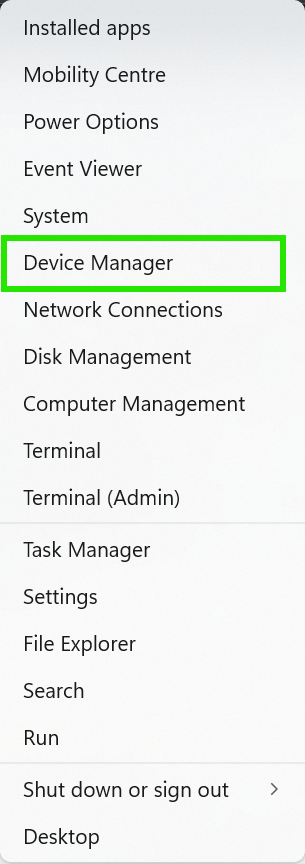
2. Expand the Bluetooth section.
3. Right-click your Bluetooth adapter.
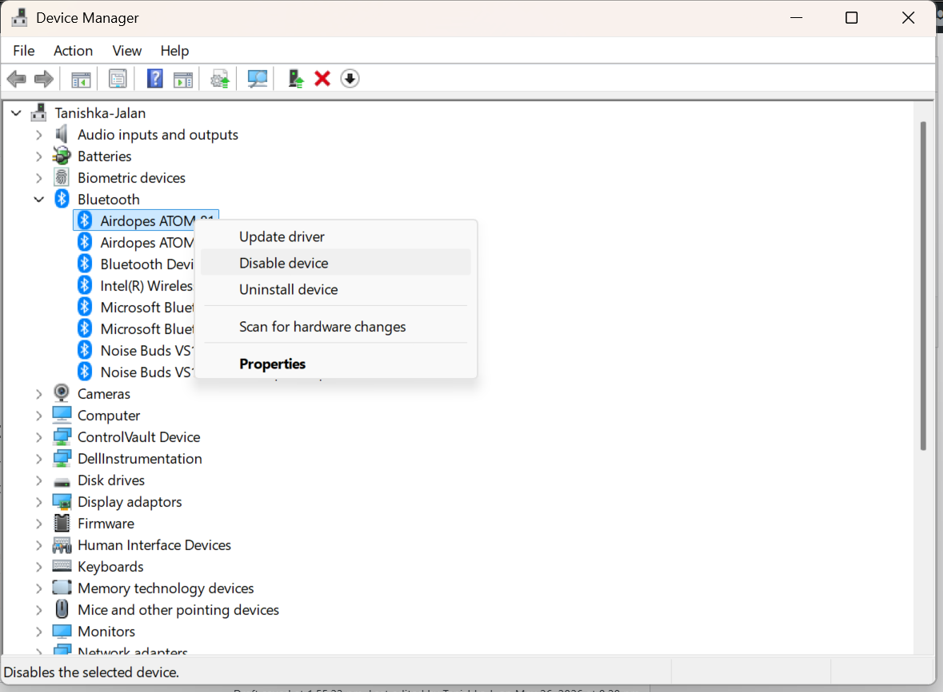
4. Select Enable device, if it is disabled.
Reconnect your headphones or speaker after enabling it.
Fix 2: Remove And Pair The Bluetooth Device Again
Sometimes the connection becomes corrupted. Removing the device and pairing it again can refresh the connection. Below are the steps to reconnect your device:
1. Open Settings > Bluetooth & devices.
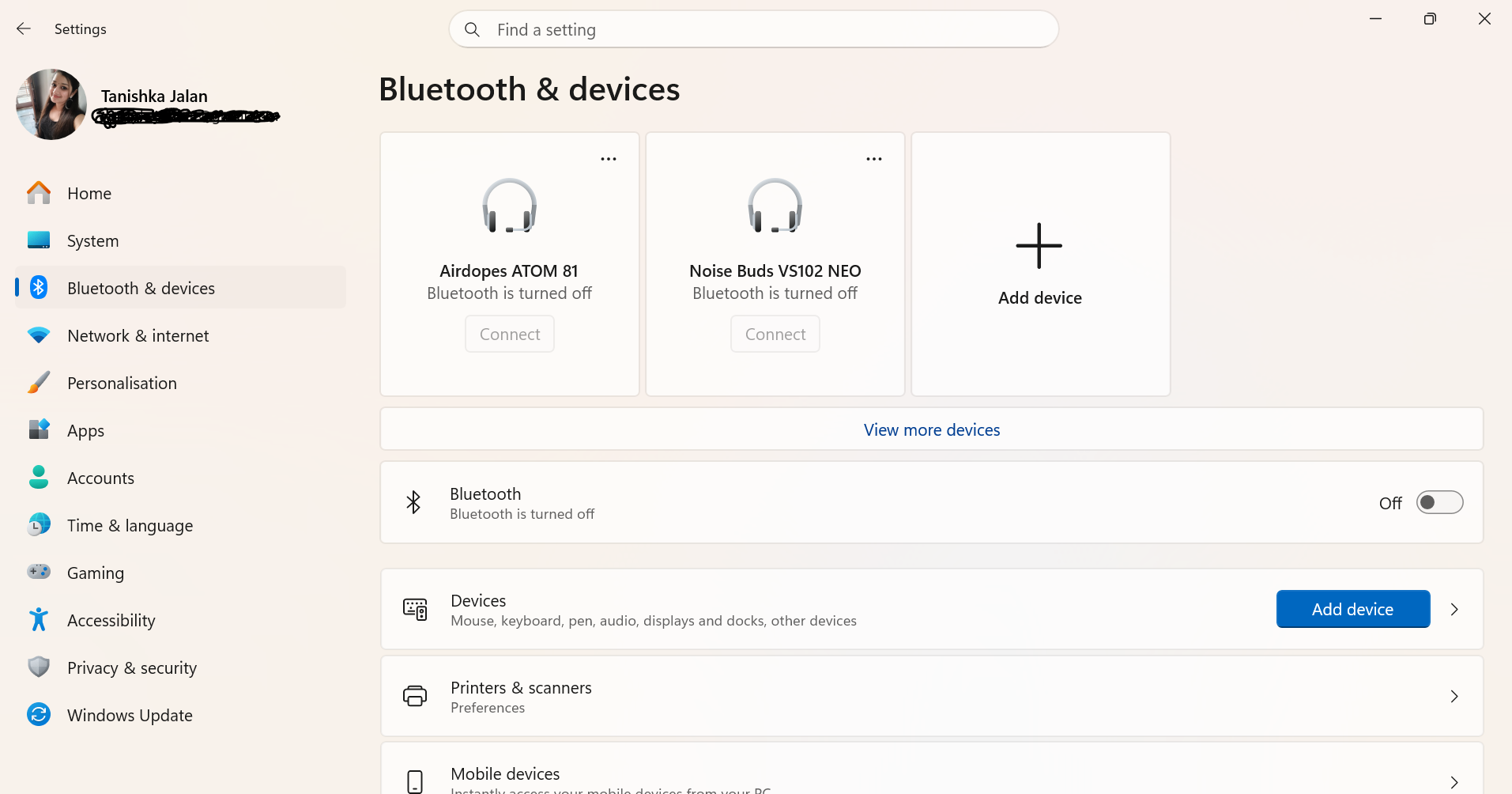
2. Find your Bluetooth audio device.
3. Click the three-dot menu and select Remove device.
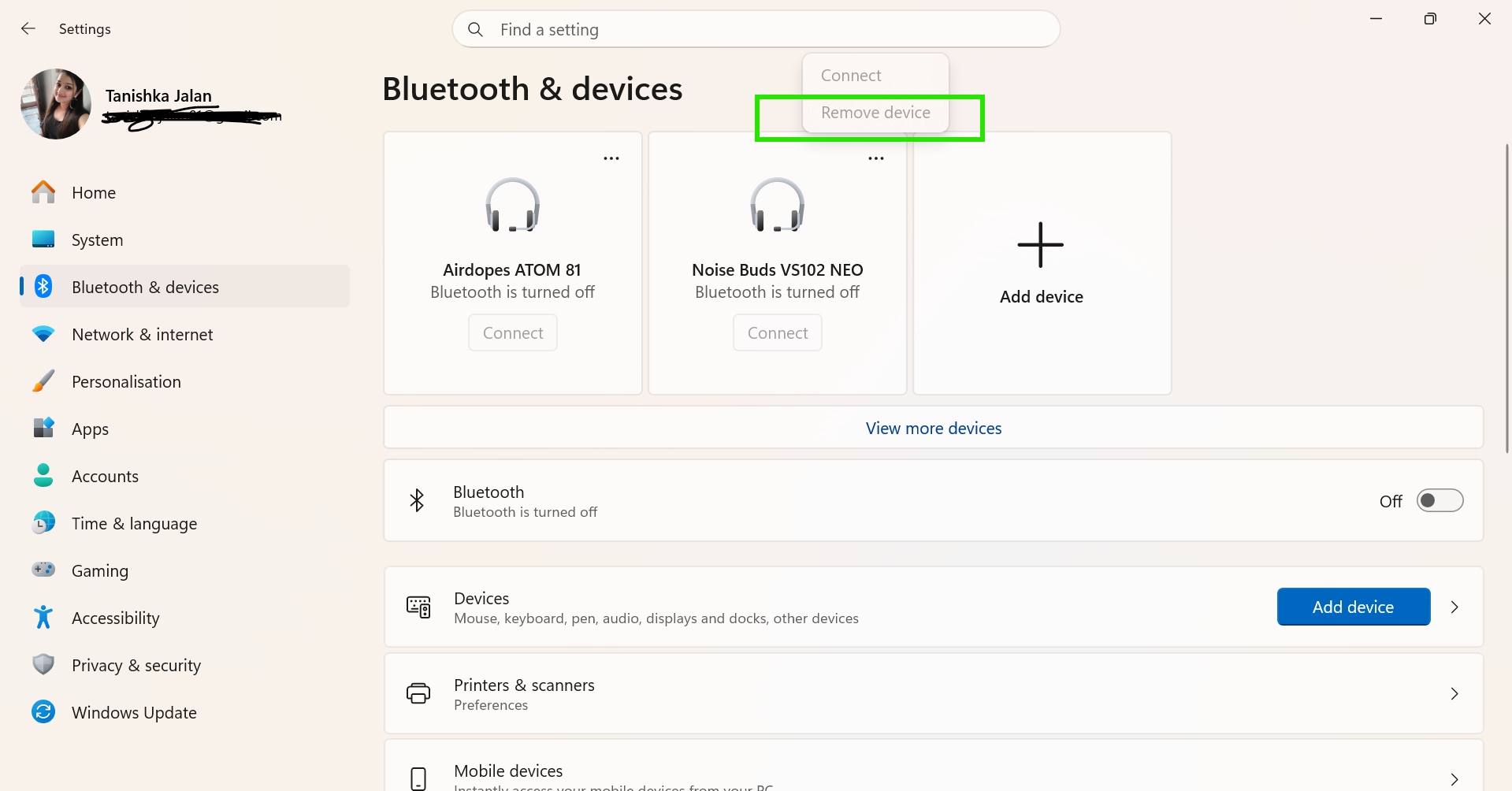
4. Restart Bluetooth on your PC.
5. Click Add device and pair the Bluetooth device again.
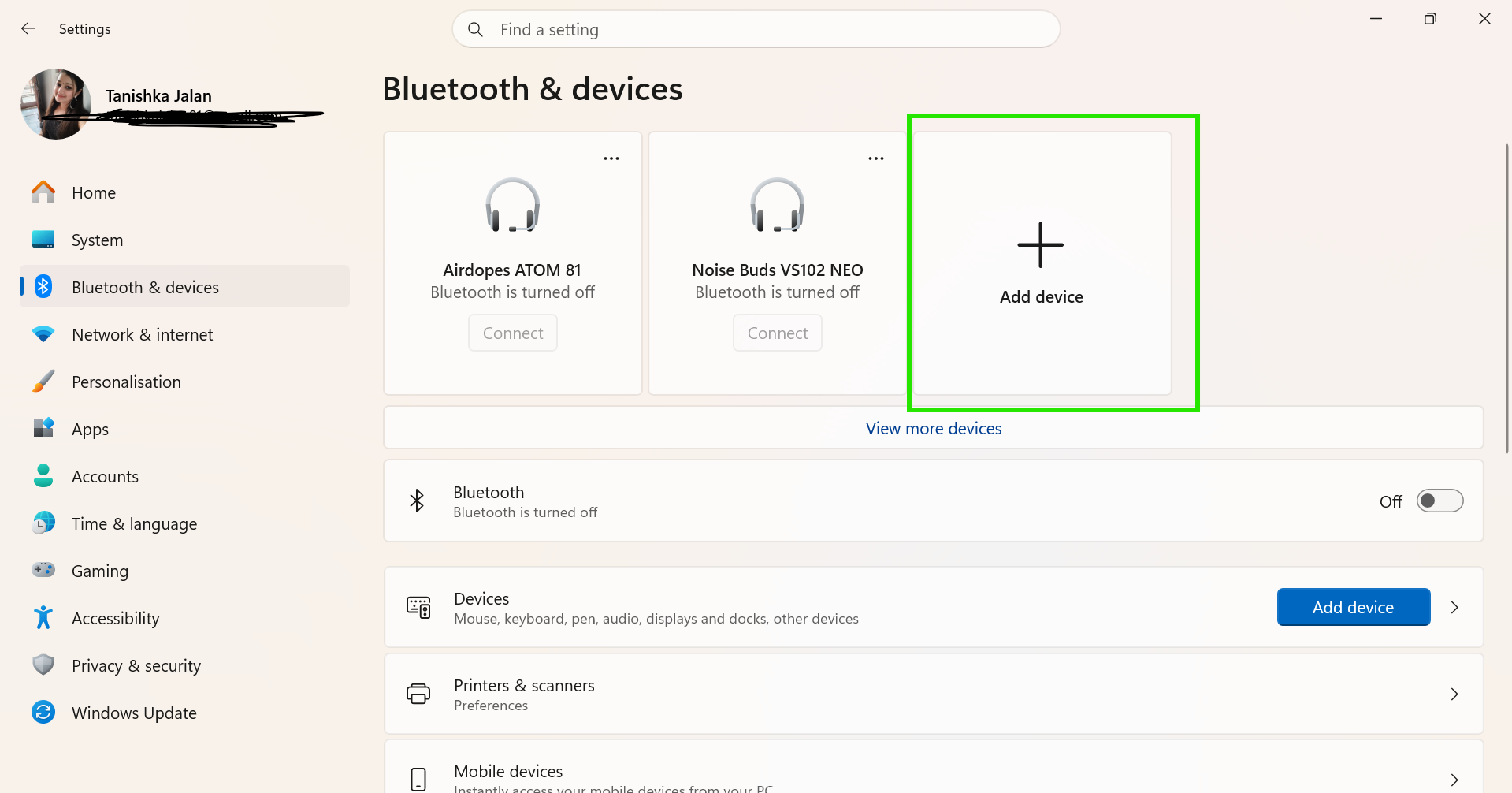
After reconnecting, check if the audio starts working.
Fix 3: Enable Audio Services For The Device
Your Bluetooth device needs audio services enabled to play sound. So, turn on Audio Sink by:
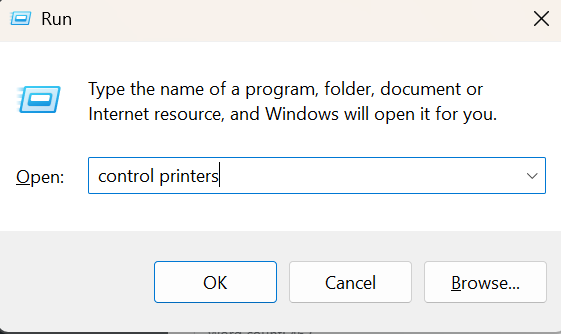
1. Press Win + R to type control printers and press Enter to open the Devices and Printers window.
3. Locate your connected Bluetooth headphones or speaker in use.
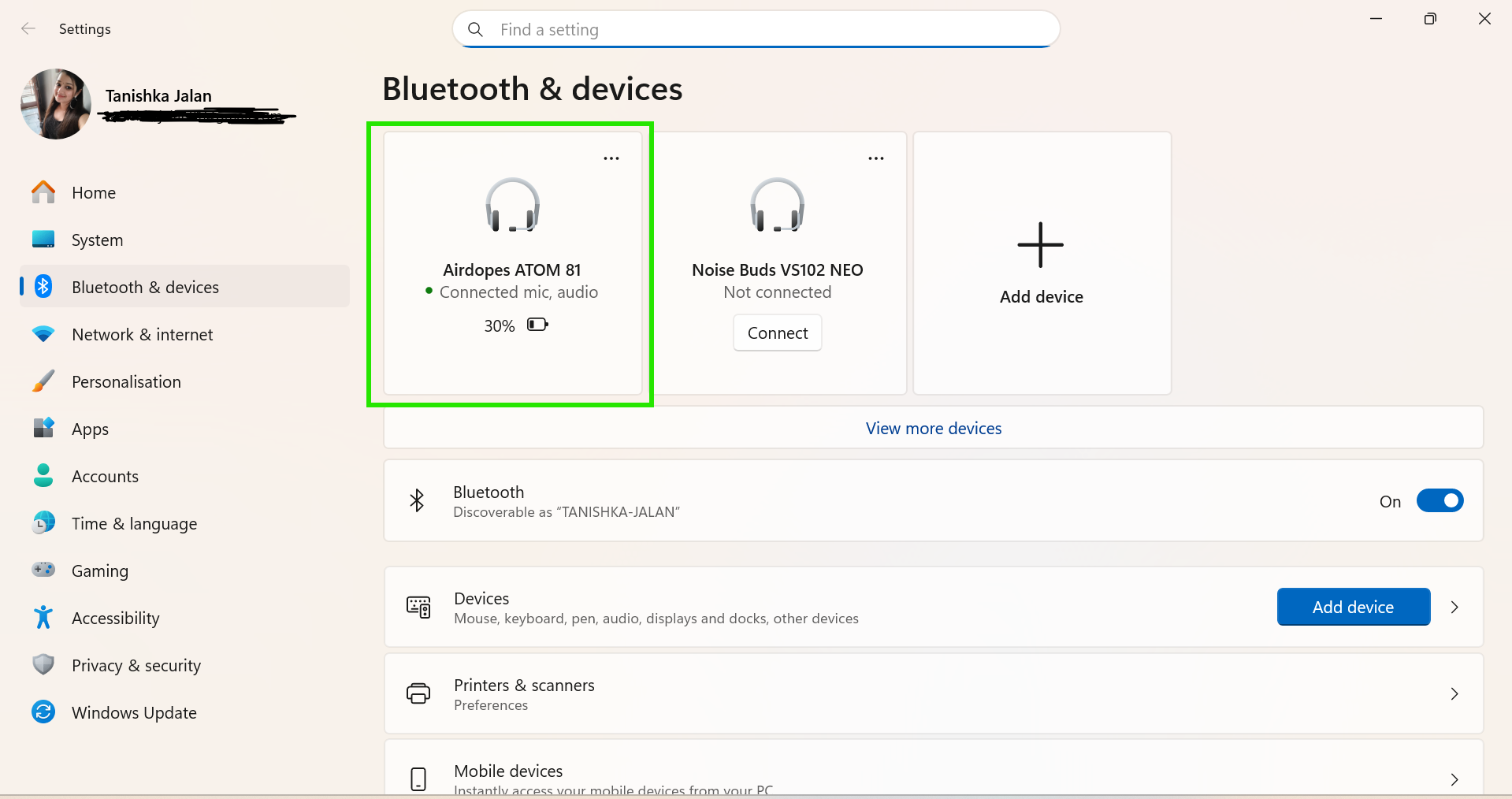
4. Click on the Bluetooth device and scroll down to search for more device and printer settings.
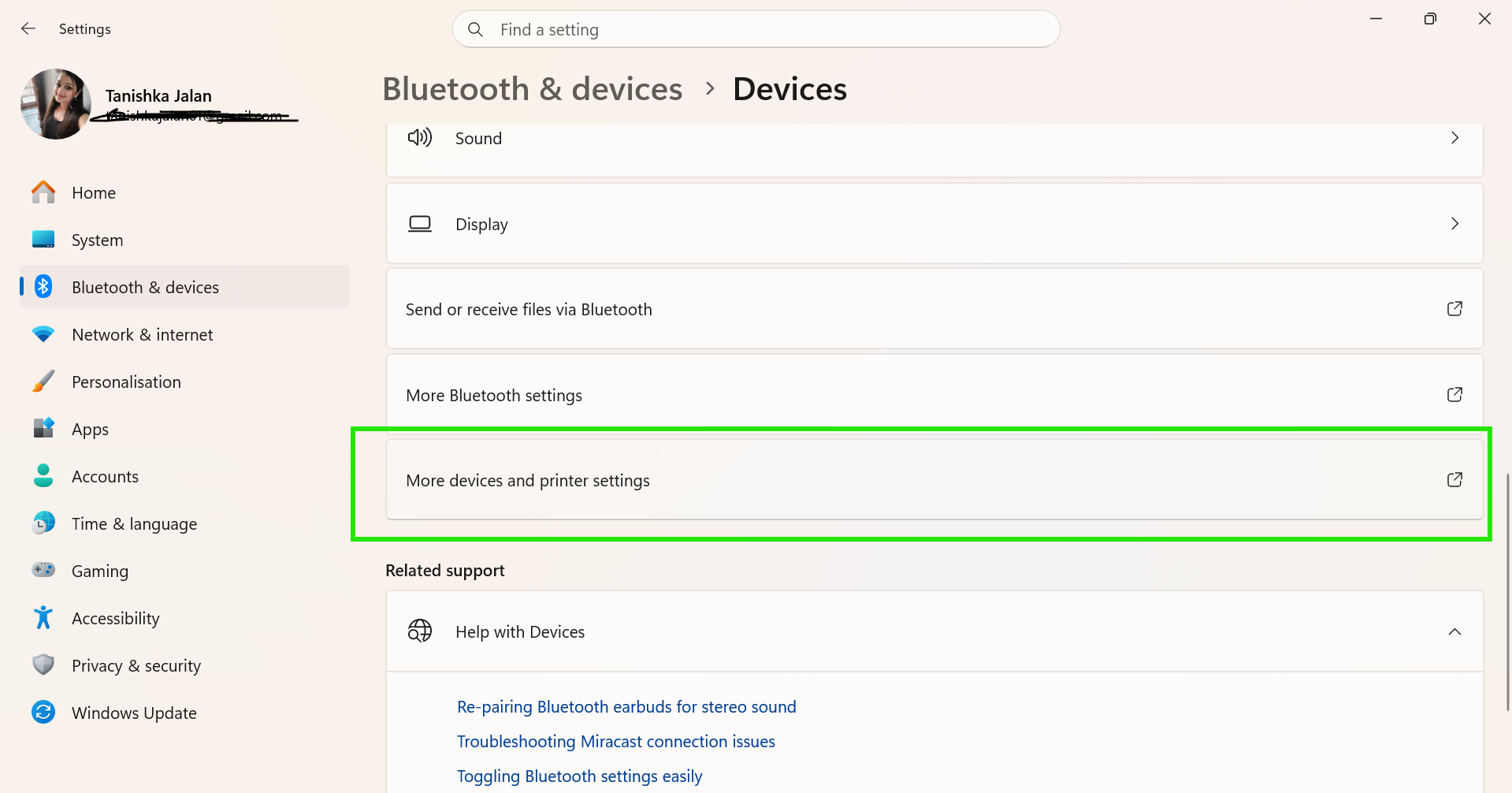
5. Now click again on your device in use.
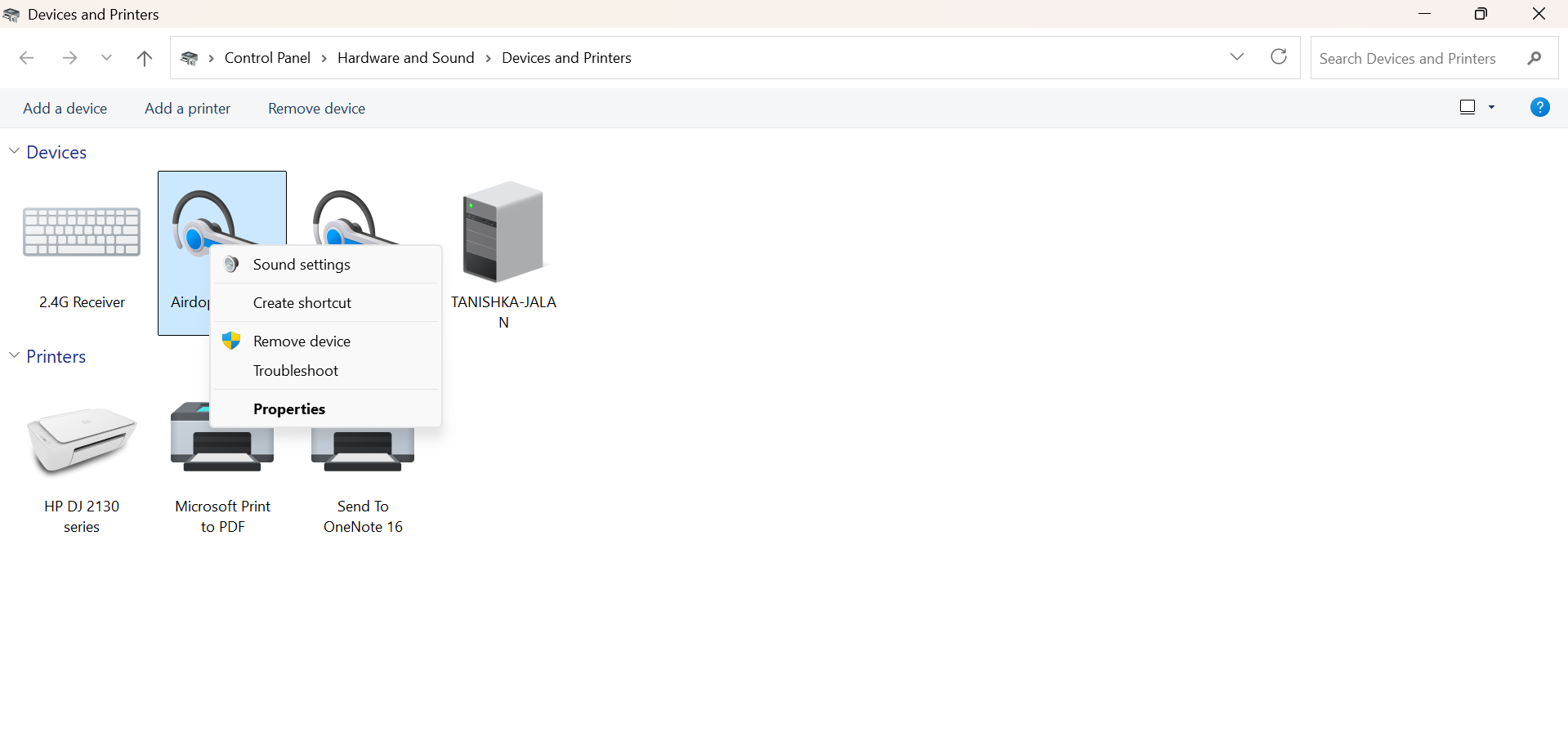
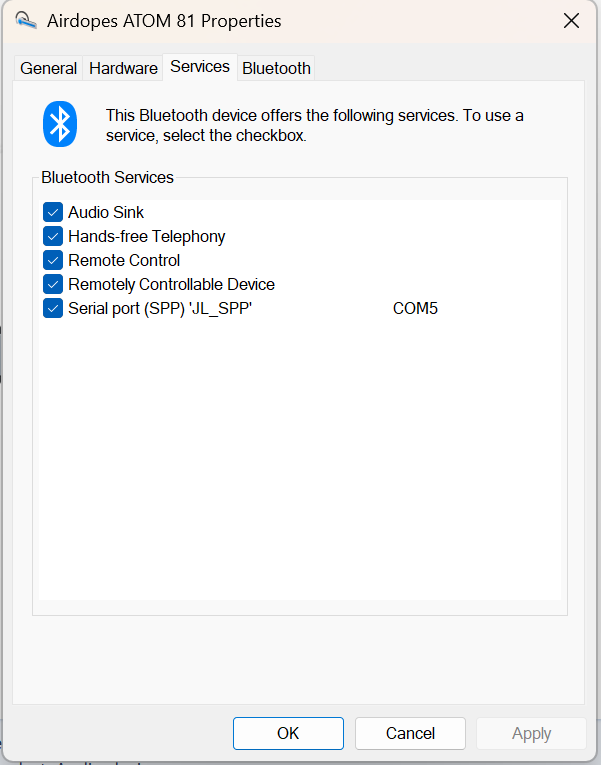
6. Open the Services tab.
7. Make sure the checkbox next to Audio Sink (or Listen to Music) is enabled.
8. Click Apply and then click OK to save the changes.
Fix 4: Restart Bluetooth Services
Bluetooth services manage wireless connections in Windows 11. If these services stop running, audio issues may appear. Here is how to restart the required services to fix when Bluetooth audio is not working:
1. Press Win + R, type services.msc, and press Enter.
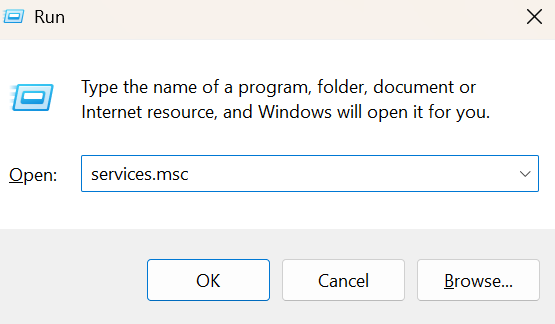
2. Find services related to Bluetooth.
3. Right-click each one and select Restart or Start.
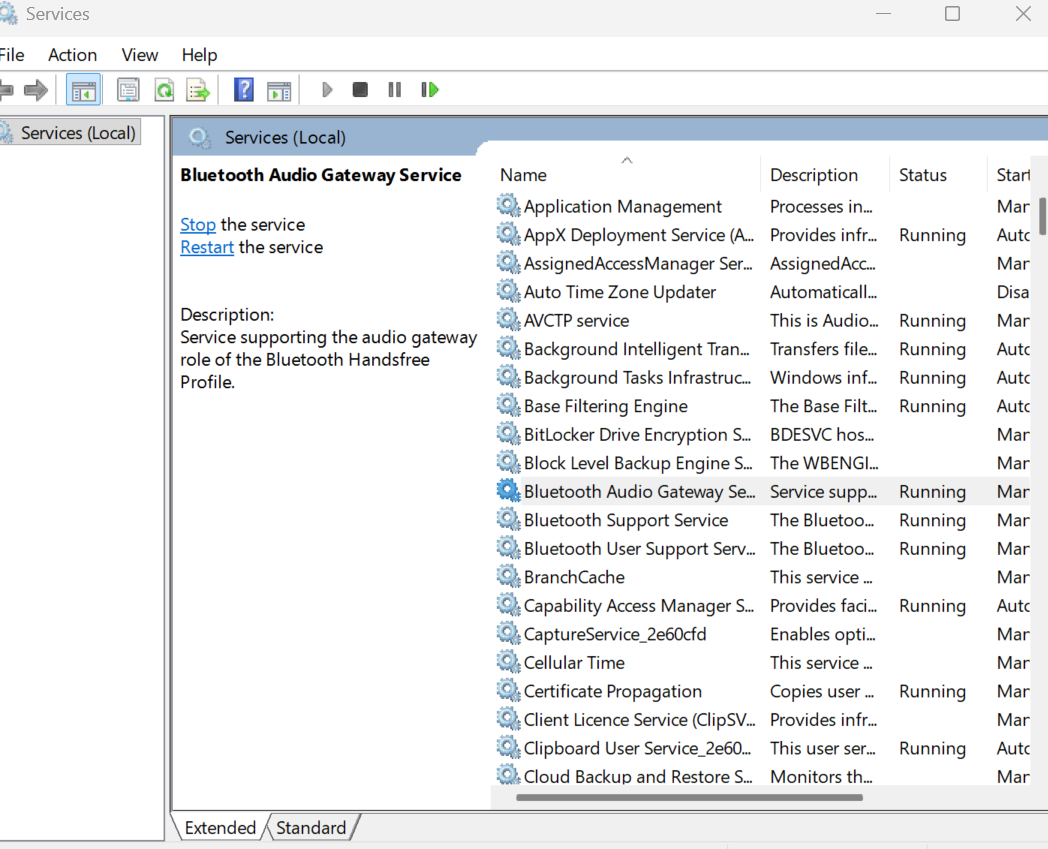
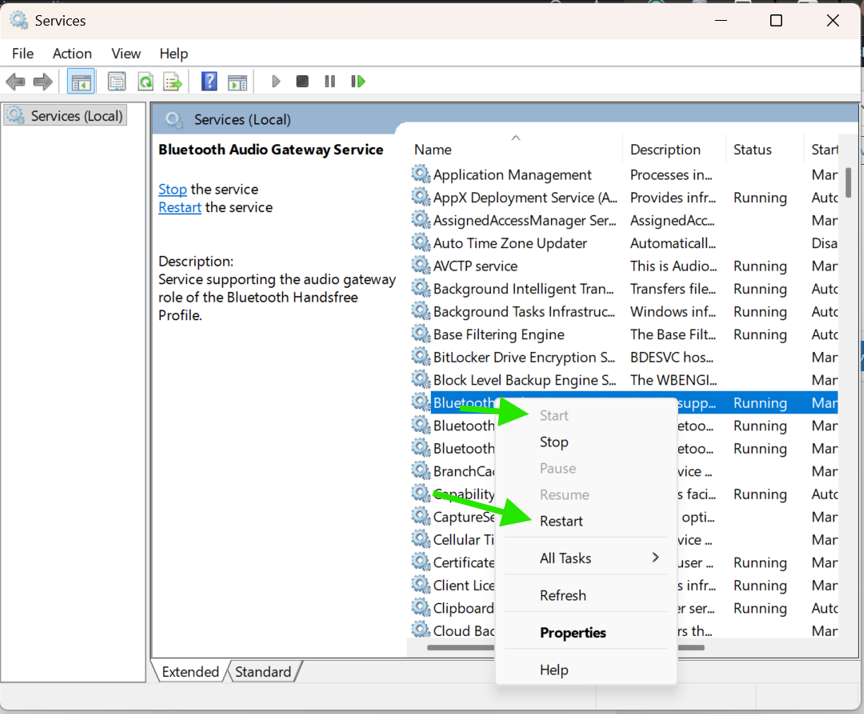
This instantly refreshes the Bluetooth background processes.
Fix 5: Update Bluetooth Drivers
Old or damaged drivers often cause sound problems. Install the latest driver with these steps:
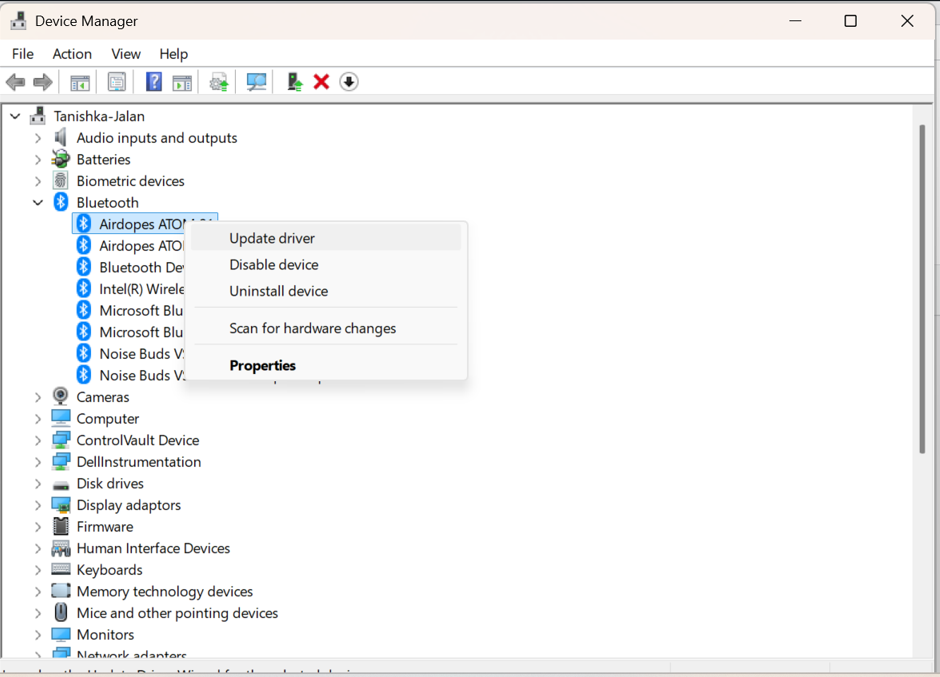
1. Opening Device Manager.
2. Expand the Bluetooth category.
3. Right-click the Bluetooth adapter.
4. Select Update driver.
5. Choose Search automatically for drivers.
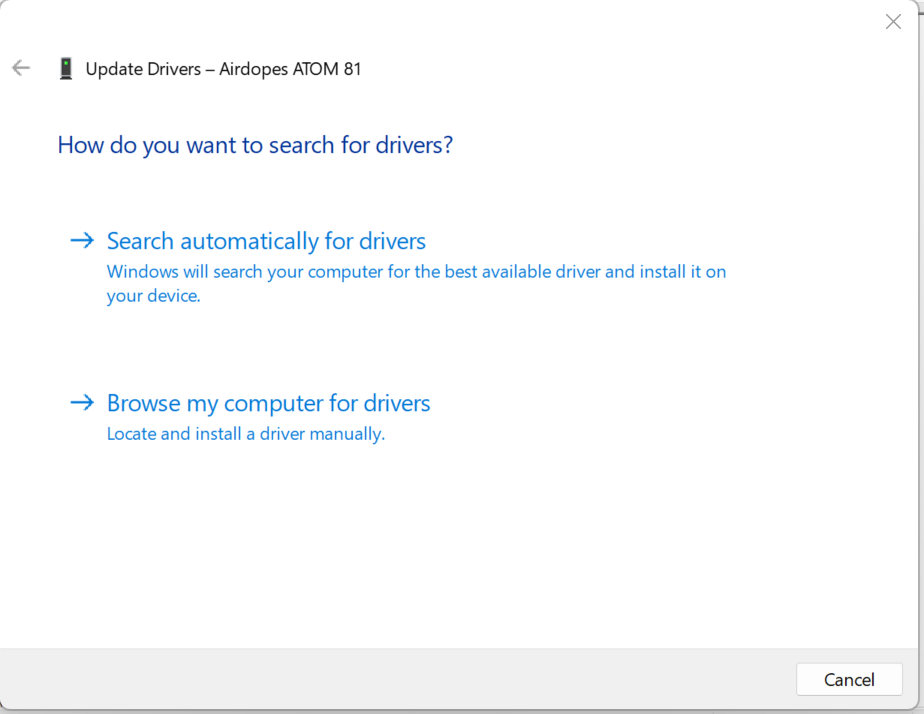
Windows will automatically search for and install updated drivers.
Fix 6: Set The Bluetooth Device As The Default Audio Output
Windows may still use laptop speakers instead of your Bluetooth device. So, change the default playback device:
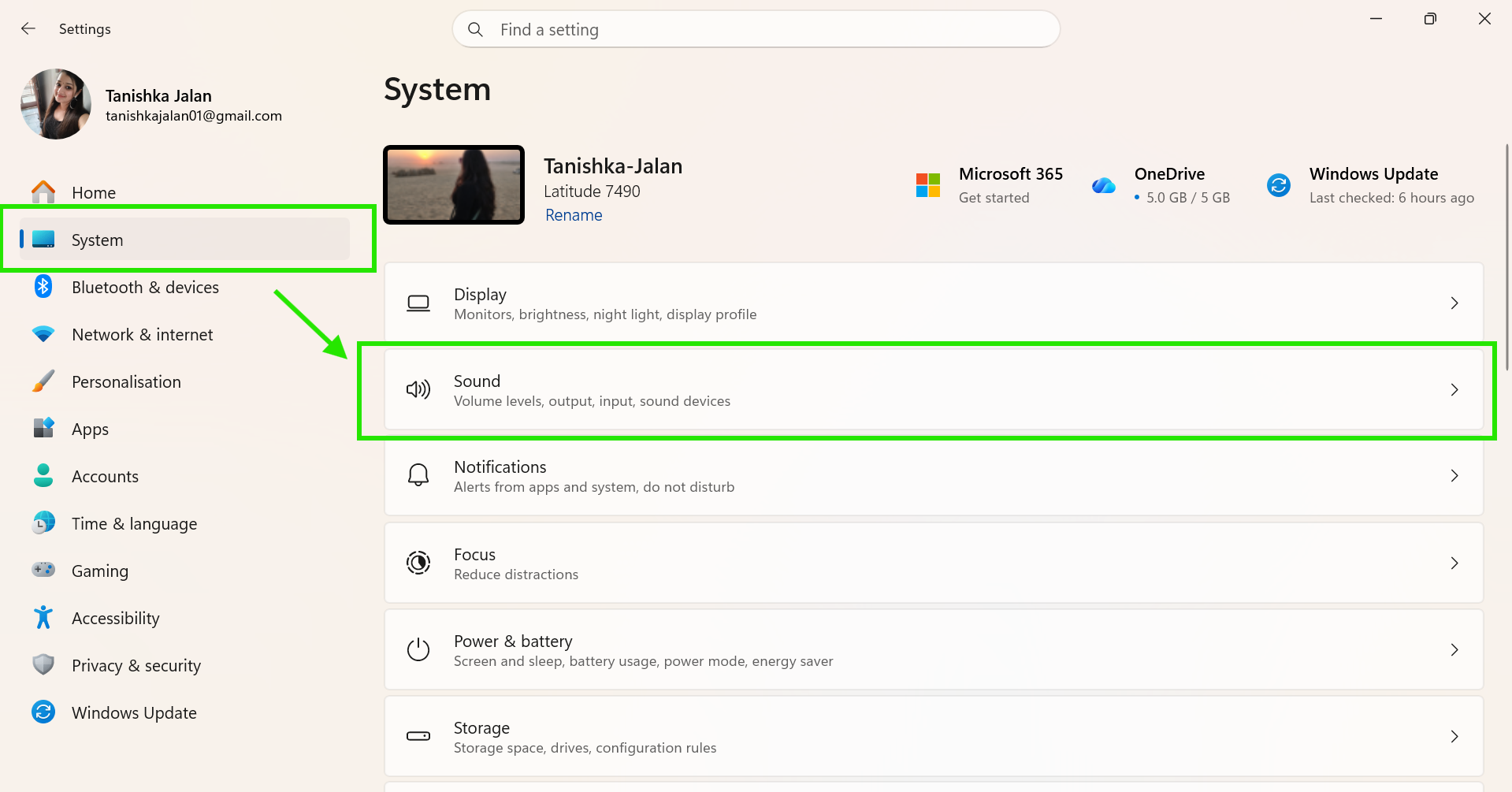
1. Open Settings > System > Sound.
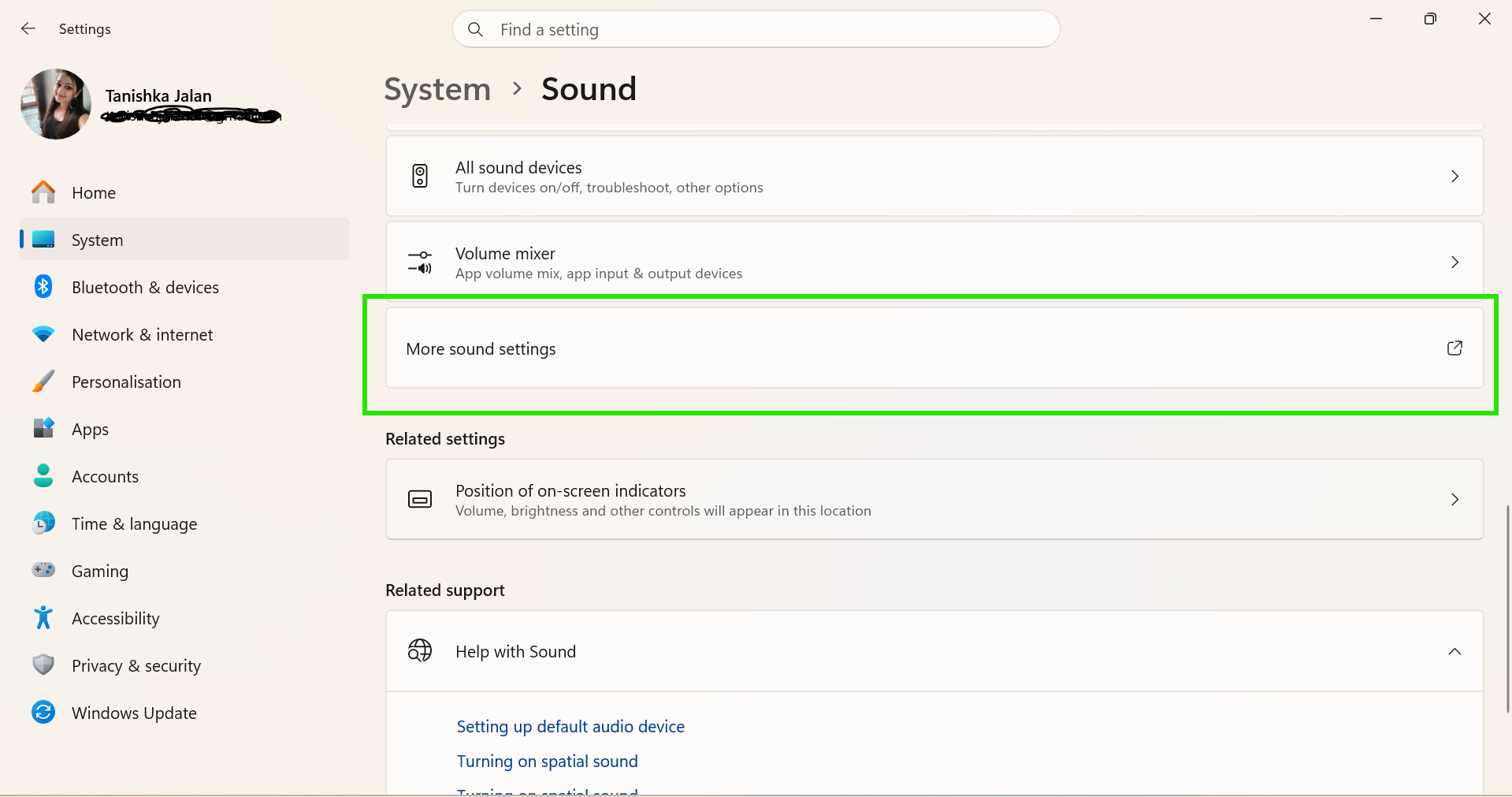
2. Click More sound settings.
3. Select your Bluetooth device.
4. Click Set Default.
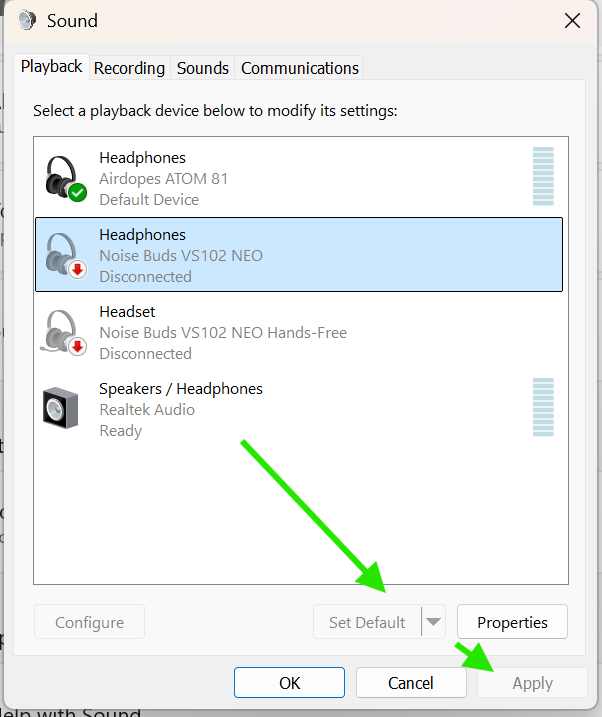
Now the audio should play through your Bluetooth headphones or speaker properly.
That’s it for now!