Bluetooth issues in Windows 11 can include devices not connecting, frequent disconnections, or Bluetooth not showing at all. These problems are usually caused by disabled settings, outdated drivers, interference, or system glitches. In this article we will be talking about these common issues, the root cause behind them and a proposed solution to resolve the problem.
Page Contents
Fix Bluetooth Problems in Windows 11- 8 Solutions
Below are 5 effective solutions adapted for all devices to fix Bluetooth problems on any Windows 11 PC.
Fix 1: Reinstall Bluetooth Drivers
Corrupted drivers are a major cause of Bluetooth issues.
1. Press Win + X and select Device Manager.
2. Expand Bluetooth.
3. Right-click your Bluetooth adapter and choose Uninstall device.
4. Restart your PC.
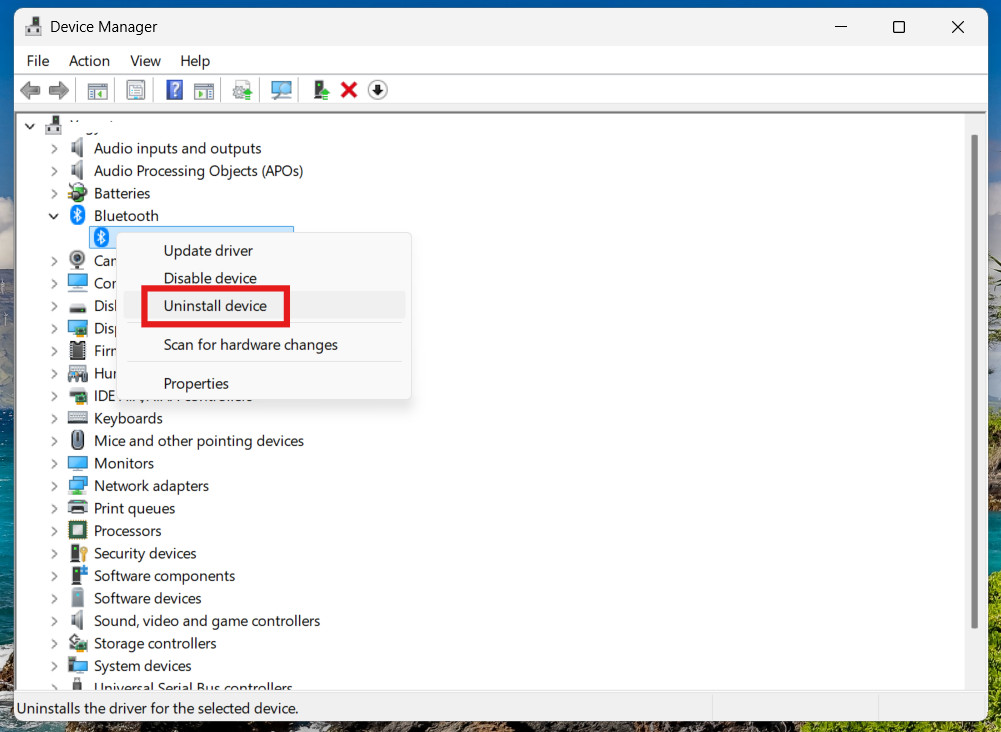
Windows will automatically reinstall the driver, or you can install the latest version from your device manufacturer.
Fix 2: Make Sure Bluetooth Is Enabled
Sometimes Bluetooth is simply turned off.
1. Open Settings. Go to Bluetooth & devices.
2. Click Bluetooth to turn it ON.
3. Or go to Settings and then Bluetooth & devices. Toggle Bluetooth ON.
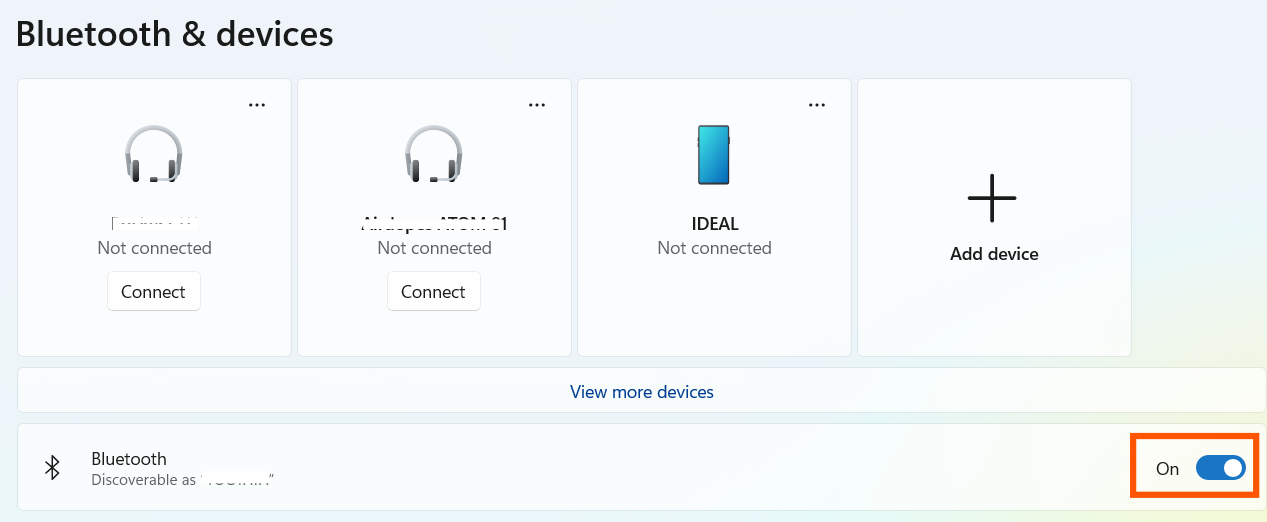
If Bluetooth is disabled, devices won’t appear or connect.
Fix 3: Run the Bluetooth Troubleshooter
Windows has a built-in tool to detect and fix common issues.
1. Open Settings and go to System. Click on Troubleshoot and choose Other troubleshooters.
2. Find Bluetooth and click Run.
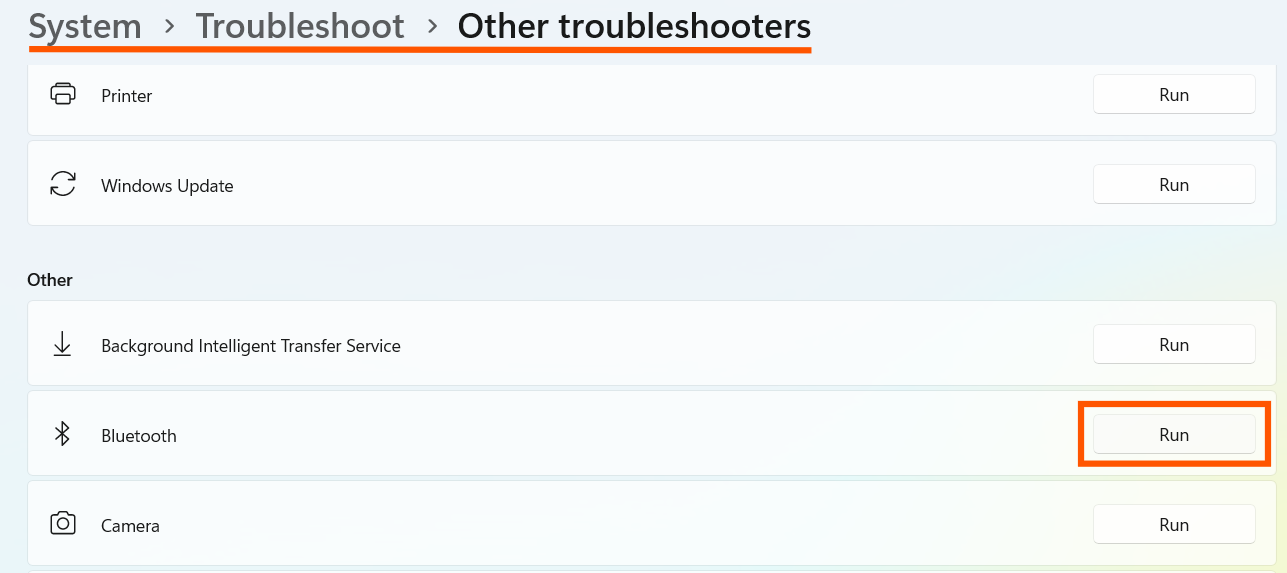
This tool automatically checks services, drivers, and configuration errors.
Fix 4: Check for Driver Updates
Outdated drivers can prevent proper connectivity.
1. Open Device Manager.
2. Right-click your Bluetooth device and click Update driver.
3. Select Search automatically for drivers.
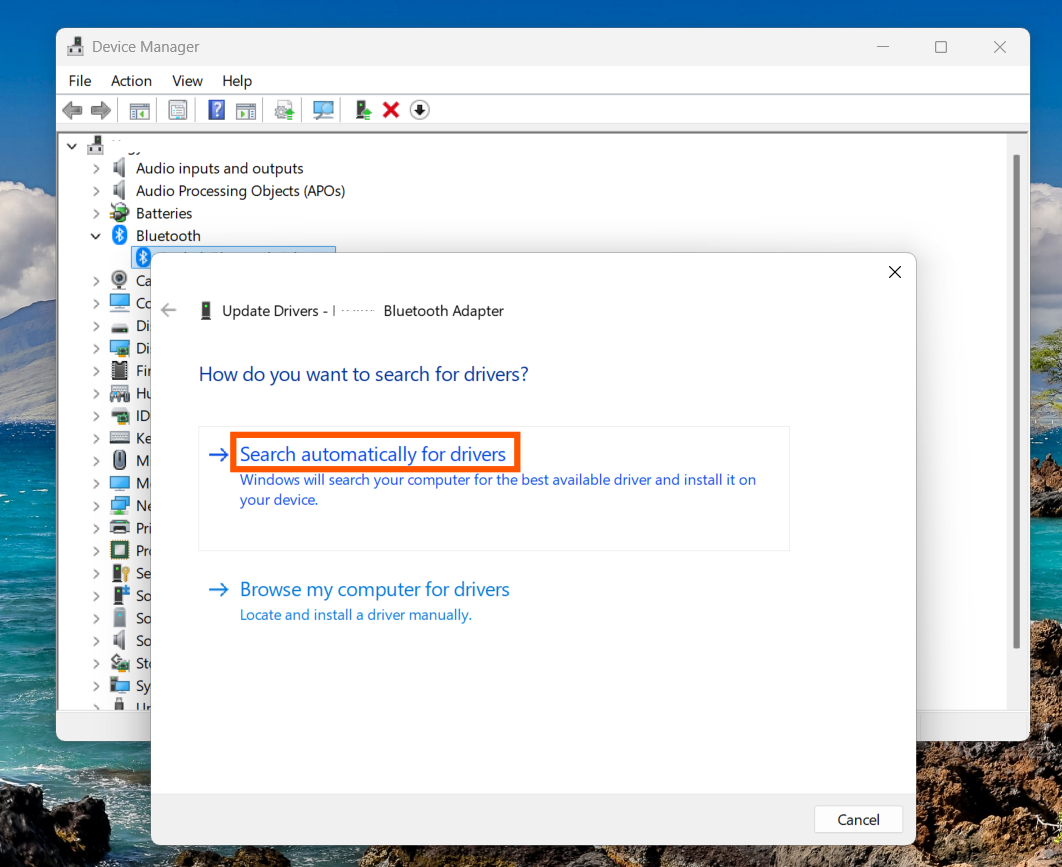
Keeping drivers updated ensures compatibility with Windows 11 and connected devices.
Fix 5: Reduce Interference & Check Device Distance
Bluetooth signals are sensitive to interference.
1. Keep your device close to the PC
2. Avoid walls, metal objects, or crowded wireless environments
3. Disconnect other nearby Bluetooth devices
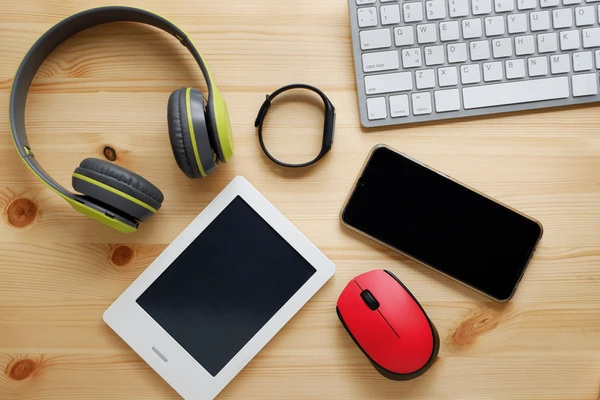
Poor signal strength or interference can cause pairing or connection failures.
Fix 6: Restart Bluetooth Services to fix Bluetooth problems in Windows 11
Sometimes Bluetooth issues happen because the background service stops or glitches.
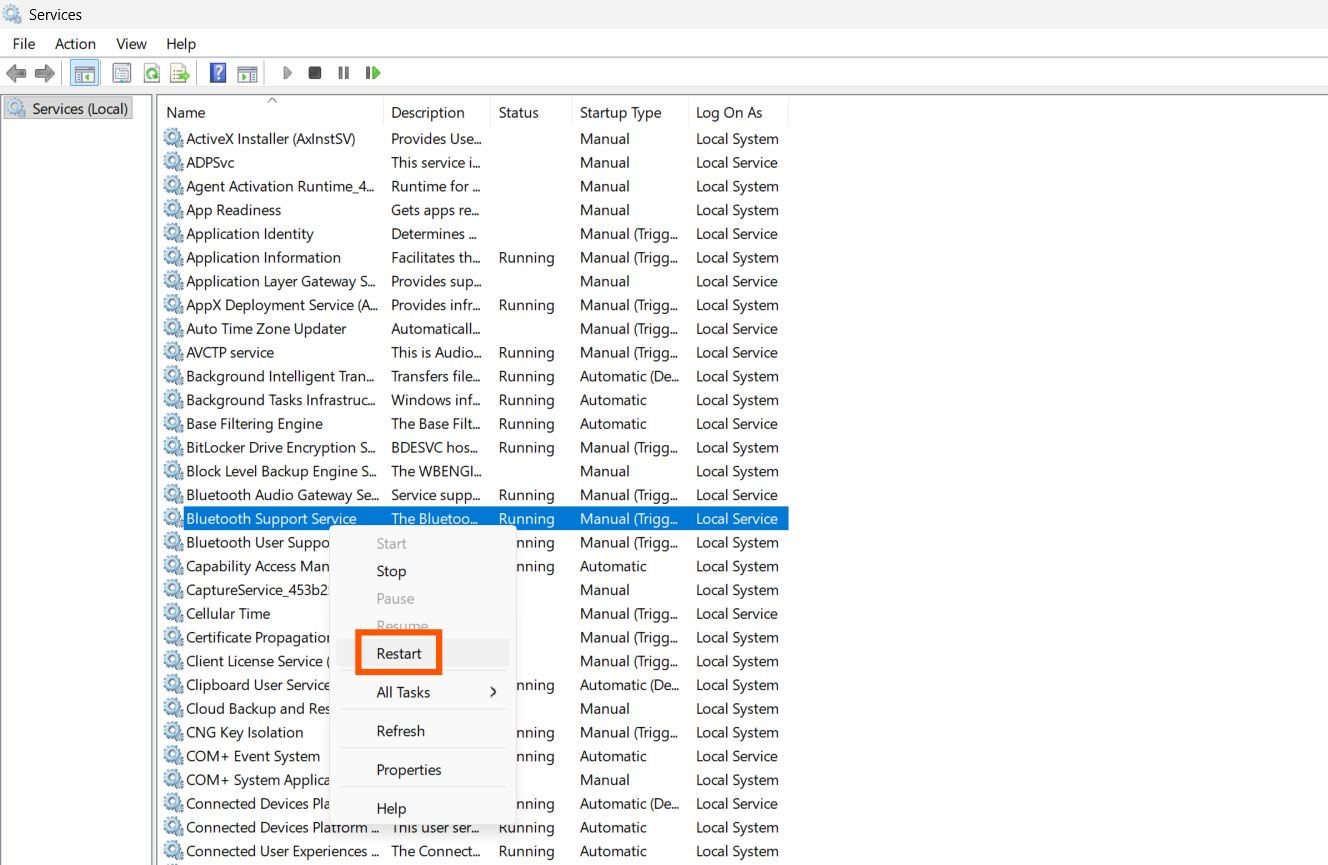
1. Press Win + R, type services.msc, and press Enter.
2. Find Bluetooth Support Service.
3. Right-click it and select Restart.
4. Double-click it and set Startup type to Automatic.
5. Click Apply and then OK.
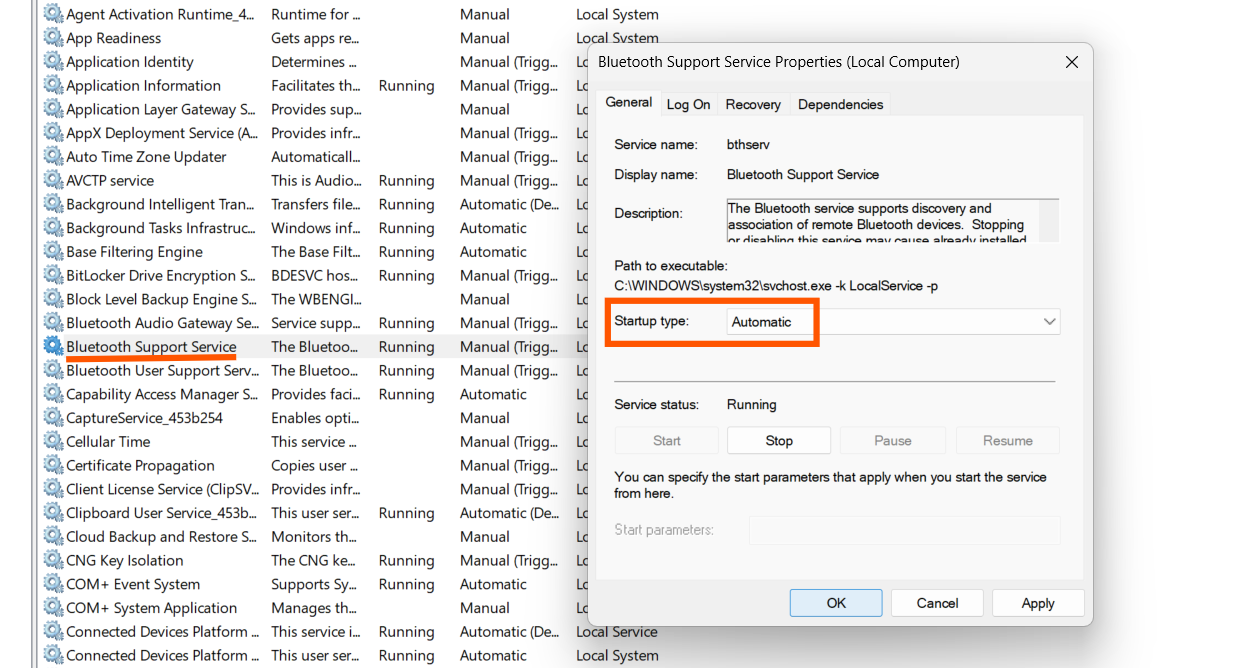
Restarting this service refreshes the Bluetooth stack and often restores connectivity.
Fix 7: Remove and Re-Pair the Device
If a device is paired but not working, the connection profile may be corrupted.
1. Go to Settings and then Bluetooth & devices and choose Devices.
2. Click the downward arrow next to the device you are trying to connect.
3. Select Remove device.
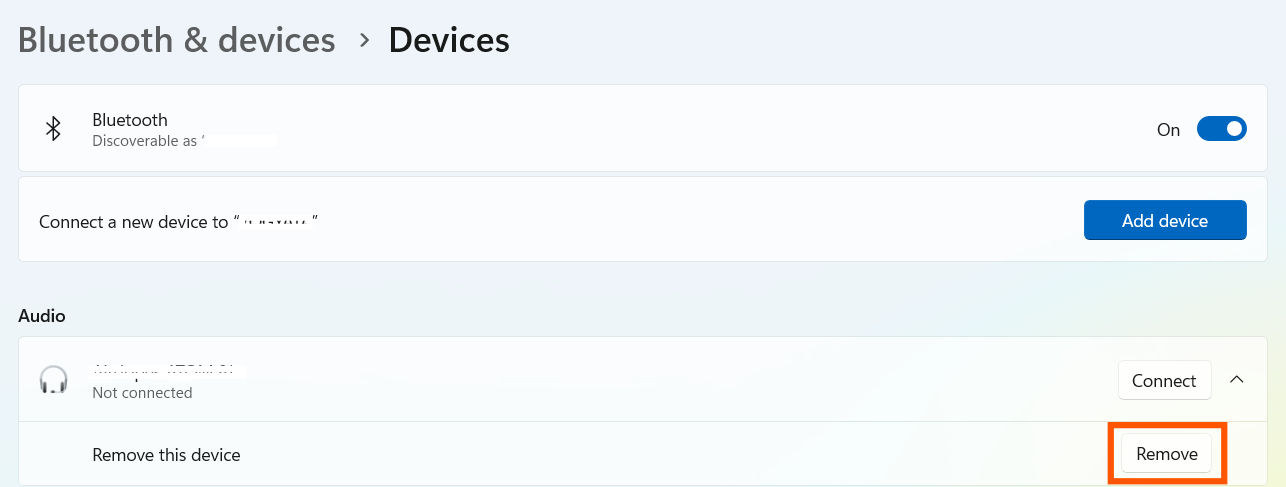
4. Click Add device and then choose Bluetooth and pair again.
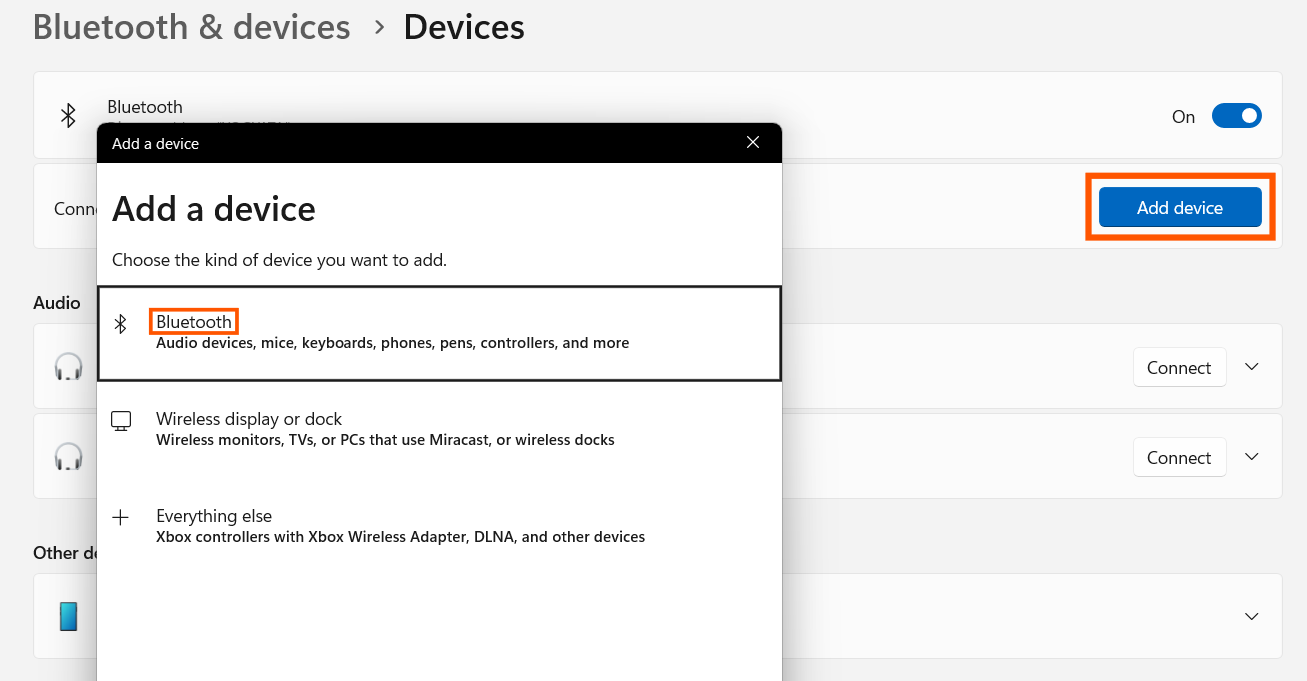
Re-pairing creates a fresh connection and resolves pairing conflicts.
Fix 8: Turn Off Power Saving for Bluetooth
Windows may turn off Bluetooth to save power, causing random disconnects.
1. Open Device Manager.
2. Expand Bluetooth.
3. Right-click your adapter and go to Properties.
4. Go to the Power Management tab.
5. Uncheck Allow the computer to turn off this device to save power.
6. Click OK.
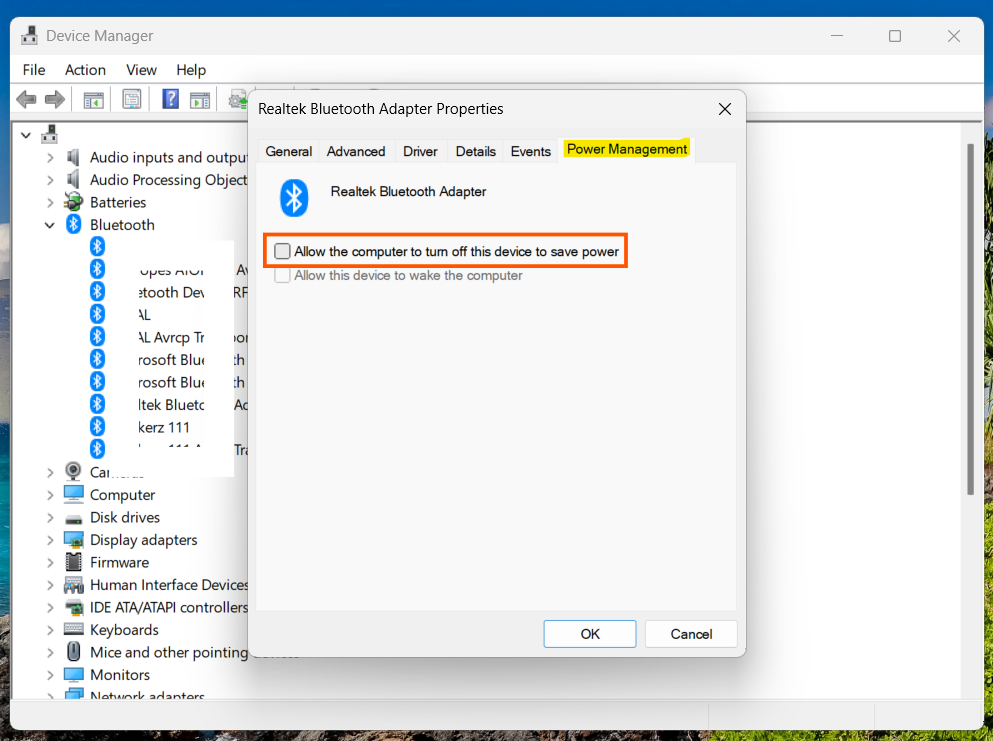
This prevents Windows from disabling Bluetooth in the background.
Summary
Driver problems, disabled settings, or signal interference are the most common causes of Bluetooth issues in Windows 11. Reinstalling drivers, enabling Bluetooth, running the troubleshooter, updating drivers, and ensuring proper device placement usually resolve the problem quickly. If issues persist, check hardware compatibility or test the device on another system.