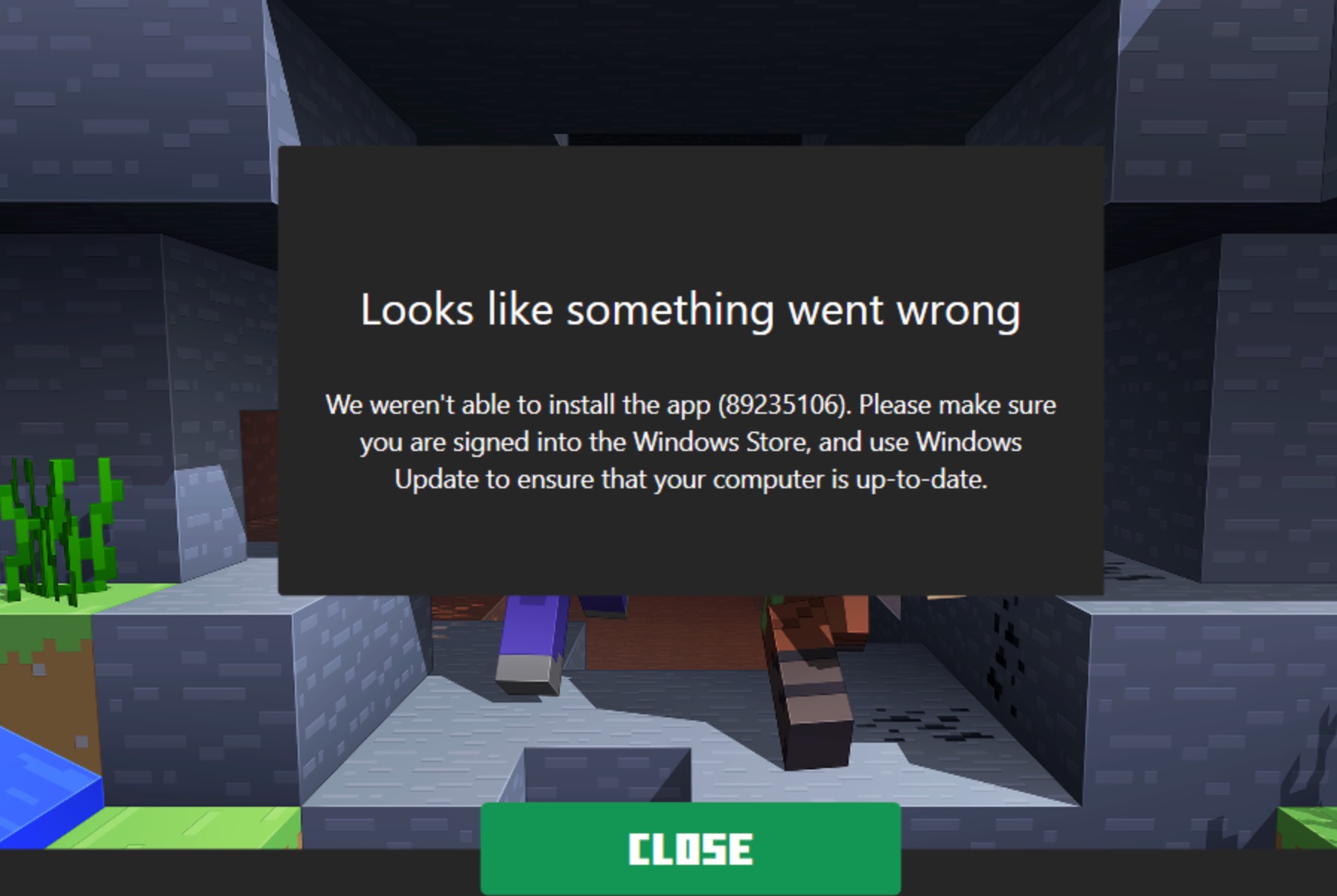
If you see the error: We weren’t able to install the app while installing Minecraft, it’s usually due to Microsoft Store issues, corrupted cache, or Xbox service problems. Since Minecraft on Windows 11 is tied to Microsoft services, even small glitches in Store or Xbox components can block installation.
Page Contents
Minecraft Fix: We Weren’t Able to Install the App
Below are the 4 most effective fixes to resolve this issue quickly.
Fix 1: Reset Microsoft Store Cache
Corrupted Store cache is the most common cause. Try resetting the cache:
1. Press Win + R.
2. Type: wsreset.exe.
3. Press Enter.
4. Wait for the Store to reopen.

This clears temporary files and fixes installation errors.
Fix 2: Reinstall Xbox & Gaming Services
Minecraft depends on Xbox services to install properly. These steps may be helpful to fix this issue.
1. Open PowerShell (Admin).
2. Run:
get-appxpackage Microsoft.GamingServices | remove-AppxPackage -allusers
3. Restart your PC.
4. Open Microsoft Store and reinstall Gaming Services.
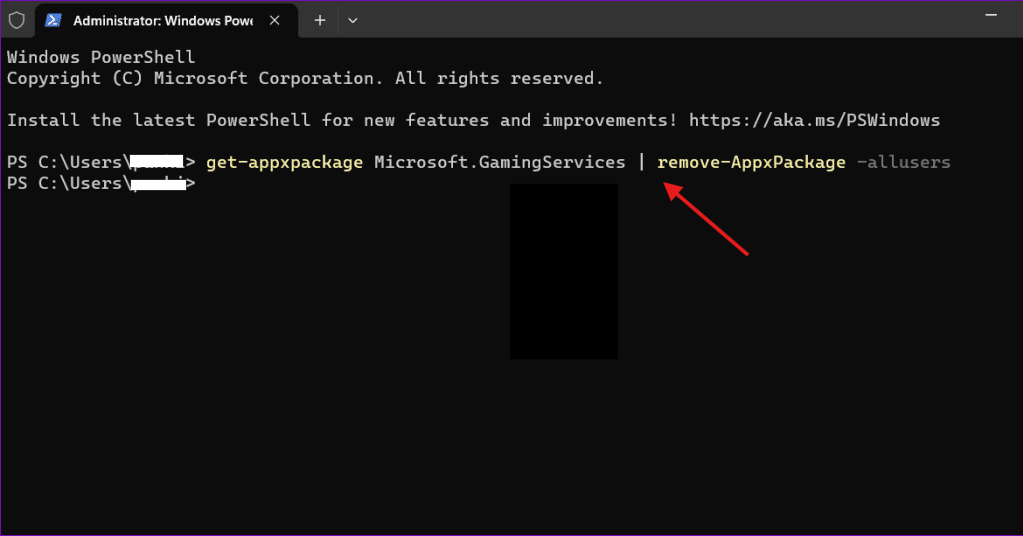
Missing or broken Xbox components can block game installs.
Fix 3: Repair & Reset Microsoft Store App
If Store itself is broken, installs will fail. You must repair or perhaps reset it.
1. Open Settings, click on System, and then go to System components.
2. Search for Microsoft Store.
3. Click Advanced options.
4. Click: Repair and if needed, Reset.
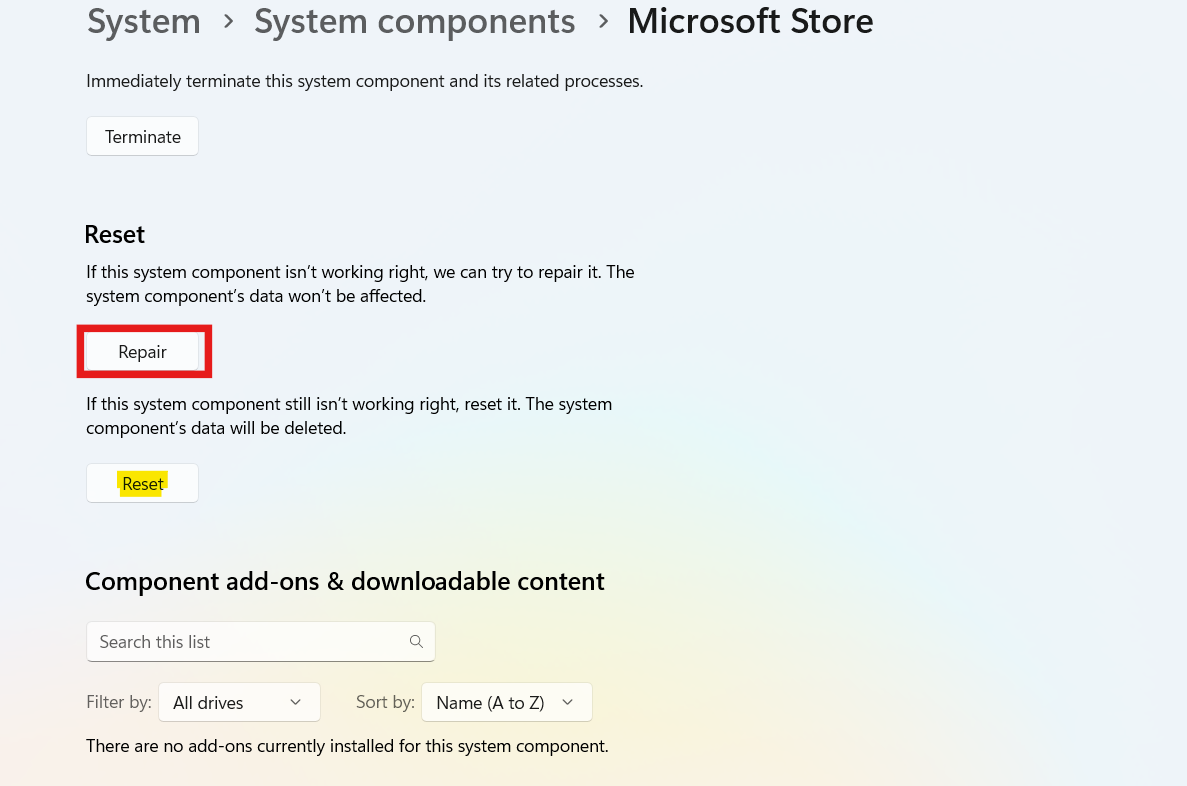
This restores Store functionality without affecting your files.
Fix 4: Sign Out and Back Into Microsoft Store
Account sync issues can also trigger this error. Follow these steps:
1. Open Microsoft Store.
2. Click your profile icon and choose Sign out.
3. Restart your PC.
4. Sign back in.
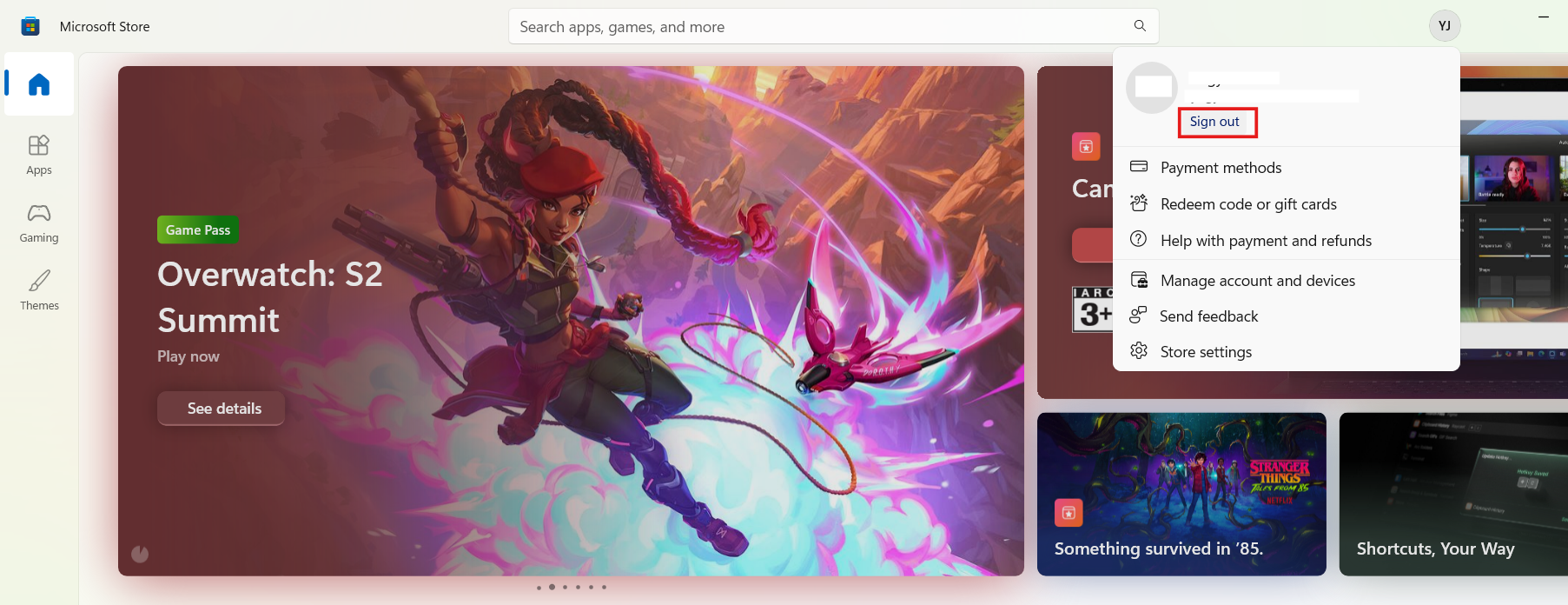
This refreshes licensing and download permissions required for Minecraft.
Important Note
Minecraft installation relies heavily on Microsoft infrastructure, so errors may occur if services are temporarily unavailable or misconfigured. The game is distributed through official platforms like the Minecraft launcher and the Microsoft Store ecosystem.
Summary
Microsoft Store cache issues, broken Gaming Services, or account sync problems usually cause the We weren’t able to install the app error in Minecraft. Resetting the Store, reinstalling Xbox services, and repairing apps are the most effective fixes. In most cases, one of these solutions will resolve the issue quickly.