Remote Desktop is supposed to make working on another computer feel easy. When the connection starts freezing every few minutes or drops without warning, that experience can be frustrating. When an RDP session freezes, lags, or disconnects on Windows 11 or Windows 10, there’s no single reason for it. For one user, the problem turns out to be a weak network connection. For another, it’s a printer conflict or a setting that changes how RDP communicates across the network.
Page Contents
Remote Desktop Keeps Freezing or Disconnecting [6 Fixes]
If your RDP sessions have become unreliable in Windows 11 or Windows 10, the fixes below might help you fix it. You may not need all of them; many users find that one small change is enough to stop the disconnects altogether.
Fix 1: Disable Persistent Bitmap Caching
Remote Desktop stores parts of the screen locally so it doesn’t have to redraw everything from scratch every time. Most of the time, that’s helpful. Occasionally, though, the stored data becomes corrupted, and the session starts to freeze, show visual glitches, or randomly disconnect.
1. Press Win + R to open the Run dialog box.
2. Type mstsc and press Enter.
3. Click Show Options. Switch to the Experience tab.
4. Uncheck Persistent bitmap caching option.
5. Click Connect button and then start a new Remote Desktop session.
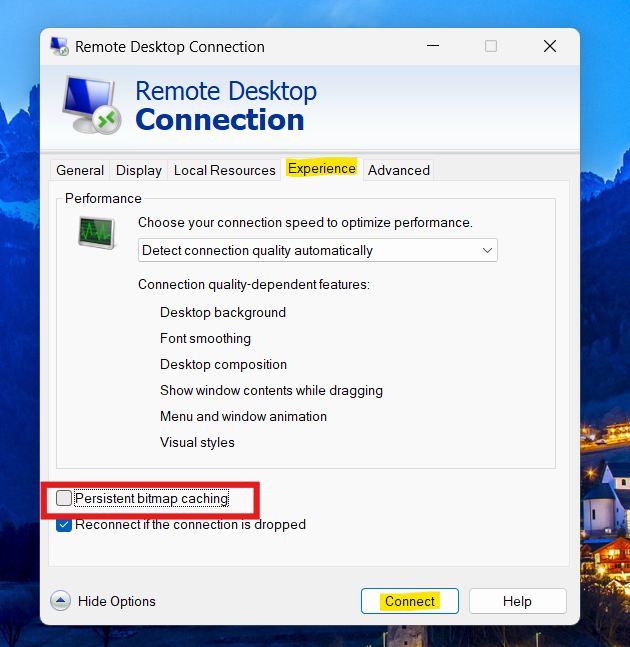
Check if the freezing or disconnection issue is now resolved.
Fix 3: Check Your Network Connection
A stable internet connection is one of the most important requirements for Remote Desktop. Cross check your network with these steps:
Verify and check if your internet connection is active and stable. For this, you can run Network Adapter troubleshooter.
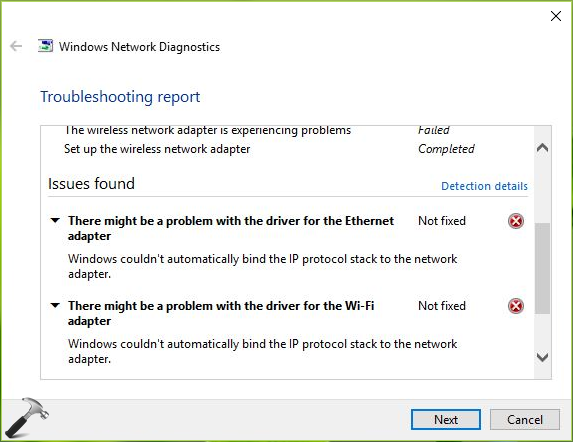
You can also try to restart your modem and router.
Try switching to a wired Ethernet connection, if possible. Disconnect any VPN service temporarily and test the Remote Desktop connection again.
If the problem only appears at random or gets worse when the network is busy, your connection becomes strong suspect.
Fix 4: Disable UDP for Remote Desktop Using Group Policy
Some firewalls and unstable connections work better when Remote Desktop relies on TCP alone.
1. Press Win + R.
2. Type gpedit.msc and press Enter.
3. Navigate to the following path:
Computer Configuration > Administrative Templates > Windows Components > Remote Desktop Services > Remote Desktop Connection Client
4. Double-click Turn Off UDP On Client. Select Enabled. Click Apply and then OK.
5. Restart your computer.
6. Establish a new Remote Desktop connection and check whether the problem has been fixed.
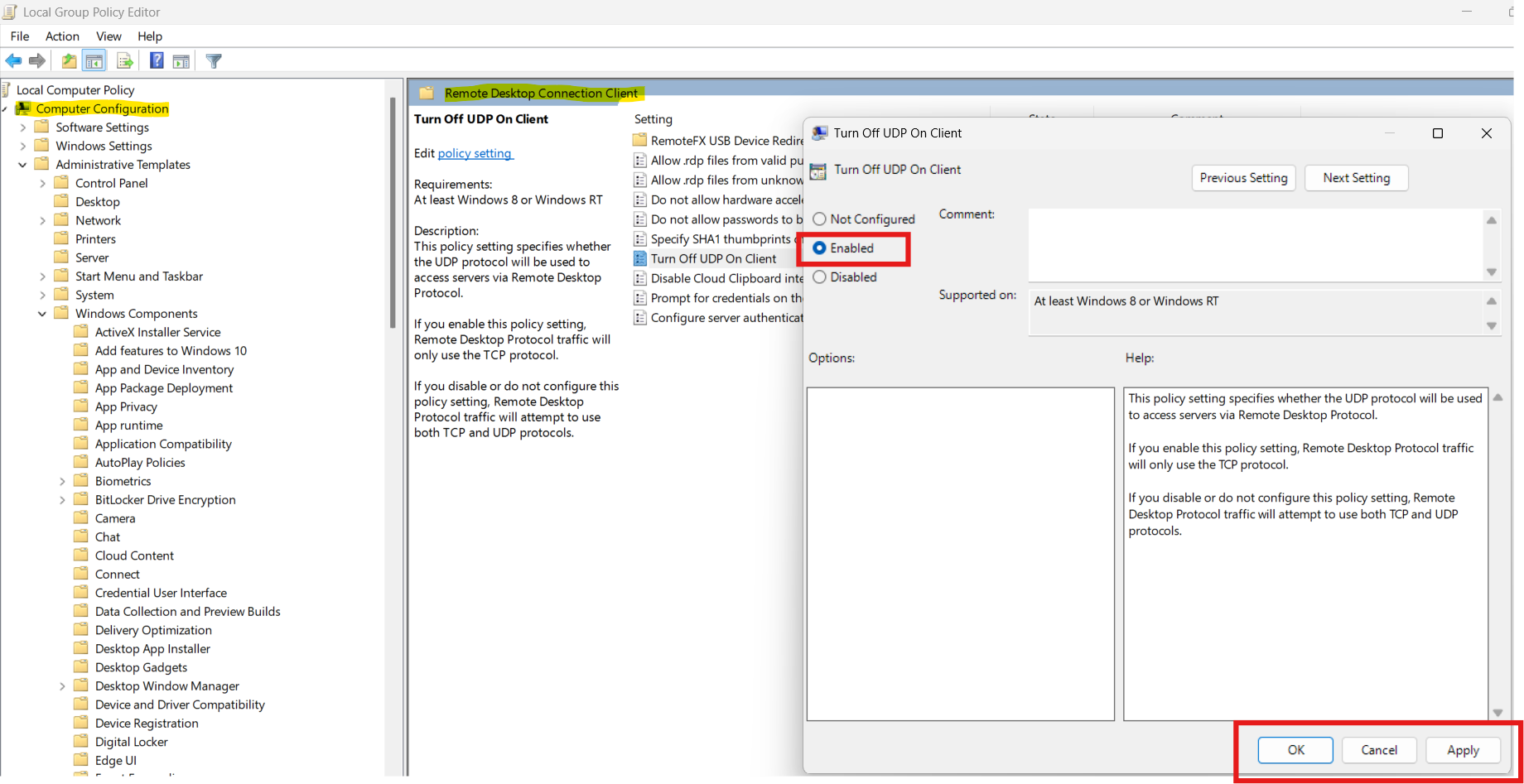
By disabling UDP, you force Remote Desktop to use TCP only.
Fix 5: Using fClientDisableUDP registry value
Follow these steps to modify fClientDisableUDP registry value, see if it helps:
1. Press Win + R. Type regedit and press Enter.
2. Navigate to:
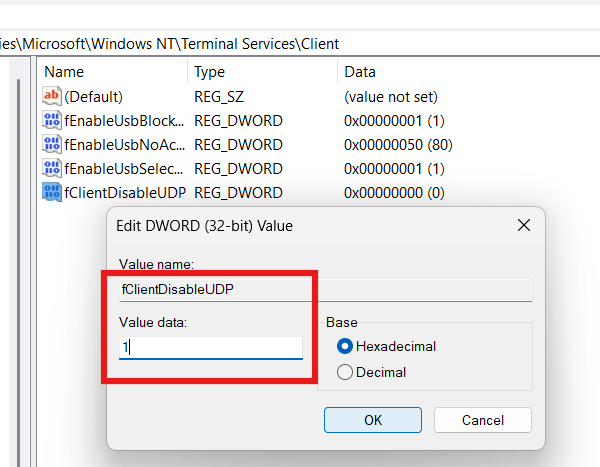
HKEY_LOCAL_MACHINE\SOFTWARE\Policies\Microsoft\Windows NT\Terminal Services\Client
3. Right-click an empty area in the right pane. Select New and then DWORD (32-bit) Value.
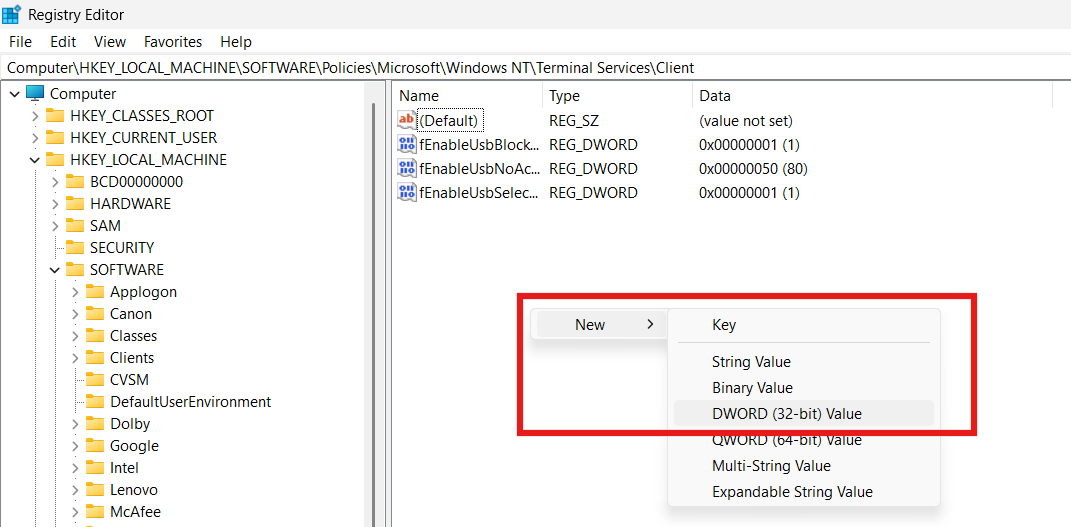
4. Name the value: fClientDisableUDP
5. Double-click the value. Set Value data to 1 and click OK.
6. After completion, restart your computer.
Fix 6: Modify the UseURCP registry entry
You may also try changing the UseURCP value used by the Remote Desktop client, in case if previous solution didn’t helped.
1. Open the Run dialog using Win + R.
2. Type regedit and press Enter.
3. Navigate to:
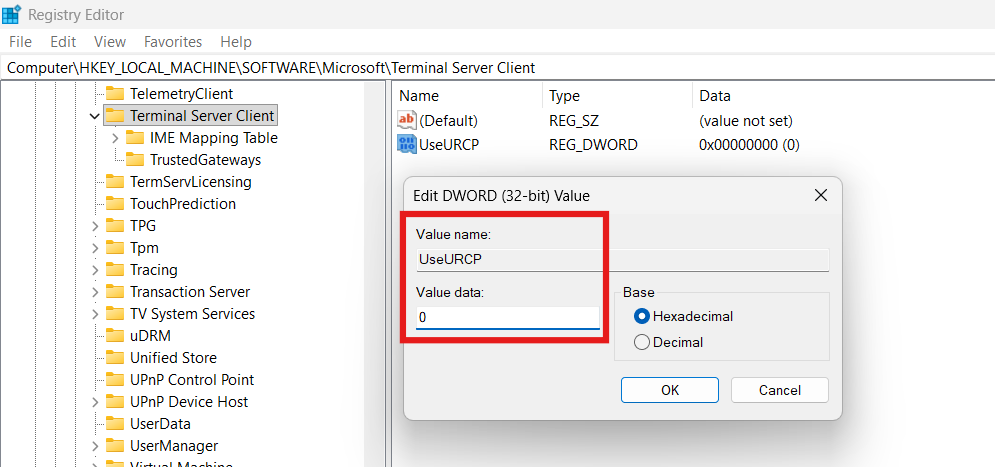
HKEY_LOCAL_MACHINE\SOFTWARE\Microsoft\Terminal Server Client
4. Look for the UseURCP value. If the value does not exist, right-click the empty area and select New, click DWORD (32-bit) Value.
5. Name the new value: UseURCP
6. Double-click UseURCP. Set Value data to 0 and click OK.
7. Restart your computer after this.
In most cases, one or more of these would provide you with a stable connection once again.