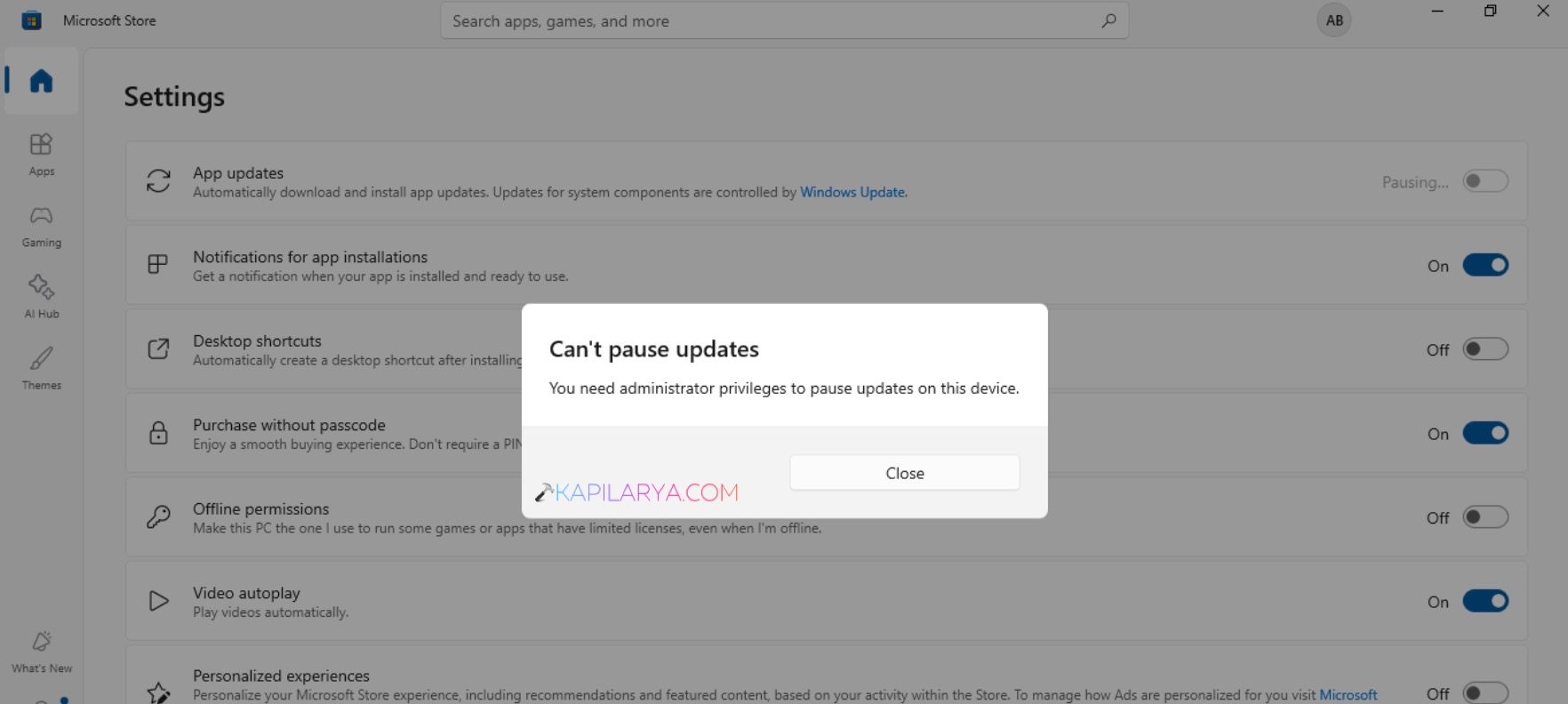
If you are on Windows 11 device and can’t pause updates on Microsoft Store, this article is for you. In Microsoft Store, you can simply turn off the updates for existing apps by going to Store settings > App updates. However, when you try to turn off app updates option, you may see You need administrator privileges to pause updates message. In this guide, you will see how you can resolve this error.
Page Contents
Fix: You need administrator privileges to pause updates in Windows 11
Fix 1: Check if you’re signed into admin account
Turning off app updates from Microsoft Store requires administrative privileges. So if you’re receiving this error, it might be possible that you are turning off the option from standard account. While you must do this via an administrator account.
Hence, the easiest fix would be to sign in with administrator account on your device. Try turning off with admin account and it should automatically resolve the problem. In case if you do not have the authority to use an administrative account, you can ask the administrator to do this change for you. In case if none of the administrator accounts are available on the device, it might be a case of lost administrative rights. Kindly refer the fix mentioned below.

Fix 2: Disconnect work or school account
If the fix one does not resolve your issue, this might be possible because your device is connected to a work or school account. If that is true, your IT administrator might have applied some restrictions via Group Policy or any other device management tool.
You can simply ask your IT administrator to remove the restriction. If you are not able to approach IT administrator, you can try disconnecting work or a school account.
1. Open the Settings app.
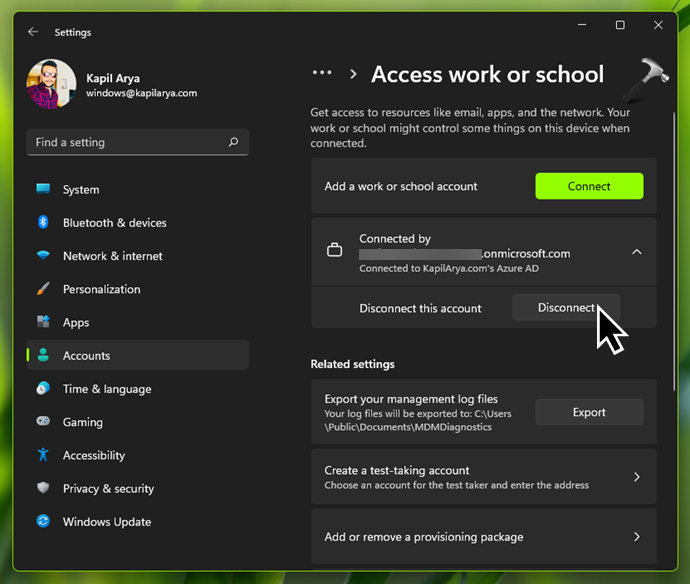
2. Go to Accounts > Access work or school.
3. Locate the work or school account, and click on the Disconnect button.
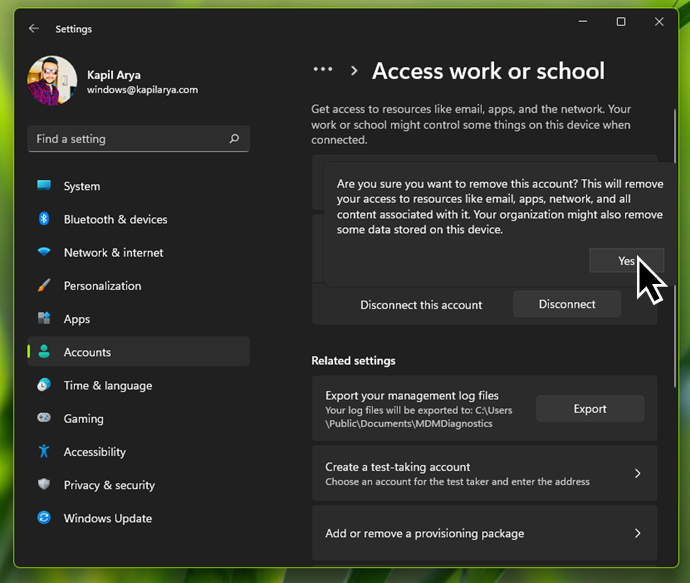
4. Click Yes in the confirmation prompt.
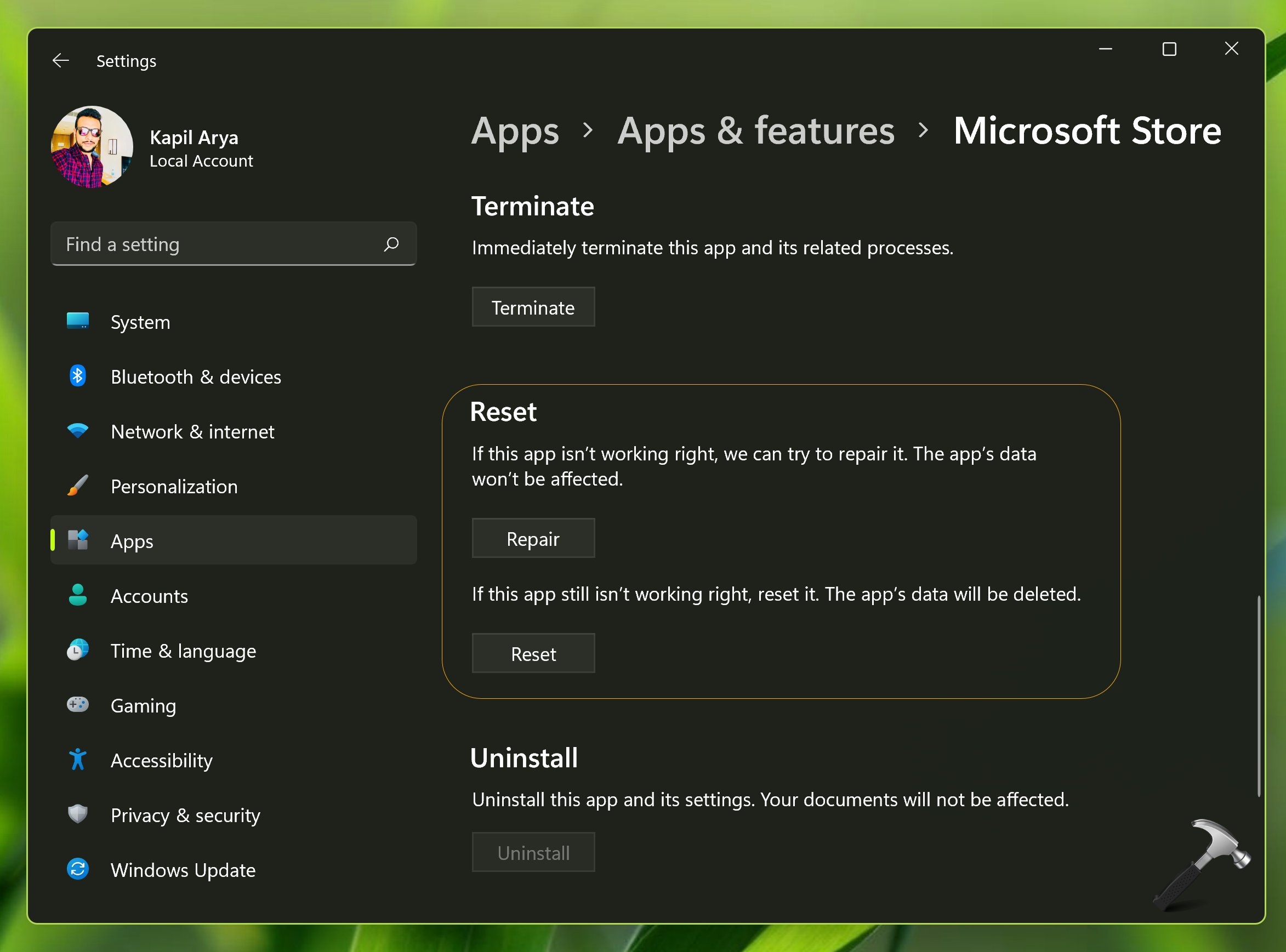
Fix 3: Reset Microsoft Store
If the previous solution didn’t helped you, you can try resetting microsoft store app.
1. Open the Settings app.
2. Go to Apps > Apps & features.
3. Click on Installed apps list and under list of apps installed, locate Microsoft Store. Click on ··· next to it and select Advanced options.
4. Then you can use Reset button here to reset Microsoft Store to app defaults. You will need to sign in again, if you reset Microsoft Store app.
That’s it!