If Antigravity IDE Stuck or not opening and closes immediately after opening, you’re not alone. In many cases, the issue isn’t caused by Windows itself but by installation conflicts, corrupted configuration files, or launch problems related to the IDE.
Page Contents
Fix Antigravity IDE Stuck or Not Opening on Windows 11
Before assuming the installation is broken, try the fixes below. One of them is often enough to get the IDE working again in Windows 11.
Fix 1: Perform a Clean Reinstall to fix Antigravity IDE Stuck or Not Opening
A regular uninstall doesn’t always remove Antigravity IDE completely. Leftover configuration files can carry over to the next installation and cause the same launch problem to reappear. If you’ve already tried reinstalling once without success, this method is worth trying.
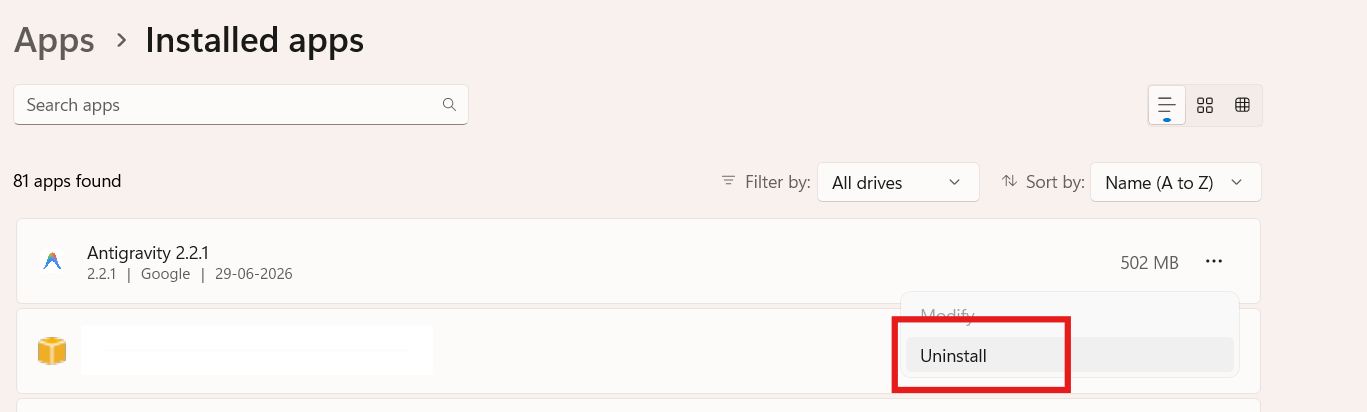
1. Uninstall Antigravity IDE by going to Settings, clicking on Apps, and then Installed apps.

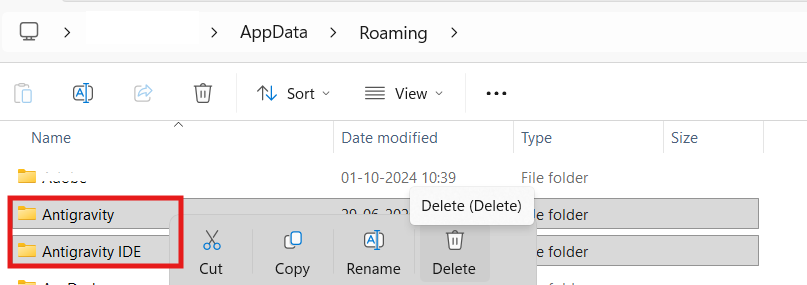
2. Press Win + R, type %APPDATA%, and delete any Antigravity folder you find.
3. Open C:\Users\YourUsername and delete the .antigravity folder.
4. Download the latest version of Antigravity IDE from the official website.
Install it again and launch the application.

Fix 2: Check for Multiple Antigravity Installations
This is easy to miss, especially if you’ve installed both Antigravity and Antigravity IDE. Some users have found that the two applications conflict with each other, preventing the IDE from opening properly. Removing the duplicate installation has resolved the problem for many users.
1. Open Settings and go to Apps and then Installed apps.
2. Search for Antigravity.
3. If both Antigravity and Antigravity IDE are installed, uninstall the standard Antigravity app.
4. Restart your PC and try launching Antigravity IDE again.
Note: If the IDE launches successfully, the issue was likely a version conflict. You can now try reinstalling the latest version of the standard Antigravity app from the official website to restore your full agent-management capabilities.
Fix 3: Launch Antigravity IDE with Compatibility Flags
If the IDE crashes before displaying a window, GPU rendering or sandbox-related issues could be preventing it from starting. Adding a few launch parameters helps bypass these components and is often used as a troubleshooting step.
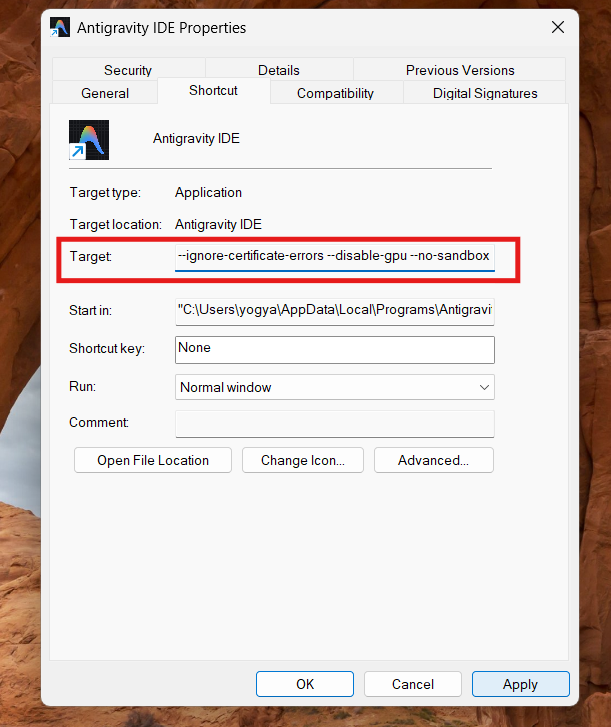
1. Right-click the Antigravity IDE shortcut and select Properties.
2. In the Target field, add the following after the executable path:
--ignore-certificate-errors --disable-gpu --no-sandbox
3. Click Apply and OK.
4. Launch the IDE using the modified shortcut and check if it opens normally.