Passkeys are a modern, highly secure way to sign in to your Microsoft account using Windows Hello. Instead of typing a password, you verify your identity using Windows Hello which includes PIN, fingerprint and facial recognition options. These type of logons are instant and it also helps to stop phishing attacks, because there is no password for a malicious website to steal.
Page Contents
Add Passkey to Microsoft Account in Windows 11
Manual steps
Whether you’re setting up passwordless sign-in for the first time or adding another passkey to an existing Microsoft account, Windows 11 makes the process straightforward. Follow the steps below to create and save a new passkey.
If you already have Windows Hello set up on your PC, adding a passkey won’t take more than 2 minutes. You’ll also need to sign in with the Microsoft account you want to protect.
1. Open your browser and visit the Microsoft Account security page (https://account.microsoft.com/security).
2. Sign in to your Microsoft account if prompted.
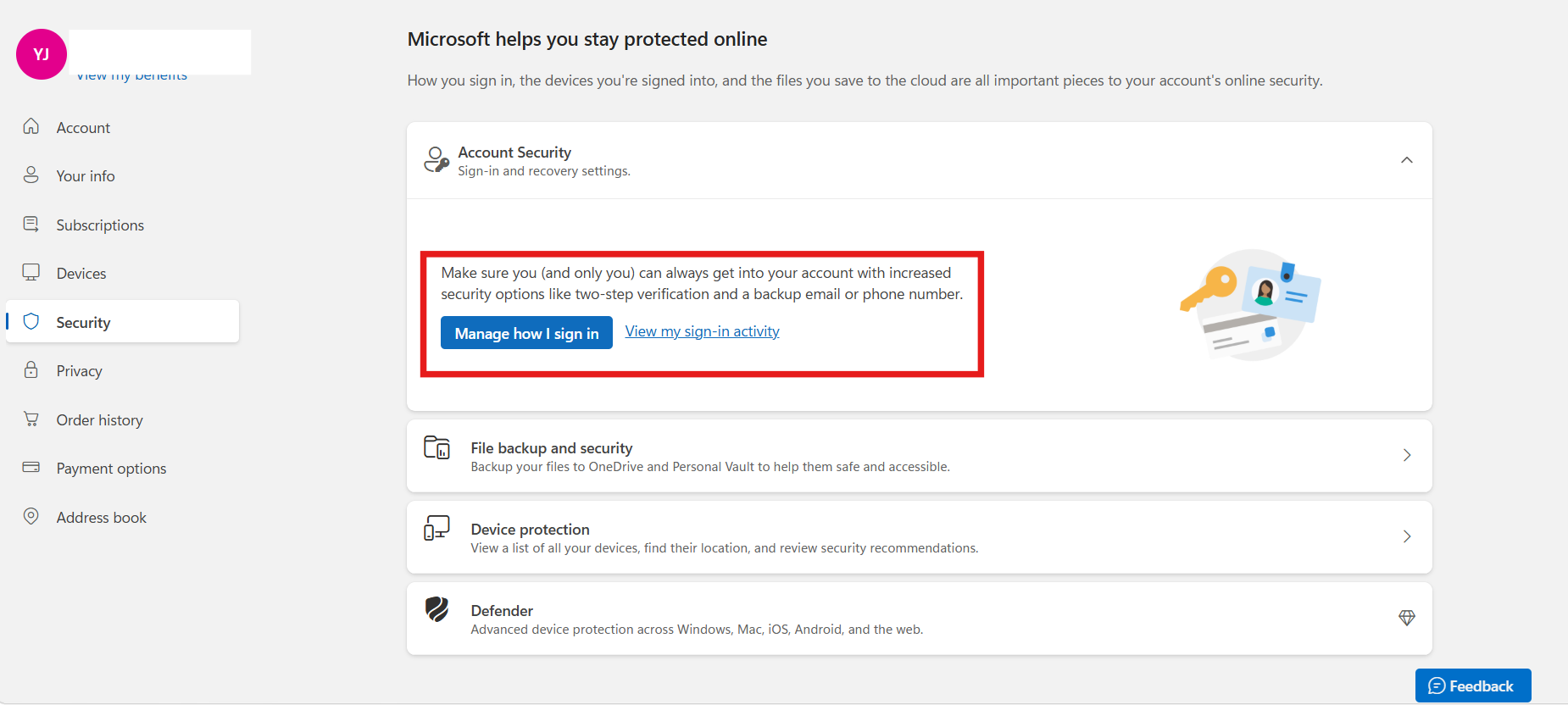
3. Go to Security and select Advanced security options. Alternatively, choose Manage how I sign in from the Account Security section if it’s available.
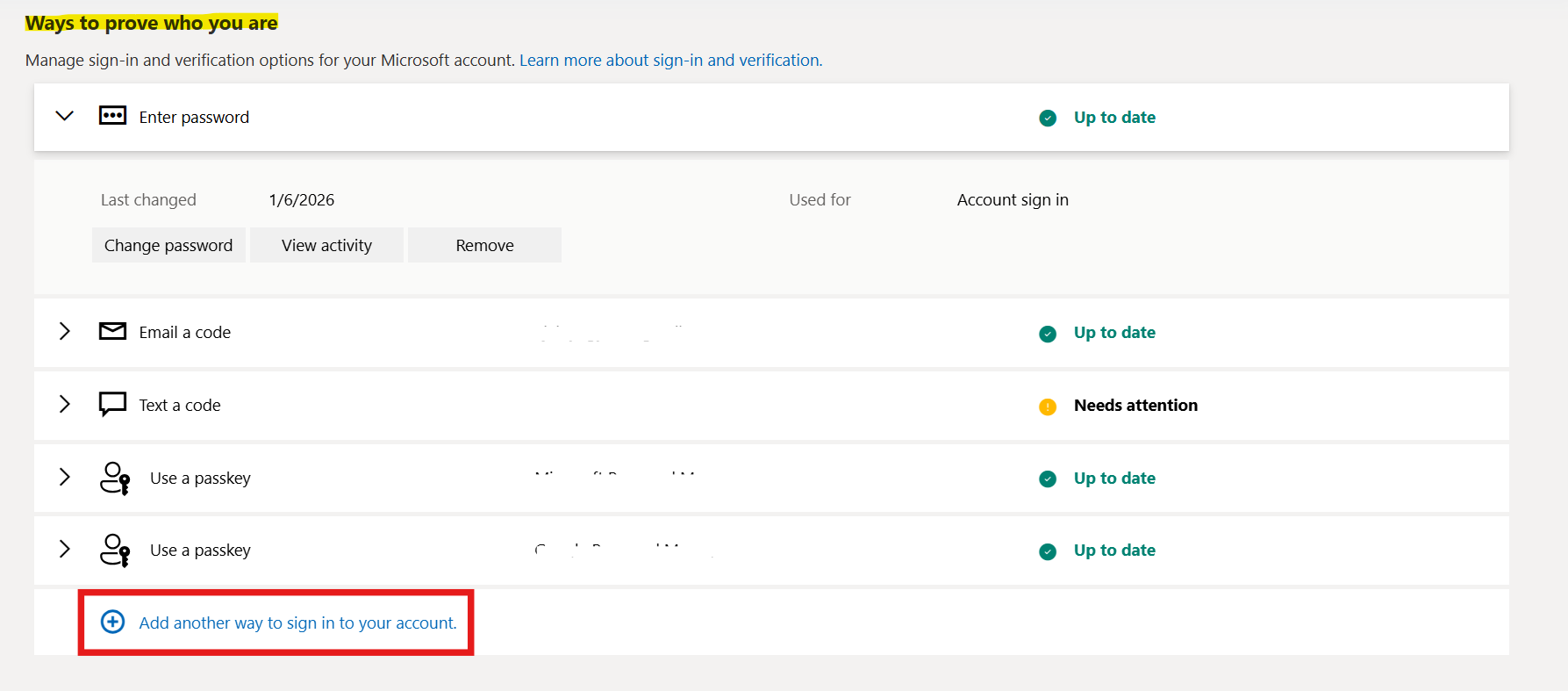
4. Scroll to the Ways to prove who you are section.
5. Select Add a new way to sign in or verify.
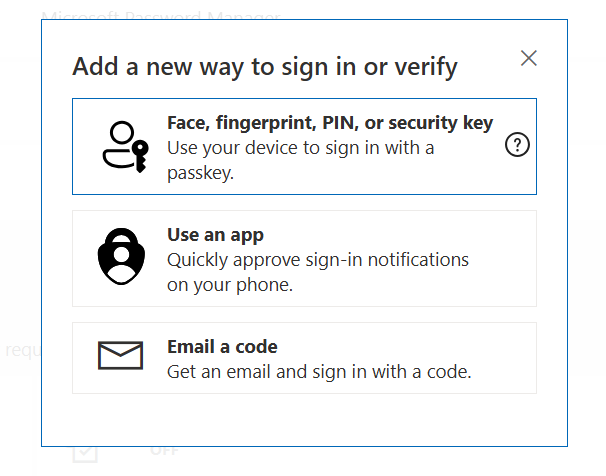
6. Choose the Face, fingerprint, PIN, or security key option from the pop-up menu.
7. Complete the Windows Hello verification using your face, fingerprint, or PIN, depending on how Windows Hello is configured on your device.
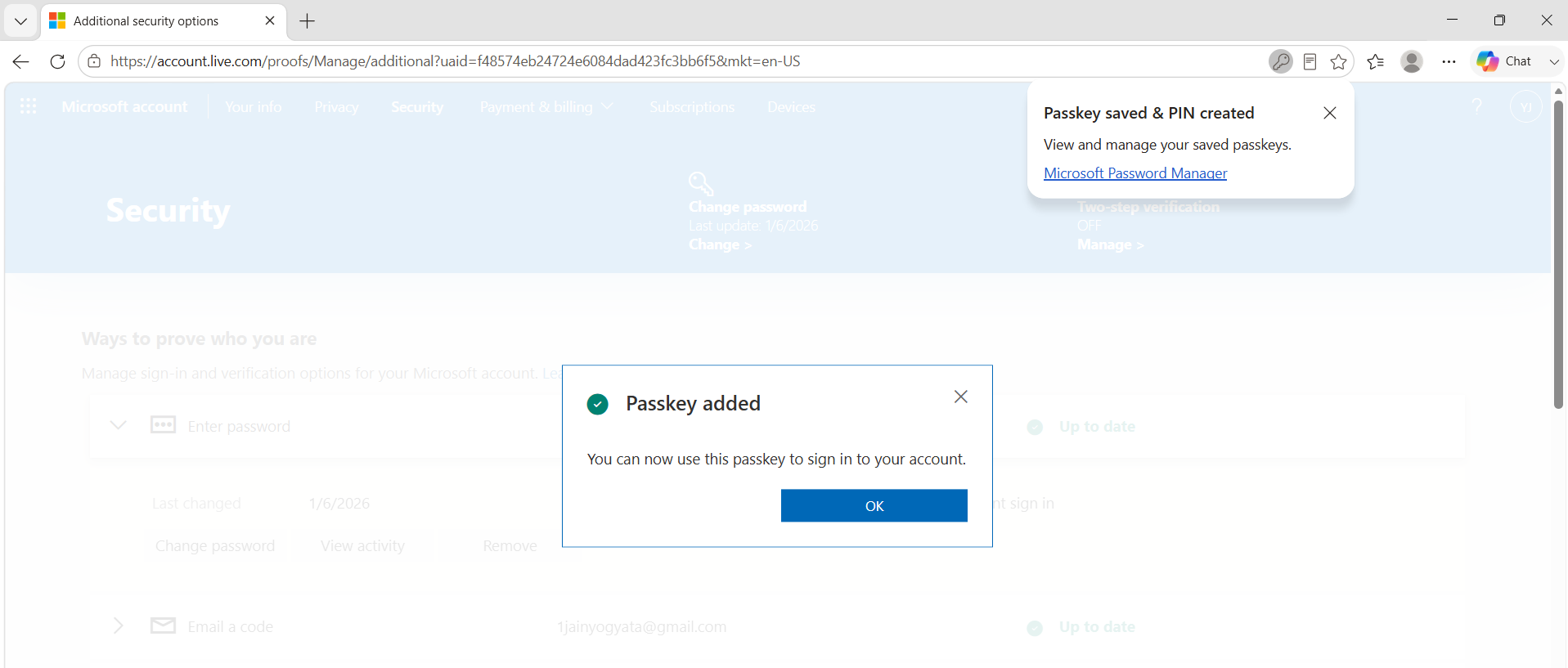
8. Once the setup is complete, the passkey will be linked to your Microsoft account and can be used for future sign-ins.
Video guide
Here’s a video guide to show you how to add a passkey live: